

Microsoft’s console-style Xbox Full Screen Experience — the controller-first, full-screen launcher that debuted on the ROG Xbox Ally handhelds — can be enabled on many Windows 11 PCs, and with a few simple steps you can make your machine boot straight into a smooth, game-first interface that behaves more like a living room console than a traditional desktop. This article explains exactly what the Full Screen Experience (FSE) does, which Windows versions and apps are required, how to enable it step-by-step on any eligible Windows 11 PC, and the practical trade-offs to consider before switching modes.
Microsoft introduced the Full Screen Experience as an opt-in gaming mode that optimizes Windows for gamepad-driven navigation and streamlined performance on handheld gaming PCs. The design intent is clear: give users a console-like launcher that focuses on games and gaming apps, minimizes desktop distractions, and can be invoked with controller-friendly UI flows.
Although the FSE shipped with the ROG Xbox Ally hardware and has been highlighted for handheld devices, the feature is implemented in Windows 11 itself and exposed through the Settings and the Xbox app. That means many Windows 11 systems can access the mode — provided they meet version requirements and have the supporting Xbox app updates — and you don’t need to be using a handheld to enjoy it. The feature also includes options to reduce background activity for better gaming performance and to set a chosen “home app” (for most users, the Xbox app) as the primary interface when FSE is active.
For power users, content creators, or those who need persistent access to desktop utilities and overlays, FSE is a flexible addition but may not be suitable as an always-on mode. The recommended approach is to test FSE in an on-demand configuration first, confirm your essential tools work, and then consider enabling startup optimization if the mode delivers the expected improvements.
A few realities remain important: it’s not a separate OS and it won’t replace the need for desktop access for advanced tasks. OEM-specific behaviors and early-stage rollout quirks may produce different results across devices. Back up critical settings and be prepared to toggle the option off if you encounter workflow disruptions.
To enable the full-screen Xbox experience on your Windows 11 PC, update Windows and the Xbox app, flip the Full Screen Experience toggle in Settings > Gaming, choose Xbox as your home app, and decide whether you want the experience to start automatically on sign-in. With these steps you can convert your PC into a console-like launcher that prioritizes games and controller-based navigation while still running the full Windows ecosystem underneath.
Enable the Full Screen Experience intentionally, test the behavior with your usual games and utilities, and adjust the startup optimization only after you’re satisfied that the game-first UX works with your workflow. The mode is powerful when used for its intended purpose — immersive, controller-first gaming sessions — and it’s flexible enough to be toggled on or off when your needs change.
Source: Neowin How to enable full-screen Xbox Experience on any Windows 11 PC
 Background / Overview
Microsoft introduced the Full Screen Experience as an opt-in gaming mode that optimizes Windows for gamepad-driven navigation and streamlined performance on handheld gaming PCs. The design intent is clear: give users a console-like launcher that focuses on games and gaming apps, minimizes desktop distractions, and can be invoked with controller-friendly UI flows.Although the FSE shipped with the ROG Xbox Ally hardware and has been highlighted for handheld devices, the feature is implemented in Windows 11 itself and exposed through the Settings and the Xbox app. That means many Windows 11 systems can access the mode — provided they meet version requirements and have the supporting Xbox app updates — and you don’t need to be using a handheld to enjoy it. The feature also includes options to reduce background activity for better gaming performance and to set a chosen “home app” (for most users, the Xbox app) as the primary interface when FSE is active.
What the Xbox Full Screen Experience actually is
A console-like launcher for Windows 11
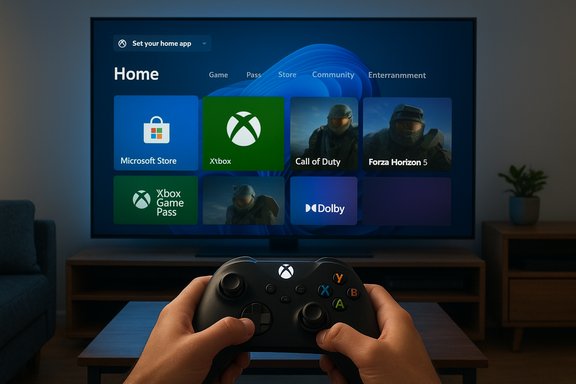
The Full Screen Experience is a system-level UI mode that:- Boots your user session into a full-screen, controller-centric launcher instead of the traditional Windows desktop.
- Uses a selected gaming home app (for example, the Xbox app) as the central hub for launching games and supported apps.
- Hides typical desktop chrome such as the taskbar and Start menu while active to avoid accidental touchpad or mouse interactions.
- Presents a simplified navigation model designed for gamepads: larger icons, a library view focused on games, and controller button hints.
Performance optimizations and resource management
One of the selling points of FSE is a lightweight startup footprint when configured to do so. The mode offers an option to enter FSE on startup and avoid launching unnecessary background processes, which can reduce memory and CPU usage for a cleaner gaming experience on constrained hardware. This is not a separate operating system; Windows services, drivers, and security software still run as required, but some nonessential user processes are deferred or suppressed while the mode is active.How you enter and exit FSE
There are multiple ways to enter and exit the Full Screen Experience:- Enable it to start automatically after sign-in.
- Manually enter it from the Game Bar or Task View.
- Use the F11 hotkey configured for the FSE entry/exit action (Windows 11 provides a keyboard shortcut for toggling FSE).
- On devices with dedicated Xbox or companion buttons, the controller input is recognized and provides direct access to the FSE UX.
Requirements and compatibility
Windows versions and updates
To use the Windows 11 Full Screen Experience reliably, you need a recent Windows 11 build. The feature is part of Windows 11 and is exposed in versions that include the gaming UI updates (the releases that introduced FSE landed with Windows 11 feature updates). Ensure your PC is running an up-to-date Windows 11 build — systems on the latest public feature update or Release Preview channel are most likely to have the FSE settings available.Xbox app and Microsoft Store
The Xbox app is the primary “home app” Microsoft expects users to select for the Full Screen Experience. You should:- Update the Xbox app via the Microsoft Store (or the Store’s update mechanism) to ensure FSE integration and “My apps” features (which consolidate third-party launchers and games) are present.
- Keep the Microsoft Store app updated as it often delivers Xbox app updates and related platform improvements.
OEM and driver considerations
While FSE is a Windows feature, some OEMs may choose to expose or restrict specific experience toggles on their hardware. Device makers who ship handhelds or gaming laptops often add firmware or driver layers that integrate with FSE for additional functionality (for example, hardware power profiles). On generic desktops and laptops, FSE is generally accessible but may not be as fully optimized as on gaming handhelds.Hardware considerations
FSE is optimized for gamepad-first workflows. While the UI works with keyboard and mouse, the ideal experience assumes:- A connected controller (Xbox controller or compatible Bluetooth controller).
- Graphics drivers up to date for full-screen exclusive mode behavior.
- Sufficient storage and CPU/GPU resources for the games you intend to run.
How to enable Full Screen Xbox Experience on any Windows 11 PC — step-by-step
Follow this sequence to enable the Full Screen Experience and make the Xbox app your game-first home:- Update Windows 11
- Open Settings > Windows Update and install all pending updates.
- If you don’t see the Full Screen Experience option, check for feature updates on the Release Preview or public channels. Newer feature updates expose the gaming FSE controls.
- Update the Xbox app and Microsoft Store
- Open Microsoft Store > Library > Get updates, and install updates for the Xbox app and Store.
- Restart the PC after updates complete.
- Open Settings > Gaming > Full screen experience
- In the Gaming section of Settings you will find Full screen experience.
- The dropdown labeled Set your home app will list installed gaming home apps (Xbox app, and possibly other store-enabled home apps).
- Select Xbox (or preferred gaming home app) as the home app
- Choose Xbox from the drop-down to enable the FSE integration.
- Optionally enable Enter full screen experience on startup if you want Windows to boot straight into the launcher after you sign in.
- Configure performance optimization (optional)
- When you enable the startup option, Windows asks whether to optimize the device by not launching nonessential background processes during FSE. Toggle this setting per your preference.
- Restart your PC to test the startup behavior.
- Enter and exit Full Screen Experience manually
- Use the Game Bar (Windows + G) or Task View (Windows + Tab) to enter FSE on demand.
- Press the F11 FSE hotkey or navigate to the Settings cog inside the Game Bar to switch modes while logged in.
- Add non-Xbox apps to the Xbox app (optional)
- The Xbox app’s evolving “My apps” feature aims to list other installed game clients (Steam, Battle.net, etc.. Some third-party apps can be launched from the Xbox home once recognized.
- If a store or utility doesn’t appear immediately, check the Xbox app’s settings for an option to include installed apps or sign in to the store clients that are supported.
Practical examples — desktop, laptop, and handheld scenarios
Desktop PC
Full Screen Experience can be used on a desktop with a controller attached. The UX hides the desktop and taskbar, making it convenient if you connect your PC to a TV and use a couch-friendly controller. On desktops with powerful CPUs/GPUs, the performance benefits of reduced background processes will be minimal, but the interface consistency and controller-first navigation may be desirable.Gaming laptop
On a gaming laptop, FSE is useful for an immersive, distraction-free session on the go. Enabling the startup optimization can reduce background memory usage and may slightly improve thermal headroom during single-session play.Handhelds and small-form-factor PCs
Handhelds and very small form-factor devices benefit the most from FSE because performance headroom is limited and controller-first navigation is more natural. OEMs that ship handhelds often pair FSE with specific firmware features like performance profiles and button mappings to create a polished, console-like UX.Benefits of enabling the Full Screen Experience
- Console-like navigation: Large, controller-friendly UI elements make launching games and switching apps easier without a keyboard and mouse.
- Reduced background noise: An option to limit nonessential background processes can free up RAM and CPU cycles on constrained hardware.
- Cleaner visuals for games: Hiding the taskbar and desktop reduces accidental UI overlap and accidental Alt-Tab behavior.
- Single hub for games: With the Xbox app selected as the home app, all supported games and (in progress) third-party store shortcuts appear in one place.
- Quicker switching with a controller: Jump from the launcher to a game, and back, without wrestling a keyboard or mouse.
Limitations, risks, and things to watch
Not a replacement for Windows desktop — be mindful of trade-offs
FSE is a UX layer on top of Windows. It is not a separate operating system or an isolated environment. That means:- Background services required for system security and updates still run.
- Antivirus, cloud sync, and system maintenance tasks can still trigger while in FSE.
- Some desktop tools and utilities may be harder to access quickly when FSE is active.
Application and launcher compatibility
While the Xbox app is rapidly improving support for listing and launching third-party stores and applications, coverage is not yet universal. Some game launchers may not show up or may not be fully controllable from within the Xbox home, requiring a return to the desktop for installation, updates, or troubleshooting.OEM, driver, and hardware-specific issues
Device makers may implement custom behaviors that interact with FSE. On some systems, you may encounter:- Button mapping inconsistencies (for example, the Xbox button behavior may differ between desktop and FSE).
- Game Bar or controller button quirks that persist in FSE.
- Missing manufacturer optimizations that make FSE less smooth on non-handheld hardware.
Early rollout and Insider channel caveats
FSE initially targeted handhelds and has been rolled out in waves; some features are staged through Insider channels and Release Preview. If you enable FSE on a system that just received it via insider/preview builds, expect occasional glitches, UI oddities, or early-bird bugs.Potential for interrupted workflows
Because FSE is designed to hide the desktop and focus on games, users who rely on background apps (chat clients, OBS, streaming overlays, custom macros) may find those utilities less easily accessible when FSE is active. Consider whether you need quick access to those utilities before forcing FSE at startup.Troubleshooting: common problems and fixes
- FSE option missing in Settings
- Confirm Windows 11 is fully updated and that you have a recent feature update installed or you’re in the Release Preview channel if features aren’t public yet.
- Update the Xbox app and Microsoft Store.
- Reboot after installing updates.
- Selecting Xbox as home app doesn’t change behavior
- Confirm the Xbox app is fully updated and signed into the same Microsoft account as your Windows user if prompted.
- If system policies or OEM customizations prevent the setting, check the device manufacturer’s support pages or firmware settings.
- Controller input seems inconsistent in FSE
- Update controller drivers, and ensure Bluetooth or USB drivers are current if using wireless controllers.
- Some mapping utilities or driver-level remappers can conflict with FSE controller behavior; temporarily disable them to check.
- Game Bar or Xbox button behavior is different in FSE
- FSE changes how certain system-level inputs are handled. Verify Game Bar settings and, if necessary, remap physical buttons via your device’s hardware utilities.
- Certain apps won’t launch from the Xbox home
- Return to the desktop to install or update the app/launcher.
- Once an app is installed and discovered by the Xbox app, re-scan or restart the console/home app to refresh the list.
Advanced tips and customization
- Use Task View to switch quickly between desktop workflows and FSE without signing out.
- Keep a small desktop shortcut or Start Menu entry for utilities you must access while in FSE; a two-step flow (Task View → Desktop → Utility) is often faster than disabling FSE entirely.
- If you use overlays (streaming or capture software), test them in FSE before streaming live — overlay support may behave differently under the FSE optimization profile.
- For maximum control, enable FSE on-demand rather than at startup while you experiment. This preserves your usual desktop environment until you’re ready to make a permanent change.
Should you enable Full Screen Experience?
For many players — particularly those using handhelds, small-form-factor gaming PCs, connected living-room rigs, or laptops for couch play — the Full Screen Experience is an immediately useful option. It simplifies navigation, helps focus system resources on games, and provides a more console-like, controller-first UX.For power users, content creators, or those who need persistent access to desktop utilities and overlays, FSE is a flexible addition but may not be suitable as an always-on mode. The recommended approach is to test FSE in an on-demand configuration first, confirm your essential tools work, and then consider enabling startup optimization if the mode delivers the expected improvements.
Final thoughts and cautionary notes
The Full Screen Experience is one of Microsoft’s clearest pushes to make Windows a more player-friendly platform, particularly on handheld gaming PCs. It consolidates library access, simplifies controller navigation, and promises better performance on constrained hardware by deferring background processes.A few realities remain important: it’s not a separate OS and it won’t replace the need for desktop access for advanced tasks. OEM-specific behaviors and early-stage rollout quirks may produce different results across devices. Back up critical settings and be prepared to toggle the option off if you encounter workflow disruptions.
To enable the full-screen Xbox experience on your Windows 11 PC, update Windows and the Xbox app, flip the Full Screen Experience toggle in Settings > Gaming, choose Xbox as your home app, and decide whether you want the experience to start automatically on sign-in. With these steps you can convert your PC into a console-like launcher that prioritizes games and controller-based navigation while still running the full Windows ecosystem underneath.
Enable the Full Screen Experience intentionally, test the behavior with your usual games and utilities, and adjust the startup optimization only after you’re satisfied that the game-first UX works with your workflow. The mode is powerful when used for its intended purpose — immersive, controller-first gaming sessions — and it’s flexible enough to be toggled on or off when your needs change.
Source: Neowin How to enable full-screen Xbox Experience on any Windows 11 PC
