MSI Claw Gains Windows 11 Xbox Full Screen Experience for Memory Savings and FPS

  • Thread Author
MSI’s Claw handhelds have officially gained support for Windows 11’s Xbox Full Screen Experience, a console‑style shell Microsoft is rolling out through the Windows Insider program — and MSI says the change brings measurable memory savings and modest framerate uplifts that make the Claw feel more like a dedicated gaming handheld.

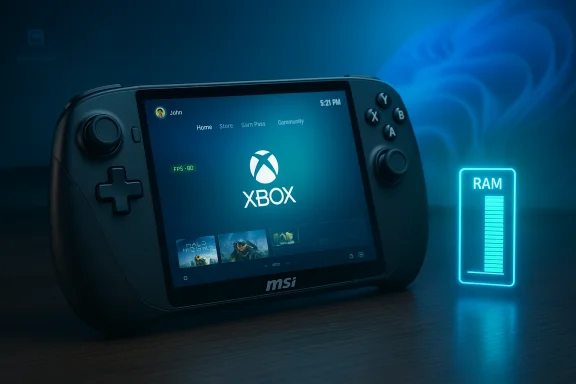
MSI handheld console displaying Xbox UI with a glowing RAM gauge.Background / Overview​

Microsoft’s Xbox Full Screen Experience (FSE) is a session posture layered on top of Windows 11 that runs a chosen “home app” (most commonly the Xbox PC app) as a full‑screen launcher while intentionally deferring and suppressing many desktop subsystems and cosmetic shell elements. The aim is pragmatic: reduce background RAM use, minimize idle CPU wakeups, and present a controller‑first, large‑tile UI optimized for handheld play. The mode debuted on ASUS’ ROG Xbox Ally family and is now appearing on other OEM handhelds via staged Insider preview rollouts.
MSI has confirmed that the Claw family is included in the latest Windows 11 Insider preview distribution, allowing Claw owners who opt into the preview to enable FSE and set the Xbox app as their device home app. MSI’s announcements and hands‑on documentation highlight two headline effects: reclaimed system memory and small but consistent FPS gains in demanding games.

What the Full Screen Experience actually does​

Session posture, not a new OS​

It’s important to stress that FSE is not a forked operating system. It doesn’t change kernel scheduling, GPU drivers, or anti‑cheat systems. Instead, FSE changes which userland elements Windows initializes and how the shell behaves during a gaming session. The selected home app becomes the visible shell; many nonessential startup items and Explorer ornamentation are deferred until the user explicitly switches back to the desktop. That reduces background memory footprint and the number of small CPU wakeups that introduce micro‑stutters on thermally constrained handheld APUs.

UX and controls​

When enabled, FSE presents:
  • A full‑screen, controller‑friendly launcher that aggregates Game Pass, Xbox purchases, and installed PC titles.
  • Game Bar and Task View adaptations for controller navigation and quick entry/exit.
  • Options to “Enter full screen experience on startup,” which defers many desktop startup apps until the first time you switch to the Windows desktop.
These changes are designed to make a handheld like the Claw behave like a pocketable console for play sessions while preserving Windows’ openness — Steam, Epic, GOG and other PC storefronts remain usable under FSE.

MSI’s claims and the observed numbers​

MSI has published (and media outlets have reproduced) specific claims about the resource and performance impact of enabling FSE on Claw devices. The headline metrics circulating are:
  • Lower RAM usage: MSI reports FSE reduces Windows 11 RAM usage on Claw handhelds by roughly 5%, or about ~800 MB of memory in the reported tests.
  • Framerate uplift: MSI documented 6.3–8.9% FPS gains in Cyberpunk 2077 on Claw models when FSE was active.
Independent hands‑on reports included in the early coverage show comparable, but variable, results: in some test runs a Claw 8 AI+ moved from ~7.3 GB background memory use to ~6.2 GB when switching to FSE — a reclaim of roughly 1.1 GB, which aligns with the “hundreds of MB to ~1 GB” ballpark seen by several testers. Other benchmark runs reported uplifts ranging from modest single digits to low double digits (examples of 10–11% appear in some community tests), depending on the title, resolution, power limit, and device firmware.

How to read these numbers​

  • The memory savings are real but modest in absolute terms on devices that ship with 24 GB or 32 GB; they matter most on 16 GB configurations where freeing ~800 MB–1.1 GB can reduce paging pressure and VRAM contention.
  • FPS gains are explained by reducing background wakeups and returning that CPU/headroom and cache availability to game threads — not by changing GPU performance or drivers. Gains will therefore vary by game engine (some engines benefit more from extra memory/headroom), power/TDP settings, and driver maturity.

Why FSE can improve performance on handhelds​

Reduced background noise​

When a device boots into FSE with “enter on startup” enabled, Windows defers a range of userland startup services and Explorer decorations. That produces:
  • Lower baseline RAM usage (fewer resident processes and memory allocations).
  • Fewer periodic background wakeups (less OS-induced jitter).
  • Cleaner cache and less memory pressure for the foreground game process.
On thermally constrained APUs — where sustained CPU/GPU throughput is throttled by temperature and energy — micro‑interruptions from background services and small scheduler preemptions can increase frame‑time variance. By reducing those interruptions, the runtime becomes steadier, and the game gets a slightly larger share of system resources.

More usable memory​

On 16 GB (or smaller) systems, reclaiming ~800 MB to ~1 GB of RAM is consequential. That extra working set can:
  • Prevent the OS or other processes from forcing in‑game data to page to slower storage.
  • Allow larger driver and engine caches to stay resident, improving frame‑time consistency.
  • Free some VRAM mapping overhead if GPU drivers can make better use of contiguous system allocations.
These practical differences explain why a non‑kernel change at the shell level can still produce measurable game performance improvements.

Independent validation and variability​

Early independent tests and community benchmarks largely align with MSI’s claims: they consistently show reclaimed RAM and small FPS uplifts, but results vary by setup. Key takeaways from hands‑on reporting and community threads are:
  • Memory savings are typically on the order of several hundred MB to just over 1 GB depending on the baseline processes and installed software stack.
  • FPS gains are real but modest in most AAA titles — commonly low single‑digit percentages, occasionally climbing into low double digits in particular scenarios with tight memory or when background noise was previously pronounced.
  • Some outlets reported larger uplifts on the original ASUS ROG Ally hardware, where the feature was more tightly co‑developed; MSI Claw results are similar but depend heavily on driver/firmware parity.
Because FSE alters the session composition rather than low‑level scheduling or drivers, reviewers emphasize that driver maturity, firmware versions, and MSI’s own utilities (MSI Center, OSD) materially affect results. Users who test FSE should therefore ensure drivers and firmware are fully up to date.

Risks, caveats and what MSI / Microsoft warn about​

While FSE is promising, several risks and caveats are worth highlighting:
  • Preview instability: FSE is currently distributed via the Windows Insider program as a controlled feature rollout. Early adopters can expect bugs, overlay conflicts, and gating variability. Rolling back Insider builds or troubleshooting regressions may be necessary for daily‑use devices.
  • Gated availability: Visibility is server‑side gated by Microsoft and OEM entitlements — identical hardware may behave differently between units until the rollout completes.
  • Overlay/OSD conflicts: Vendor utilities and overlays (MSI Center, RGB/OSD overlays) may conflict with FSE overlays and Game Bar integrations, causing glitches unless firmware and utilities are updated.
  • Anti‑cheat and competitive play: Because FSE changes session composition, competitive players should validate anti‑cheat compatibility for titles they rely on. While FSE does not change kernel or driver stacks, certain overlays or deferred services can interact unexpectedly with anti‑cheat systems.
  • Overhyped expectations: FSE is a practical, userland optimization — it won’t replace the benefits of better drivers, higher‑TDP thermals, or native engine optimizations. Claims of dramatic performance leaps are not supported by the evidence.
Where claims in public coverage reference exact percentages (like 6.3–8.9% in Cyberpunk 2077) it’s fair to treat those as representative examples rather than universal guarantees; outcomes will differ by hardware revision, firmware, and game settings. Editors and testers recommend independent validation on your specific Claw model.

How to enable the Xbox Full Screen Experience on an MSI Claw (official path)​

The supported way to try FSE on a Claw device follows Microsoft’s Insider preview flow and the Xbox PC app preview. Steps that early testers report:
  • Create a full system backup and a Windows recovery USB — Insider code can introduce regressions.
  • Join the Windows Insider Program and select the channel containing the 25H2 / FSE preview bits (Dev/Beta historically carried the preview builds).
  • Update Windows to the Insider build that contains the FSE preview (examples in reporting reference Build 26220.7051 / KB5067115 or later for visibility in some regions).
  • Install the Xbox Insider Hub from the Microsoft Store and join the PC Gaming Preview to obtain the Xbox PC app preview if required. Some testers reported the FSE toggle won’t appear without the preview Xbox app installed.
  • Update MSI firmware, MSI Center, and GPU drivers to the latest available versions from MSI. Apply BIOS/OSD updates to minimize overlay conflicts.
  • Open Settings → Gaming → Full screen experience. Choose your home app (Xbox or another supported app) and optionally enable “Enter full screen experience on startup.”
Following these steps reduces the chances of encountering the common early preview pitfalls reported by the community.

Practical testing methodology for users who want to validate MSI’s claims​

To produce reliable, reproducible results when testing FSE on a Claw device, follow a consistent methodology:
  • Use the same power/TDP profile and thermal limits for both test runs (FSE on vs FSE off).
  • Reboot the device before each run to ensure the session posture starts from a clean baseline.
  • Run an identical benchmark sequence (same resolution, presets, and capture method) at least three times per configuration and average the results to reduce noise.
  • Monitor background process lists and resident memory to verify reclaimed RAM (Task Manager → Performance → Memory) and use a frame‑time capture tool for variance analysis.
  • Confirm anti‑cheat and overlay behavior for any competitive titles before relying on the device for live play.
This approach will reveal whether the claimed memory savings and FPS gains show up on your particular hardware and workload.

Market and product implications​

Microsoft’s expansion of FSE from the ROG Xbox Ally onto other OEM handhelds like the MSI Claw is a strategic shift: it treats FSE as a platform capability OEMs can enable rather than a single OEM feature lock. That has several consequences:
  • It narrows the usability gap between Windows handhelds and dedicated handheld consoles by offering a low‑friction, controller‑first UX that appeals to mainstream handheld buyers.
  • It gives OEMs an additional lever to optimize perceived performance without hardware changes — particularly useful in a market where thermals and battery capacity are fixed by design.
  • It increases pressure on OEMs to keep firmware and middleware current: FSE’s benefits are tightly coupled to how cleanly OEM overlays and drivers interact with Microsoft’s session posture.
For consumers, the net effect is positive: more choice in how a handheld behaves for games and a path to clearer, more console‑like UX on Windows devices. For developers and anti‑cheat vendors, the expansion introduces additional test matrices to ensure compatibility across session postures.

Recommendations for MSI Claw owners and for MSI/Microsoft​

For owners:
  • Treat FSE as a safe experiment if you’re comfortable with Insider builds — back up first and test critical titles before relying on FSE for competitive sessions.
  • Keep MSI Center, BIOS, GPU drivers, and Xbox app builds up to date to maximize compatibility and reduce overlay conflicts.
  • Use a consistent benchmarking methodology to see whether the mode benefits your most-played games; measure both average FPS and frame‑time variance.
For MSI and Microsoft:
  • Provide clear, model‑specific guidance and firmware bundles that explicitly address common OSD and overlay conflicts.
  • Expand the feature‑flag visibility notes so users know when server‑gated entitlements will roll out to their exact SKU.
  • Publish more detailed, reproducible benchmark data (including test conditions and power/TDP settings) so independent testers can validate claims consistently.

Final assessment​

The arrival of the Xbox Full Screen Experience on MSI’s Claw handhelds is a meaningful, pragmatic improvement for Windows handheld gaming. By reducing background noise and presenting a controller‑first launcher, FSE delivers tangible user benefits: freed RAM, fewer background wakeups, and a cleaner UX that can translate into steadier framerates for certain titles and configurations. MSI’s reported numbers — roughly 5% less RAM (~800 MB) and mid‑single‑digit to low‑double‑digit FPS gains in Cyberpunk 2077 — are credible within the context of the tests documented so far, but they should be treated as representative examples rather than universal guarantees.
Early testers and reviewers have demonstrated consistent memory reclamation and measurable, if modest, gaming gains, particularly on 16 GB systems where every free megabyte matters. However, the benefits are bounded: FSE is a session‑level optimization, not a substitute for better drivers, higher sustained power budgets, or native engine optimizations. The rollout remains gated and preview‑only for now, so enthusiasts should test carefully and expect variability during the broader deployment.
In short: for Claw owners who want a more console‑like, resource‑efficient gaming experience and who don’t mind preview code, FSE is a compelling, low‑risk feature to try — provided firmware and drivers are current and expectations are set appropriately.

Source: OC3D MSI Claw confirms FPS boost with Xbox Full Screen Experience - OC3D
 

Microsoft’s Xbox Full Screen Experience (FSE) has officially moved beyond its ROG Xbox Ally beginnings and is now rolling out to MSI’s Claw handhelds via the Windows 11 Insider Preview, giving Claw owners a supported, console‑style launcher that promises reduced background overhead, controller‑first navigation, and a cleaner handheld gaming posture.

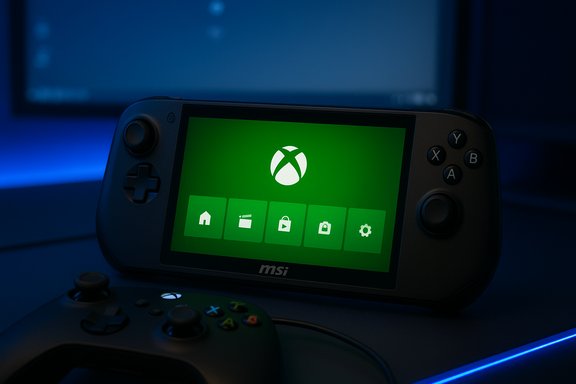
An MSI handheld console displaying the green Xbox home screen, with a nearby gamepad.Background / Overview​

Microsoft introduced the Full Screen Experience (FSE) to make Windows handhelds behave more like dedicated gaming consoles when users want to play. Rather than replacing Windows, FSE is a layered session posture: it launches a chosen “home app” (commonly the Xbox PC app) as a full‑screen shell, defers many desktop subsystems and nonessential startup items, and remaps some system flows for controller navigation. The goal is pragmatic — reduce idle CPU wakeups, reclaim memory, and remove desktop clutter so small, thermally constrained handheld APUs can sustain steadier frame rates and longer battery life. The capability shipped preinstalled on ASUS’s ROG Xbox Ally line and has been delivered to other devices via the Windows 11 Insider Preview stream. Microsoft’s staged rollout now names MSI Claw models among the devices receiving FSE in the relevant Insider build, allowing Claw owners who opt into Insider previews to enable the feature through Settings. Independent coverage and community hands‑on reports confirm the staged enablement and highlight practical benefits and caveats.

What the Full Screen Experience actually does​

A session posture, not a new OS​

FSE isn’t a forked operating system or a deeply intrusive kernel change. It is a session configuration layered on top of Windows 11 that selectively changes which userland components are initialized at boot and how the shell behaves while the home app is active. That means:
  • The selected home app runs as a full‑screen launcher and becomes the primary UX.
  • Explorer ornamentation and certain cosmetic features can be deferred.
  • Many nonessential startup apps are prevented from auto‑starting until the desktop is explicitly opened.
  • Game Bar, Task View, and common system flows are adapted for controller navigation.
This design lets Microsoft provide a console‑like experience while preserving Windows’ openness — Steam, Epic, GOG and other stores still work.

Practical benefits claimed by Microsoft and early testers​

  • Lower background memory usage: Deferring desktop startup can free a measurable chunk of RAM in constrained builds.
  • Fewer idle CPU wakeups: Reducing background tasks can reduce stutter caused by system activity.
  • Controller‑first navigation: Large tiles, library aggregation, and controller‑friendly flows improve thumb-based usability.
  • Faster, cleaner access to games: Booting directly into the Xbox app provides immediate access to Game Pass and your library.
Independent reporting and hands‑on tests show variable, but real, improvement in reclaimed resources and responsiveness on handhelds that enable FSE. Some hands‑on pieces and community tests reported up to ~2 GB of reclaimed memory in favorable configurations and anecdotal FPS and battery improvements depending on title, driver maturity, and power limits — these gains are highly workload and firmware dependent. Flag: those numeric gains are not universal guarantees but observed outcomes in certain test setups.

The MSI Claw rollout — what changed and why it matters​

The announcement and build details​

Microsoft placed the FSE expansion into the Windows 11 Insider Preview stream (the 25H2 preview family). The relevant preview build carries the FSE plumbing and exposes the Settings control under Settings → Gaming → Full screen experience for supported devices, at least for Insiders on the Dev/Beta channels where the preview bits landed. Availability is staged — Microsoft uses server‑side gating and OEM entitlements so not every identical device will see the option immediately. MSI Claw models were explicitly listed among the early non‑ASUS recipients of the preview.

Why MSI Claw is a logical candidate​

MSI’s Claw family targets users who want high‑performance handheld Windows PCs with 7–8‑inch displays and premium APUs. These devices often have limited thermal and battery envelopes compared with desktops and full‑sized laptops, so any runtime savings from reduced background noise can improve sustained performance and battery life. For MSI, enabling FSE makes the Claw more directly competitive with console‑like handheld offerings by delivering a predictable, thumb‑friendly launcher without requiring a change in hardware.

How to enable Full Screen Experience on an MSI Claw (Insider path)​

If you own an MSI Claw and want to try FSE under the supported preview flow, follow these verified steps:
  • Back up your system and create a recovery USB before installing Insider builds.
  • Enroll the device in the Windows Insider Program (Dev or Beta channel where the FSE preview is available).
  • Update Windows to the Insider build that contains the FSE components (the 25H2 preview build family that carries the feature).
  • Update the Xbox PC app and Xbox Game Bar via Microsoft Store (Insider preview versions may be required).
  • Open Settings → Gaming → Full screen experience.
  • Under “Set your home app,” choose Xbox (or another installed supported home app).
  • Optionally toggle Enter full screen experience on startup so the device boots directly into FSE.
Once enabled, you can enter or exit FSE using Game Bar (Win + G / Xbox button), Task View (Win + Tab), or the F11 toggle. If the option is not visible, the device likely has not been enabled server‑side — do not use unsupported registry hacks unless you know how to recover the device.

Technical anatomy: what changes under the hood​

Session composition​

FSE changes which processes and UI elements Windows loads at session start, but it does not change kernel scheduling, GPU drivers, anti‑cheat model, or how device drivers operate. The major technical levers are:
  • Deferred startup of desktop apps and Explorer components: Background services and cosmetic shell items are not initialized until the user switches to desktop, freeing RAM and reducing initialization CPU bursts.
  • Elevated role for home app and Game Bar: The Xbox PC app becomes the focal UI while Game Bar is the system overlay that mediates quick switching and captures.
  • Controller mapping and thumb-friendly input flows: The shell adapts input flows to favor a connected controller and provides on‑screen controller keyboard and navigation shortcuts.
  • Server‑side gating and OEM entitlements: Microsoft and OEMs control which devices see the option through feature flags, ensuring compatibility testing by vendors before a full rollout.
These design choices deliver the UX changes without rewriting low‑level OS behavior, which keeps the approach broadly compatible across Windows devices while still requiring OEM driver and firmware parity to avoid overlay conflicts.

Early results and real‑world variability — what tests say​

Independent hands‑on articles and community testing report real, but variable, benefits:
  • Memory reclamation in favorable setups: testers reported roughly up to ~2 GB freed by deferring Explorer and startup items in some cases. This is a useful but situational metric — the actual amount depends on installed apps and services.
  • Performance uplift: a handful of early measurements on some handhelds showed measurable frame‑consistency improvements and occasional framerate increases; quoted numbers ranged from modest to mid‑double‑digit percent uplifts in specific titles on specific devices. These were isolated results and should be treated as possible outcomes, not broad guarantees.
  • Stability and compatibility issues: early adopters reported overlay conflicts, occasional startup hiccups, and variations in which third‑party overlays or anti‑cheat modules behaved correctly under FSE. As with any new session posture that suspends services, diagnosing edge cases often requires firmware and driver updates.
Caution: specific single‑figure or percent claims in early reviews are environment‑dependent. When evaluating whether FSE will meaningfully change your gameplay, test your key titles under the mode rather than accepting headline percent numbers at face value.

Risks, caveats, and troubleshooting​

Preview stability and staged rollout​

FSE is currently rolling through the Windows Insider channels and is being gated. Early adopters should expect:
  • Buggy behavior in Developer channel builds.
  • Features hidden by server flags even after installing the correct build.
  • Compatibility issues with OEM utilities until firmware/drivers are updated.
Create a recovery plan: a system image, a recovery USB, and a tested rollback path to a stable Windows build.

Overlay and anti‑cheat interactions​

Because FSE changes how overlays and background processes start, some third‑party overlays and anti‑cheat systems may show unexpected behavior. Competitive or required titles that depend on real‑time overlays or strict anti‑cheat hooks should be validated before relying on the device for ranked play. If a title misbehaves, test with FSE off and ensure drivers, BIOS, and the game itself are fully updated.

Fragmentation and OEM dependencies​

The staged, OEM‑gated approach means identical hardware may not show FSE simultaneously. That fragmentation can complicate support and community troubleshooting because user experiences will vary across firmware versions and regional flags. Expect MSI Center, BIOS, GPU driver and Xbox app updates to play an outsized role in smooth adoption.

Potential privacy and telemetry considerations​

FSE is distributed and enabled via Insider channels and server flags. Users should assume that relevant telemetry will be used to evaluate compatibility and performance. Organizations should pilot the feature in controlled environments if they are concerned about telemetry or remote enablement. Flag any claims about “zero telemetry” as unverifiable without explicit Microsoft documentation tied to the specific Insider release.

Practical recommendations for MSI Claw owners​

  • Update everything first: Install the latest MSI firmware/BIOS, GPU drivers, and MSI Center before trying FSE to minimize overlay/service conflicts.
  • Enroll thoughtfully: Use Beta/Release Preview channels if possible rather than Developer to reduce regression risk.
  • Back up and prepare to roll back: Create a recovery USB and a full image of your system before changing channels.
  • Test critical games: Validate anti‑cheat, input mapping, and overlays for the titles you rely on competitively.
  • Join Xbox Insider Hub if needed: Some Xbox PC app preview features may be required for best compatibility.
  • Keep a wired fallback: If wireless controllers or LE audio are involved, use wired debugging/fallback when testing to isolate Bluetooth-related issues.

Strategic implications for Windows handhelds and the market​

For OEMs​

FSE gives OEMs a way to deliver a predictable, console‑like experience while keeping Windows’ openness. If Microsoft’s staged rollout proves stable, OEMs can tune drivers and firmware to deliver consistent handheld experiences without requiring a separate OS. However, OEMs must commit to timely firmware and driver updates across SKUs and regions to avoid fragmentation and user frustration.

For developers and platform vendors​

Game developers should test their titles under FSE soon: FSE changes lifecycle and background process assumptions, and some middleware or anti‑cheat code paths may be sensitive to deferred services. Platform vendors that provide overlays, capture tools or performance utilities should validate compatibility and push updates to avoid conflicts.

For consumers​

For buyers considering a Windows handheld, FSE narrows the gap between general‑purpose Windows handhelds and dedicated handheld consoles. The feature can make older handhelds feel fresher and more console‑like without hardware changes. But buyers should temper expectations — FSE provides runtime posture improvements rather than raw hardware gains. The real benefit depends on drivers, firmware and how a user configures their device.

Comparing Microsoft’s approach to competing handheld models​

  • Valve / SteamOS: A separate Linux‑based OS and ecosystem optimized for a console‑style experience out of the box. Microsoft’s FSE keeps Windows intact and simply layers a controller‑first shell on top, preserving compatibility with the Windows ecosystem.
  • ROG Xbox Ally: Launched with FSE preinstalled, demonstrating the model OEMs can ship with devices. The Claw rollout moves that capability beyond a single OEM and toward platform‑level availability.
  • Other Windows handheld manufacturers (Lenovo, AYANEO, etc.: Microsoft has signaled more OEM enablement in the months ahead; the success of FSE will depend on consistent vendor follow‑through.

What remains unverifiable or conditional​

  • Any headline percent‑increase in FPS or exact battery improvement remains conditional on workload, thermal limits, drivers and firmware. Early "mid‑20%" FPS claims and "up to 2 GB" memory reclamation were observed in some reviews or community tests, but they are not universal guarantees across devices or titles. Treat those numbers as indicative of possible outcomes rather than promises.
  • Timing for broader OEM rollouts (beyond the devices publicly named) is tied to vendor testing schedules and Microsoft’s staged feature gating. Reported timelines (e.g., Lenovo indicating spring 2026 for Legion Go 2) are vendor statements and may shift as firmware and driver work continues. Always check your OEM’s official channels for exact support dates.

The road ahead — outlook and conclusion​

Microsoft’s Full Screen Experience on MSI Claw handhelds is an important step in the evolution of Windows handheld gaming. By treating console‑style ergonomics and runtime posture as an opt‑in session feature, Microsoft has created a path that combines Windows’ openness with the low‑distraction feel gamers want on small screens. For MSI Claw owners, FSE offers a supported route to a more predictable, controller‑first experience that can free resources and streamline play sessions — provided they accept the realities of Insider previews and the need for updated firmware, drivers and app previews.
The broader significance is strategic: if Microsoft and OEMs can deliver FSE consistently across the hardware landscape, Windows handhelds may become a far more compelling alternative to platform‑specific handhelds, blending the convenience of a console launcher with Windows’ vast game library. The counterpoint is fragmentation risk and the operational burden on OEMs to keep firmware and drivers synchronized with Microsoft’s staged enablement.
For now, cautious optimism is the right posture: test FSE in controlled conditions, validate games and anti‑cheat behavior, and treat the preview as a promising enhancement — not a silver bullet. If the feature scales cleanly with vendor support, FSE has the potential to reshape expectations for how Windows should behave on the next generation of handhelds.

Source: TechPowerUp All MSI Claws Now Support Microsoft Xbox Full Screen Experience | TechPowerUp}
 

Microsoft’s Xbox Full Screen Experience has quietly arrived on MSI’s Claw handhelds and, in early tests, it is shaving measurable RAM and delivering small but repeatable frame‑rate uplifts — a practical reminder that the way Windows boots and presents its shell still matters for handheld gaming.

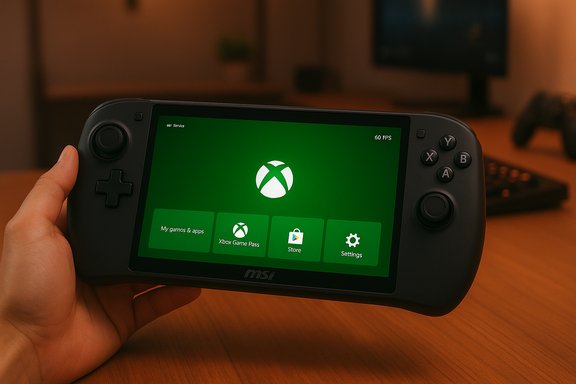
A person holds an MSI handheld gaming device displaying the Xbox home screen.Background / Overview​

Microsoft introduced the Xbox Full Screen Experience (FSE) to make Windows 11 behave more like a dedicated gaming console on handheld PCs: boot straight into the Xbox PC app as the primary shell, provide controller‑first navigation, and intentionally defer or suppress many desktop subsystems and non‑essential startup agents while the FSE session is active. That design is a session posture — a shell and policy set layered on top of Windows — not a forked operating system or a kernel/driver rewrite. The feature first shipped on ASUS’ ROG Xbox Ally family and has been expanded via Windows Insider preview builds to other OEM handhelds. MSI’s Claw family is among the earliest non‑ASUS devices to receive the preview enablement, delivered in the Insider build stream and gated by Microsoft/OEM entitlements. That means owners who enroll in the appropriate Windows Insider channel can opt in and enable FSE under Settings → Gaming → Full screen experience.

What the Full Screen Experience actually does​

Session posture, not a new OS​

FSE changes what userland elements Windows initializes at sign‑in and which shell is presented. When enabled:
  • The chosen “home app” (commonly the Xbox PC app) launches as the primary full‑screen interface.
  • Explorer ornamentation (desktop wallpaper, some taskbar decorations) and many non‑essential startup apps are deferred until the user explicitly returns to the desktop.
  • Game Bar and Task View are adapted for controller navigation and quick entry/exit from the shell.
This is an optimization at the shell/session level — DirectX stacks, GPU drivers, kernel scheduling, and kernel‑mode anti‑cheat remain unchanged. The performance improvements therefore come from lowering user‑space noise and reclaiming system resources for foreground games.

Why that matters on handhelds​

Handheld Windows PCs are constrained by thermal envelopes, limited battery capacity, and frequently lower RAM configurations than desktop machines. On such devices, background CPU wakeups and resident processes can translate into micro‑stutters, higher frame‑time variance, and less headroom for game memory and GPU working sets. By reducing those background activities, FSE gives the game process steadier access to CPU cycles, caches, and RAM — the same principle that makes lightweight console shells feel more responsive than a full desktop on limited hardware.

MSI Claw rollout: what changed and how to get it​

MSI announced that the Full Screen Experience is available for Claw series devices through Microsoft’s Windows 11 Insider Preview (the 25H2 preview family), and MSI has published how‑to guidance including a short video walkthrough that shows the Xbox shell and Quick Settings integration. The FSE setting appears in Settings → Gaming → Full screen experience for supported, entitled devices.
How to enable FSE on an MSI Claw (Insider preview, concise steps):
  • Join the Windows Insider Program (Dev or Beta channel where the preview build is available).
  • Update Windows to the Insider Preview build that contains the FSE plumbing (for early previews that was Build 26220.7051 / KB5067115).
  • Ensure the Xbox PC app (beta) and your OEM utilities (MSI Center / Quick Settings) are updated.
  • Open Settings → Gaming → Full screen experience and choose Xbox (or another supported home app).
  • Optionally enable “Enter full screen experience on startup.”
Note: availability is staged — server‑side gating and OEM entitlements mean identical hardware may not show the toggle at the same time. That’s deliberate on Microsoft’s part while they gather telemetry and feedback from Insiders.

The numbers: memory reclaimed and FPS uplifts​

Early testing and vendor‑published figures show consistent but modest gains. Importantly, the exact numbers vary by system configuration, installed background software, and test conditions.
  • MSI and several outlets reported roughly 5% lower RAM usage, commonly expressed as about ~800 MB reclaimed on the Claw in some configurations when switching from a full Windows desktop session to FSE. That headline figure has circulated widely and was cited by multiple outlets reporting on MSI’s tests.
  • Independent hands‑on tests and community benchmarks show a broader range in practice. Some testers observed memory dropping from ~7.3 GB to ~6.2 GB — a reclaim around 1.1 GB — depending on what background apps and shell elements were active before switching to FSE. Those outcomes align with the rough “hundreds of MB to ~1 GB” range reported in several reviews and hands‑on pieces.
  • Frame‑rate changes are modest but repeatable in certain workloads. Benchmarks on titles such as Cyberpunk 2077 showed single‑digit to low‑double‑digit percent uplifts (examples reported in coverage range from mid‑single digits up to about 10–11% in specific test runs), with some reviewer tests reporting lifts in the 6–9% band for particular settings on the Claw. The mechanism is the same: fewer background wakeups and slightly more memory headroom for the foreground game.
These are not magic numbers that universally apply to every game or configuration. On systems with abundant RAM (24–32 GB), reclaiming 800 MB is unlikely to move the needle for many titles. On 16 GB configurations or heavily loaded systems, however, the same memory reclaim can reduce paging pressure and improve VRAM allocation, which in turn can help frame‑time stability and load times.

Cross‑verification: what multiple outlets report​

To ensure the most load‑bearing claims are grounded, the core data points above were cross‑checked with multiple independent outlets and vendor material.
  • The claim that FSE frees memory (roughly 800 MB / ~5%) is present in MSI’s own messaging and reproduced by technicians and outlets who tested the Claw. NotebookCheck and PC Guide reported the same direction and magnitude of savings.
  • The statement that FSE is a session posture and not a kernel/driver change is documented by multiple hands‑on analyses and Microsoft’s Insider notes; outlets emphasize that the DirectX and anti‑cheat stacks remain intact and that improvements come from user‑space trimming.
  • Independent reviewer and community testing (YouTube creator comparisons, Reddit test runs) corroborate modest FPS uplifts in titles sensitive to system noise. The magnitude varies by title, power/TDP settings, and background load.
Taken together, the multi‑source picture is consistent: enabling FSE on eligible handhelds reduces baseline RAM use and can give games a small performance edge in thermally constrained, memory‑sensitive scenarios — but the scale of gains depends on the device and the workload.

Practical impact for gamers: where you will notice changes​

  • On a 16 GB handheld configuration, reclaiming several hundred megabytes to ~1 GB can meaningfully reduce memory pressure, improve texture caching, and reduce small page faults — all of which help frame‑times and load behavior for demanding titles.
  • On 32 GB or high‑end configurations the practical benefit is smaller, but lowering background noise can still help on thermally constrained APUs where micro‑interruptions convert into frame‑time spikes.
  • For games that rely on kernel‑level anti‑cheat (many competitive multiplayer titles), FSE does not bypass or change anti‑cheat behavior — so you should not expect it to change compatibility or anti‑cheat failures. FSE simply makes the session cleaner from a user‑space perspective.
  • Booting directly into the Xbox app gives a console‑like, pick‑up‑and‑play UX where your library and Game Pass titles are front and center. That alone is a user experience win for many players who prefer a controller‑first launcher on a handheld.

Risks, caveats and early adopter warnings​

The FSE rollout to MSI Claw is still preview‑level in many cases and comes with familiar risks:
  • Stability and UX rough edges: multiple community reports show the FSE option appearing and disappearing on certain Insider builds, and some early users reported overlays or quick‑settings inconsistencies that required driver or OEM utility reinstalls to resolve. That’s typical for staged previews but important to note for anyone considering switching a primary device to FSE immediately.
  • Variability in results: memory reclaim and FPS gains depend heavily on what was running before you switched to FSE (open browsers, resident utilities, overlays, and background sync agents). Tests that show larger gains often begin from heavier desktop states; a clean desktop yields smaller deltas.
  • Not a substitute for system‑level optimizations: FSE will not fix poor GPU drivers, inadequate thermal limits, or severe bottlenecks in CPU/GPU balance. It is a practical session optimization, not a silver‑bullet performance fix.
  • Availability gating and OEM coupling: Microsoft enables FSE by OEM model, build, and server flags. If you own a Claw and don’t see the option, the reason is likely entitlement gating rather than a misconfiguration. Follow MSI/OEM guidance and Insider channel notes before troubleshooting.

How this fits into the broader handheld landscape (SteamOS, Linux, Windows)​

The handheld market has seen a prominent narrative: custom Linux builds like SteamOS often deliver an extremely lean runtime that can outperform a stock Windows desktop on thermally constrained devices. Valve’s Steam Deck and derivative efforts have pushed that expectation, and Microsoft’s FSE can be read as a direct response: provide an opt‑in console‑style shell that keeps Windows’ openness while lowering overhead for gaming sessions. Several outlets have contrasted FSE against SteamOS in UX and raw feel — while praising FSE for reducing friction, many reviewers still prefer SteamOS’ integrated handheld ergonomics and quick resume behavior for certain workflows. Ultimately, FSE narrows the UX gap: it gives Windows handhelds a more console‑like presentation without abandoning the Windows ecosystem. For gamers who need Windows app compatibility or a specific native Windows title, FSE may be the best of both worlds. For those who prize the bare‑metal performance and integrated handheld features of SteamOS, Linux will still be compelling.

The bigger strategic question: is Microsoft moving toward a Windows/Xbox hybrid?​

There is industry speculation that Microsoft’s growing use of an Xbox‑style shell on Windows handhelds could presage a tighter Xbox/Windows convergence or a hybrid runtime for future Xbox hardware. That narrative shows up in commentary, but it remains speculative. There is no public, verifiable confirmation that a next‑generation Xbox will run a custom Windows variant or that Microsoft will wholesale migrate console UIs onto the PC kernel in a way that changes driver or anti‑cheat behavior. Treat such claims as informed speculation until Microsoft announces specifics.

Recommendations for MSI Claw owners and handheld gamers​

  • If you own a Claw and are curious, try FSE in an Insider preview only after making a full system backup and ensuring you can roll back if you value a rock‑solid daily driver. The preview route is the supported path to early access.
  • Test before committing: run a couple of representative game sessions in desktop mode and in FSE (same power/TDP settings) to measure the real‑world difference for your titles of choice. Don’t assume manufacturer numbers will map identically to your library.
  • Keep drivers and OEM utilities current: MSI Center (and equivalent vendor tools) interacts with power/TDP controls that materially affect thermal and sustained performance. Some early issues have been resolved by driver and utility updates.
  • If you prioritize raw handheld ergonomics and seamless quick‑resume behavior across many non‑Windows storefronts, evaluate SteamOS or dual‑boot options — FSE makes Windows better on handhelds, but it does not yet replicate every strength of a purpose‑built handheld Linux stack.

Final analysis: modest gains, meaningful UX change​

The introduction of Xbox Full Screen Experience to MSI’s Claw line is a pragmatic, well‑targeted move. The technical approach — replace the desktop shell for a session, defer non‑essential userland tasks, and give a controller‑first launcher — is both elegant and low risk because it leaves core Windows compatibility intact. Early evidence shows real resource savings (hundreds of megabytes to around 1 GB in some tests) and real but modest FPS improvements in certain titles where background noise and memory pressure matter. That combination is enough to improve the practical handheld gaming experience for many users, especially on mid‑range RAM builds. At the same time, expectations should be calibrated: FSE is an optimization, not a cure‑all. Results vary by hardware, drivers, and workload. The preview nature of the rollout means early adopters should expect occasional rough edges and follow MSI and Microsoft guidance for Insider installation and troubleshooting. For Windows handhelds, however, FSE narrows the UX gap with dedicated console‑style experiences and represents a noteworthy example of how shell design can meaningfully influence gaming performance on constrained devices.

Microsoft’s experiment with a console‑first shell on Windows has moved from prototype to platform feature, and MSI’s Claw is among the first real‑world test beds. The outcome so far is encouraging: cleaner sessions, slightly more headroom for games, and a boot path that better fits the handheld use case. The exact return on that investment will depend on each gamer’s device and library, but for those who play demanding titles on mid‑spec handhelds, the Full Screen Experience is worth trying.
Source: extremetech.com Xbox Full Screen Experience on MSI Claw Uses Less Memory Than Windows 11
 

Back
Top