

Windows 11’s new console-style “Xbox” experience is no longer just a marketing demo for a single handheld: Microsoft has layered a full‑screen, controller‑first shell into Windows 11 that can be enabled on supported handheld PCs and — with caution — tested on other devices. This Full Screen Experience (commonly called Xbox Mode or handheld mode) turns the Xbox PC app into a simplified launcher, trims desktop overhead, and adapts Game Bar and controller inputs so Windows behaves more like a console. The feature is rolling through Windows Insider channels and OEM previews, and community guides have already shown how to enable it on many Windows 11 machines — but there are important support, stability and security trade‑offs to understand before you try.
Microsoft designed the Full Screen Experience to make Windows feel right on small, thermally constrained handhelds and for living‑room controller-first scenarios. Rather than building a separate OS, the company made a session posture that elevates a chosen “home app” (typically the Xbox PC app) into a full‑screen shell while leaving Windows itself intact underneath. That approach preserves compatibility with PC storefronts (Steam, Epic, GOG, etc. while reducing UI clutter and background work to improve responsiveness and battery life on handheld hardware. Key OEMs shipped or are shipping devices with the experience preinstalled — notably the ASUS ROG Xbox Ally family — and Microsoft has begun expanding visibility via Windows Insider previews so more handhelds (MSI Claw, Lenovo Legion Go 2 and others) can adopt the experience in preview ahead of broader rollouts. Availability is staged: the binaries may be in your Windows build but Microsoft and OEMs gate feature visibility using server entitlements and product-specific firmware hooks. That means installing a preview build does not automatically guarantee the mode will appear on every device.
Prerequisites:
What this approach does:
If you want a compact, printer‑ready checklist or a downloadable step sequence for either the official or the advanced route (including the exact ViVeTool commands and registry edits in copy‑paste form), follow the official preview instructions first and I will provide the step file with explicit recovery‑plan actions and recommended verification checks.
Source: Analytics Insight How to Turn On Windows 11 Xbox Mode on Any Device?
 Background
Microsoft designed the Full Screen Experience to make Windows feel right on small, thermally constrained handhelds and for living‑room controller-first scenarios. Rather than building a separate OS, the company made a session posture that elevates a chosen “home app” (typically the Xbox PC app) into a full‑screen shell while leaving Windows itself intact underneath. That approach preserves compatibility with PC storefronts (Steam, Epic, GOG, etc. while reducing UI clutter and background work to improve responsiveness and battery life on handheld hardware. Key OEMs shipped or are shipping devices with the experience preinstalled — notably the ASUS ROG Xbox Ally family — and Microsoft has begun expanding visibility via Windows Insider previews so more handhelds (MSI Claw, Lenovo Legion Go 2 and others) can adopt the experience in preview ahead of broader rollouts. Availability is staged: the binaries may be in your Windows build but Microsoft and OEMs gate feature visibility using server entitlements and product-specific firmware hooks. That means installing a preview build does not automatically guarantee the mode will appear on every device. What the Xbox Full Screen Experience actually does
The visible changes (what you’ll notice)
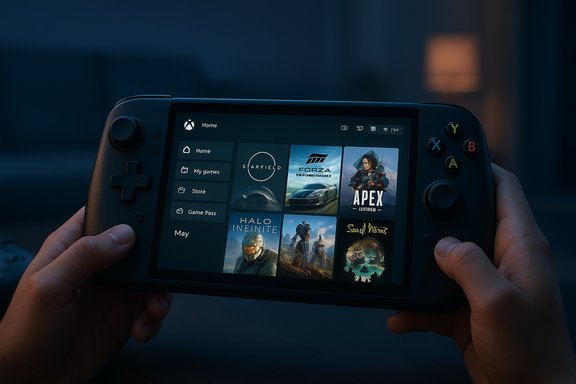
- A full‑screen, tile‑based launcher built around the Xbox PC app that aggregates Game Pass, Xbox purchases and many locally installed titles into one controller‑navigable grid.
- Controller‑first navigation: on‑screen controller keyboard, controller-driven login flows and a task switcher optimized for bumpers/sticks rather than mouse/keyboard.
- Game Bar integration: Game Bar becomes a central overlay for performance toggles, captures and quick switching; a physical Xbox button on hardware gets elevated behavior (short press for Game Bar, long press for Task View in certain builds).
The under‑the‑hood changes (why it can improve performance)
- Windows defers or suspends many desktop‑oriented subsystems (such as desktop wallpaper and some Explorer decorations) and delays non‑essential startup apps when you boot into FSE.
- The system applies session policies that reduce idle CPU wakeups and free memory that would otherwise be held by desktop services. Microsoft and OEM materials commonly frame these effects as “up to” roughly 1–2 GB of reclaimed RAM on tuned handhelds; testers report meaningful battery and steadiness gains in real‑world scenarios, though results vary by configuration. Treat headline numbers as directional engineering estimates, not guarantees.
Who should (and should not) enable Xbox Mode
- Best candidates: owners of supported Windows handhelds that OEMs explicitly enable (devices shipping with FSE preinstalled or listed by the manufacturer). These devices have drivers and thermal profiles tuned for the experience.
- Good candidates: advanced users who are comfortable running Windows Insider preview builds (Release Preview / Beta) and understand how to recover if something breaks.
- Not recommended: casual users on production laptops/desktops who need their systems stable for daily work; those who are uncomfortable creating full backups or performing recovery installs. Community unlock methods are explicitly unsupported by Microsoft and may break drivers, anti‑cheat, overlays or update flows.
How to enable Xbox Mode — the supported (official) path
This is the recommended route for most users because it relies on Microsoft/OEM gates and avoids unsupported hacks.Prerequisites:
- Windows 11 on the 25H2 preview stream or a Windows Insider build that contains the FSE bits.
- An updated Xbox PC app (preview/beta when required).
- Administrator access and a full system backup (highly recommended).
- Enroll the device in the Windows Insider Program and choose a channel that contains the handheld/FSE bits (Release Preview, Beta or Dev depending on your device’s staged rollout).
- Update Windows to the required Insider preview cumulative (Insider build family 26220.xxxx / KB5067115 or the matching flight where FSE is included).
- Update or install the Xbox PC app to its preview/beta release so the new compact UI components are available.
- Open Settings → Gaming → Full screen experience. In Choose home app, select Xbox. Optionally enable Enter full screen experience on startup to boot into the Xbox launcher automatically.
- Reboot and verify you can enter/exit the full‑screen launcher using Task View, Game Bar (Win+G) or F11.
How enthusiasts are enabling Xbox Mode on non‑handheld systems (advanced, unsupported)
Hobbyist communities and many how‑to outlets have converged on a repeatable pattern to make Windows present the handheld shell on devices where the Settings toggle doesn’t appear. This section is for advanced users only — it carries real risk.What this approach does:
- Reveal hidden Windows feature flags (ViVeTool).
- Tell Windows the device should be treated as a handheld via the OEM form‑factor registry entry.
- (Optional/experimental) Spoof panel dimensions so Windows treats the display like a small handheld screen.
- Download ViVeTool (community utility) and run elevated commands to enable feature flags associated with the handheld/compact bits. Two frequently cited feature IDs used by testers are:
- ViVeTool.exe /enable /id:52580392
- ViVeTool.exe /enable /id:50902630
- Add or edit a DWORD named DeviceForm under:
- Computer\HKEY_LOCAL_MACHINE\SOFTWARE\Microsoft\Windows NT\CurrentVersion\OEM
- Set DeviceForm to hex
0x2E(decimal 46) to mark the device as a handheld in certain checks. - If Windows additionally checks reported panel dimensions on your machine, some guides use a small tool (commonly called Physpanel in community posts) and a scheduled task to set reported screen size at boot; this step is experimental and tool provenance is inconsistent — use extreme caution.
- Reboot.
- Open Settings → Gaming → Full screen experience. If the toggle appears, set Xbox as the home app and enable boot on startup if desired.
- Reboot again to enter FSE.
- ViVeTool flips internal feature flags that Microsoft expects to control server‑side; registry edits override what the OEM image normally sets. These modifications can cause driver and firmware mismatches, break overlays, cause anti‑cheat and DRM issues, or make desktop restoration unreliable until a full reboot or reinstall. Proceed only with full backups and a tested recovery plan.
Step‑by‑step checklist (advanced method) — condensed and explicit
- Create a full system image and a Windows recovery USB. (Do not skip.
- Enroll your device in the Windows Insider Program (Release Preview or Beta channel recommended for stability).
- Install the preview Xbox PC app via Microsoft Store and update Game Bar where necessary.
- Download ViVeTool from its official repository (scan the binary for transport integrity) and extract.
- Open an elevated Command Prompt in the ViVeTool folder, run:
- ViVeTool.exe /enable /id:52580392
- ViVeTool.exe /enable /id:50902630
Reboot when complete. - Open Registry Editor and navigate to:
- Computer\HKEY_LOCAL_MACHINE\SOFTWARE\Microsoft\Windows NT\CurrentVersion\OEM
Create a DWORD (32‑bit) named DeviceForm and set value to0x2E(hex) or46(decimal). Reboot. - If the Full screen experience setting appears under Settings → Gaming, select Xbox and enable Enter full screen experience on startup. Reboot.
- If anything goes wrong, restore from the system image or use your recovery USB to roll back.
Performance claims — what’s verified and what’s not
- Microsoft, OEM briefings and early hands‑on reviews uniformly describe memory reclamation and idle power reduction as the main levers for improved responsiveness on handheld devices. Many outlets and OEM materials cite “up to about 1–2 GB” of RAM reclaimed on tuned systems and notable idle power reductions, improving battery and thermal headroom. These figures are repeated across reviews and manufacturer press materials but are workload‑ and device‑dependent; they are best‑case estimates from tuned demos. Treat the numbers as directional.
- Independent testing shows real but modest gains for GPU‑bound titles; much of the practical benefit comes from reduced background overhead rather than changes to GPU scheduling or driver internals. If you already manually disable startup apps and use a minimal Windows image, the delta will shrink.
- Any single numeric uplift (FPS, battery %) reported by a reviewer is reproducible only under identical hardware, firmware, driver and background task conditions; expect variance across devices and updates. If a guide claims a specific FPS jump or precise battery gain for all machines, flag it as an anecdote rather than universal truth.
Compatibility, anti‑cheat, and security considerations
- Anti‑cheat and DRM: FSE does not bypass anti‑cheat or DRM — games requiring kernel‑level anti‑cheat components still require them and those drivers must be compatible with your kernel. Some community ports have run into anti‑cheat failures or blocked overlays.
- Updates and support: community flag flips and registry edits can persist across updates and may complicate future Windows servicing or warranty claims. OEMs expect to set DeviceForm and similar values in validated system images; changing them manually can lead to unexpected behaviors.
- Attack surface: hiding the desktop does not remove background services entirely. Networked services and telemetry may still run on demand; audit startup items and firewall/telemetry settings if privacy is a concern.
OEM rollout and developer tooling
- Microsoft published a Handheld Compatibility Program to guide developers on controller input, iconography, text legibility and a Windows Performance Fit indicator so games can be tagged as Handheld Optimized or Mostly Compatible. That program helps signal which games will “should play great” or “should play well” on specific hardware. The program and developer APIs are part of Microsoft’s push to make handheld gaming on Windows more predictable.
- OEMs are coordinating staged rollouts; Asus shipped Ally devices with FSE active out of the box, and Microsoft is expanding preview availability to other handhelds (MSI Claw, Lenovo plans) through Insider channels and OEM enablement. Expect broader support to arrive as firmware and driver stacks mature.
Practical troubleshooting and recovery tips
- If Full Screen Experience doesn’t appear after enabling preview bits, reboot twice, confirm Xbox PC app is the preview build, and check that the gamebar/Xbox overlays are installed. Many early issues are fixed by ensuring both the OS build and Xbox/Game Bar versions match the preview channel.
- If enabling FSE causes input, display, or boot issues after community tweaks:
- Boot into Safe Mode and revert ViVeTool flags or registry edits if possible.
- Use the recovery USB to restore your full image if the system is irrecoverable.
- Keep a separate, stable machine for daily work rather than experimenting on your primary drive.
- Before attempting advanced unlocks, create a recovery image (full disk image) and a Windows recovery USB. Test that the recovery media boots before you change systems. This is the single most important defensive step.
Strengths, risks, and the bottom line
Strengths- Console‑like simplicity with PC openness. FSE offers a low‑friction launcher for controller users while keeping all your PC launchers and ecosystems accessible.
- Meaningful UX wins on handhelds. Controller‑first text input, improved task switching and consolidated libraries make living‑room and handheld play more usable.
- Real, repeatable overhead reductions. Reclaiming background memory and deferring Explorer subsystems helps battery and sustained performance on thermally constrained hardware.
- Unsupported community methods are fragile. ViVeTool flags and registry edits bypass OEM validation and can lead to broken overlays, anti‑cheat issues, or recovery scenarios that require reinstalling Windows.
- Performance is conditional. Gains depend on driver maturity, thermals, and what was running on the desktop beforehand — they are not a universal speed‑hack.
- Potential warranty/support consequences. Manual OEM registry edits can complicate vendor support interactions; use the official preview path when possible.
- Use the official Insider/Release Preview path when possible. Reserve the ViVeTool + registry route for enthusiasts with full backups and a recovery plan. Prioritize OEM‑enabled devices for the best experience; wait for your vendor’s validated image if you rely on your device for work or critical tasks.
Conclusion
The Windows 11 Xbox Full Screen Experience is a pragmatic and well‑engineered attempt to make PC handhelds and living‑room gaming feel more like a console — while preserving the openness and compatibility of Windows. For supported handhelds (ROG Xbox Ally family, early MSI/Lenovo previews) the experience is smooth and purpose-built; on other hardware the feature can be tested via Insider builds or, for advanced users, unlocked with community tools and registry edits. The technical payoff is real — reclaimed memory, fewer background wakeups, and a controller‑first UX — but the magnitude of gains is device‑dependent and headline figures should be treated as best‑case engineering estimates rather than guarantees. Proceed with the supported path where possible; if you experiment with ViVeTool and registry edits, back up first, accept the risk, and be prepared to recover.If you want a compact, printer‑ready checklist or a downloadable step sequence for either the official or the advanced route (including the exact ViVeTool commands and registry edits in copy‑paste form), follow the official preview instructions first and I will provide the step file with explicit recovery‑plan actions and recommended verification checks.
Source: Analytics Insight How to Turn On Windows 11 Xbox Mode on Any Device?
