

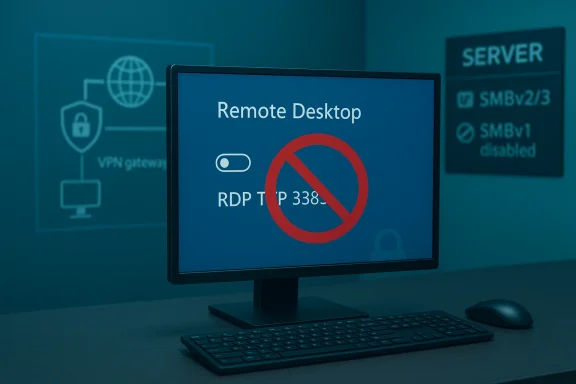
If you keep Remote Desktop, Remote Assistance, or other remote‑access features enabled on machines that don't need them, you are handing attackers an open invitation — and you should disable those features right now unless you have a clear, controlled reason to leave them enabled. RDP and related support tools have been the root cause of major wormable flaws, privilege escalations, and ransomware intrusions going back years, and new critical RDP/remote‑access CVEs continue to appear. Disabling unnecessary remote access is one of the single highest‑impact steps you can take to reduce exposure immediately.
Remote access is a legitimate and very useful part of modern IT: administrators use it for troubleshooting, managed support teams use it to help users, and mobile workers use VPN + RDP to access office machines. But those same features—Remote Desktop Protocol (RDP), Remote Assistance / Quick Assist, and legacy file‑sharing protocols such as SMBv1—have a long history of being weaponized when exposed or poorly configured.
Historically, BlueKeep (CVE‑2019‑0708) showed the world how dangerous unauthenticated RDP vulnerabilities can be; U.S. cybersecurity agencies demonstrated working exploits and issued loud warnings to patch and isolate exposed hosts.
More recently, high‑severity RDP and remote‑service flaws continue to appear (for example, CVE‑2025‑29966 and other RDP‑adjacent issues), underlining that RDP remains a recurring attack surface that must be managed conservatively.
At the same time, older services that persist on networks—most notably SMB version 1 (SMBv1)—remain a known weak point. Microsoft now strongly discourages SMBv1, and modern Windows builds no longer enable it by default; administrators should remove or disable SMBv1 where possible to avoid legacy attack vectors.
Community support discussions and long‑running forum threads mirror this guidance: Windows users and admins frequently recommend disabling remote support and legacy protocols to reduce attack surface and prevent accidental exposures.
Turning these features off is quick, blocks a commonly abused attack path, and buys time to implement stronger, auditable remote‑access mechanisms such as VPNs, RD Gateways with MFA, and just‑in‑time jump hosts. If you’re responsible for endpoints today, make disabling unnecessary remote access one of your first actions — and if you need remote access for business reasons, harden it relentlessly and monitor it continuously.
Source: Inbox.lv News feed at Inbox.lv -
 Background
Remote access is a legitimate and very useful part of modern IT: administrators use it for troubleshooting, managed support teams use it to help users, and mobile workers use VPN + RDP to access office machines. But those same features—Remote Desktop Protocol (RDP), Remote Assistance / Quick Assist, and legacy file‑sharing protocols such as SMBv1—have a long history of being weaponized when exposed or poorly configured.Historically, BlueKeep (CVE‑2019‑0708) showed the world how dangerous unauthenticated RDP vulnerabilities can be; U.S. cybersecurity agencies demonstrated working exploits and issued loud warnings to patch and isolate exposed hosts.
More recently, high‑severity RDP and remote‑service flaws continue to appear (for example, CVE‑2025‑29966 and other RDP‑adjacent issues), underlining that RDP remains a recurring attack surface that must be managed conservatively.
At the same time, older services that persist on networks—most notably SMB version 1 (SMBv1)—remain a known weak point. Microsoft now strongly discourages SMBv1, and modern Windows builds no longer enable it by default; administrators should remove or disable SMBv1 where possible to avoid legacy attack vectors.
Community support discussions and long‑running forum threads mirror this guidance: Windows users and admins frequently recommend disabling remote support and legacy protocols to reduce attack surface and prevent accidental exposures.
Why this matters now: the technical and operational risk
RDP is a high‑value target
- RDP exposes a listening network service (TCP 3389) that attackers can scan for at scale. Once visible, it becomes a target for automated exploit attempts, credential‑stuffing, brute‑force attacks, and targeted exploitation of unpatched CVEs.
- Some RDP vulnerabilities are wormable in nature — they can propagate from host to host without user interaction — which makes them especially dangerous in enterprise and home networks. BlueKeep and the DejaBlue family are historical examples; real‑world exploitation risk remains whenever a high‑impact RDP flaw is disclosed.
Support tools are social‑engineering magnets
- Tools such as Windows Remote Assistance and Quick Assist are designed to let support personnel take control of a user’s desktop. Attackers frequently mimic support requests, phoning or emailcing them to allow a session; this is one of the most common consumer‑facing scam vectors.
- Microsoft’s own Quick Assist documentation warns users to never accept unsolicited access and to verify the identity of anyone requesting a session — but real users get tricked, and support tools become a direct path to full control of an endpoint when misused.
Legacy protocols still haunt networks
- SMBv1 is known to contain critical design weaknesses and has been exploited in devastating ransomware outbreaks. Microsoft advises that SMBv1 should not be used and supplies tools and PowerShell commands to detect and disable it. Leaving SMBv1 enabled for compatibility reasons is a frequent contributor to lateral movement in breaches.
What to disable immediately (and what to keep enabled with controls)
If you manage Windows endpoints, consider this prioritized list for immediate action:- Disable Remote Desktop (RDP) on machines that do not explicitly require inbound remote console access. If you do not RDP into a machine to perform admin or remote work, turn it off.
- Turn off Remote Assistance and Quick Assist for users who do not need live support sessions. For consumer devices, the safest stance is “off until needed.”
- Remove or disable SMBv1 across your network. Replace legacy SMB usage with modern SMBv2/3 or other supported file‑sharing methods.
- Block inbound RDP (TCP 3389) at the network perimeter unless you have a hardened gateway, VPN, or RD Gateway with multi‑factor authentication protecting it.
Practical step‑by‑step: how to turn off the risky features now
The following steps are simple and effective. Use the methods that match your environment (individual laptop, managed fleet via MDM/Intune, or Windows Server).1. Disable Remote Desktop on a single PC (quick, GUI)
- Open Settings (Windows + I) → System → Remote Desktop.
- Toggle Remote Desktop to Off, or choose “Don’t allow remote connections to this computer” in the classic System Properties → Remote tab. Confirm the change.
- Verify no listener is present on TCP 3389 (advanced users can run:
netstat -ano | findstr :3389).
- To stop and disable the RDP service (Terminal Services), run elevated:
net stop termservicesc config termservice start= disabled- To re‑enable later, reverse with:
sc config termservice start= autonet start termservice
How‑to guides document both GUI and command options for turning RDP on/off.
2. Turn off Remote Assistance and Quick Assist
- Remote Assistance (legacy): Open Control Panel → System and Security → System → Remote Settings → Remote tab → uncheck “Allow Remote Assistance connections to this computer.” Apply and reboot if requested.
- Quick Assist (modern app): If you don’t need Quick Assist, remove or restrict it using your Microsoft 365/Intune management or by uninstalling the app from the system. Microsoft’s Quick Assist guidance also recommends strict user controls and verification prior to sharing access.
3. Disable SMBv1 across servers/clients
- Microsoft publishes PowerShell commands to detect and disable SMBv1:
- Detect:
Get-SmbServerConfiguration | Select EnableSMB1Protocol - Disable server:
Set-SmbServerConfiguration -EnableSMB1Protocol $false - Disable optional feature:
Disable-WindowsOptionalFeature -Online -FeatureName SMB1Protocol(reboot required) - Test carefully: disabling SMBv1 can break legacy devices (old NAS, printers, embedded controllers). Audit dependencies before rolling it out network‑wide.
Hardening checklist: secure alternatives and compensating controls
If you must permit remote access, do it safely:- Use a VPN or Zero Trust access gateway so RDP is never exposed directly to the Internet.
- Force Network Level Authentication (NLA) on RDP connections to add pre‑auth protections. NLA reduces risk from some unauthenticated RDP exploits, though it does not replace patching.
- Require multi‑factor authentication (MFA) and conditional access for all remote administration sessions.
- Use an RD Gateway or an enterprise remote‑access broker that enforces MFA, logging, and session recording.
- Lock down who can RDP: avoid adding ordinary users to Administrator groups; use jump servers and bastion hosts for admin work.
- Monitor for anomalous RDP activity — failed logons, rapid credential stuffing, and unusual source IPs — and block abusive IPs at the perimeter.
- Keep systems patched and subscribe to vendor advisories for critical CVEs affecting remote services. Recent high‑severity RDP flaws were patched through regular Patch Tuesday and out‑of‑band updates; timely patching remains critical.
Real‑world evidence: why this advice isn’t theoretical
- BlueKeep and DejaBlue incidents were widely publicized and validated by national cybersecurity bodies; the CISA alert and subsequent media coverage demonstrated that RDP vulnerabilities can be exploited at scale and can enable remote code execution if hosts are exposed and unpatched. That risk was not hypothetical.
- Security firms and incident responders continue to see RDP used as an initial access vector for ransomware and targeted intrusions; vulnerabilities and credential‑based attacks both support lateral movement inside networks. Recent advisories and CVE disclosures in 2024–2025 continue to track RDP/remote‑service risk.
- Forums and admin communities repeatedly surface case studies where leaving RDP or Quick Assist enabled led to compromises or support‑scam successes; these community signals align with vendor advisories recommending least‑privilege and disabling unused features.
Common objections and practical tradeoffs
- “I need RDP for remote work.”
Fine — but do not expose RDP directly to the internet. Use a VPN or RD Gateway with MFA and conditional access. Restrict inbound connections to known IP ring. - “Some legacy hardware needs SMBv1.”
Replace or upgrade the hardware if possible. If replacement is impossible, isolate legacy devices on a segmented VLAN and apply micro‑segmentation, firewall rules, and access controls to minimize lateral risk. - “Disabling support tools will prevent needed help.”
Use managed, auditable remote‑support solutions that require initiation from the helpdesk side and support MFA and session recording; enable on a just‑in‑time basis rather than leaving tools enabled permanently.
How to roll this out safely in an organization (recommended phased plan)
- Inventory: Discover which hosts have RDP enabled, which clients/servers use SMBv1, and which users have Quick Assist/Remote Assistance installed. Use endpoint management tools and network scans to build a complete list.
- Risk assessment: Identify critical systems that require remote access and the compensating controls currently protecting them (VPN, NLA, RD Gateway, patch levels).
- Pilot disablement: On a small, representative group of endpoints, disable Remote Desktop and Quick Assist (and SMBv1 where safe) and monitor for breakage. Capture user and application impact.
- Communications: Notify users and support teams of the planned changes, explain alternatives (helpdesk portals, VPN, approved remote‑support apps) and provide troubleshooting guides.
- Enforce via policy: Apply group policy, Intune/MDM profiles, AppLocker, and firewall rules to centrally manage the new hardened posture.
- Monitor and iterate: Watch logs for increases in helpdesk tickets, watch for blocked legitimate traffic, and refine exceptions. Maintain an approval process for any exception that requires temporary remote access.
Red‑flag scenarios that require immediate remediation
If you discover any of the following in your environment, act immediately:- RDP exposed to the public internet (TCP 3389) on any host without a hardened gateway or VPN. This is a high‑urgency exposure and should be blocked immediately at the perimeter.
- SMBv1 enabled on servers that hold sensitive or shared data, especially if those servers are reachable by many clients. Disable SMBv1 and plan migrations off legacy devices.
- Quick Assist or Remote Assistance usage that was not initiated by your helpdesk or unexpected sessions showing up in logs; these may be signs of social‑engineering attempts or abuse.
Strengths and limitations of this advice
- Strengths: Disabling unused remote access services is fast, widely applicable, and has immediate security benefit. It reduces attack surface, removes a common attack vector exploited by worms and ransomware, and is complementary to patching and monitoring efforts.
- Limitations: Disabling features can break legacy workflows and frustrate users who rely on remote support. For highly distributed enterprises, the change requires careful rollout and alternate support channels. There will be cases where remote access must remain; when that’s true, it must be protected with layered controls rather than left unsecured.
Final recommendations — an executive checklist you can act on in 15 minutes
- On any personal or unmanaged PC: open Settings → System → Remote Desktop and toggle Remote Desktop to Off. Uncheck Remote Assistance in System Properties → Remote if present. Remove Quick Assist if you don’t use it.
- On managed fleets: push a policy to disable inbound Remote Desktop unless explicitly authorized; disable Quick Assist via AppLocker/MDM; run PowerShell to detect SMBv1 and schedule removal after an audit.
- Block TCP 3389 at the perimeter for all but controlled, logged gateways. Use RD Gateway + MFA or a VPN for legitimate remote access.
- Keep systems patched and subscribe to vendor advisories for remote‑service CVEs — RDP has recurring high‑impact vulnerabilities and must be patched promptly.
Conclusion
Remote access technologies are indispensable when used deliberately and protected correctly, but they are also consistently among the highest‑risk features on Windows endpoints. For the majority of users and many organizations, the safest, most practical posture is to disable RDP, Remote Assistance/Quick Assist, and legacy SMBv1 unless there is a documented, controlled business need.Turning these features off is quick, blocks a commonly abused attack path, and buys time to implement stronger, auditable remote‑access mechanisms such as VPNs, RD Gateways with MFA, and just‑in‑time jump hosts. If you’re responsible for endpoints today, make disabling unnecessary remote access one of your first actions — and if you need remote access for business reasons, harden it relentlessly and monitor it continuously.
Source: Inbox.lv News feed at Inbox.lv -
