

Accidentally deleted a folder, formatted a USB stick, or watched your precious photos vanish after an OS update? Before you reach for a paid data‑recovery suite or box the drive for an expensive lab job, try the free options first — in many everyday scenarios they work very well. The short version: stop writing to the affected drive, image the disk if it shows signs of failure, and pick the right tool for the job — PhotoRec for raw carving, Recuva for quick Recycle‑Bin recoveries on Windows, and EaseUS Data Recovery Wizard Free for a polished, guided triage with a limited free quota. This approach and these three tools are the core recommendation from the MakeUseOf roundup of free recovery tools. rview
Data recovery is less mystical than most people think: when you delete a file the OS usually removes its reference but not the underlying bits. That means deleted data often lingers until something overwrites those sectors. On traditional magnetic hard drives (HDDs) the window for recovery can be long; on modern solid‑state drives (SSDs) it can be short or non‑existent once the operating system issues TRIM commands. The practical implications are simple but critical: act quickly, avoid writing to the source drive, and — if hardware looks flaky — image the device to a second disk and work from the image. These triage rules are both common sense and the foundation of any successful recovery attempt.
Quick checklist to follow right now:
Conclusion: you probably don't need to pay for recovery on your first try. Try Recuva for quick accidents, EaseUS Free to preview and grab small, high‑value files, and PhotoRec/TestDisk when the file system is broken — but always stop writing to the drive and image it first if it’s unreliable. Those three tools and a calm, methodical workflow cover the majority of real‑world data loss situations.
Source: MakeUseOf Stop paying for data recovery—these 3 free tools actually work
Data recovery is less mystical than most people think: when you delete a file the OS usually removes its reference but not the underlying bits. That means deleted data often lingers until something overwrites those sectors. On traditional magnetic hard drives (HDDs) the window for recovery can be long; on modern solid‑state drives (SSDs) it can be short or non‑existent once the operating system issues TRIM commands. The practical implications are simple but critical: act quickly, avoid writing to the source drive, and — if hardware looks flaky — image the device to a second disk and work from the image. These triage rules are both common sense and the foundation of any successful recovery attempt.
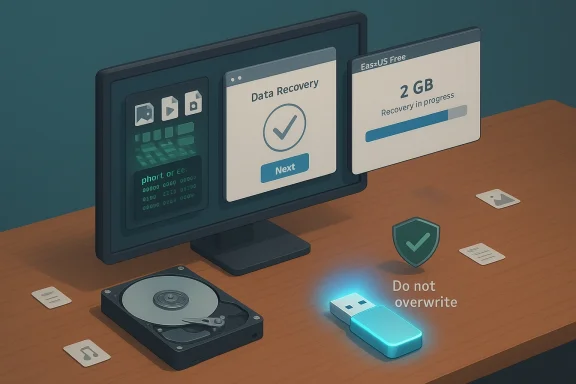 Why deletionent
- When you delete a file the file system marks the space as free and removes the directory/MFT entry. The bytes remain until overwritten.
- On HDDs this frequently allows software recovery for minutes, hours, days or longer (depending on subsequent writes).
- On SSDs, the OS typically sends TRIM commands that inform the controller the blocks are no longer in use; the controller can then erase or prepare those blocks, often making recovery impossible within minutes. For a technical exploration of TRIM’s impact and its exceptions (RAID, external enclosures, firmware quirks), see forensic analyses and storage‑technology primers.
The three free tools that actually work — what each does best
1) PhotoRec — raw carving that fixes the badly broken
PhotoRec is a no‑frills, open‑source recovery utility (part of the TestDisk suite) that ignores the file system and searches raw sectors for known file signatures. That makes it extremely effective when partitions are corrupted, the file system is missing, or the device was quickly formatted. It supports hundreds of file types across Windows, macOS and Linux, and — importantly — it’s free and open source.- Strengths:
- Can recover files from corrupted, reformatted or non‑mounting drives.
- Supports hundreds of file families (images, video, docs, archives).
- Runs on multiple OSes and is maintained by CGSecurity (Christophe Grenier).
- Weaknesses:
- Command‑line / text UI can be intimidating for less technical users.
- Because it carves files from raw data, it often loses filenames and folder structure, producing many generic recup_dir.* folders that require manual sorting.
- Best use case: reformatted SD cards, damaged partitions, drives that refuse to mount but are detected by the system.
2) Recuva — fast, easy and perfect for "Oops, I emptied the Recycle Bin"
Recuva is the classic Windows‑only recovery tool from Piriform. It has a simple wizard, quick scan and a deep scan mode, and assigns a recoverability rating to found files so you can prioritize. For quick accidental deletions on a healthy drive (especially NTFS/FAT/exFAT) it’s often the fastest, least stressful way to get files back.- Strengths:
- Extremely easy to use for everyday deletions.
- Quick scan is fast; deep scan digs harder if needed.
- Includes a secure‑delete option if you ever want to go the other way.
- Weaknesses:
- Windows only; not ideal for severely corrupted partitions or unmounting drives.
- Development has slowed and it lacks advanced features like RAID/drive imaging found in paid tools.
- Best use case: recently deleted files on a working Windows machine, emptying the Recycle Bin, or USB/SD where the underlying media is fine.
3) EaseUS Data Recovery Wizard Free — polished triage with a 2 GB free cap
EaseUS offers a modern GUI that’s friendly for anxious users. The free tier lets you recover up to 2 GB (the exact quota mechanics can vary; the vendor documents how the free allowance works) and includes scanning, previews and guided workflows. It’s ideal when you want reassurance (preview thumbnails and file metadata) before deciding to pay or move to fully free tools for bulk recovery.- Strengths:
- Clean, guided experience with previews so you can confirm file integrity.
- Good for small numbers of high‑value files (documents, a handful of photos).
- Weaknesses:
- Free quota is limited (2 GB by default); you’ll hit a paywall for larger rescues.
- It’s a commercial product — free for triage, paid for unlimited restores.
- Best use case: you’re nervous and want a friendly interface to preview recoverability and use the free quota for the highest‑value files.
How to pick which tool to try first
- If the drive mounts normally and the deletion was recent: start with Recuva for its speed and simplicity.
- If you can preview recoverable files and only need a few: try EaseUS Free to use the 2 GB allowance on your most important files. Keep in mind the quota rules and social‑share tricks that sometimes change the apparent limit — check the vendor’s KB if the free allowance behaves unexpectedly.
- If the partition is RAW, the disk was formatted, or the device won’t mount but is still detected: use PhotoRec (or TestDisk, its sibling tool) to carve files off the raw sectors.
A safe step‑by‑step recovery workflow (recommended)
- Immediately stop using the affected drive. Do not write to it. Power down the machine if necessary.
- If the drive shows SMART errors, clicking noises, slow mounts or disconnects, do not keep scanning — create an image first (see step 3). Frequent scans on an unstable drive increase the chance of catastrophic failure.
- Create a sector‑by‑sector image of the drive to another healthy disk. Use tools like GNU ddrescue on Linux for tough, failing drives; it’s designed to map progress, skip slow areas, and retry bad sectors. Work from the image, not the original drive.
- Run a quick scan with Recuva (for Windows) or a GUI tool to preview and recover easy hits to a separate drive.
- If nothing shows up, run a deep scan or use PhotoRec against the image to carve files. Recover everything to a different physical drive.
- Verify recovered files by opening them before trusting them as final copies. If structural data (folder tree, filenames) is essential but missing, you may need to combine carved files with manual reassembly or consider a paid tool/pro lab.
When free tools fail — know the limits and call the pros
Free software is very effective for logical issues: accidental deletions, quick formats, and many file‑system corruptions. But free tools are not magic:- If the drive is physically failing (clicking, overheating, disconnects), stop. Imaging a failing drive is a job for specialists or to be done carefully with ddrescue.
- If files were on an SSD with TRIM enabled and a deletion or format triggered TRIM, standard consumer software often cannot recover the data. Forensics papers and storage specialists explain that TRIM plus garbage collection can remove recoverability rapidly; exceptions exist (RAID, USB enclosures, firmware bugs), but these are not something to count on.
- If the data is mission critical (legal evidence, irreplaceable client files), stop experimenting and contact a reputable recovery lab — the cost is high but the chances of success are materially better when hardware-level techniques are required.
Common myths and what’s actually true
- Myth: “I emptied the Recycle Bin so the files are gone forever.”
Fact: Often not. The file entries are removed but data may persist until overwritten. Recovery software can retrieve many such files — frequently for days or weeks on lightly used systems. - Myth: “SSD = never recoverable.”
Fact: TRIM makes recovery on SSDs harder, but not impossible in every case. TRIM behavior can vary by controller, OS, RAID/enclosure and firmware; in certain configurations (older SSDs, USB‑connected drives, or systems where TRIM isn’t issued) data may still be recoverable. Treat SSD recoverability as fragile and time‑sensitive. - Myth: “Paid tools always beat free ones.”
Fact: For many scenarios, free tools like PhotoRec and Recuva are equal or superior. Paid tools add polish, support, and extra features (RAID, SMART, imaging, advanced reconstruction) that matter for complex cases. Always preview with a free scan before spending money.
Practical examples and expected outcomes
- Deleted Word doc from Desktop (HDD), noticed within minutes: Recuva or EaseUS Quick Scan will often restore the file intact with its original filename. Success rate: high if you stop using the PC.
- Formatted SD card from a camera: PhotoRec is likely to recover many photos, but filenames and folder order will be lost; you’ll get many recup_dir.* folders to sort. Success rate: high for photos, moderate for metadata‑rich formats.
- SSD in laptop with TRIM enabled, file deleted days ago: low chance for full recovery with consumer tools; a professional lab may try controller‑level techniques but expect large cost and uncertain results. ([forensicfocus.com]focus.com/articles/recovering-evidence-from-ssd-drives-in-2014-understanding-trim-garbage-collection-and-exclusions/)
- Drive showing SMART reallocated sectors or clicking: image with ddrescue, then run recovery from the image, or send to a lab. Do not run repeated scans on the failing disk.
Safety, installer hygiene and privacy
Always download recovery tools from official sources and verify installer integrity where possible. Many vendors let you scan and preview results for free; that preview is your best instrument for deciding whether to pay. Avoid running installers onto the damaged drive — install to another disk or use portable boot media. If you’re recovering sensitive data, prefer local processing (no cloud upload) unless the vendor explicitly discloses local‑only operation and you trust their privacy posture. These basic checks minimize supply‑chain or privacy risks.Final verdict and practical workflow checklist
Free tools are often all you need. The MakeUseOf piece makes this clear: for the majority of everyday, non‑catastrophic data‑loss scenarios, PhotoRec, Recuva and EaseUS Free cover nearly all bases — from deep carving to quick GUI restores — and they spare you the typical panic‑purchase trap. That doesn’t mean every loss will be solved by freeware, but it does mean you should try these options before you pay or ship hardware overseas.Quick checklist to follow right now:
- Stop using the affected drive. Power down if necessary.
- If the drive shows physical symptoms, image it with ddrescue and stop.
- For recent deletions on a working Windows drive: run Recuva first.
- If you want previews and a guided GUI for a few critical files: use EaseUS Free (watch the 2 GB quota rules).
- For formatted/corrupted/RAW drives: use PhotoRec/TestDisk to carve files from raw sectors.
- Recover only to a different physical disk and verify files before overwriting the original media.
Closing analysis: strengths, risks, and what to watch for
Strengths- Free tools have matured — open‑soutweight Recuva often solve typical consumer problems without cost.
- GUI triage via EaseUS Free makes the process less anxiety‑provoking for non‑technical users.
- The right workflow (stop, image, scan) greatly increases success and reduces irreversible damage.
- SSD/TRIM is the single biggest variable that can turn a recoverable situation into a permanent loss; treat SSD deletions as high risk and time‑sensitive.
- Installer hygiene: fake or repackaged installers on third‑party sites are a real hazard; always use official vendor pages and scan installers.
- Free tiers (EaseUS, etc.) sometimes restrict actual exported data or use promotional steps to increase the free allowance — read the vendor KB before relying on the quota.
Conclusion: you probably don't need to pay for recovery on your first try. Try Recuva for quick accidents, EaseUS Free to preview and grab small, high‑value files, and PhotoRec/TestDisk when the file system is broken — but always stop writing to the drive and image it first if it’s unreliable. Those three tools and a calm, methodical workflow cover the majority of real‑world data loss situations.
Source: MakeUseOf Stop paying for data recovery—these 3 free tools actually work


