

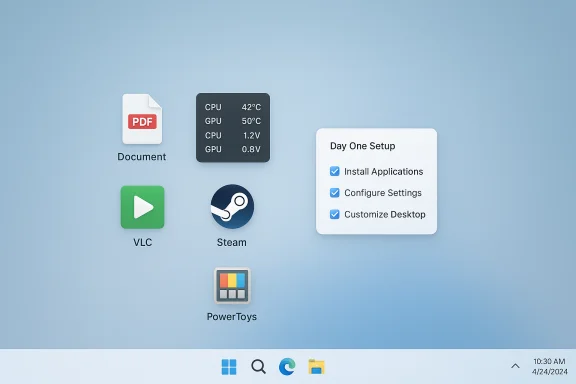
When I finish the out‑of‑box experience on a new Windows PC, I install a very short list of utilities that immediately turn a blank desktop into a productive, sensible workspace — the handful of apps I install on every new machine solves day‑one problems that crop up again and again: PDFs that need editing, sensors that need monitoring, video files that refuse to play, game libraries that should be available, and tiny productivity tools that speed common tasks. ZDNET’s recent roundup of five day‑one apps — PDFgear, HWMonitor, VLC Media Player, Steam, and Microsoft PowerToys — captures that practical trade‑off between “what ships in Windows” and “what you actually use,” and it’s a good starting point for any build checklist.
Background
Windows ships with steadily better built‑in tools, but persistent gaps remain in workflows many of us hit immediately after setup: converting a scanned receipt to searchable text, checking whether the CPU is throttling under load, opening a strange codec container dropped off a phone, or quickly arranging multiple windows across monitors. ZDNET’s five‑app list is intentionally small and pragmatic: each app targets a common pain point and is broadly useful across home and enthusiast‑level setups. Community rundowns and practical day‑one guides echo the same picks and sensible alternatives.This feature unpacks each pick, verifies the main technical claims where they matter, weighs strengths and trade‑offs, and offers a reproducible day‑one checklist so you can spin up the same toolkit every time.
The five apps (at a glance)
- PDFgear — quick PDF editing, conversion, and (claimed) offline OCR for scanned documents.
- HWMonitor — lightweight hardware sensor reader for CPU, GPU, voltages, and fan speeds.
- VLC Media Player — the universal media player that plays nearly everything.
- Steam — dominant PC game storefront and library manager; also useful for driver and game sanity checks.
- Microsoft PowerToys — an official, modular utility suite with window managers, launchers, and small productivity tools.
PDFgear — a pragmatic PDF day‑one tool
What it does and why it matters
PDFgear bills itself as a freemium PDF editor that bundles annotation, conversion (PDF ↔ Word/Excel/PPT/JPG), compression, and an OCR engine into one local app. For quick scans, compressing large PDFs for email, or converting a shot‑from‑phone scan into editable text, having a small desktop PDF utility on day one saves time compared with juggling web converters or trial subscriptions. ZDNET highlights PDFgear for those exact reasons.Verified claims and caveats
Vendor materials list offline OCR, batch conversion, and common editing tools as core features. Independent coverage is thinner than for entrenched players like Adobe or Foxit, so long‑term reliability claims require testing. Users with sensitive documents should explicitly verify that OCR and conversion truly operate locally on their machine (no background uploads) before trusting the tool for legal or financial workflows. When vendor documentation is the primary source for a privacy claim, treat it as a signal, not definitive proof.Strengths
- All‑in‑one convenience for day‑one PDF tasks.
- Local OCR claims are attractive for privacy‑sensitive users.
- Lightweight compared with full enterprise suites.
Risks and alternatives
- Newer product with less third‑party long‑term testing; validate OCR accuracy on representative scans.
- Alternatives: built‑in Microsoft Edge PDF tools for light tasks, PDF‑XChange Editor, Foxit, or SumatraPDF for lightweight reading.
HWMonitor — instant hardware visibility
Why it’s a day‑one install
Seeing temperatures, fan speeds, and voltages right away is essential when you’re testing a new PC, updating drivers, or benchmarking. HWMonitor gives a quick, low‑overhead view of key sensors without the heavy configuration of vendor suites, making it ideal for initial diagnostics and for spotting thermal or power problems early. ZDNET and community writeups recommend HWMonitor as a baseline sensor tool.Technical verification
HWMonitor reads sensor data exposed by system firmware and device drivers; it doesn’t alter hardware behavior. That means accuracy depends on vendor driver support for newer CPUs and GPUs — so keep drivers current for correct reporting. Community threads also point out HWInfo64 as a deeper alternative when you need logging, history, and more granular sensors.Strengths and trade‑offs
- Strength: very low overhead and easy to read at a glance.
- Trade‑off: limited logging compared with HWInfo64 or vendor control panels; not intended for active fan control. Validate readings against vendor tools for critical diagnostics.
VLC Media Player — the universal player
Why VLC belongs on day one
If a freshly copied video or that .mkv from your phone refuses to play in Movies & TV, VLC nearly always does the job. Its broad codec support, lightweight installation, and active maintenance make it the default fallback for power users and media professionals alike. Community guides and editorial roundups consistently list VLC as essential.Claims checked
VLC’s capability to handle diverse containers and codecs is well documented and widely validated by independent testing. Recent development continues to add features (including experimental subtitle and AI enhancements), which indicates active maintenance. That active development is important: codec compatibility evolves with new hardware and containers.Practical notes
- VLC’s UI is functional rather than flashy; power users may pair it with MPC‑HC/mpv or codec packs for niche tasks.
- For privacy‑conscious installs, download from the official project site or maintained package managers to avoid repackaged binaries.
Steam — more than just games
Why install Steam first
Steam is the largest PC gaming catalog and community, but it’s also a practical day‑one tool: it verifies GPU drivers with in‑game benchmarks, provides a quick testbed (many free titles exist), and standardizes game-related settings. For enthusiasts who plan to play, test hardware with games, or centralize game libraries, Steam is an obvious day‑one pick. ZDNET flagged Steam for its convenience and because signing in lets you quickly validate GPU/driver behavior.Security and privacy posture
Enable Steam Guard (2FA) immediately and review auto‑start and update options. Steam runs background services that can add to startup time; adjust those settings during first configuration. If gaming isn’t important, skip Steam to reduce background services.Alternatives
- Epic Games Store, GOG Galaxy, Xbox App for Game Pass — choose based on where your purchases and subscriptions live.
Microsoft PowerToys — small utilities, big wins
What PowerToys brings to the table
PowerToys is Microsoft’s official, modular toolkit for power users. Modules like FancyZones (grid‑based window layouts), PowerToys Run (quick launcher/Command Palette), and the Color Picker deliver immediate productivity wins with conservative system impact. Because PowerToys is maintained by Microsoft and distributed broadly, it’s a low‑friction install that frequently surfaces on day‑one lists.Recent UX lessons and verification
PowerToys evolves quickly; that’s both good and a caution. Community reports have flagged instances where updates changed defaults unexpectedly (for example, enabling scheduled features without clear first‑run prompts), which sparked user backlash and fast patches. The lesson: verify module defaults after installation and enable only what you need.Strengths and risks
- Strengths: Official Microsoft pedigree, modular design, large user base, and fast practical wins (window layouts, launcher).
- Risks: Modules can alter defaults or background behavior; audit the settings post‑install. Keep an eye on release notes for behavioral changes.
A practical, repeatable day‑one installation sequence
These five utilities cover a broad set of first‑hour needs. Here’s a reproducible sequence that minimizes friction and keeps control at every step:- Install Windows updates and enable full disk encryption (BitLocker or device encryption).
- Install Microsoft PowerToys, enable FancyZones and PowerToys Run (Command Palette). Configure window zones for your monitor layout.
- Install VLC from the official distribution or via winget/Ninite and test playback with a sample .mkv and a smartphone video.
- Install HWMonitor and run a short idle vs. light stress test to capture baseline temps and voltages. Cross‑check against vendor monitor tools if you suspect discrepancies.
- Install PDFgear (or your preferred PDF tool), test offline OCR on a sample scan, and verify that no cloud uploads occur during conversion. Flag vendor offline claims as requiring your own validation.
- Install Steam (if you game), sign in, enable Steam Guard, and test a free game or a GPU‑intensive demo to validate drivers.
Security, privacy, and enterprise considerations
- Telemetry and permissions: Audit telemetry and cloud sync options during first run. Apps that touch the clipboard, upload documents, or offer cloud backups require particular scrutiny — disable what you don’t need. PDF tools, launchers, and PowerToys modules often include optional telemetry.
- Official channels only: Download from vendor sites, GitHub releases, Microsoft Store, or trusted package managers (winget/Ninite). Community threads repeatedly warn against repackaged installers.
- Enterprise locks: If the machine is enterprise‑managed, check with IT; domain policies often block non‑store installs or enforce signed packages. In corporate contexts, prefer Microsoft‑endorsed or store‑distributed equivalents.
- Resource creep: Every background utility adds to memory and startup time. Enable only necessary modules (PowerToys) and trim autorun entries when done.
Alternatives and situational swaps
No five‑app list fits everyone. Consider these well‑established alternatives depending on your priorities:- Productivity‑first: Everything for instant file search and AutoHotkey for deep automation.
- Advanced sensors/logging: HWInfo64 for detailed logging and historical sensor graphs.
- Media power users: mpv for scriptability or PotPlayer for Windows‑centric feature sets.
- PDF heavy workflows: PDF‑XChange Editor, Foxit, or Adobe Acrobat for enterprise features like certified signatures or legal redaction.
Critical analysis — strengths and blind spots
What ZDNET’s picks get right
- High signal, low noise: Each app fixes a concrete, high‑frequency problem that non‑technical users encounter on day one. That focused approach makes the list immediately useful.
- Reproducibility: These apps are free or freemium, actively maintained, and easy to script with winget/Ninite for repeatable setups.
- Balance of categories: The list mixes document handling, diagnostics, multimedia, entertainment, and productivity — covering a broad spectrum of user needs without redundancy.
Where the list needs caution
- Vendor claims need vetting: PDFgear’s offline OCR is a differentiator on paper, but independent long‑term audits and privacy guarantees are sparse; verify on representative files before trusting sensitive documents to it. Mark unverifiable claims and test them yourself.
- Behavioral changes from updates: PowerToys and other rapidly evolving utilities have occasionally changed defaults in ways that annoyed users; always review module defaults post‑update.
- Context matters: Corporate devices, privacy‑first users, and professional creatives will often require different day‑one tools (signed Store apps, enterprise PDF suites, professional DAWs). The five‑app kit is a great generalist starting point but not a universal mandate.
Final verdict — who should use this list, and how to adapt it
ZDNET’s five day‑one apps are a compact, defensible starting kit for most home users, enthusiasts, and reviewers who need quick practical wins: tidy PDFs, sensor visibility, guaranteed media playback, gaming storefront access, and productivity micro‑tools. For the vast majority of fresh installs, these five reduce friction significantly and make the machine feel purpose‑built within an hour.Adaptation rules:
- If you manage corporate machines, coordinate with IT and prefer store‑distributed or signed packages.
- If privacy is paramount, validate offline features and prefer open‑source or well‑audited tools.
- If you need deeper diagnostics or logging, swap HWMonitor for HWInfo64.
Quick checklist to reproduce this setup (copy/paste friendly)
- Run Windows Update and enable BitLocker/device encryption.
- Install PowerToys; enable FancyZones and PowerToys Run; configure hotkeys.
- Install VLC and test with a multi‑format sample.
- Install HWMonitor; capture idle readings and run a brief stress test.
- Install PDFgear and verify offline OCR on a representative scanned document. Flag any cloud activity.
- Install Steam, enable Steam Guard, and run a free title to validate GPU/driver behavior.
A fresh Windows desktop should feel like a tool, not a half‑finished demo; investing 20–30 minutes on a small, well‑tested set of utilities often returns hours of time saved and months of fewer frustrations. ZDNET’s five picks deliver that pragmatic value — but with the usual caveats: verify privacy claims, audit defaults after updates, and pick alternatives when your use case demands more specialized software.
Source: ZDNET 5 must-have apps I install on every new Windows PC - and why they matter
