

Display Driver Uninstaller (DDU) remains the go-to utility for enthusiasts and troubleshooters who need a truly clean slate when dealing with GPU drivers, and the latest official distribution and release notes make that purpose explicit: DDU removes vendor drivers, driver-store packages, associated services, files, and registry traces to enable fresh installs and avoid conflicts that standard uninstallers often miss.
Display Driver Uninstaller (DDU) is developed and maintained by WagnardSoft and distributed widely via its official site and major download mirrors. The tool is intentionally focused: it targets graphics drivers from NVIDIA, AMD, and Intel, and can also purge certain audio drivers such as Realtek when requested. Official listings (including TechPowerUp’s download page and WagnardSoft’s pages) publish portable and installer builds, file sizes, and cryptographic checksums for verification. The practical rationale behind DDU is simple: Windows and vendor uninstallers often leave behind driver-store entries, INF files, service registrations, driver binaries, and registry keys. These leftovers can cause reinstall failures, driver conflicts, performance glitches, or GPU-related crashes. DDU attempts to remove those artifacts to approximate the state of a fresh Windows graphics-install environment. WagnardSoft and major download portals emphasize Safe Mode usage for the deepest cleanup and recommend a system restore point or backup beforehand.
Source: TechPowerUp Display Driver Uninstaller (DDU) 18.1.3.9 Download
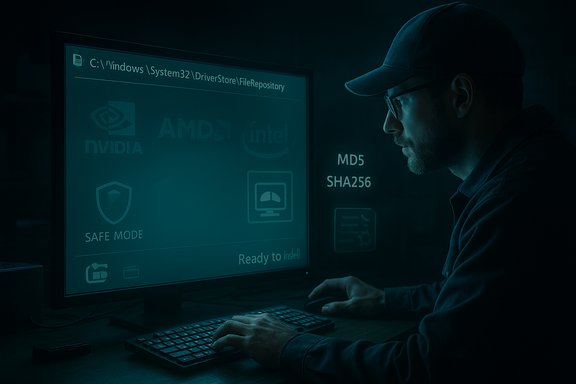 Background / Overview
Display Driver Uninstaller (DDU) is developed and maintained by WagnardSoft and distributed widely via its official site and major download mirrors. The tool is intentionally focused: it targets graphics drivers from NVIDIA, AMD, and Intel, and can also purge certain audio drivers such as Realtek when requested. Official listings (including TechPowerUp’s download page and WagnardSoft’s pages) publish portable and installer builds, file sizes, and cryptographic checksums for verification. The practical rationale behind DDU is simple: Windows and vendor uninstallers often leave behind driver-store entries, INF files, service registrations, driver binaries, and registry keys. These leftovers can cause reinstall failures, driver conflicts, performance glitches, or GPU-related crashes. DDU attempts to remove those artifacts to approximate the state of a fresh Windows graphics-install environment. WagnardSoft and major download portals emphasize Safe Mode usage for the deepest cleanup and recommend a system restore point or backup beforehand. What DDU actually does — the technical picture
Driver store, INF files, services and registry keys
When you run DDU, it performs a multi-part cleanup that targets components left behind by vendor installers:- It tries to remove driver packages from the Windows Driver Store (the collection under C:\Windows\System32\DriverStore\FileRepository) and any related INF entries.
- It stops and removes vendor services and helper components (examples include NVIDIA container components, AMD helper services, Intel service artifacts).
- It deletes leftover folders (application folders, shader caches, audio components) and registry keys that are commonly associated with GPU drivers and their user-space components.
- It offers optional extra cleanup for non-GPU drivers (for example, Realtek audio-related items) when that option is selected.
What DDU does not do (or does only partially)
- DDU is not a universal system cleaner. It focuses on driver-related artifacts for GPUs and selective audio drivers.
- It does not (and cannot safely) reconstruct Windows subsystems or repair unrelated system corruption.
- Forced removal of driver-store items can have consequences if other devices rely on the same package; Microsoft warns about deleting driver packages that are still installed on any devices. DDU users must understand that removing a driver package completely will leave a device without its driver until a replacement is installed.
Release status, packaging and verification
TechPowerUp’s DDU download page lists current and historical releases, platform compatibility, and file checksums (MD5, SHA1 and SHA256) for both the installer and portable builds — a useful redundancy for integrity checks before running an offline tool that manipulates drivers. For example, a recent TechPowerUp listing shows DDU v18.1.2.3 with explicit checksums for both portable and installer packages; WagnardSoft’s own site publishes the same primary guidance and changelog entries. Always verify checksums against the official publisher page before executing the binary. Download mirrors (TechPowerUp, TechSpot, Guru3D and others) frequently host the same official builds; cross-check the signature/checksum on each mirror with WagnardSoft’s published values to avoid tampered downloads. TechSpot and other major download repositories also carry DDU and keep their own update timestamps — they can be used as secondary verification lines.When to use DDU — use cases and real-world scenarios
- Switching GPU vendors (NVIDIA ↔ AMD) where leftover components from the previous vendor may conflict with a new driver package.
- Recovering from driver-related crashes, bluescreens, black screens, or persistent display corruption that survives normal uninstalls.
- Resolving installation problems caused by corrupted or incomplete vendor uninstallers or by Windows Update automatically installing a driver that doesn't match your hardware expectations.
- Preparing a system to test multiple driver versions (clean baseline between installs).
Step-by-step recommended workflow (safe, reproducible)
- Download the desired new GPU driver(s) (NVIDIA/AMD/Intel) and place them on the system before removing the old driver.
- Verify the DDU package checksum against the official publisher values.
- Create a full system restore point or a disk-level backup. This is non-negotiable for systems that must remain production-ready.
- Disconnect from the Internet or block Windows Update temporarily to avoid automatic driver reinstallation while you’re in the middle of the process.
- Boot into Windows Safe Mode (this reduces interference from running services and drivers) — DDU’s Safe Mode path is the recommended option for the deepest cleanup.
- Launch DDU, select your GPU vendor, and choose the appropriate action (e.g., Clean and restart). DDU logs its actions — save the log if you need to troubleshoot later.
- After the system reboots normally, install the downloaded driver package and reboot again.
- Re-enable Windows Update and network connectivity if you had disabled them.
Best practices and practical safeguards
- Always verify checksums for downloaded DDU packages and vendor drivers to ensure integrity. TechPowerUp lists MD5, SHA1 and SHA256 values which can be compared with the binary you downloaded.
- Make a restore point or full image backup. DDU makes low-level changes — a restore point or image is a quick recovery path if the new driver fails or the system behaves unexpectedly.
- Download replacement drivers first. You should never run DDU without the replacement driver ready, because the display may be non-functional until the new driver is installed.
- Use Safe Mode for the most thorough cleaning. DDU includes an option to boot you into Safe Mode and run its cleanup tasks.
- Exclude the DDU folder from antivirus scanning during use. Community guidance and forum threads note that some AV products flag DDU as a PUP/PUA (see below). Excluding the DDU folder while running it can prevent interference; restore normal AV settings afterward.
Known issues, caveats and risks (what can go wrong)
AV alerts and PUP/PUA flags
DDU has a long history of being flagged as a PUA/PUP by some antivirus engines because it performs system-level driver and registry deletions — behaviors that are similar to some utilities that could be misused. These detections are typically false positives if you download DDU from the WagnardSoft official page or a reputable mirror and verify checksums. Still, AV/endpoint policies in corporate environments may block or quarantine the tool; its publisher and community threads recommend whitelisting/excluding the DDU folder while you run it.Safe Mode login issues on recent Windows builds
Multiple reports surfaced across forums and Microsoft Q&A about users getting locked out of Safe Mode due to Windows Hello PIN issues (Windows 11 24H2, etc.. When Safe Mode is active, PIN or Windows Hello authentication can sometimes fail because related services are disabled; that can leave users unable to log back into the system while in Safe Mode. The workaround is to ensure you know your full account password, disable Windows Hello sign-in options before booting to Safe Mode, or use the Windows Recovery Environment to clear Safe Mode if necessary. These are system-level quirks in certain Windows builds and not a DDU-specific bug — but DDU’s Safe Mode recommendation makes it a practical risk to be prepared for.Driver-store and device dependency hazards
Microsoft explicitly warns that deleting driver packages from the Driver Store while devices are still installed with those packages can cause failures. If a vendor driver package contains runtime files that devices depend on, force-removing those packages can leave devices in a malfunctioning state until a replacement driver is provided. DDU users should therefore avoid removing drivers for devices they need immediately unless they have a replacement driver ready and tested.Human error and mis-selection
Because DDU can remove associated application components (e.g., GeForce Experience entries, AMD Radeon software components, audio bus drivers), selecting the wrong options or cleaning the wrong vendor on a multi-GPU or hybrid system can break functionality. Carefully review the selected vendor and check the option boxes before committing to a clean. Community threads show cases where auto-selection or misclicks removed extra packages users expected to keep.Realtek audio and non-GPU cleanup: what to expect
DDU’s scope has expanded to include basic Realtek audio cleanup in some builds, giving it a limited capability to remove audio driver remnants that can cause audio conflicts after driver swaps or system upgrades. The feature is not meant to replace full audio driver management tools, but it provides a targeted cleanup that community guides and changelogs confirm. Users needing full audio-package uninstalls may still prefer vendor-specific uninstallers or Windows’ add/remove programs flow.Community and changelog signals
WagnardSoft and major enthusiast forums (Guru3D, TechPowerUp threads) maintain active changelogs and release notes; recent versions show incremental additions such as better Intel Arc handling, removal of additional NVIDIA/AMD app artifacts, and safer Safe Mode logic. The forum archive demonstrates a long history of iterative improvements, and the project’s release cadence reflects active maintenance and responsiveness to new driver architectures. Those changelogs are useful when you need to confirm whether a particular DDU build explicitly adds or changes cleanup for a specific vendor component.Expert recommendations (summary checklist)
- Verify and download: Get DDU from WagnardSoft’s official page or a reputable mirror and verify the checksums listed on the publisher page.
- Backup: Create a system restore point or full disk image before changing drivers.
- Driver-first: Download the replacement driver before running DDU.
- Isolate network: Temporarily disconnect or block Windows Update during the operation to prevent automatic driver reinstallation.
- Safe Mode: Use Safe Mode for the most comprehensive cleanup, but be aware of Safe Mode/PIN quirks in some Windows builds and have your account password ready.
- AV handling: Temporarily exclude DDU from antivirus scanning or whitelist the DDU folder if your security product interferes (restore normal protections after).
- Reinstall and reboot: Immediately install the replacement driver after DDU completes and then reboot.
Final verdict — strengths, limitations and suitable audience
Display Driver Uninstaller is a highly effective, focused tool for a specific class of driver problems. Its strengths include:- Thoroughness: DDU removes driver-store packages, registry leftovers, and vendor services more completely than typical uninstallers.
- Mature tooling: The project has long-term maintenance, active changelogs, and community-tested guidance.
- Portable option: A portable build lets technicians run DDU without a system install step, aiding recovery scenarios.
- Potential to break devices: Removing driver-store packages recklessly can leave devices non-functional until replacements are installed. Microsoft’s driver-store guidance underscores this risk.
- AV and corporate policies: Endpoint protection may block or flag the utility; corporate environments should coordinate with IT policy before using DDU.
- Safe Mode quirks: Certain Windows builds have Safe Mode login issues (PIN), so know your account password and prepare recovery options.
What to check right now (actionable quick list)
- Confirm the current official DDU version and checksums on the publisher page before downloading.
- If you plan to use Safe Mode, ensure you can sign in with your full password (disable Windows Hello PIN if necessary before rebooting) or know the recovery steps for your Windows build.
- Back up or create a restore point, download the replacement driver, and have a plan to reinstall immediately after the cleanup.
Source: TechPowerUp Display Driver Uninstaller (DDU) 18.1.3.9 Download
