

Paul Thurrott’s idea of a compact, focused “De-Enshittify Windows 11 Field Guide” is more than a cheeky headline — it’s a practical manifesto for a large and growing slice of Windows users who feel the operating system has been steadily layered with friction, telemetry, and unwanted defaults that break workflows more often than they help. His proposal reframes the problem: instead of a heavyweight encyclopedic Field Guide, produce a lean, how‑to manual that gives everyday users repeatable steps to debloat, harden, and restore control over their Windows 11 installs.
This feature unpacks that proposal, places it in the context of existing de‑bloat tooling and community practices, evaluates risks and tradeoffs, and provides a practical, conservative roadmap for anyone who wants to reduce the friction Microsoft has introduced into modern Windows. We’ll examine the suggested table of contents, dissect the tools Paul references (and similar alternatives), cross‑check key technical claims, and conclude with an actionable, safety‑first approach to “de‑enshittifying” a Windows 11 system.
Paul Thurrott’s Windows 11 Field Guide has been an evolving resource that mixes long‑form reference material with hands‑on instructions for users and administrators. Over time, the Field Guide grew unwieldy — both in size and in scope — and Thurrott has documented efforts to slim it down for distribution and readability. That history matters because the “De‑Enshittify” concept is consciously intended to complement, not replace, the comprehensive Field Guide: shorter, task‑focused, and oriented to immediate fixes.
The broader community has responded to Windows 11’s perceived “enshittification” with a range of approaches:
There’s also a sustainability angle: community tools like Tiny11 and Win11Debloat arise because vendor control limits user choice. That’s healthy for innovation, but it also places the long‑term maintenance burden on volunteer maintainers. A practical De‑Enshittify Field Guide should therefore include community stewardship tips: how to vet projects, how to contribute fixes, and how to archive configurations for future reference.
If Paul Thurrott publishes a compact De‑Enshittify Field Guide that follows the responsible template outlined here — with clear warnings, step‑by‑step rollback instructions, and an emphasis on testing — it will be a valuable addition to the Windows ecosystem. It fills a genuine need: actionable, trustable guidance for users who value control and privacy and are willing to take prudent steps to reclaim them.
For power users and IT pros, the path forward is clear: test in VMs, document every change, prefer minimally invasive options first, and keep robust backups. For the broader Windows audience, an accessible De‑Enshittify Field Guide could democratize these practices in a safe, readable format — exactly the kind of resource the ecosystem needs right now.
Source: Thurrott.com Windows 11 Field Guide De-Enshittify article
This feature unpacks that proposal, places it in the context of existing de‑bloat tooling and community practices, evaluates risks and tradeoffs, and provides a practical, conservative roadmap for anyone who wants to reduce the friction Microsoft has introduced into modern Windows. We’ll examine the suggested table of contents, dissect the tools Paul references (and similar alternatives), cross‑check key technical claims, and conclude with an actionable, safety‑first approach to “de‑enshittifying” a Windows 11 system.
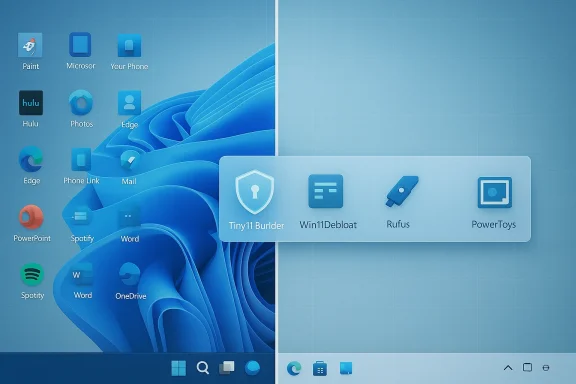 Background and context
Paul Thurrott’s Windows 11 Field Guide has been an evolving resource that mixes long‑form reference material with hands‑on instructions for users and administrators. Over time, the Field Guide grew unwieldy — both in size and in scope — and Thurrott has documented efforts to slim it down for distribution and readability. That history matters because the “De‑Enshittify” concept is consciously intended to complement, not replace, the comprehensive Field Guide: shorter, task‑focused, and oriented to immediate fixes. The broader community has responded to Windows 11’s perceived “enshittification” with a range of approaches:
- Full clean installs from tailored images (Tiny11 and Tiny11 Builder variants).
- Post‑install scripts and PowerShell utilities that remove preinstalled apps and disable telemetry (Win11Debloat and forks).
- Installer media modifications that bypass some Microsoft hardware checks and OOBE restrictions (Rufus’ extended options and unattended answer files).
What Paul proposes (and why it matters)
The suggested De‑Enshittify Field Guide would be a short, practical e‑book and series of site articles focused on how‑to solutions:- How to cleanly install Windows 11 on older or restricted hardware.
- How to de‑enshittify an existing installation without reinstalling.
- How to deal with Microsoft Edge and other Microsoft apps whether you use them or not.
- Replacing problematic default apps.
- Security and privacy hardening.
- PowerToys and other productivity tools to restore control.
Tools and tactics: what actually works
Below I summarize the major tools and approaches Thurrott and the community rely on, with a technical reality check and clear notes on risk.Tiny11 / Tiny11 Builder: custom minimal install images
- What it is: Tiny11 Builder is a collection of scripts (tiny11maker.ps1) that automates building a slimmer Windows 11 ISO by removing many preinstalled components and applying compression. It can produce a serviceable, smaller image compatible with modern updates when used correctly.
- Why users like it: Clean installs that avoid the “bloat” Microsoft bundles (Copilot/UI cruft/extra apps) and reduce disk and memory footprint.
- Caveats and risks:
- Removing system components may hinder future updates or features. A “core” image can be less serviceable and may block some servicing scenarios.
- Community‑driven scripts change frequently; stability across future Windows 11 feature updates is not guaranteed.
- Using unattended answer files to bypass OOBE or account requirements raises privacy and licensing considerations. Use these only if you understand the implications.
- Practical note: If you plan to use Tiny11 Builder, test on a VM first. Keep a recovery image and a documented list of removals so you can troubleshoot update regressions.
Win11Debloat and similar PowerShell scripts
- What it is: Win11Debloat (and forks) are PowerShell scripts that remove preinstalled apps, disable telemetry, and adjust settings to a privacy‑first configuration. They can run interactively or in default/custom modes.
- Why users like it: Fast, repeatable post‑install cleanup without rebuilding an ISO.
- Caveats and risks:
- Scripts operate with elevated privileges and can remove components that some apps or features expect. Always review the script before running.
- Changes may be reverted by feature updates (Microsoft pushes settings and apps back in some updates).
- Relying on community scripts implies trust in the maintainer; prefer widely used and audited projects with clear issue trackers and change logs.
- Safety recommendations:
- Run scripts in a virtual machine first to observe behavior.
- Use “dry run” or review the actions list if provided.
- Keep system restore or a disk image before applying broad changes.
Rufus’ installer modifications and the “Remove requirement” option
- What it does: Rufus, a popular USB ISO tool, provides an “extended” install option that modifies bootable media to skip certain hardware checks (TPM, Secure Boot, RAM) and can affect Online Account enforcement for OOBE. This bypass applies to booted installs from the USB.
- Why it matters: For users with older hardware or who want to avoid mandatory account sign‑in during OOBE, Rufus’ options are an easy technical path.
- Caveats and risks:
- Microsoft’s official support and update guarantee may change for installs that bypass hardware gating.
- The Rufus bypass does not change in‑OS setup behavior when you run Setup.exe from a mounted ISO; it specifically affects the boot‑time installer path.
- Using such bypasses is a pragmatic choice, but not a maintenance contract: keep recovery media and expect potential quirks during updates.
Cross‑checking core claims
A responsible De‑Enshittify guide must verify the technical claims it makes. Here are cross‑checks for the load‑bearing assertions:- Claim: “Tiny11 Builder produces smaller, serviceable ISOs compatible with recent Windows 11 versions.” Verified: Tiny11 Builder and its forks explicitly document LZMS compression and DISM usage to reduce image size; recent releases target 24H2/25H2 and discuss serviceability tradeoffs. This is corroborated by project READMEs and independent tech coverage reporting compatibility and removal of apps like Copilot and Outlook.
- Claim: “Win11Debloat is an actively maintained PowerShell solution for common de‑bloat tasks.” Verified: The Win11Debloat GitHub repository shows an active release cadence, a public README with usage instructions, and a clear command to run the script via an online download command. That structure confirms the typical community workflow (download & run) and the availability of default/custom modes.
- Claim: “Rufus’ extended installer options can bypass TPM/Secure Boot checks and influence account enforcement.” Verified: Rufus’ extended installation features are widely discussed by Windows power‑user communities and documented in tool changelogs and forum guidance; they apply to bootable installer behavior, not in‑OS mount‑and-run setup paths.
Strengths of the De‑Enshittify approach
- It’s pragmatic and immediate. Users don’t have to wait for Microsoft to change course; they get repeatable steps to restore usability.
- It scales across skill levels. The guide can include beginner‑friendly recipes (convert to local account, remove OneDrive) and advanced playbooks (custom ISO builds).
- It preserves options. Rather than dictating “use only X browser,” a good guide explains tradeoffs and offers multiple replacement paths.
- It institutionalizes learning. A Field Guide that captures these practices prevents knowledge loss as community tools evolve or maintainers move on.
Risks, legal and security considerations
No “de‑enshittify” project should ignore the real risks:- Security: Removing components like Windows Defender features or certain update mechanisms can reduce visibility into threats. Any guide that recommends disabling telemetry should pair that advice with hardening steps (stronger local controls, alternative security tooling).
- Updates and support: Aggressive image tailoring or system modifications can break feature updates, driver installs, and Microsoft supportability. Keep ISO and update testing procedures.
- Trust and provenance: Community scripts and third‑party ISOs may include unwanted changes. Only use well‑documented projects with active issue trackers and verifiable collaborators.
- Licensing and Terms: Modifying installation media and bypassing OOBE checks sits in a grey area depending on local licensing and enterprise agreements. Users should understand that such modifications may have consequences in formal support contexts.
- Data loss: Any mass removal of apps or registry edits can cause data loss for less technical users. Always back up before making sweeping changes.
A safe, prioritized roadmap: how to de‑enshittify responsibly
If you want to take control of your Windows 11 system with minimal risk, follow this conservative, numbered roadmap crafted for power users and IT pros:- Inventory and backup
- Create a full disk image (or at minimum a System Image + File backup).
- Record current versions (Settings → System → About) and installed apps.
- Document restore steps and keep a recovery USB.
- Start with non‑destructive changes
- Use Settings and Privacy pages to disable telemetry items you’re comfortable toggling.
- Unpin or uninstall store apps one at a time and confirm workflows still function.
- Convert Microsoft account to local account only after understanding loss of features like OneDrive autosync and credential syncing.
- Apply targeted cleanup scripts with review
- Inspect any PowerShell script (Win11Debloat or similar) before running. Look for the actions it will perform and opt for non‑destructive modes first.
- Run in a VM or on a secondary machine to validate impact on apps you rely on.
- Prepare a custom installer only if necessary
- Use Tiny11 Builder or an audited fork to create a fresh, minimal ISO if you want a completely clean install.
- Prefer the “serviceable” build that allows future updates; avoid “core” builds unless you fully understand the tradeoffs.
- Use Rufus’ extended options only when booting from USB
- If you must bypass TPM/Secure Boot or avoid MS account enforcement in OOBE, create bootable media with Rufus and choose the appropriate extended option during media creation.
- Remember this bypass is for booted installs, not for running setup from within another OS.
- Reapply hardening and monitoring
- After cleanup, configure a modern EDR or third‑party antivirus if you removed Defender features.
- Reintroduce selective telemetry monitoring if you disabled logging that aids incident response.
- Maintain an update test plan
- Keep a lab VM for monthly updates and feature upgrades. Test the update process and note regressions.
- Maintain a changelog for your customizations so you can revert or reapply them after major feature updates.
Example problem/solution vignettes the guide should include
These short, scannable entries are precisely the type of content Thurrott envisions: each one pairs a complaint with a concrete solution.- Problem: OOBE forces Microsoft account sign‑in.
- Solution: Boot from Rufus‑created USB with OOBE bypass option, or use an unattended answer file to set up a local account during installation.
- Problem: Edge and bundled apps persist after uninstall.
- Solution: Use Win11Debloat’s controlled app removal mode, then set your preferred browser as default and pin it to the taskbar via a script to restore workflow continuity. Reinstall only what’s needed for app compatibility.
- Problem: System feels sluggish after feature updates.
- Solution: Compare running services and scheduled tasks introduced by the update; use Task Manager and Autoruns to disable nonessential items and profile boot time with built‑in diagnostics.
Editorial analysis: the political economy of de‑enshittification
The existence and popularity of de‑bloat tooling reflects a larger tension: a commercial OS vendor increasingly bundles services, telemetry, and AI features that push the balance toward ecosystem control. Guides like Paul’s are a user‑rights response — they’re not just technical manuals but user empowerment literature.There’s also a sustainability angle: community tools like Tiny11 and Win11Debloat arise because vendor control limits user choice. That’s healthy for innovation, but it also places the long‑term maintenance burden on volunteer maintainers. A practical De‑Enshittify Field Guide should therefore include community stewardship tips: how to vet projects, how to contribute fixes, and how to archive configurations for future reference.
Final verdict: should you use the De‑Enshittify approach?
Yes — but carefully. A balanced, conservative strategy will give most users the gains they want (less bloat, more privacy, faster performance) while minimizing the real risks (update breakage, security gaps, support issues).If Paul Thurrott publishes a compact De‑Enshittify Field Guide that follows the responsible template outlined here — with clear warnings, step‑by‑step rollback instructions, and an emphasis on testing — it will be a valuable addition to the Windows ecosystem. It fills a genuine need: actionable, trustable guidance for users who value control and privacy and are willing to take prudent steps to reclaim them.
Conclusion
The De‑Enshittify Windows 11 Field Guide concept is both timely and practical: it meets users where they are with short, tested recipes for removing friction and restoring control. Community tools like Tiny11 Builder and Win11Debloat make many of these tasks straightforward; Rufus and unattended installers address the installation path. But none of this is risk‑free. A high‑quality guide must pair each recommendation with conservative safety checks, clear rollback procedures, and explicit warnings about update and support tradeoffs.For power users and IT pros, the path forward is clear: test in VMs, document every change, prefer minimally invasive options first, and keep robust backups. For the broader Windows audience, an accessible De‑Enshittify Field Guide could democratize these practices in a safe, readable format — exactly the kind of resource the ecosystem needs right now.
Source: Thurrott.com Windows 11 Field Guide De-Enshittify article
