

A compact, pragmatic companion — a De‑Enshittify Windows 11 Field Guide — is not only doable, it’s a timely and useful product: a short, action‑oriented how‑to that collects the safest, highest‑value tweaks, tool picks, and workflows to reclaim control of Windows 11 without turning readers into system integrators overnight.
Windows 11’s product trajectory has made this project necessary. Over the past releases Microsoft has pushed inbox apps, cloud hooks, AI surfaces (Copilot), and more aggressive sign‑in and telemetry nudges into the default experience. That trend has created a gap between the out‑of‑the‑box UX and what many power users want: a fast, private, predictable desktop. Community responses have converged on two pragmatic approaches: build a lean installer image (Tiny11‑style) or run careful in‑place debloat scripts (Win11Debloat), and use targeted tools (Rufus for installer bypasses, ExplorerPatcher / MSEdgeRedirect for UX restoration) to fill functional gaps. These ecosystems and their tradeoffs are now mature enough that a short, practical guide can provide a dependable path for most enthusiasts and many pros.
This companion should be explicitly how‑to focused: checklists, short recipes, and a consistent problem→solution→rollback format so readers can follow reliably and safely. In other words, less encyclopedia, more toolbox.
Notes & caveats: Microsoft explicitly warns unsupported installs may not receive updates; behavior has been inconsistent historically. This is a pragmatic life‑extension technique, not a permanent support guarantee. Treat such installs as short‑to‑medium term and plan hardware replacement if security patch access becomes restricted.
Notes: OOBE bypasses change and Microsoft actively adjusts flows; therefore, document the exact Windows build and Rufus/Tiny11 versions used for reproducibility.
A De‑Enshittify Windows 11 Field Guide — short, focused, and conservative by default — will meet an immediate reader need while minimizing real risks. The right editorial guardrails (mandatory backup, VM testing, explicit conservative/aggressive labels) convert a potentially dangerous set of hacks into a reusable, safe set of practices that respect both the platform’s strengths and the realities of ongoing maintenance. If you build the guide around that compact recipe model and the toolchain described above, you’ll deliver immediate value to readers and a sustainable upgrade path for the longer Windows 11 Field Guide project.
Source: Thurrott.com What About a De-Enshittify Windows 11 Field Guide?
 Background / Overview
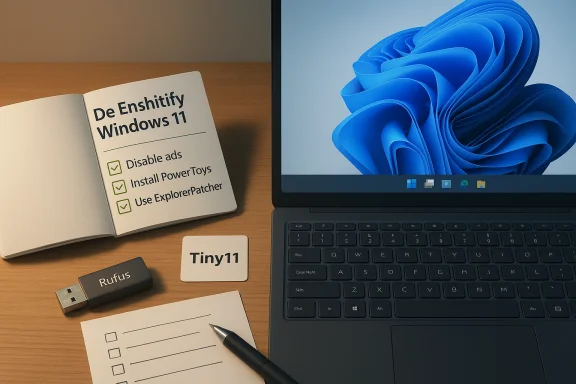
Windows 11’s product trajectory has made this project necessary. Over the past releases Microsoft has pushed inbox apps, cloud hooks, AI surfaces (Copilot), and more aggressive sign‑in and telemetry nudges into the default experience. That trend has created a gap between the out‑of‑the‑box UX and what many power users want: a fast, private, predictable desktop. Community responses have converged on two pragmatic approaches: build a lean installer image (Tiny11‑style) or run careful in‑place debloat scripts (Win11Debloat), and use targeted tools (Rufus for installer bypasses, ExplorerPatcher / MSEdgeRedirect for UX restoration) to fill functional gaps. These ecosystems and their tradeoffs are now mature enough that a short, practical guide can provide a dependable path for most enthusiasts and many pros.This companion should be explicitly how‑to focused: checklists, short recipes, and a consistent problem→solution→rollback format so readers can follow reliably and safely. In other words, less encyclopedia, more toolbox.
Why a separate “De‑Enshittify” companion makes sense
- It’s practical: readers often don’t need the full reference book; they want a tight, executable set of steps to get a usable, uncluttered system.
- It’s timely: installer bypasses (Rufus), community ISO builders (Tiny11), and debloat scripts (Win11Debloat) have converged in capability and documentation; the risk profile is understood enough to provide best‑practice guidance.
- It lowers the entry barrier: the field guide can present conservative, intermediate, and aggressive paths with clear tradeoffs so novices can choose safely.
- It’s modular: the companion can be distributed as a short e‑book plus a serialized set of articles and printable checklists for the site.
Proposed structure and TOC (compact, how‑to first)
Below is a practical TOC tuned for an e‑book or a series of linked articles. Each chapter is lean (1‑4 pages) and follows a standard problem/solution template described later.- Starting fresh with a new install of Windows 11
- De‑enshittify an existing installation (in‑place)
- De‑enshittify Microsoft Edge whether you use it or not
- De‑enshittify built‑in Windows 11 apps (OneDrive, Xbox, Mail)
- Replace enshittified Windows 11 apps (browser, password manager, mail)
- Make Windows 11 more secure (TPM, BitLocker, Defender configuration)
- Make Windows 11 respect your privacy (telemetry, diagnostics, advertising ID)
- Improve Windows 11 with PowerToys, ExplorerPatcher, and small utilities
- Quick recovery and rollback strategies (image, restore, snapshots)
- Appendix: tooling cheat sheet (Rufus, Tiny11, Win11Debloat, O&O AppBuster, MS‑supported options)
The core content model: Problem → Solution → Rollback → Notes
Adopt a concise, repeatable recipe for each tweak. Consistency helps readers scan and apply without confusion.- Problem headline (one line): describe the “enshittification” and why it matters.
- Severity icon: use quick visual cues (
 for severe annoyance/risk,
  for caution,
  for safe/low‑risk).
 - TL;DR solution: a one‑line actionable answer.
- Step‑by‑step instructions: minimal, tested, numbered steps.
- Troubleshooting: top 3 things that go wrong and how to fix them.
- Rollback plan: one‑click or standard recovery image instructions.
- Verification: how to confirm the change worked (exact settings, Event Viewer checks, Task Manager processes etc.).
- Evidence & caveats: short paragraph that references authoritative verification or the known limits of the approach.
Example entry: Windows Setup (unsupported hardware)
Problem: I can’t install or upgrade to Windows 11 because my PC doesn’t meet the official hardware requirements (TPM, Secure Boot, RAM).- Severity:
- TL;DR: Use an official ISO with Rufus’ extended USB option to bypass pre‑flight checks OR use the registry MoSetup key for an in‑place upgrade — but treat the install as unsupported and follow strict backup steps first.
- Create a verified full disk image of the machine and copy critical files elsewhere.
- Download the official Windows 11 ISO (stock Microsoft media).
- Run Rufus on a healthy Windows machine, select the ISO and your USB device.
- When the setup dialog appears, check the box to “Remove requirement for 4GB+ RAM, Secure Boot and TPM 2.0” (and any account bypass options you accept).
- Write the USB, boot the target PC from that USB and perform a clean install.
- After the first successful boot, verify drivers, activation, and create a new recovery image.
- If setup fails at a later feature update, restore the image and reapply the plan only on a test partition.
- If device drivers are missing (audio, GPU), re‑download vendor drivers while in safe mode or attach the Ethernet driver image.
Notes & caveats: Microsoft explicitly warns unsupported installs may not receive updates; behavior has been inconsistent historically. This is a pragmatic life‑extension technique, not a permanent support guarantee. Treat such installs as short‑to‑medium term and plan hardware replacement if security patch access becomes restricted.
Example entry: Avoiding forced Microsoft account in OOBE
Problem: Windows Setup forces an MSA or work/school account during OOBE.- Severity:
- TL;DR: For clean installs, use offline techniques (Tiny11’s unattended answer injection or Rufus’ “local account” option) or sign in with an MSA and convert to a local account after the first boot.
- Clean ISO route (Tiny11 serviceable profile): inject an unattend XML to skip MSA prompts at OOBE and create a local account at first login.
- Rufus route: use Rufus’ option to remove online account enforcement and supply a local username during image creation.
- Fallback (safe): complete OOBE with a throwaway MSA, create and convert to a local account in Settings > Accounts > Your info, then remove the MSA.
Notes: OOBE bypasses change and Microsoft actively adjusts flows; therefore, document the exact Windows build and Rufus/Tiny11 versions used for reproducibility.
Tools, tradeoffs, and verification
No single tool is a silver bullet. The guide should treat each tool as part of the toolbox and clearly itemize strengths and risks.- Rufus (extended options) — excellent for constructing a bootable installer that bypasses TPM/Secure Boot/RAM checks and can predefine local account behavior. It edits installer checks; it does not emulate missing CPU instruction sets. Always insist on full image backups before use.
- Tiny11 builder — creates compressed, configurable ISOs based on Microsoft binaries. Use the serviceable profile for systems that must receive updates; the ultra aggressive “core” profile sacrifices updateability for minimal size. Tiny11 uses Microsoft servicing tooling (DISM) rather than repackaging code, and this should be explained plainly.
- Win11Debloat — a widely used PowerShell script for post‑install cleanup that offers safe/default and custom modes. It is convenient but must be run selectively: prefer light/conservative runs on daily drivers and test aggressive removals in VMs.
- ExplorerPatcher / MSEdgeRedirect — small utilities to restore classic UX behaviors and avoid forced Edge openings. Useful but brittle after major feature updates; require a measured test/reapply policy.
Risk management: explicit, practical guidance
A De‑Enshittify guide must be honest about real risks and offer precise mitigations.- Backups: require a verified full disk image as a precondition for every substantive tweak. Recommend specific, free and commercial imaging tools and short verification steps.
- Test first: always test debloat scripts and custom ISOs in a disposable VM or secondary machine. Document the exact Windows build and patch level used in each test.
- Conservative vs aggressive modes: include a clear “maturity map” for each tool — Safe (supported settings), Conservative (minor removals), Aggressive (core removals) — and what those mean for future Windows Update behavior.
- Security implications: explain how bypassing TPM/Secure Boot affects hardware‑anchored protections (BitLocker key protection, virtualization‑based security) and the resulting threat model adjustments. Recommend network isolation for high‑risk unsupported devices.
- Enterprise considerations: never recommend mass deploy of community scripts without rigorous testing, legal review, and change control. Some removals conflict with MDM, telemetry ingestion, or compliance reporting.
Presentation, distribution, and monetization ideas
Because the guide is compact, multiple distribution channels are reasonable and complementary:- Short e‑book (10–30 pages) priced modestly; use the book for the canonical, versioned procedures and include a serial number for update alerts.
- Serialized articles on WindowsForum.com that mirror chapters and act as living versions for rapid updates.
- Printable one‑page checklists and a “cheat sheet” PDF for quick in‑field recovery, with step‑by‑step Rufus and imaging checklists.
- A companion Git repo (versioned scripts, unattended XML templates, example Rufus option screenshots) — provide checksums and signed releases to reassure readers.
- Optional premium tier: a maintenance subscription that notifies readers when a given procedure needs updating (e.g., Rufus UI changes, Tiny11 profile shifts, or Microsoft OOBE changes).
Editorial style and tone
Aim for the following voice and format:- Clear, direct, mildly opinionated but evidence driven; maintain the site’s community credibility.
- Short paragraphs, bold for key warnings, italics for emphasis.
- SEO‑friendly phrases used naturally: De‑Enshittify Windows 11, debloat Windows 11, Windows 11 privacy tweaks, Rufus bypass Windows 11, Tiny11 builder, Win11Debloat safe mode.
- Each chapter ends with a “Quick verification” block (3 bullet checks) and a “Rollback in one minute” link to the image restore instructions.
Maintenance and update policy for the guide
Because the Windows ecosystem changes fast, the companion must adopt a living‑document posture:- Date‑stamp every recipe with Windows build number and tool version used for testing.
- Maintain a short errata/update log embedded at the front of the e‑book and updated article threads.
- Subscribe to the major tool project feeds (Rufus, Tiny11, Win11Debloat) and test any breaking changes within 72 hours of a major release to publish an update notice.
- Encourage community feedback via the forum to flag regressions quickly and gather empirical update‑delivery data (e.g., whether Rufus‑bypassed installs continue to receive patches).
Sample conservative workflow (end‑to‑end) — safe path for most users
- Back up: create and verify a full system image and a separate file backup.
- Test: spin a VM with the same Windows build and run a conservative Win11Debloat script.
- Choose path:
- If wanting minimal disruption: run conservative in‑place debloat → restore UX via PowerToys → test for a week.
- If wanting a pristine controlled baseline: build a Tiny11 serviceable ISO → create Rufus USB if hardware is unsupported → perform clean install.
- Harden: re‑enable security features supported by your hardware (fTPM/PTT and Secure Boot if available), configure Defender and BitLocker per threat model.
- Replace: install chosen privacy‑first apps (browser, password manager) and set defaults; use MSEdgeRedirect only if necessary.
- Snapshot: create a new verified image of the stable, de‑enshittified system for future rollbacks.
What to call it, and how to pitch it
Name ideas:- De‑Enshittify Windows 11 Field Guide (direct, attention‑grabbing)
- The Practical De‑Bloat Guide to Windows 11 (slightly less abrasive)
- Windows 11: Reclaim & Harden — A Practical Companion
Final evaluation: strengths, weaknesses, and editorial recommendations
Strengths:- Clear market need: many users prefer control and privacy over the increasingly opinionated defaults.
- Toolchain maturity: Tiny11, Rufus, and Win11Debloat provide repeatable paths that can be documented and verified.
- Low friction: a short e‑book + article series can be produced quickly and updated incrementally.
- Fragility: some changes (deep removals, ExplorerPatcher) can break after feature updates; readers must be trained to maintain images and rollback.
- Supportability: enterprises and warranty claims complicate recommendations; advise conservative settings for corporate readers.
- Perishability: OOBE and installer flows change; each recipe must include exact build/tool versions and a test checklist.
- Ship a first edition focused on safe, high‑value wins (UI declutters, privacy toggles, Rufus safe usage, conservative Win11Debloat). Defer the most aggressive ISOs and core Tiny11 profiles to a clearly labeled “advanced” appendix with very prominent warnings and recovery templates.
- Use the problem/solution template strictly — readers should be able to scan and act within minutes.
- Bundle downloadable, versioned artifacts (unattend XMLs, Rufus option screenshots, PowerShell snippets) with signed checksums and a short verification script.
A De‑Enshittify Windows 11 Field Guide — short, focused, and conservative by default — will meet an immediate reader need while minimizing real risks. The right editorial guardrails (mandatory backup, VM testing, explicit conservative/aggressive labels) convert a potentially dangerous set of hacks into a reusable, safe set of practices that respect both the platform’s strengths and the realities of ongoing maintenance. If you build the guide around that compact recipe model and the toolchain described above, you’ll deliver immediate value to readers and a sustainable upgrade path for the longer Windows 11 Field Guide project.
Source: Thurrott.com What About a De-Enshittify Windows 11 Field Guide?
