

Windows in 2025 has become a battleground between convenience and control: Paul Thurrott’s year‑in‑review for “My New Apps, Services, and Games of 2025” captures a pragmatic migration toward de‑enshittified Windows 11 — a curated, lean, and privacy‑respecting setup built from community tools rather than default inbox apps — and that shift matters for anyone who treats their PC as a productivity tool rather than a marketing endpoint.
Windows 11 shipped with a clear product direction: tighter service integration, inbox apps that surface Microsoft services, and a slowly increasing coupling of cloud features to the out‑of‑box experience. For many enthusiasts and power users, the practical response in 2025 was to reclaim control — not by abandoning Windows, but by rebuilding it on user terms: smaller footprint, fewer background services, and predictable update behavior. That’s the central thesis behind the tools and choices Thurrott describes: start with a clean, deliberately minimal install and then rebuild the experience with selective, privacy‑forward replacements. This feature unpacks those choices, verifies the most important technical claims against multiple sources, and offers a candid assessment of benefits, tradeoffs, and practical steps for readers who want the same clean, fast, and private desktop without sacrificing compatibility or stability.
Two recent ecosystem movements make this discussion urgent. First, community projects that rebuild or debloat official ISOs (so you can still use Microsoft’s binaries) have matured — balancing usability and serviceability far better than a few years ago. Second, privacy‑first alternatives for core apps (browsers, password managers, editors) are stable and mainstream, removing the need to accept “big tech” defaults for basic tasks. These trends underpin Thurrott’s picks and the community recommendations he cites.
If you are responsible for a mission‑critical workstation or enterprise fleet, adopt these techniques in a controlled pilot: test, document, and automate only after validating update and support scenarios. For individual users and enthusiasts, the benefits — less bloat, clearer privacy posture, and faster day‑to‑day performance — make the effort worthwhile. Use Brave for browsing and Proton Pass for secure credentials if you want a privacy‑forward stack that balances usability with safety.
Windows remains the platform of choice for many workflows because it is flexible. The 2025 toolkit Thurrott catalogs shows that flexibility can be exercised deliberately: keep the compatibility that matters, prune what doesn’t, and choose replacements that respect your time and privacy. The payoff is a system that feels like it belongs to you again — fast, clean, and predictable.
Source: Thurrott.com My New Apps, Services, and Games of 2025
 Background / Overview
Windows 11 shipped with a clear product direction: tighter service integration, inbox apps that surface Microsoft services, and a slowly increasing coupling of cloud features to the out‑of‑box experience. For many enthusiasts and power users, the practical response in 2025 was to reclaim control — not by abandoning Windows, but by rebuilding it on user terms: smaller footprint, fewer background services, and predictable update behavior. That’s the central thesis behind the tools and choices Thurrott describes: start with a clean, deliberately minimal install and then rebuild the experience with selective, privacy‑forward replacements. This feature unpacks those choices, verifies the most important technical claims against multiple sources, and offers a candid assessment of benefits, tradeoffs, and practical steps for readers who want the same clean, fast, and private desktop without sacrificing compatibility or stability.Why “De‑enshittification” matters now
Windows continues to be the most broadly compatible desktop OS, but the UX trend of increasingly prescriptive inbox software and background cloud services has real costs: wasted storage and memory, extra running services, more telemetry vectors, and UX nudges that prioritize vendor services over user choice. For users who value speed, stability, and privacy, a modest amount of upfront work to control what’s installed pays dividends every day.Two recent ecosystem movements make this discussion urgent. First, community projects that rebuild or debloat official ISOs (so you can still use Microsoft’s binaries) have matured — balancing usability and serviceability far better than a few years ago. Second, privacy‑first alternatives for core apps (browsers, password managers, editors) are stable and mainstream, removing the need to accept “big tech” defaults for basic tasks. These trends underpin Thurrott’s picks and the community recommendations he cites.
The de‑enshittification toolkit: what to use and why
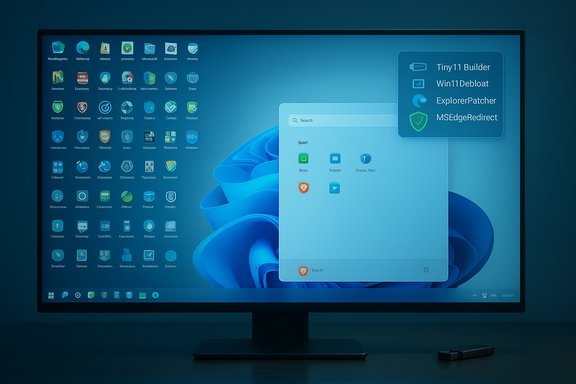
Below are the core tools Thurrott highlights, with technical context, verified claims, and a frank appraisal of risks.Tiny11 Builder — clean ISO, minimal by design
- What it is: a community‑maintained builder that takes an official Microsoft ISO and produces a smaller, stripped Windows 11 installer by removing inbox apps, optional features, and some cloud‑centric components. The builder operates offline and rebuilds a official ISO with selective removals.
- What it removes: Copilot components, the new Outlook client, Teams (consumer), media/player apps, some bundled utilities, and optional language/feature payloads — depending on chosen profile. This is a configurable, script‑driven image service, not a forked OS.
- Verified tradeoffs: using aggressive compression and removal yields very small ISOs and snappy installs, but the more you strip (especially WinSxS/serviceability components), the greater the risk that future updates may fail or that official servicing will be hampered. The community now publishes both “serviceable” and “core” profiles; the latter is for testing or single‑purpose systems only.
- Caveats and legal/security notes: Tiny11 operates on official Microsoft media — it doesn’t rewrite licensing — but heavy removal can change how Windows Update operates and how Microsoft support or enterprise tooling behaves. Users must understand update and driver implications before deploying on primary machines.
Win11Debloat — post‑install refinement with a single script
- What it is: a widely used PowerShell script that removes preinstalled apps, disables telemetry options, and applies a curated set of changes to clean up a running Windows installation. It’s designed for both Windows 10 and 11 and supports automation/sysprep scenarios.
- Why use it: If you can’t or won’t rebuild an ISO — for instance on a machine carrying data or a corporate image you can’t replace — Win11Debloat offers a reversible, modular way to remove inbox baggage and tune services. The project emphasizes configuration and includes a “lite” mode for less invasive cleanup.
- Risks: Running any debloat script without understanding each change can break app behavior or telemetry that enterprise tooling expects. Always test in a VM and have backups.
Rufus — reliable installer media creation
- What it is: the go‑to utility for creating bootable USB media from ISOs. Rufus supports a wide range of image types, advanced partition schemes, and modern compression/UEFI options. It’s the practical standard for USB installers.
- Why it matters: When you build a custom ISO (via Tiny11 or otherwise), Rufus is the safe and flexible tool to create a bootable USB that will install across PC generations. Verify partition mode and target system settings when building media.
ExplorerPatcher — restore File Explorer consistency
- What it is: a community project that replaces or patches WinUI elements to give back a leaner, older File Explorer behavior while keeping modern Windows 11 compatibility. It’s focused on restoring functionality and reliability in File Explorer.
- Why use it: For users annoyed by new WinUI-driven Explorer churn (stability/feature regressions), ExplorerPatcher can return lost features and improve perceived reliability. It is lightweight and widely adopted by power users.
- Caveats: Any low‑level UI patching can break after major OS updates. Maintain restore points and test before deploying broadly.
MSEdgeRedirect — stop forced Edge invocations
- What it is: a tool that intercepts Microsoft Edge URI calls (microsoft-edge
 and redirects them to your default browser, including redirections triggered by Widgets, Search panes, and other system surfaces.
 - Why it matters: Microsoft occasionally routes system links to Edge; MSEdgeRedirect lets you enforce the browser you actually want to use while preserving the system’s link behavior. It’s actively maintained and includes multiple redirect modes.
- Risk note: Microsoft may change handlers; expect maintenance windows after large platform updates and rely on community updates or reinstall when necessary.
Browsers: Brave as the recommended privacy compromise
Thurrott’s recommendation for 2025 is unmistakable: for users who want privacy, speed, and broad compatibility with the modern web without the tracking, Brave is the pragmatic choice. Brave’s default blocking model, integrated Shields, and emphasis on privacy‑first features make it a compelling pick for day‑to‑day browsing. Why Brave stands out in 2025:- Shields provide default ad/tracker blocking, fingerprint randomization, and cookie partitioning that cut telemetry surface area dramatically.
- Brave builds privacy into browser architecture (de‑AMPing, limited network calls) rather than relying solely on extension tooling, reducing the need for ad‑blocking add‑ons that can break sites.
- Independent coverage and long‑form reviews continue to rate Brave highly for privacy and performance, while noting tradeoffs (occasional site breakage, optional paid VPN).
Passwords and identity: Proton Pass enters the mainstream
Proton Pass has aggressively matured into a full‑featured password manager in 2025, adding enterprise features, a CLI for developers, and broad cross‑platform support — all built on end‑to‑end encryption and a zero‑knowledge model. For users switching away from commercial password managers tied to larger ecosystems, Proton Pass offers a privacy‑focused alternative with a strong free tier. Notable Proton Pass points:- End‑to‑end encryption, passkey support, and breach monitoring are now standard capabilities.
- Proton’s CLI addition improves developer and automation workflows for professional users, widening Proton Pass’s appeal beyond browser extensions.
- Adoption caveats: password manager migration always requires careful credential hygiene; enable 2FA, export/import carefully, and test autofill across the apps you use.
Other app choices Thurrott uses (and why they matter)
- Typora — a focused Markdown writing experience that combines live preview with file‑based workflows; chosen for distraction‑free writing and archival compatibility.
- Notion — used for broader note collections and project databases; Thurrott returns to Notion for higher‑level organization where file‑first tools don’t suffice.
- Affinity Photo 2.x — a professional image editor and a strong Photoshop alternative for users who prefer perpetual licensing over subscription models.
- These choices illustrate a pattern: pick tools that offer local control or clear, user‑centric cloud models, and avoid bundled, aggressive cross‑promotion inside apps.
Risks, tradeoffs, and what can go wrong
No configuration is risk‑free. The community tools that make de‑enshittification effective also come with three recurring hazards:- Updates and serviceability: Aggressively stripped images (especially “core” tiny11 variants) can break Windows Update or make future servicing impossible without a reinstallation. This has real implications for security patches and driver updates.
- Supportability and EULA complexity: These community projects operate on official ISOs, but heavy changes change the system’s operational characteristics. Official Microsoft support may require a stock image to reproduce problems. Enterprises should be especially cautious.
- Fragility after major feature updates: Low‑level patchers (ExplorerPatcher) and redirectors (MSEdgeRedirect) can break after major Windows feature updates. Maintain backup images and be prepared to reapply or update those tools.
- Test in VMs or on a spare device before touching your daily driver.
- Keep a stock bootable Windows ISO and a recovery image handy.
- Apply incremental changes (use Win11Debloat light mode first) before moving to a full custom ISO if you’re unsure.
How to de‑enshittify Windows 11 — a practical, safe checklist
- Back up: create a full disk image and export credentials/passwords.
- Test in a VM: build a test image with Tiny11 or run Win11Debloat and evaluate app compatibility.
- Build or obtain a custom ISO: use Tiny11 Builder (serviceable profile) and then create installer media with Rufus.
- Clean install: boot the Rufus USB and install into a clean partition. Choose a local account or control MSA/OOBE prompts per your policy.
- Post‑install refinements: run Win11Debloat in a conservative mode to remove remaining inbox apps and fine‑tune telemetry.
- Restore UX: Install ExplorerPatcher if you want the older File Explorer behavior and MSEdgeRedirect to honor your browser choice.
- Replace defaults: install Brave, Proton Pass, and your chosen productivity apps. Test day‑to‑day workflows (mail client, file sync, printing).
Critical analysis — strengths, blind spots, and long‑term outlook
Strengths- Performance and clarity: Clean installs dramatically reduce background services, improving responsiveness and boot times for many users. Community tools have matured to make this process repeatable and safer.
- Privacy gains: Replacing default browsers and password managers with privacy‑first alternatives closes large telemetry vectors without sacrificing compatibility.
- Modularity: Scripts and builders give granular, documented control over what’s removed — crucial for teams and power users who need repeatable images.
- Maintenance burden: The ongoing need to update community tools and reapply workarounds creates long‑term maintenance costs that may offset initial gains for non‑technical users.
- Enterprise friction: Aggressive removals may break management tooling or diagnostics; organizations should adopt rigorous image testing and change control rather than ad hoc scripts.
- Platform response: Microsoft has steadily improved the Microsoft Store and reworked its app distribution model in 2025, which may reduce the need for some workarounds over time — but it also means the landscape keeps changing, and community tools must adapt.
- The steady professionalization of community builders and the maturation of privacy‑first apps suggests that “de‑enshittified” Windows isn’t a niche play — it’s a realistic, maintainable configuration for enthusiasts and many professionals.
- That said, expect ongoing tug‑of‑war dynamics: as system integrators and vendors push new inbox features, the community will respond with newer builders and scripts. The prudent user regards this as an iterative maintenance choice, not a one‑time fix.
Final verdict and recommendation
Thurrott’s 2025 list is not a hobbyist shopping cart; it’s a pragmatic playbook for reclaiming a fast, private, and productive Windows desktop. The community tools he highlights — Tiny11 (serviceable profiles), Win11Debloat (conservative runs), Rufus for media creation, ExplorerPatcher, and MSEdgeRedirect — are mature enough to be recommended to power users who are willing to accept a modest ongoing maintenance commitment.If you are responsible for a mission‑critical workstation or enterprise fleet, adopt these techniques in a controlled pilot: test, document, and automate only after validating update and support scenarios. For individual users and enthusiasts, the benefits — less bloat, clearer privacy posture, and faster day‑to‑day performance — make the effort worthwhile. Use Brave for browsing and Proton Pass for secure credentials if you want a privacy‑forward stack that balances usability with safety.
Windows remains the platform of choice for many workflows because it is flexible. The 2025 toolkit Thurrott catalogs shows that flexibility can be exercised deliberately: keep the compatibility that matters, prune what doesn’t, and choose replacements that respect your time and privacy. The payoff is a system that feels like it belongs to you again — fast, clean, and predictable.
Source: Thurrott.com My New Apps, Services, and Games of 2025
