

A one‑click script from the community promises to let Windows 11 users strip out Copilot, Recall and nearly every AI surface Microsoft has been baking into the OS — but that convenience comes with real trade‑offs that any power user, sysadmin, or cautious consumer should understand before running a single command.
Microsoft’s recent product direction has explicitly positioned Windows 11 as an “AI PC” platform, surfacing features under names like Copilot, Recall, and AI Actions inside core areas of the OS and first‑party apps. For many users, those additions are framed as productivity or accessibility gains; for a sizable subset of power users and privacy‑conscious individuals, they feel intrusive, hard to opt out of, or fragile to remove through normal Settings flows.
Into that gap stepped a community project published on GitHub under the handle zoicware — a PowerShell‑based tool that consolidates multiple community “debloat” techniques into a single workflow and GUI. The project is designed around Windows 11 Version 25H2 and later builds, and it bills itself as a way to “force remove Copilot, Recall and more” by combining registry edits, package removals, servicing‑store manipulations and update‑blocking techniques.
This article summarizes what the script does, verifies the core technical claims the project makes, analyzes strengths and risks, and provides practical guidance for safer testing and deployment. The aim is to give WindowsForum readers a clear, verifiable and pragmatic view so they can decide whether — and how — to use this approach.
However, several reviewers also warned that not everything can be disabled safely through a script and that CBS edits create future upgrade fragility. The repository itself cautions users that the automation cannot cover every setting and provides a manual hardening guide for additional steps.
That said, the real cost isn’t the immediate removal but the ongoing maintenance burden and upgrade risk introduced by servicing‑store manipulation and blocker packages. For anyone who wants to keep receiving reliable feature updates and avoid the complexity of manual recovery, a more conservative or offline image‑level approach is safer. Enterprises and users who depend on stable updates should treat this as an advanced, last‑resort measure rather than a standard practice.
Source: Dagens.com Tired of the Windows AI bloatware? Handy script lets you strip it all away
 Background / Overview
Microsoft’s recent product direction has explicitly positioned Windows 11 as an “AI PC” platform, surfacing features under names like Copilot, Recall, and AI Actions inside core areas of the OS and first‑party apps. For many users, those additions are framed as productivity or accessibility gains; for a sizable subset of power users and privacy‑conscious individuals, they feel intrusive, hard to opt out of, or fragile to remove through normal Settings flows.Into that gap stepped a community project published on GitHub under the handle zoicware — a PowerShell‑based tool that consolidates multiple community “debloat” techniques into a single workflow and GUI. The project is designed around Windows 11 Version 25H2 and later builds, and it bills itself as a way to “force remove Copilot, Recall and more” by combining registry edits, package removals, servicing‑store manipulations and update‑blocking techniques.
This article summarizes what the script does, verifies the core technical claims the project makes, analyzes strengths and risks, and provides practical guidance for safer testing and deployment. The aim is to give WindowsForum readers a clear, verifiable and pragmatic view so they can decide whether — and how — to use this approach.
What the script claims to remove (quick checklist)
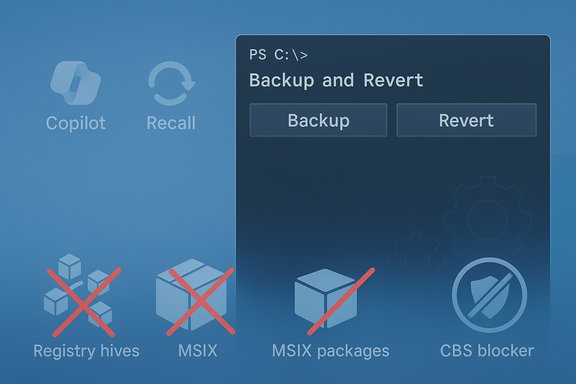
At a glance, RemoveWindowsAI (the community name used for this family of automated approaches) targets a long list of AI surfaces and supporting artifacts:- Copilot UI and associated packages (taskbar, context menu entries, Copilot panes).
- Recall (scheduled tasks, local snapshot indices and indexing components).
- AI Actions, Input Insights and typing/voice assistant toggles used by first‑party apps.
- AI features embedded in apps such as Paint, Notepad and Edge (image‑creator components, rewrite hooks, editor suggestions).
- Appx / MSIX packages and their provisioned package counterparts so the items do not reinstall for new users.
- Hidden Component‑Based Servicing (CBS) packages that Windows uses for provisioning and repair.
- A custom blocker package installed into the servicing store designed to prevent Windows Update from re‑provisioning the removed components.
- Group Policy and registry changes to make UI surfaces and activation paths inert.
- Scheduled tasks related to Recall and related services, plus removal of local Recall data.
How it works — a technical breakdown
Understanding the layers the script manipulates is essential to judging its safety and efficacy.1. Registry and policy edits (low‑level gating flags)
The script flips registry keys and CSP/Group Policy equivalents that hide or disable UI elements (Copilot, Recall, Input Insights, AI Actions). These edits are generally low‑risk when they only affect UI toggles, but some keys gate deeper behavior that other components may assume is present. Misapplied flags can hide functionality in ways that produce inconsistent states for dependent services.2. Appx / MSIX removal (user and provisioned)
Remove‑AppxPackage removes the visible Appx/MSIX packages from the current account, while Remove‑AppxProvisionedPackage targets the provisioned manifest used for new accounts and servicing. The combination is crucial if you want removals to survive provisioning events, but removing provisioned packages is more invasive and can affect features that re‑use the same package families.3. CBS (Component‑Based Servicing) manipulation (the fragile part)
The script attempts to purge or neutralize hidden packages in the CBS servicing store and may install a blocker package to trick Windows Update into thinking the component is intentionally blocked. This is the most powerful and riskiest technique: the servicing store is authoritative for feature updates and repairs. Altering it can cause upgrade failures, servicing confusion, or repair rollbacks if done incorrectly. Community reporting consistently identifies CBS changes as the highest vector for future upgrade fragility.4. Scheduled tasks and data cleanup
Recall stores snapshots, indices and scheduled tasks. The tool removes those tasks and deletes local Recall data so the visible timeline disappears — but that also means any stored snapshots are lost permanently unless backed up first.5. Blocking packages and update hardening
To make removals durable, the project uses a custom update/blocker package technique installed into the servicing store. This is effective at preventing automatic re‑provisioning, but intentionally diverges the system from the update path Microsoft expects. It’s a maintenance cost: future cumulative updates or feature upgrades may detect the mismatch and either restore packages or fail servicing.Independent verification and context
Multiple independent write‑ups and community hands‑on tests confirm the script performs the operations it advertises: registry key flips, Appx removals, scheduled‑task deletions, CBS interventions and the blocker package approach. Community threads and tech outlets that evaluated the repository reported visible results — Copilot and Recall UI surfaces disappearing and several Appx packages being unprovisioned on the systems they tested. That independent corroboration aligns with the repository’s README and code.However, several reviewers also warned that not everything can be disabled safely through a script and that CBS edits create future upgrade fragility. The repository itself cautions users that the automation cannot cover every setting and provides a manual hardening guide for additional steps.
Strengths — why this project resonated
- Convenience: It bundles months of community troubleshooting into a single, repeatable workflow. For users tired of toggling dozens of settings manually, that’s a significant time saver.
- Layered approach: The script doesn’t rely on one trick. It uses registry flags, app removals, CBS steps and blocking packages — a more durable strategy than single‑line tweaks.
- Backup and revert modes: The repository offers options to backup state and attempt reversion, which is important for safety and testing.
- Transparency: It’s open source and documents what it touches — allowing reviewers to inspect the code before running it. That visibility is a critical advantage over closed‑source “debloat” binaries.
Risks and potential downsides — what to watch out for
- Upgrade fragility: The most significant risk is breaking Windows servicing. Removing CBS entries and installing blocker packages can cause cumulative updates or feature upgrades to fail, or to restore components unpredictably. This can leave a system in a partially serviced state.
- Data loss (Recall snapshots): The script deletes local Recall snapshot data; once deleted, those snapshots are not recoverable unless separately backed up. Users relying on Recall for productivity history will lose that data.
- Hidden dependencies: Some AI components share binaries or manifests with other features. Removing a package provisioned for Copilot might also affect other experiences unexpectedly.
- Support and warranty concerns: While community scripts do not void software licenses per se, changing the servicing store can complicate vendor support and troubleshooting. Organizations should account for that in support SLAs and imaging policies.
- False sense of permanence: Even with blocker packages, Microsoft’s update machinery evolves. What prevents re‑provisioning today may be insufficient tomorrow; the repository maintainer acknowledges the tool must be updated to track future builds.
- Security surface changes: While removing unused components can reduce attack surface, messing with servicing and packages could remove security mitigations if dependencies are not fully understood. This demands careful review before deployment.
Practical safety checklist before trying it
- Create a full system image backup (disk image) and store it externally.
- Create a Windows restore point and export critical registry hives you plan to change.
- Test the script in a virtual machine that mirrors your production configuration first.
- Read the repository README and the manual hardening guide end‑to‑end before running.
- Verify the repo contents locally (don’t run one‑line download‑and‑execute without inspection).
- If in an enterprise, test on a non‑critical pilot group and consult your patch/update policy team.
How to run, at a high level (safe approach)
- Clone or download the repository to an isolated test machine; do not blindly pipe remote code into PowerShell.
- Run the GUI mode first on a VM to see what options are available and which packages are targeted.
- Use the tool’s backup mode during an initial run so you can revert if you hit unexpected issues.
- If you must apply to production, stage via group policy or MDM and monitor update behavior closely for the next feature update.
Reverting and recovery
The project provides a revert option meant to restore removed components where possible, but a complete and guaranteed rollback is not always feasible — particularly if the script removed or purged CBS packages or deleted local Recall data. That’s why a full disk image is the safest recovery path. Community testing shows the revert path works for many UI and Appx removals, but not for every servicing‑level manipulation.Enterprise considerations
- For managed fleets, the approach is unsuitable as a blanket policy without careful testing. Changes to the servicing store can break managed update pipelines and produce inconsistent images for helpdesk troubleshooting.
- Instead of ad‑hoc removal, enterprises should consider image‑level decisions (offline servicing of images to remove packages before deployment) or Windows Update for Business / policy controls that support supported opt‑outs where available. Community tools that rebuild an official ISO (Tiny11‑style) provide a more deterministic offline alternative for mass‑deployment scenarios.
Alternatives and complementary tools
If the goal is a quieter, less intrusive desktop without the same servicing risks, consider these alternative approaches:- Use supported Group Policy or MDM policies to disable Copilot/Recall surfaces where Microsoft provides them.
- Build a serviced image with optional components removed offline (Tiny11‑style), which avoids in‑place servicing risks.
- Use more conservative debloat scripts (Win11Debloat, Talon, WinScript) that focus on user‑level Appx removals and privacy tweaks without aggressive CBS edits.
Practical scenarios: When RemoveWindowsAI makes sense — and when it doesn’t
- Good fit:
- Hobbyists who run dedicated personal machines and are comfortable rebuilding or restoring from an image.
- Enthusiasts who test on VMs and want a non‑AI workstation for gaming or privacy reasons.
- Tech journalists and researchers who need to evaluate a non‑AI baseline quickly.
- Poor fit:
- Production laptops for knowledge workers where loss of functionality, update failures, or broken support workflows are unacceptable.
- Managed corporate fleets without a robust test/pilot program and rollback plan.
- Users who lack a verified backup and recovery plan.
What to watch for after running the script
- Monitor Windows Update: watch for failed feature updates or unusual servicing errors.
- Check event logs for CBS/WUSA or DISM errors that may indicate provisioning mismatches.
- Confirm that security updates continue to apply cleanly and that Defender signatures and OS patches remain installable.
- Validate app dependencies, especially if you removed provisioned packages shared by multiple features.
Final analysis — weighing convenience against long‑term cost
The RemoveWindowsAI project answers a real user need: an easier way to opt out of Microsoft’s expanding AI surfaces. Its layered approach and open‑source nature make it a powerful tool for enthusiasts and small‑scale tests. Independent reporting and community tests confirm it does what it promises in many cases.That said, the real cost isn’t the immediate removal but the ongoing maintenance burden and upgrade risk introduced by servicing‑store manipulation and blocker packages. For anyone who wants to keep receiving reliable feature updates and avoid the complexity of manual recovery, a more conservative or offline image‑level approach is safer. Enterprises and users who depend on stable updates should treat this as an advanced, last‑resort measure rather than a standard practice.
Practical recommendation (concise)
- If you’re curious: test in a VM first, use the tool’s backup/revert modes and keep a full system image.
- If you need a durable enterprise solution: look at offline image servicing or supported policy controls instead.
- If you run it: be prepared to accept maintenance costs and the potential need to rebuild a system image on future feature updates.
Source: Dagens.com Tired of the Windows AI bloatware? Handy script lets you strip it all away
