

Microsoft has quietly closed a long-standing gap in Windows deployment security by releasing an updated Microsoft Defender package that can be injected directly into Windows installation images (WIM, VHD, and ISO-based media), so freshly installed systems are protected from day one rather than waiting for the first online signature update.
For years, administrators and enthusiast builders have lived with a small but real risk: an operating system image created weeks or months earlier contains the Defender binaries and signature sets that shipped with that image. During the first boot and until the new system reaches Windows Update (or another signature distribution point), there is a window in which very new malware may not be detected. Microsoft’s recent update program for installation images addresses this by allowing up-to-date Defender components — engine, platform, and security intelligence — to be offline-serviced into the installation media itself.
This article explains what changed, how the update is deployed, what administrators should do, and the operational and security trade-offs you need to consider when adding Defender updates to installation media.
The update is targeted at the Defender binaries contained in the installation images used to install the following Windows editions:
Updating the image itself collapses that time window. By shipping newer engine and platform components and more recent security intelligence inside the install media, Microsoft eliminates or reduces the exposure period on machines that are installed from those images. The net effect is simpler: freshly installed devices are safer from the moment they first boot, and enterprise IT can make stronger guarantees about baseline protection in their deployment pipelines. Observers and security reporters who covered Microsoft’s announcement highlight this practical improvement for both small organizations and large-scale deployments.
Important prerequisites and operational notes:
Small IT shops that don’t maintain complex imaging pipelines can adopt a pragmatic approach:
The real operational value is that this solution folds first-boot protection into the same offline servicing model many IT teams already use, enabling reproducible, auditable, and automatable baselines. The risks are operational and infrastructural rather than technical: legacy SHA‑2 readiness, careless servicing of live systems, and gaps in testing can undermine the benefits.
My recommendation for IT teams: treat the Defender image-update package like any other predeployment hardening step — automate it into your build pipeline, validate on test hardware, ensure SHA‑2 and servicing-stack compatibility across your estate, and maintain a cadence for image refresh. Do that, and you’ll meaningfully shrink the attack surface for freshly deployed machines without adding complexity to your lifecycle processes.
Microsoft's move to let administrators inject Defender's latest engine and intelligence into installation media is a practical security improvement that aligns with modern deployment practices — small, but important, and one that every deployment team should evaluate and adopt as part of their golden-image hygiene.
Source: Research Snipers Microsoft Defender: Important update for Windows ISO files – Research Snipers
 Background / Overview
For years, administrators and enthusiast builders have lived with a small but real risk: an operating system image created weeks or months earlier contains the Defender binaries and signature sets that shipped with that image. During the first boot and until the new system reaches Windows Update (or another signature distribution point), there is a window in which very new malware may not be detected. Microsoft’s recent update program for installation images addresses this by allowing up-to-date Defender components — engine, platform, and security intelligence — to be offline-serviced into the installation media itself.This article explains what changed, how the update is deployed, what administrators should do, and the operational and security trade-offs you need to consider when adding Defender updates to installation media.
What Microsoft changed — the technical facts
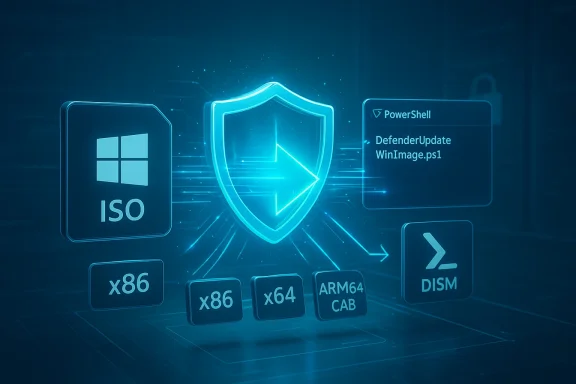
Microsoft published an official support document describing the Defender update package for Windows operating system installation images. The package is distributed as architecture-specific ZIP files containing a CAB with the Defender update and a helper PowerShell script named DefenderUpdateWinImage.ps1 to service WIM and VHD(x) files offline. The support article explicitly lists the platform and engine version numbers included in the current image-update package.- Platform version: 4.18.26010.5.
- Engine version: 1.1.26010.1.
The update is targeted at the Defender binaries contained in the installation images used to install the following Windows editions:
- Windows 11 (editions supported in the image package).
- Windows 10 Enterprise and LTSC variants named by Microsoft in the support document.
- Windows Server 2022, Windows Server 2019, and Windows Server 2016.
Why this matters: the first-boot protection gap
When you deploy Windows from an ISO/WIM/VHD image that was captured or produced months earlier, the Defender program on that image carries whatever engine, platform, and security intelligence it shipped with. On first boot the system is functional but may be unable to detect malware families discovered after the image was created until Defender updates itself. That gap can be meaningful in high-risk settings — new ransomware strains, targeted installers, or nation-state tools could, in theory, infect a freshly imaged host before Defender downloads new intelligence.Updating the image itself collapses that time window. By shipping newer engine and platform components and more recent security intelligence inside the install media, Microsoft eliminates or reduces the exposure period on machines that are installed from those images. The net effect is simpler: freshly installed devices are safer from the moment they first boot, and enterprise IT can make stronger guarantees about baseline protection in their deployment pipelines. Observers and security reporters who covered Microsoft’s announcement highlight this practical improvement for both small organizations and large-scale deployments.
How administrators and power users apply the update
Microsoft supplies two main artifacts in the ZIP package: the Defender update CAB (defender-dism-[x86|x64|arm].cab) and the PowerShell helper script DefenderUpdateWinImage.ps1. The script is intended to be run on a host machine (64-bit Windows 10 or later) with administrative privileges and uses DISM to mount and service the offline image. The script supports adding the update, removing an update (rollback), and showing the update details that are present in an image.Important prerequisites and operational notes:
- Run the tool on a 64‑bit Windows 10 (or later) host with PowerShell 5.1 or newer. The Microsoft.Powershell.Security and DISM modules must be available.
- Do not attempt to use this package to update a live image inside a running VM; Microsoft warns explicitly that applying it to a running installation can damage the running OS. Always service offline WIM/VHD(x) files.
- The script accepts the following common actions: AddUpdate, RemoveUpdate, ShowUpdate. An example command to add an update:
DefenderUpdateWinImage.ps1 -WorkingDirectory <path> -ImageIndex <n> -Action AddUpdate -ImagePath <path_to_Os_Image> -Package <path_to_package>
Use DISM /Get-ImageInfo to determine the correct ImageIndex for multi-edition Install.wim files. - The package is architecture-specific: choose the CAB that matches x86, x64, or ARM64 images.
- Microsoft recommends servicing OS installation images regularly, with a suggested cadence of around three months, to minimize the protection gap in new deployments.
Step-by-step checklist for offline servicing (practical guide)
- Prepare a servicing host:
- A 64-bit Windows 10 or later machine with PowerShell 5.1+ and DISM.
- Run PowerShell as administrator and verify the required modules are present.
- Download the Defender image-update package for the correct architecture (extract the ZIP to a working folder). The ZIP contains the CAB and DefenderUpdateWinImage.ps1.
- Identify the image index:
- Use:
Dism /Get-ImageInfo /ImageFile:<path_to_Install.wim>to list editions and index numbers. - Run the AddUpdate action:
- Example:
DefenderUpdateWinImage.ps1 -WorkingDirectory C:\defup -ImageIndex 3 -Action AddUpdate -ImagePath C:\images\install.wim -Package C:\defup\defender-dism-amd64.cab - Monitor the script output and ensure the tool reports success.
- Verify the changes:
- Use the script’s ShowUpdate action:
DefenderUpdateWinImage.ps1 -WorkingDirectory C:\defup -Action ShowUpdate -ImagePath C:\images\install.wimto list added Defender packages. - If necessary, remove the update (rollback) using RemoveUpdate. Always keep a backup of images before servicing.
- Integrate the script into your imaging pipeline (MDT, SCCM/MECM, or custom build scripts) so that every time you refresh the golden image the Defender update is automatically applied.
- Schedule a quarterly task to refresh images and re-run the update process to keep offline images within the recommended servicing cadence.
Compatibility and prerequisites — what can go wrong
Microsoft calls out several compatibility and infrastructure points that administrators must address before relying on this process:- SHA‑2 signing support: Microsoft’s ecosystem migrated to SHA‑2 code-signing and had a 2019 requirement to support SHA‑2 for update delivery. Older maintenance environments that never applied the SHA‑2 updates or servicing stack updates may not process the new signed components properly. If you maintain legacy infrastructure, validate SHA‑2 support and necessary servicing stack updates first.
- Do not update live/running images: Applying the CAB to a mounted image that is currently a running OS can corrupt that installation. The tool is explicitly designed for offline WIM/VHD(x) servicing. Keep strict separation between image servicing operations and production VMs.
- Image size and build consistency: Injecting the Defender CAB will change the image contents and size. If you create checksums or sign images as part of a secure build pipeline, remember to recalculate hashes or re-sign artifacts after servicing. Failing to update checksums will break subsequent authenticity checks or automated deployments.
- Third-party security software: Some organizations run third-party endpoint protection or layered controls. Test the updated install images in a lab to confirm that Defender components and the shipped signatures do not affect the behavior of on-boarding agents or interfere with imaging customizations. Several public posts and community threads recommend test-deploying to a small set of hardware before wide rollout.
Benefits: measurable gains and operational improvements
- Reduces first-boot exposure: The primary security improvement is the elimination (or strong reduction) of the gap between OS install and first signature update. That makes freshly imaged devices immediately safer in high-risk contexts such as pre-network provisioning, kiosks, or systems that must be imaged inside untrusted networks.
- Improves immediate Defender performance: Microsoft noted that updated engine/platform builds delivered via the image can provide performance fixes that reduce scanning overhead and improve first-run responsiveness. This is useful in rapid provisioning scenarios.
- Simplifies compliance and baseline management: Many compliance programs require demonstrable baseline protections at first boot. Including Defender updates in the image simplifies evidence that devices were provisioned with an up-to-date antimalware baseline.
- Fits into existing offline servicing models: Organizations accustomed to slipstreaming drivers, language packs, or cumulative updates into images will find the Defender update fits the same workflow, enabling automation and consistent golden-image management.
Risks and limitations — what it does not solve
- Not a replacement for post-install updates: The security intelligence that files the image will always be a snapshot. Defender’s daily (and sometimes hourly) intelligence updates for running devices still matter. The image update shrinks the gap but does not replace normal update channels. Any statement promising “fully current” protection from an image-only approach is misleading; live updates must still occur post-install.
- Operational friction and human error: Mistakes in servicing scripts, incorrect ImageIndex choices, or running the tool on the wrong WIM can corrupt an image or introduce unintended contents. Microsoft provides a RemoveUpdate option, but robust backups and test cycles are essential.
- Older infrastructure blind spots: If your deployment environment includes unsupported or unpatched servers or update distribution points that don't support SHA‑2 signatures or recent servicing stacks, those systems may be unable to consume the signed Defender packages. That can create unexpected failures in automated pipelines. Administrators must remediate those legacy nodes first.
- Perception vs. reality in threat modeling: The window the update addresses is real — but for many organizations that keep images refreshed frequently or that immediately update after imaging, the risk was already low. The most immediate benefit goes to those with infrequently refreshed images or to environments that cannot connect to the internet during provisioning. Reporters covering the change emphasized that the improvement is practical rather than revolutionary.
Recommendations for IT teams
- Update your process, not just your images: Integrate image servicing as a step in your golden-image pipeline and automate the Defender image update as part of each scheduled refresh. A quarterly cadence is a reasonable baseline; increase frequency if your environment has higher risk tolerance or faster threat-cycle needs.
- Test first, deploy widely after validation: Create a staging pool that receives images updated with the Defender CAB. Run compatibility tests for domain join, provisioning scripts, out-of-box experience (OOBE) customizations, and driver stacks. Validate that management agents (SCCM, Intune, third-party AV) behave as expected.
- Ensure SHA‑2 and servicing stack readiness: Before you rely on offline Defender packages, confirm that your servicing hosts and update distribution infrastructure support SHA‑2-signed updates per Microsoft’s 2019 requirements. Patch legacy nodes that still require SHA‑2 servicing updates.
- Keep post-install updates in your baseline: Despite injecting Defender into images, keep normal post-install security update checks as mandatory steps in your provisioning policies. Use network-level controls (firewalls, NAC) to minimize exposure in the time between first boot and initial update if network access is slow.
- Document and audit: When you create an image with updated Defender binaries, record the platform and engine version, the security intelligence snapshot identifier, and the date the image was serviced. That metadata helps forensic and compliance teams determine the protection baseline for any device that came from that image.
DevOps and automation patterns
For organizations running Infrastructure as Code or image factories, the Defender update process can be fully automated:- Add a build step in your image pipeline that downloads the latest Defender image-update ZIP for the required architecture.
- Run the DefenderUpdateWinImage.ps1 tool against the freshly built Install.wim or captured VHD.
- Run tests (hardware, software, security agent onboarding).
- Produce a signed artifact and push to the deployment catalog only after passing the gate.
- Schedule a periodic job to re-run image servicing for older images that remain in rotation.
How this change affects end users and small IT shops
If you use the Media Creation Tool or download a freshly generated ISO from Microsoft’s official channels today, those ISOs will reflect Microsoft’s current refresh cadence and should include the updated Defender integration when generated after Microsoft publishes the image-update package. This means casual users who re-download current media don’t need to take special action: they will benefit automatically. For users who keep old ISO files on thumb drives or network shares, the recommendation is simple — refresh your media periodically or run the Defender servicing operation on your images if you manage your own ISOs.Small IT shops that don’t maintain complex imaging pipelines can adopt a pragmatic approach:
- Download current install media when provisioning new hardware.
- Apply Windows Update immediately after installation.
- If internet connectivity is restricted in your provisioning environment, plan a short local update server or use the Defender image update method to ensure first-boot protection.
Independent reporting and industry reaction
Security and Windows-specialist outlets covered Microsoft’s rollout and the tooling, noting the pragmatic nature of the fix and emphasizing its usefulness for deployment teams. BleepingComputer outlined how the PowerShell tool works and reiterated Microsoft’s warnings about not servicing live images. WindowsReport and mainstream Windows community forums highlighted the version bumps and the positive effect on first-boot protection. Those independent write-ups align closely with Microsoft’s published guidance and provide practical examples and community discussion that support the decision to include Defender updates in image maintenance workflows.Final analysis — is this a big deal?
Yes — but with context. The technical fix is straightforward and solves a real, narrow problem: reducing the vulnerability window during the first hours of a freshly installed system. For organizations that produce images infrequently, that is a material improvement to security posture. For teams that already refresh golden images often or immediately patch after install, the change is an incremental risk-reduction step rather than a dramatic shift.The real operational value is that this solution folds first-boot protection into the same offline servicing model many IT teams already use, enabling reproducible, auditable, and automatable baselines. The risks are operational and infrastructural rather than technical: legacy SHA‑2 readiness, careless servicing of live systems, and gaps in testing can undermine the benefits.
My recommendation for IT teams: treat the Defender image-update package like any other predeployment hardening step — automate it into your build pipeline, validate on test hardware, ensure SHA‑2 and servicing-stack compatibility across your estate, and maintain a cadence for image refresh. Do that, and you’ll meaningfully shrink the attack surface for freshly deployed machines without adding complexity to your lifecycle processes.
Microsoft's move to let administrators inject Defender's latest engine and intelligence into installation media is a practical security improvement that aligns with modern deployment practices — small, but important, and one that every deployment team should evaluate and adopt as part of their golden-image hygiene.
Source: Research Snipers Microsoft Defender: Important update for Windows ISO files – Research Snipers
