

Windows Server’s Remote Desktop Services (RDS) can do more than host full remote desktops — when configured as RemoteApp, it virtualizes individual Windows applications so they run on a server but appear and behave like local apps on client machines. For organizations that need to deliver Windows-only tools to non-Windows endpoints (Linux desktops, macOS, Chromebooks, thin clients) or to tightly control application hosting, RemoteApp can be a highly effective option — but it comes with precise deployment requirements, licensing obligations, and operational trade-offs you must plan for before you press Deploy.
RemoteApp is part of the Remote Desktop Services (RDS) feature set in Windows Server. Unlike a full remote desktop session, RemoteApp exposes a single application window (or a set of application shortcuts) to remote users via the Remote Desktop Protocol (RDP). The apps run on an RD Session Host but are presented to users as if they were local programs, enabling seamless workflows on non‑Windows clients and reducing endpoint management overhead. Microsoft documents the session collection model that underpins RemoteApp publishing and explains how collections aggregate the apps and session hosts users connect to.
Two operational prerequisites matter immediately:
Key strengths:
This article covered the preparatory steps, installation flow, licensing realities, and the practical cross‑platform considerations you need before publishing your first RemoteApp. In Part 2 — where the original walkthrough continues — we’ll dig into publishing apps inside the collection, configuring RD Web Access feeds and RDP file distribution, user profile considerations (UPDs), and practical hardening steps to take before you put RemoteApp into production.
Source: Redmondmag.com Deploying Windows Server RemoteApp, Part 1 -- Redmondmag.com
 Background / Overview
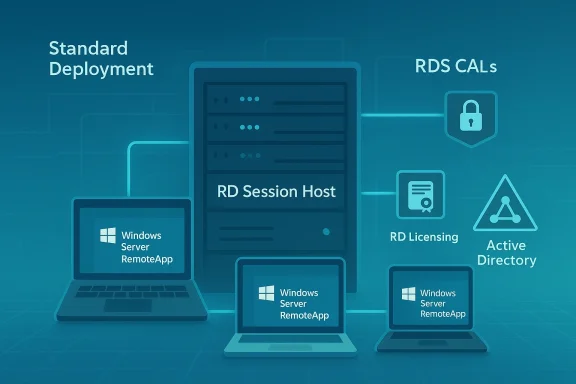
RemoteApp is part of the Remote Desktop Services (RDS) feature set in Windows Server. Unlike a full remote desktop session, RemoteApp exposes a single application window (or a set of application shortcuts) to remote users via the Remote Desktop Protocol (RDP). The apps run on an RD Session Host but are presented to users as if they were local programs, enabling seamless workflows on non‑Windows clients and reducing endpoint management overhead. Microsoft documents the session collection model that underpins RemoteApp publishing and explains how collections aggregate the apps and session hosts users connect to.Two operational prerequisites matter immediately:
- The RDS deployment (specifically the servers running RDS role services) must be part of an Active Directory domain for standard deployments and many management scenarios. By contrast, clients that consume RemoteApp programs do not have to be domain‑joined to connect and run published apps — a key capability for supporting Linux, macOS, and BYOD endpoints.
- RDS requires dedicated licensing in addition to Windows Server licenses. You must deploy a Remote Desktop Licensing server and acquire RDS Client Access Licenses (RDS CALs) — per‑user or per‑device — and manage those licenses on a license server. Microsoft’s licensing documents explain the models, the grace periods, and compatibility rules between CAL versions and server versions. Plan licensing into your budget and operational runbook.
Planning and prerequisites
Before you install RDS and publish apps, get the baseline environment and decisions in place.Minimum environment checklist
- Active Directory domain: At minimum, have an AD domain available for your RDS servers to join. Many RDS features (broker, centralized management, user profile disks, group‑based permissions) assume AD.
- Server hardware or VMs: Decide whether session hosts will be physical machines or virtual machines. Plan CPU, memory, and — if you will host graphics‑intensive apps — GPU resources and RemoteFX / GPU virtualization options. Microsoft’s deployment guidance outlines resource planning and when to use pooled vs. personal session collections.
- Networking: Ensure connectivity between session hosts, RD Connection Broker, RD Web Access, and the RD Licensing server. If clients will connect from the Internet, plan RD Gateway or a secure VPN and certificates for RD Web Access. Open/monitor port 3389 on necessary internal links; do not expose RDP directly to the Internet without an RD Gateway or equivalent.
- Licensing: Decide on per‑user vs. per‑device RDS CALs and procure the necessary RDS CALs and Windows Server CALs. Factor Office licensing rules into plans if you intend to publish Office apps — Office has per‑device remote use licensing constraints. Ensure a Remote Desktop Licensing server will be deployed and activated.
Architectural choices that affect costs and behavior
- Pooled session collection vs. personal desktop sessions: Pooled sessions (multiple users share session hosts) give better consolidation and lower cost; personal sessions map each user to a single session host and can preserve long‑lived user state but at higher resource cost. Microsoft’s Create a Remote Desktop Services collection guidance explains the difference and how to choose.
- Where to host the RD Licensing role: For very small deployments it’s common to install the license server on the same machine as other RDS roles, but production environments should dedicate the licensing server or make it highly available and resilient. Licensing must be part of the deployment plan from day one.
- High availability: RD Connection Broker and session host farms can be configured for HA. If you need continuous access with minimal user interruption, plan additional RD Connection Broker servers and multiple session hosts.
Installing Remote Desktop Services (standard deployment)
The recommended production path is Standard Deployment (not Quick Start) from Server Manager. Standard Deployment gives you control over role placement, high‑availability options, and license server assignment. Here’s the step‑by‑step flow that maps to Server Manager’s wizard and Microsoft’s guidance — the same process summarized by Redmond Magazine’s Part 1 walkthrough.- Open Server Manager on the server you intend to use as the Deployment Administrator.
- Manage → Add Roles and Features → select Remote Desktop Services installation (important: choose Remote Desktop Services installation instead of Role‑based or Feature‑based installation).
- Choose Standard Deployment and click Next.
- On the deployment scenario page select Session‑based desktop deployment (this is the scenario that supports RemoteApp publishing).
- Server Manager will prompt for the role placement for three key roles:
- RD Connection Broker — central session management and reconnect/distribution.
- RD Web Access — web portal where users can find published RemoteApp shortcuts.
- RD Session Host — server(s) that actually run the published applications.
Select the server(s) you created earlier and assign the roles accordingly. If this is a small test environment it’s common to place all roles on one server; in production spread these roles across multiple servers for resiliency and scale. - Confirm and check the option to restart the destination servers automatically if required, then click Deploy. The servers will reboot as part of the install.
Create a session collection and publish RemoteApp programs
RemoteApp programs are published into a session collection. A collection is the logical grouping of RD Session Hosts and the apps you want to expose. Create a collection after the basic RDS roles are installed:- In Server Manager: Remote Desktop Services → Collections → Tasks → Create Session Collections.
- Enter the collection name (for example, “RemoteApp”) and select the RD Session Host server(s) that will host applications.
- Specify which AD user groups should have access to the collection (do not over‑broadly grant access; licensing and security both demand restraint).
- User Profile Disks: the wizard offers to configure User Profile Disks (UPDs). For many RemoteApp scenarios you may choose to disable UPDs to avoid persistent desktop state, but if users need preserved settings across sessions configure a UNC share and acceptable quotas for UPDs.
- Select the collection in Server Manager.
- Under RemoteApp Programs, click Publish RemoteApp programs.
- Choose the executable(s) installed on the session host(s) and click Publish. Server Manager will create the RemoteApp entries and make them available in the collection.
Licensing and compliance: the non‑negotiable part
Licensing is not an optional checkbox. RDS requires a Remote Desktop Licensing server (RD Licensing) and the correct RDS CALs for each user or device that connects to session hosts. Microsoft provides a 120‑day licensing grace period, but after that you must have a license server installed and activated and have sufficient CALs deployed. Key points to know and verify:- Two CAL models: Per‑user and Per‑device. Choose based on how users access apps (many users per device vs. users who roam). The license server behavior and reassignability differ between the two models.
- License server activation and tracking: A license server issues and tracks temporary/permanent RDS CALs; ensure the license server and CAL version are compatible with your Windows Server version. Newer server versions typically require matching or newer CALs.
- Office and desktop application licensing: If you publish Microsoft Office or other desktop applications, read the vendor’s licensing rules — Office device licenses are assigned per endpoint from which the app is accessed and may require extra licensing beyond RDS CALs. Microsoft’s desktop app licensing guidance clarifies per‑device vs. per‑user nuances.
Cross‑platform clients: Linux and non‑domain endpoints
One of RemoteApp’s most attractive use cases is delivering Windows apps to Linux desktops. That works, but with caveats and client dependencies.- Clients don’t have to be domain‑joined: Non‑domain clients can authenticate to published RemoteApp programs, provided authentication and licensing rules are satisfied; per‑device licensing has specific behaviors in workgroup contexts. Microsoft’s licensing guidance explains cross‑domain and workgroup scenarios and the limitations of tracking and revocation.
- Linux clients: Popular open‑source RDP clients such as FreeRDP (xfreerdp) support RemoteApp (RAIL) semantics and can launch RemoteApp programs using the appropriate command‑line options or RDP feed. Remmina (a common GUI front end on Linux) uses FreeRDP under the hood but historically has had mixed support for RemoteApp GUI features — in practice many Linux administrators rely on xfreerdp directly for reliable RemoteApp behavior. FreeRDP’s RemoteApp documentation and community notes explain usage and known client quirks.
- Test with the exact FreeRDP (xfreerdp) version your distribution supplies. Some FreeRDP 3.x releases introduced regressions in the RAIL channel; verify your FreeRDP release and upgrade/downgrade if required. Real‑world projects using Guacamole, xfreerdp, or custom containers have reported incompatibilities between major FreeRDP versions, so test before wide rollout.
- Clipboard, drive redirection, and printer redirection plugins (virtual channels) can behave differently on non‑Windows clients. Test each expected integration point: file drag/drop, USB redirection, audio, and clipboard.
- If you plan to distribute published apps as RDP files or .rdp feeds, confirm how the target client consumes those feeds; Windows clients often auto‑integrate with RemoteApp and Desktop Connections, whereas Linux clients may need manual configuration or command‑line flags.
Security, certificates, and expose‑to‑Internet guidance
Publishing RemoteApp to external users requires careful hardening. Do not expose standard RDP endpoints directly to the Internet.- Use RD Gateway or a VPN** for external access. RD Gateway tunnels RDP over HTTPS and centralizes authentication and access policies. Configure RD Gateway in deployment properties and secure the endpoint with an appropriately issued TLS certificate.
- Certificates: Replace self‑signed certificates on RD Web Access and RD Gateway with certificates issued by a trusted CA (public CA for Internet access or internal CA with proper chain deployment for internal clients). Certificates are critical for protecting credentials and preventing man‑in‑the‑middle attacks.
- Least privilege: Only publish applications that need to be shared. Limit published app permissions and the AD groups allowed to connect. Remember that publishing Office or admin tools increases the blast radius if a session is compromised.
- Session hardening: Configure session timeouts, automatic logoff policies, clipboard restrictions, and printer/device redirection policies according to your security posture. Where compliance mandates stronger controls, disable device redirection or require just‑in‑time administrative escalation.
Operational considerations and common pitfalls
Deployments that “work” in a lab can still fail in day‑to‑day use unless you plan for operations.- Licensing surprises: Organizations often discover mid‑rollout that they miscounted users vs. devices, or that Office’s per‑device licensing requires additional purchases. Do an accurate license inventory and talk to your reseller about RDS CAL bundling and compliance before large rollouts.
- Single‑server deployments are fragile: Hosting RD Connection Broker, RD Web Access, RD Session Host, and RD Licensing on one server is convenient for testing but dangerous in production. Plan at least minimal redundancy for the Connection Broker and multiple session hosts for scale and resilience.
- Application compatibility: Not every Windows application behaves well in session‑host multi‑session environments. Apps that expect exclusive access to per‑user storage, registry keys, or local hardware can break. Test each app thoroughly in a session collection, and where needed use application packaging or container techniques to isolate conflicts.
- Graphics and latency: For graphically heavy apps, evaluate GPU virtualization and network latency. RemoteApp over high‑latency links will degrade interactive performance. Consider Azure Virtual Desktop or GPU‑backed session hosts for 3D workloads.
Troubleshooting quick checklist
If a RemoteApp connection fails or behaves oddly, run through this checklist:- Confirm RD Session Host and RD Connection Broker health in Server Manager.
- Verify the RD Licensing server is installed, activated, and has enough CALs. Check RD Session Host event logs for licensing errors.
- Test locally on the server to confirm the published executable runs as expected under the user context. Some apps fail when run in multi‑session user contexts.
- Review certificate validity for RD Web Access / RD Gateway; certificate errors commonly block connections for external clients.
- For Linux clients using FreeRDP/xfreerdp, confirm the client version supports RAIL/RemoteApp and test with xfreerdp command options to launch an app directly (xfreerdp has specific flags/plugins for RemoteApp). If using a gateway like Guacamole, confirm its FreeRDP library version is compatible with RemoteApp behaviours.
Strengths, risks, and recommended best practices
RemoteApp is powerful when used for the right use cases; understanding both the benefits and the constraints will keep your deployment successful.Key strengths:
- Centralized app management — patch, manage, and secure apps on servers rather than on every endpoint.
- Cross‑platform reach — deliver Windows apps to Linux and other OS clients without full VM desktop sessions. FreeRDP/xfreerdp and compatible clients enable this access.
- Reduced endpoint complexity — less need to manage local installers and complex compatibility issues on user machines.
- Licensing complexity and cost — RDS CALs, Windows Server CALs, and third‑party app licensing (Office) can significantly increase TCO if not planned.
- Application compatibility — not all apps are multi‑session friendly; some require rework or isolation to work reliably.
- Operational fragility — single points of failure (single‑server RDS deployments) and certificate/license misconfigurations can cause widespread outages.
- Start with a small pilot that mirrors production scale (user volume, app mix, network conditions).
- Use Standard Deployment, not Quick Start, for production. Standard Deployment gives you role separation and clearer HA options.
- Deploy RD Licensing early, validate CAL counts, and keep license server backups/documentation.
- Harden RD Gateway, use certs, and restrict published apps to minimal required AD groups.
Conclusion
RemoteApp backed by Remote Desktop Services remains a pragmatic, well‑supported way to publish Windows applications centrally and deliver them to a broad set of endpoints, including Linux clients. The deployment pattern shown in the Redmond Magazine walkthrough — choosing Standard Deployment, assigning RD Connection Broker / RD Web Access / RD Session Host roles, creating a session collection, and publishing RemoteApp programs — is a solid, Microsoft‑recommended approach for environments that require managed application delivery. But success depends on planning: buy appropriate RDS CALs, verify app compatibility in session host mode, secure connections with RD Gateway and certificates, and test Linux client behavior (xfreerdp is the most reliable option for RemoteApp on Linux).This article covered the preparatory steps, installation flow, licensing realities, and the practical cross‑platform considerations you need before publishing your first RemoteApp. In Part 2 — where the original walkthrough continues — we’ll dig into publishing apps inside the collection, configuring RD Web Access feeds and RDP file distribution, user profile considerations (UPDs), and practical hardening steps to take before you put RemoteApp into production.
Source: Redmondmag.com Deploying Windows Server RemoteApp, Part 1 -- Redmondmag.com
