

When a Windows PC “suddenly” crawls, the root cause is usually not mystical—it's measurable: a runaway process, excessive background work, full storage, or simply hardware that’s being asked to do too much. The quickest, safest way to find the bottleneck is to stop guessing and start measuring with Windows’ built‑in tools—beginning with Task Manager—and then apply a short, methodical troubleshooting flow to isolate the culprit and fix it.
Modern versions of Windows favor compatibility and stability over being aggressively minimal, which means ordinary systems can feel sluggish when background services, cloud sync, indexing, or updaters are busy. Many common slowdowns are caused by software behavior (startup apps, indexing, antivirus scans), storage contention (HDDs or full drives), driver mismatches, or insufficient RAM—not necessarily malware or a failing motherboard. The practical response is measurement, targeted cleanup, and then hardware upgrades only when the data show a clear bottleneck.
Source: KTAR News 92.3 FM What’s causing my Windows computer to bog down?
 Background
Modern versions of Windows favor compatibility and stability over being aggressively minimal, which means ordinary systems can feel sluggish when background services, cloud sync, indexing, or updaters are busy. Many common slowdowns are caused by software behavior (startup apps, indexing, antivirus scans), storage contention (HDDs or full drives), driver mismatches, or insufficient RAM—not necessarily malware or a failing motherboard. The practical response is measurement, targeted cleanup, and then hardware upgrades only when the data show a clear bottleneck.Start with Task Manager: the immediate triage
Open Task Manager
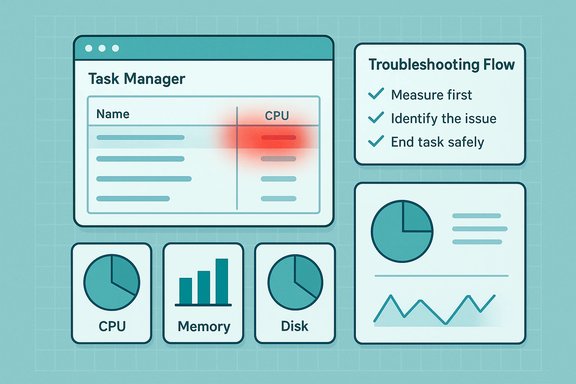
Press Ctrl + Shift + Esc to open Task Manager instantly. If you see a compact view, click More details to reveal the full diagnostic interface. This is the single fastest way to see who’s using CPU, memory, disk, GPU and network right now.The Processes tab: find the loudest consumer
- The Processes tab groups items into Apps, Background processes, and Windows processes and shows columns for CPU, Memory, Disk, GPU, and Network.
- Click a column header (for example, CPU) to sort from highest to lowest and immediately see the processes dominating resources.
- A single process consistently near 100% CPU or a process consuming gigabytes of RAM is an obvious suspect. High, sustained Disk activity—especially above roughly 75–80% sustained utilization—will make a system feel painfully slow on platter drives and even impact responsiveness on older SSDs.
End task, carefully
If an app is clearly misbehaving or frozen, right‑click it and choose End task. Limit this to obvious user apps (browsers, office apps) and avoid ending processes you don’t recognize—killing critical system processes can crash Windows. When in doubt, Google the process name from another device or use the Task Manager options Open file location or Search online to identify it.The Startup tab: stop the stealth drain
The Startup tab (or Settings → Apps → Startup) shows what runs automatically when Windows boots and the Startup impact column gives a quick risk/benefit view. Disable high‑impact programs you don’t need at login (cloud sync clients, chat apps, game launchers, automatic updaters). Disabling here does not uninstall a program; it merely prevents auto‑launch. This step often yields the largest immediate improvement in perceived snappiness.The Performance tab: the big picture
The Performance tab provides real‑time graphs for CPU, Memory, Disk, GPU and Network, which answers a different question: is your machine simply under‑powered for the workload? If memory use is consistently near the installed limit, or the CPU is pegged during routine tasks, the data will show whether a hardware upgrade (RAM, SSD, CPU) is the right next step.Resource‑by‑resource troubleshooting
CPU
- Look for processes with sustained high CPU during idle or light use. A misbehaving background service or update process (TiWorker.exe, Windows Update, SearchIndexer.exe) often explains sudden CPU spikes. Give system update-related processes time to finish—some background tasks can legitimately run for hours during idle.
- If a user app (browser, VM, a heavy editor) is the top offender, update, reconfigure or replace it. If multiple processes are high, check for driver or system-level issues. Use Event Viewer or Performance Monitor traces if necessary.
Memory (RAM)
- If In use memory plus Standby approaches your physical RAM and you see frequent hard faults (paging activity), you have memory pressure. Many guides treat persistent memory use above ~80% during typical tasks as the threshold to consider adding RAM. Upgrading RAM is usually the only durable fix for frequent paging; increasing the page file is a stopgap for stability only.
- Browsers are commonly responsible for large memory footprints—extensions and many open tabs multiply RAM use. Use Sleeping Tabs / Memory Saver features or reduce tab counts, or move heavy workloads to a machine with more RAM.
Disk (I/O) and Storage
- Sustained high Disk usage produces the classic “system feels slow” symptom because the OS waits for reads and writes. Identify the process driving I/O from Task Manager → Disk, or use Resource Monitor for per‑thread disk activity. If SearchIndexer.exe, TiWorker.exe, antivirus scanning, or a cloud sync client is active, you may be watching background maintenance.
- Low free space on the system drive is a frequent underlying cause. Community consensus recommends keeping a buffer—commonly 10–20% of the OS drive free—as a practical guideline to avoid paging pressure and update failures; treat this as a rule‑of‑thumb rather than a hard Microsoft requirement. For large Windows feature upgrades, more free space (tens of GB) is often required.
- If the system uses an HDD, moving the OS to an SSD (NVMe if supported) is the single most effective upgrade: it dramatically reduces latency for boot and app launches. If disk saturation persists on an SSD, ensure there’s enough free space and check firmware/driver compatibility.
Network
- Sort the Network column to see processes using bandwidth. Cloud sync, backups, and auto‑updaters can saturate upload/download and cause perceived sluggishness for web apps. Pause or schedule heavy syncs during off‑hours to test.
GPU
- GPU load spikes are normal when gaming or using GPU‑accelerated apps. If unexpected GPU use appears during light tasks, check for browser video or background rendering tasks, and verify driver health—vendor tools (NVIDIA, AMD, Intel) help identify misbehaving GPU drivers.
Tools beyond Task Manager
Resource Monitor
Resource Monitor (open from Task Manager → Performance → Open Resource Monitor) exposes per‑process disk reads/writes, network ports, and CPU threads. It’s the next step if Task Manager points to a resource but you need the specific thread or handle responsible.Event Viewer and Diagnostics‑Performance
Event Viewer logs (Applications and System) show errors and timeouts; Diagnostics‑Performance (Microsoft → Windows → Diagnostics‑Performance → Operational) records slow boot and app launch data (Event ID 100 boot time is useful). These logs are critical when a driver or service repeatedly times out.SFC and DISM
If you suspect system corruption, run these from an elevated prompt:- sfc /scannow
- DISM /Online /Cleanup-Image /RestoreHealth
They repair corrupt system files and the component store in a safe, documented way. Use them before attempting a full reinstall.
Clean Boot and Safe Mode
A Clean Boot (msconfig → hide Microsoft services → disable others; disable non‑Microsoft startup items) isolates third‑party services and startup items. Booting to Safe Mode tests whether the core OS is responsive without third‑party drivers or services. These are essential diagnostic steps before invasive fixes.Malware and second‑opinion scanners
Run a full offline scan with Windows Security and consider a reputable second opinion (e.g., Malwarebytes) when resource anomalies persist and scans are clean. Malware can present exactly like intermittent freezes or persistent high resource use.A practical, safety‑first troubleshooting checklist (stepwise)
- Reboot and measure: do a clean restart, then open Task Manager and note top consumers in CPU, Disk, Memory. Record baseline times for boot and app launch.
- Wait if Windows Update, TiWorker.exe or SearchIndexer is active: some operations finish on their own after idle time. If background activity subsides after hours, you’re done.
- Trim startup: disable nonessential startup entries (Task Manager → Startup). Reboot and re‑measure. This is low-risk and often the highest ROI.
- Run SFC and DISM if odd errors show in Event Viewer or if performance is unexplained.
- Clean boot to isolate third‑party services: re-enable items in small groups to find the offender.
- Check disk free space and run Disk Cleanup / Storage Sense; if on HDD, consider Optimize Drives; on SSD, ensure TRIM is working. Keep a healthy free-space buffer (10–20% as a practical guideline).
- Update or roll back problematic drivers (GPU, storage, chipset). Use vendor tools and consider a clean driver reinstall if necessary.
- Scan for malware with Windows Security and optionally a second‑opinion tool.
- If disk I/O is the limiting factor and you’re on an HDD, prioritize migrating the OS to an SSD (NVMe where supported). If memory pressure is chronic, add RAM.
When hardware upgrades are the practical solution
- Replace HDD with SSD (NVMe recommended where supported): the single most effective performance upgrade for boot and app responsiveness. Benchmarks consistently show orders‑of‑magnitude improvements in random IOPS and latency.
- Add RAM if typical usage regularly exceeds ~80% and the system pages frequently; moving from 8 GB → 16 GB is a common, high‑value step for heavy multitasking.
- CPU upgrades help multitasking and compute workloads but are constrained by motherboard compatibility and cost; treat them after addressing storage and memory first.
Preventive maintenance and routines that keep Windows fast
- Monthly: review Startup items, run Storage Sense or Disk Cleanup, and check for excessive background apps.
- Weekly: reboot at least once to let updates finalize and free transient resources.
- Keep device drivers (GPU, storage, network, chipset) up to date from vendor sites when fixes or performance improvements are released, and create a restore point before driver updates.
- Use browser features like Sleeping Tabs or Memory Saver, prune extensions, and limit tab counts if you rely heavily on web apps.
- Monitor thermals and clean dust from fans and heatsinks: thermal throttling can make a fast CPU stutter like a slow one. If temps regularly climb into the high 80s–90s°C under normal loads, investigate cooling. Exact safe temps vary by chip—consult manufacturer specs if you need exact thresholds.
Risks, gotchas and cautionary notes
- Don’t disable security software or disk‑encryption agents unless you know the consequences—doing so can remove protection or expose data. Some cleanup steps sacrifice convenience (e.g., disabling OneDrive auto‑start) and should be balanced against your backup/recovery needs.
- Avoid “one‑click optimizers” that promise dramatic gains; many simply clear caches or kill background processes temporarily, and some perform risky registry edits. Built‑in tools plus measured changes are safer and more predictable.
- Uninstalling Windows updates to fix performance should be a last resort; it removes security fixes. If you do uninstall a problematic KB, consider pausing that update until Microsoft releases a fix and weigh productivity needs against security exposure.
Quick reference: commands and locations
- Open Task Manager: Ctrl + Shift + Esc.
- Clean Boot: msconfig → Services → Hide Microsoft services → Disable all → Startup → Open Task Manager → Disable non‑Microsoft items.
- System file checks: sfc /scannow and DISM /Online /Cleanup-Image /RestoreHealth (run from an elevated command prompt).
- Disk cleanup: Settings → System → Storage → Storage Sense or Disk Cleanup (cleanmgr); Optimize Drives for HDDs; TRIM for SSDs is automatic.
Conclusion
Diagnosing a sluggish Windows PC is rarely mysterious: measure first, then act. Task Manager gives immediate visibility into the loudest resource consumers; Resource Monitor, Event Viewer, SFC/DISM, and a clean‑boot process let you drill down safely. Most everyday slowdowns are solved by trimming startup apps, freeing disk space, letting Windows finish background maintenance tasks, updating or rolling back drivers, and—when the data require it—upgrading storage or RAM. Follow a measured checklist, avoid aggressive one‑click “fixes,” and use hardware upgrades only when your diagnostics show a persistent resource bottleneck. That approach restores performance efficiently with the least risk and the clearest evidence for the next steps.Source: KTAR News 92.3 FM What’s causing my Windows computer to bog down?
