

OneDrive’s Folder Backup (Known Folder Move) is quietly one of the most consequential “default” behaviors in Windows 11: when it’s activated without clear consent it can commingle local and cloud copies, consume paid OneDrive storage, and change where your files actually live — often without you realizing it.
Windows 11 ships with deep OneDrive integration intended to protect users’ important files — Desktop, Documents, and Pictures — by syncing them to the cloud. That feature, commonly known as Folder Backup or Known Folder Move (KFM), is valuable when used intentionally: it preserves files if a device is lost or corrupted and makes content available across devices. But in recent releases Microsoft has changed the onboarding flow and default behavior in ways that push many users into cloud backups they did not explicitly choose.
This article explains what changed, why it matters, how to detect and reverse unwanted Folder Backup behavior, and how to reclaim control of OneDrive integration in Windows 11 — including practical steps to uninstall OneDrive cleanly, adjust settings, and avoid paying for storage you didn’t intend to use. Where technical claims are drawn from community and reporting sources, I reference them directly so readers can validate details for their own environments.
Steps to uninstall:
Microsoft’s client improvements show the right intent, but a stronger, transparent consent model and smarter differentiation between cloud-only and local-only files during undo would make the experience genuinely user-centric. Until then, the tools and steps outlined above give you the means to reclaim your desktop, protect your storage budget, and keep your files where you want them to be.
Source: Thurrott.com De-Enshittify Windows 11: OneDrive
 Background / Overview
Windows 11 ships with deep OneDrive integration intended to protect users’ important files — Desktop, Documents, and Pictures — by syncing them to the cloud. That feature, commonly known as Folder Backup or Known Folder Move (KFM), is valuable when used intentionally: it preserves files if a device is lost or corrupted and makes content available across devices. But in recent releases Microsoft has changed the onboarding flow and default behavior in ways that push many users into cloud backups they did not explicitly choose.This article explains what changed, why it matters, how to detect and reverse unwanted Folder Backup behavior, and how to reclaim control of OneDrive integration in Windows 11 — including practical steps to uninstall OneDrive cleanly, adjust settings, and avoid paying for storage you didn’t intend to use. Where technical claims are drawn from community and reporting sources, I reference them directly so readers can validate details for their own environments.
What changed in Windows 11 (25H2 and surrounding updates)
The subtle default shift
Historically, Windows prompted users during Out-Of-Box Experience (OOBE) or soon after sign-in with a clear opt-in to back up known folders to OneDrive. Recent changes have altered that experience in two important ways:- Microsoft moved away from a clear, persistent prompt and now in many configurations auto-enables Folder Backup after you sign in with a Microsoft account, without a visible, persistent opt-in dialog. That reduces friction for OneDrive adoption, but it also removes an explicit consent step.
- The client’s undo/restore behavior has changed incrementally: some builds now provide a better “stop backup and return files to local folders” flow, but the underlying issue — that the client mixes local and cloud content when it engages KFM — remains a practical, user-facing problem.
Why the change matters
- Silent opt-in undermines user control. Users expect to choose whether their Desktop, Documents, and Pictures move into a cloud-synced folder. Auto-enabling removes that decision.
- Storage and cost implications. Microsoft accounts start with limited free OneDrive storage; moving large local folders into OneDrive can quickly push users toward paid plans.
- File commingling complicates reversal. When Folder Backup is enabled silently, OneDrive merges what’s in the cloud with what’s on the PC. Undoing the backup can require moving large quantities of data and may fail if local disk space is insufficient.
The concrete risks you can run into
1. Unexpected billing pressure
If OneDrive begins storing hundreds of gigabytes from your Desktop, Documents, or Pictures, you’ll exceed the free quota quickly and receive prompts to subscribe to Microsoft 365 or buy extra OneDrive storage. This is an avoidable expense if you never intended those folders to live in the cloud.2. Local disk space exhaustion when reversing KFM
Disabling Folder Backup doesn’t simply “point” files back to their previous locations. OneDrive often needs to physically move the commingled set of files into the local folder. If your local disk lacks sufficient space, the operation may fail and leave you in a mixed state: backup disabled, but some files still only in the cloud.3. Privacy and data residency concerns
Some users store sensitive or ephemeral items on Desktop or in Documents (temporary archives, game save data, database files) that are not appropriate to push into a cloud service. Silent redirection risks exposing files to the cloud that you did not intend to leave the machine.4. Application compatibility issues
Certain applications expect local-only folder semantics. Redirecting those folders into a remote-synced location can cause unexpected behavior — for example, apps that write frequent small files to Documents or game save files that shouldn’t sync across devices.How to detect whether Folder Backup (KFM) is enabled on your PC
- Look at the OneDrive icon in the system tray. If OneDrive is signed in and syncing known folders, it will indicate syncing activity.
- Open OneDrive settings (click the OneDrive tray icon → Help & Settings → Settings). Choose Sync & backup → Manage backup. If Desktop, Documents, or Pictures are listed as actively backed up, KFM is enabled.
Prevent OneDrive from auto-enabling Folder Backup during OOBE (quick trick)
If you’re setting up a new PC and want to avoid instant KFM activation, there is a time-sensitive trick that often works:- Complete OOBE and sign in with your Microsoft account so you reach the desktop.
- Wait for the OneDrive icon to appear in the system tray. It appears with an angled line while it updates.
- After OneDrive updates and signs in (the angled line goes away), click the OneDrive system tray icon → Help & Settings (gear) → Settings.
- Navigate to Sync & backup → click Manage backup next to Back up important PC folders to OneDrive.
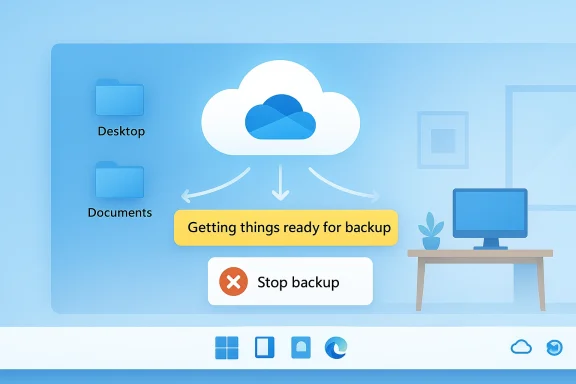
- Watch for a yellow info bar that reads “Getting things ready for backup.” If it appears, click Cancel. Then confirm Cancel backup in the dialog that appears. This interrupts the automatic KFM activation.
How to reverse Folder Backup (stop KFM) — and what can go wrong
If Folder Backup is already enabled and you want to undo it, follow these steps but read the caveats below carefully:- Click the OneDrive system tray icon → Help & Settings → Settings.
- Go to Sync & backup → Manage backup.
- For each backed-up folder (Desktop, Documents, Pictures), switch the sync to Off.
- When prompted by the Stop backing up [Folder name] folder? dialog, click Stop backup and choose where to keep files.
- Choose Only on my PC if you want the files to live locally. OneDrive will then attempt to move the combined set (local + cloud) back to the local folder.
- Commingled content: OneDrive does not distinguish which items were local versus cloud-only. The result is a single merged set of files in the destination. You may need to manually relocate items you don’t want locally after the move.
- Insufficient local space: If the local drive lacks capacity to hold the merged folder, the move will fail and OneDrive will leave those files in the cloud while the Folder Backup flag is turned off. You’ll then need to move files manually via File Explorer or selectively download items you want locally.
- Partial failures: In some cases OneDrive reports “Some files couldn’t be moved” and leaves instructions to manually retrieve them, which can be tedious for large collections.
- Pause OneDrive and let all sync operations complete.
- Confirm local availability of any files you cannot afford to lose by right-clicking and choosing Always keep on this device.
- Create a full filesystem backup or image, or at least copy critical data to external media before reconfiguring Folder Backup.
If you don’t use OneDrive: Uninstall it cleanly
OneDrive is a legitimate and useful service for many, but if you prefer an alternative (Google Drive, Dropbox) or you want a local-only environment, uninstalling OneDrive is straightforward and reversible.Steps to uninstall:
- Open Settings → Apps → Installed apps.
- Find Microsoft OneDrive, click the ellipsis (more options) and select Uninstall. Confirm the uninstall prompt.
- Uninstalling OneDrive does not delete files from Microsoft’s cloud; your cloud files remain accessible via the web or other signed-in devices.
- You do not necessarily need to reboot, but some UI elements may persist until a restart occurs.
- If File Explorer still shows a Gallery item in the left navigation after uninstall, you can remove it by deleting the corresponding registry namespace key. The typical command used for this purpose is:
reg delete "HKLM\SOFTWARE\Microsoft\Windows\CurrentVersion\Explorer\Desktop\NameSpace{e88865ea-0e1c-4e20-9aa6-edcd0212c87c}"
Run this in an elevated Terminal (admin) session. This removes the stray Gallery entry instantly. (Proceed with caution when modifying HKLM.)
Other common OneDrive frustrations and practical fixes
You keep getting “On this day” (Memories) notifications
If repeated memories notifications are annoying:- Open OneDrive settings → Notifications and turn Notify me when ‘On this day’ memories are available to Off. This silences daily memory prompts.
OneDrive files are on the C: drive but you want them elsewhere
To move your OneDrive folder to another disk:- Open OneDrive settings → Account → Unlink this PC. Confirm unlink.
- Sign in again and during setup, when prompted for Your OneDrive folder, click Change location and pick the new path on another drive.
- After the new sync is configured, delete the old OneDrive folder to reclaim disk space. If you use Files On‑Demand, resync the folders you want locally available.
OneDrive isn’t storing screenshots or phone photos as you expect
If OneDrive is automatically uploading screenshots or items from devices you’d rather keep local, disable those options in OneDrive settings:- Sync & backup → uncheck Save photos and videos from devices and Save screenshots I capture to OneDrive.
Office defaults to saving to OneDrive
If you prefer Office apps to save locally:- Open an Office app (Word/Excel) → File → Options → Save → check Save to Computer by default. That restores a local-first default while retaining AutoRecover.
Storage pricing realities and practical recommendations
Microsoft provides a small free tier for OneDrive, so if Folder Backup captures large folders you can expect storage prompts:- The free plan is limited (typical baseline: 5 GB for Microsoft accounts in many regions). For larger needs, Microsoft 365 subscriptions bundle OneDrive storage: Microsoft 365 Personal and Family provide 1 TB per user, while lower-tier plans add incremental amounts. If the default free allocation is insufficient, you will either need to pay for Microsoft 365 or purchase add-on storage.
- Use a competitor if you want larger free quotas (Google provides 15 GB free across Drive/Gmail/Photos).
- Before disabling Folder Backup, catalog what’s actually in Desktop/Documents/Pictures and decide which subfolders truly need cloud backup versus those you want local-only.
- Consider a hybrid strategy: keep Documents and Desktop local, but selectively sync important subfolders to OneDrive or a different cloud provider.
A responsible, stepwise rollback checklist (recommended)
- Pause all OneDrive activity and wait for sync to finish.
- Export or copy critical files that cannot be lost to an external drive.
- Confirm which folders are currently redirected (OneDrive settings → Sync & backup → Manage backup).
- If you plan to disable KFM, ensure you have sufficient local disk capacity to accept the merged folder contents.
- Disable Folder Backup one folder at a time, choosing Only on my PC if you want those files local. If the operation fails due to space, use File Explorer to manually pull down high-priority items.
- After rollback, scan the local folders to identify cloud-only files you don’t want locally and move them back to OneDrive or delete them as appropriate.
- If you decide to remove OneDrive entirely, follow the uninstall steps and, if needed, clean up remaining UI artifacts with an elevated reg delete as described earlier.
Critical analysis: Microsoft’s tradeoffs and what users should expect
Microsoft’s push to integrate OneDrive more tightly into Windows is understandable from a platform and product perspective: it increases data protection for the nontechnical majority, improves cross-device continuity, and drives value for the Microsoft 365 ecosystem. But the current approach has three salient problems for power users and administrators:- Consent vs convenience: Conflating convenience with consent by auto-enabling KFM reduces transparency and user control. For many, the default should be an explicit, persistent opt-in.
- Recovery UX is brittle: The current undo flows can work well in ideal cases but are brittle when storage or file counts are large. The client’s inability to differentiate cloud-only from local-only items during reversal creates friction and potential data-management headaches.
- Billing friction: Auto-redirecting large local stores to OneDrive pushes users toward paid tiers — an outcome that looks like a product nudging rather than a neutral protection feature. Users deserve clearer, more granular prompts when storage or billing consequences are possible.
Recommendations for different audiences
- For non-technical consumers: If you rely on OneDrive, accept Folder Backup but monitor your OneDrive storage and set Office to save to OneDrive only for the directories you choose. If you don’t want OneDrive, uninstall it and use alternatives (Google Drive, Dropbox) with care.
- For power users: Use the OOBE cancel trick when setting up new machines and keep a small, explicit set of subfolders under OneDrive rather than whole known-folder redirection. Maintain a disk-image backup before changing Folder Backup settings.
- For IT admins and organizations: Treat KFM as a configuration variable. Apply group policy or Intune controls to enforce known-folder behavior in managed fleets. Pilot changes with representative users to detect application compatibility issues (game saves, local databases). Keep scripts for safe rollback and inventory which users depend on OneDrive features like Files On‑Demand and Office AutoSave.
Final verdict
OneDrive’s Folder Backup is powerful and useful when applied deliberately; as a silent default that aggressively redirects known folders and commingles local and cloud content, it introduces real risks — data management surprises, potential costs, and recovery headaches. The best practical approach for users who value control is to proactively manage OneDrive: prevent auto-activation during setup where possible, verify which folders are redirected, and follow a conservative rollback checklist before disabling Folder Backup.Microsoft’s client improvements show the right intent, but a stronger, transparent consent model and smarter differentiation between cloud-only and local-only files during undo would make the experience genuinely user-centric. Until then, the tools and steps outlined above give you the means to reclaim your desktop, protect your storage budget, and keep your files where you want them to be.
Source: Thurrott.com De-Enshittify Windows 11: OneDrive


 for active work, 🗂 for archives).