

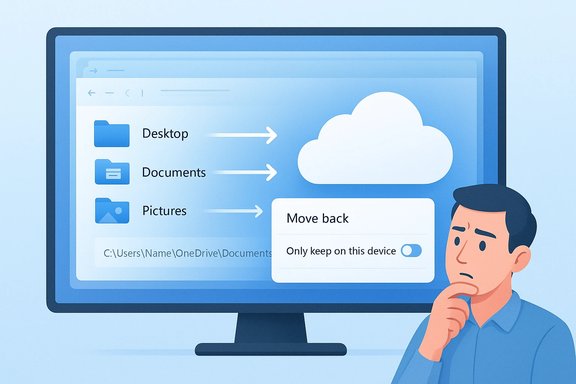
Windows 11’s latest push to make OneDrive the default place for your documents has created a sharp divide: convenient cloud protection for many, and a surprise “where did my files go?” experience for others. Microsoft’s Known Folder Move (KFM) and OneDrive Backup flows now appear more aggressively during setup and when you sign in with a Microsoft account, and in some builds Windows will automatically redirect Desktop, Documents and Pictures into OneDrive. The UI now offers a way to stop backing up folders and — in some builds — to move backed-up files back to your local profile, but the rollout is inconsistent and the behavior can still confuse people who expect files to remain in C:\Users\username by default.
Windows’ cloud-first nudge is pragmatic: for many people it prevents data loss and makes files accessible everywhere. But defaults matter. When the OS silently changes where your files live, the result is not just a technical change — it’s an erosion of user expectations about control and locality. Until the rollout and UX are consistent and clearly documented, take the conservative path: confirm where your files are, verify local copies before deleting cloud duplicates, and use the OneDrive settings or Group Policy controls that match your privacy, quota, and management needs.
Source: Android Headlines Why Windows 11 Enables OneDrive Backup by Default and How to Turn It Off
 Background
What Microsoft changed — and why it matters
Over the last few Windows releases Microsoft has tightened the integration between Windows and OneDrive. The core idea is simple: protect users’ important data by redirecting familiar folders (Desktop, Documents, Pictures, and their subfolders) into OneDrive so files are automatically backed up, accessible across devices, and versioned in the cloud. This is the Known Folder Move (KFM) concept, now surfaced widely in setup flows, Office apps, and OneDrive onboarding. The approach reduces data-loss risk for casual users who never set up backups, but it also changes where files live on disk and how much cloud storage is consumed. KFM works by redirecting the OS “known folder” pointers to paths beneath your OneDrive folder (for example, C:\Users\you\OneDrive\Documents). Windows and applications still see those locations as the normal Documents or Desktop folders, so behavior is seamless — until you choose to stop backing up those folders. When backup is stopped, older OneDrive client behavior left the backed-up files under OneDrive and required manual copying back to local profile folders. Microsoft has introduced a newer “move back” option in recent builds to simplify that reversal, but the option’s availability depends on the OneDrive client and Windows build. That inconsistency is the core of current user confusion.The ecosystem context: quotas and subscriptions
OneDrive’s free tier is limited — most consumer accounts get 5 GB of free cloud storage — while Microsoft 365 subscribers typically receive 1 TB per user as part of their plan. That capacity difference affects whether KFM is practical for a user: moving a large Documents folder into a free 5 GB account will quickly produce quota errors and sync failures. This is an important practical constraint that users must consider when OneDrive becomes a default during setup.How OneDrive Backup behaves in practice
What happens when OneDrive Backup is enabled
- Windows (or the OneDrive client) redirects your Desktop, Documents and Pictures to OneDrive’s folder tree.
- Files are uploaded to Microsoft’s cloud and subject to Files On‑Demand behavior: they may be fully downloaded, set as local copies, or represented by online-only placeholders depending on your settings.
- Apps continue to save to the redirected locations automatically, so the user experience is usually seamless — until you change the backup state.
What happens when you turn backup off
There are two possible outcomes depending on the client/build:- In many builds, stopping backup simply returns the OS known-folder pointer to your local profile, but leaves the backed-up files in the OneDrive folder; you must manually move them back to C:\Users\username\Documents (or the appropriate path) if you want them physically local.
- In some newer builds Microsoft added a “move back to local folders” option in the stop-backup flow that automates the transfer of files from OneDrive back into the local profile. This UX improvement shortens the recovery path but is not yet guaranteed for all users. Treat availability as pragmatically undocumented until Microsoft publishes explicit release notes for your exact client/build.
Why users think files were deleted
Because the known-folder pointer changes, the “Documents” folder you open in Explorer can suddenly be empty (or contain only placeholders) when the actual files are now under OneDrive\Documents. That visual difference — a folder that looks familiar but is now effectively a cloud-backed pointer — is the primary cause of panic calls and support posts. The files normally aren’t deleted; they’ve been relocated and synced. Confirming the OneDrive folder content vs. %userprofile% is the fastest way to diagnose this.Why Microsoft is doing this: convenience, retention and product consistency
Microsoft’s rationale is consistent: cloud backups improve data safety and cross-device productivity. By defaulting to OneDrive for known-folder protection, Microsoft reduces the number of users who are vulnerable to hard-drive failure, accidental deletion, or lack of cross-device access. This also aligns Windows with Office autosave and recent changes in Microsoft 365 that prompt users in Word/Excel/PowerPoint to enroll in OneDrive KFM — a coordinated push across the ecosystem to normalize cloud-first behaviors. At scale, defaulting to cloud backup can reduce support costs from lost-data incidents and increase adoption of Microsoft’s subscription services, which bundle larger OneDrive quotas. For many everyday users — especially those with a Microsoft 365 subscription — the convenience tradeoff is acceptable, and in some cases preferable.The downsides and practical risks
- Quota pressure and failed syncs: Free OneDrive accounts (5 GB) can fill quickly. When quota is exhausted, sync errors occur and user folders can appear inconsistent between the cloud and local device. Plan for storage limits before accepting OneDrive Backup.
- Privacy and compliance: Moving files to a third-party cloud may violate personal or organizational policies for sensitive data. Some organizations block KFM via Group Policy or Intune for that reason.
- User confusion and perceived loss: Because Windows continues to present the redirected folders as the OS canonical location, many users think files were deleted rather than moved — especially when the move happens silently during OOBE or sign-in.
- Inconsistent rollback behavior: The “move back” automation is helpful but only present in some builds; lack of clear documentation creates uncertainty about which machines will get that behavior. Microsoft’s public documentation explains how KFM works but doesn’t always enumerate UX differences across client builds. Flag any blanket claims that “files are automatically moved back in all cases” as unverifiable for any given device without checking client and Windows versions.
- Enterprise management complications: Organizations that want local-first behavior must use policy controls. If management policies are not set, the user-level default may be cloud-first. Admins should enable the appropriate Group Policy/Intune settings to prevent unwanted KFM adoption in managed environments.
How to turn off OneDrive Backup and get your files back — step-by-step
Below is a practical, conservative workflow that works for most home users and small business desktops. Follow these steps carefully and verify at each stage.- Pause and let OneDrive finish syncing.
- Click the OneDrive cloud icon in the notification area and choose Pause syncing until uploads/downloads complete.
- Verify there are no pending uploads (the sync status shows “Up to date”). This prevents partial transfers.
- Identify which folders are protected.
- Open OneDrive (notification area) → Help & Settings → Settings → Sync and backup → Manage backup. Note which folders show as “Backed up.”
- Turn off backup for each folder (Documents, Pictures, Desktop).
- In Manage backup, slide each folder to Off and confirm by clicking Stop backup.
- When prompted, choose the option to keep files only on your PC (or “Only on my PC”) if available. This option is the newer UX that attempts to move backed-up files back into your local profile automatically. If your client doesn’t present that choice, stopping backup will simply unredirect the folder while leaving the files in OneDrive.
- If the “move files back” option runs, verify local content.
- After the stop operation completes, open File Explorer and type %userprofile% in the address bar. Confirm that C:\Users\yourname\Documents (and Pictures, Desktop) contain your files.
- Open several representative files (documents, images) to confirm they open normally and metadata is intact.
- If the automatic move didn’t run — copy files manually.
- Open C:\Users\yourname\OneDrive\Documents (or OneDrive\Pictures/Desktop) and select the items you want to keep locally.
- Copy or Cut and paste them into C:\Users\yourname\Documents (or the appropriate local folder).
- If you have very large libraries, move in batches to avoid sync throttling and to keep file-checking manageable.
- Handle Files On‑Demand and placeholders.
- If files show cloud-only icons (white cloud) in OneDrive, right-click important files/folders and select Always keep on this device to ensure they are downloaded before you move or unlink OneDrive. Downloading first avoids losing access when the client is unlinked.
- Clean up duplicates and cloud copies (optional).
- Once you’ve verified everything is present locally, you may delete redundant copies under the OneDrive folder or via onedrive.com. Empty the OneDrive recycle bin to free cloud quota. Do not delete cloud copies until you are absolutely sure you have verified local integrity.
- Sever future automatic re‑enablement (if desired).
- In OneDrive → Settings → Account, choose Unlink this PC to stop automatic sync.
- Disable OneDrive at startup: Settings → Apps → Startup → toggle Microsoft OneDrive to Off (or use Task Manager → Startup).
- If you want to remove the client entirely, uninstall OneDrive from Settings → Apps → Installed apps (but do this only after you have confirmed all needed files are local and downloaded).
- Prevent future prompts (power users / admins).
- During OOBE (first boot), look for the “Only save files to this PC” link or option. If you don’t see a comfortable OOBE choice, consider creating a local account and adding your Microsoft account later from Settings to avoid automatic KFM during first sign-in.
- Enterprises should use the OneDrive Group Policy controls or Intune settings to either prompt, silently move, or prevent KFM entirely (see “Prompt users to move Windows known folders to OneDrive,” “Silently move,” and “Prevent users from turning off Known Folder Move”). Those policies are documented and allow administrators to enforce local-first policies.
Troubleshooting common problems
- If you can’t stop backup or the toggle refuses to stick: reboot and try again; if it’s still stuck, unlink the PC from OneDrive (Account → Unlink this PC), then move files manually and relink if necessary. A reinstall of the OneDrive client is the last resort.
- If an app’s save path still points to OneDrive after you move files back: some programs store absolute paths. Update the app’s save location, or use a symbolic junction (advanced) to preserve compatibility. Junctions can break with updates, so prefer updating app settings.
- If space or bandwidth is limited: move large archives to external drives or a NAS and exclude them from OneDrive. Use the OneDrive policy to limit upload throughput during initial sync.
Enterprise and admin perspective
IT administrators have policy controls to manage KFM and OneDrive behavior at scale. Microsoft’s documentation explicitly provides:- policy settings to prompt users, silently move folders, or prevent KFM,
- a Group Policy template to restrict Known Folder Move prompts in Office so Word/Excel/PowerPoint won’t nag users to enroll, and
- deployment guidance to stage migrations gradually to avoid network overload from mass uploads. Administrators who need local-first behavior should apply these policies rather than relying on manual user steps.
Practical alternatives and mitigations
If you want cloud protection without handing everything to OneDrive automatically, consider these hybrid approaches:- Use OneDrive selectively: enable KFM for only the most critical small folders and set Always keep on this device for files you need locally.
- Combine OneDrive for cross-device sync with a periodic local full-image backup (Macrium Reflect, Acronis, or built‑in tools) to protect system state and large archives.
- Use a NAS or personal cloud (Synology, QNAP) for large media libraries to avoid OneDrive quota pressures.
- For sensitive data, use end-to-end encryption tools or services that support client-side key control rather than centrally managed cloud encryption.
The user-experience verdict: the good, the bad, and what Microsoft should fix
Strengths- Stronger default protection. Many users who never set up backups now get cloud protection without extra effort.
- Seamless cross-device access. Files saved from Office or File Explorer are accessible from any device via OneDrive and the web.
- Better recovery options. Version history and OneDrive’s recycle bin reduce the chance of permanent loss from accidental overwrite or deletion.
- Surprise factor. Redirecting apparent local folders to the cloud without clear, obvious consent creates confusion and support friction.
- Quota and cost pressure. The 5 GB free allocation is small; users without Microsoft 365 will quickly face limits.
- Inconsistent rollback UX. The availability of the “move back” option varies across builds and clients; Microsoft should document which versions support it.
- Make the “Only save files to this PC” option more explicit in OOBE and provide a persistent, easy-to-find local-first choice that survives updates.
- Publish a formal table of OneDrive client/Windows combinations that support the automatic “move back” behavior when stopping backup.
- Provide a clearer, single-click global preference for users who want to avoid cloud nudges and promotional prompts across OOBE, Office, and File Explorer.
- Make Group Policy/MDM controls obvious for enterprises and include a “local-first default” policy template for privacy-sensitive customers.
Final recommendations — what to do right now
- If you prefer local-only control: stop OneDrive Backup for your known folders, verify local copies in %userprofile%, then unlink and optionally uninstall OneDrive.
- If you want cloud protection: confirm you have sufficient OneDrive quota (consider Microsoft 365 for 1 TB), enable Always keep on this device for critical files you need offline, and monitor upload activity on metered networks.
- If you manage devices: use Microsoft’s Group Policy/Intune controls to adopt a planned migration strategy and avoid surprise redirects during OOBE and sign-in.
Windows’ cloud-first nudge is pragmatic: for many people it prevents data loss and makes files accessible everywhere. But defaults matter. When the OS silently changes where your files live, the result is not just a technical change — it’s an erosion of user expectations about control and locality. Until the rollout and UX are consistent and clearly documented, take the conservative path: confirm where your files are, verify local copies before deleting cloud duplicates, and use the OneDrive settings or Group Policy controls that match your privacy, quota, and management needs.
Source: Android Headlines Why Windows 11 Enables OneDrive Backup by Default and How to Turn It Off
