Windows 11 versions 25H2 and 24H2 now let users keep updates paused indefinitely by repeatedly extending a rolling 35-day window, removing the old requirement to install pending updates before another pause. The calendar-based control arrives with Microsoft’s July 2026 security update, although “pause forever” still requires manual intervention at least once every 35 days.
As reported by Windows Central and detailed in Microsoft’s support documentation, users can select a pause end date under Settings > Windows Update. While the calendar never offers a date more than 35 days ahead, it can be revisited during an active pause to choose another end date—without first taking the accumulated updates.
That small workflow change represents a significant retreat from Windows 11’s traditionally rigid update model. It gives home users and enthusiasts a supported way to delay automatic patching for months or potentially years, but it does not disable Windows Update or remove the security consequences of running an increasingly unpatched PC.
The redesigned Pause updates control replaces the previous set of fixed-duration choices with a calendar. A user can select any supported date up to 35 days from the current day, then return later and move that deadline another 35 days into the future.
Previously paused time does not stack. If a PC has already been paused for 20 days, selecting a new date does not add another 35 days to the existing deadline; it sets a new deadline no more than 35 days from the day the setting is changed. Repeating that process is what creates the effectively indefinite pause.
If the user does nothing, Windows Update resumes automatically on the selected expiration date. Windows then checks for applicable updates and begins downloading and installing them under the usual servicing rules.
Microsoft’s language remains deliberately narrower than the “forever” shorthand. Its support page says that pausing updates does not permanently turn off automatic updates, but it also confirms that users can extend a pause repeatedly as long as each new date stays inside the rolling 35-day limit.
The practical sequence is straightforward:
The result is less like an off switch and more like a renewable hold. It is easy enough for an attentive enthusiast to maintain, but deliberately inconvenient enough that Microsoft can continue describing automatic updating as the normal Windows 11 behavior.
Older implementations generally treated the 35-day limit as a mandatory servicing boundary. Once that allowance expired, Windows had to scan for and install applicable updates before pausing could be used again. That prevented consumers from indefinitely remaining on one patch level through the Settings interface.
The new calendar removes that boundary for user-managed PCs. Someone preparing a machine for a presentation, audio production session, extended trip, software certification process, or hardware troubleshooting period can keep moving the deadline without accepting an update at an inconvenient moment.
That is useful because update problems are rarely limited to Windows itself. A cumulative update can expose incompatibilities in endpoint security software, VPN clients, storage filters, audio drivers, shell extensions, anti-cheat components, accessibility tools, or specialist peripherals. Giving users more time allows those dependencies to be tested and fixed before a production machine receives the same code.
The feature should not be confused with selective patch management. The Settings control pauses Windows updating broadly; it does not provide a consumer-friendly menu for accepting one security fix while rejecting a problematic driver or feature change. Extending the pause therefore also postpones protections that may be urgently needed.
This makes the new control a better emergency brake, but not a replacement for a servicing strategy. A short delay can reduce operational risk. An open-ended delay steadily increases security and compatibility risk, particularly once software vendors begin assuming that current Windows fixes are present.
Microsoft uses a Controlled Feature Rollout for some Windows 11 additions, so installing the cumulative update does not guarantee that every device will expose every new interface immediately. Availability can vary while Microsoft expands deployment across eligible hardware.
The same servicing wave introduces Point-in-time Restore, a recovery feature that can return apps, settings, personal files, and system state to a recent automatic restore point. Microsoft positions it as a way to reduce downtime after a troublesome update, application conflict, or unexpected configuration change.
Together, the two additions address opposite sides of the same problem. The calendar lets users delay potentially disruptive changes, while Point-in-time Restore provides a route back if an installed change breaks the machine.
Other additions include a Screen tint accessibility option, more precise Magnifier zoom controls, and quieter Widgets defaults. Widgets no longer open on hover by default, while notification badges and interruptions have been reduced.
File Explorer receives launch and responsiveness work, fixes for duplicated OneDrive favorites, improved disk-image mounting, and better handling of unusual paths pasted into the address bar. Bluetooth changes target reconnection performance, LE Audio reliability, headset mute synchronization, AirPods discovery, and Beats Studio Pro microphone behavior.
Windows Ready Print also becomes the preferred installation path for newly added printers that support Internet Printing Protocol. Users can change that behavior under Settings > Bluetooth & devices > Printers & scanners using the “Default install printers using Windows Ready Print” toggle.
For virtualization-heavy environments, Microsoft says the update improves networking in nested Hyper-V configurations and enables SR-IOV acceleration by default for Confidential Virtual Machines. WSL mirrored networking should also behave more reliably when a VPN is active.
Microsoft’s enterprise documentation still treats a 35-day pause as a short-term response to a discovered deployment problem. Quality updates can be deferred for validation, paused when an issue emerges, and resumed after mitigation, while feature updates can be held to a selected Windows release through Intune policies.
That distinction matters for domain-joined and Entra ID-managed PCs. A user may not see the calendar at all, or may find that its available choices are constrained by policy. Organizations operating under compliance requirements should not interpret the consumer change as permission to leave endpoints unpatched indefinitely.
Administrators also need to distinguish between postponing a feature release and suspending monthly quality updates. Holding a fleet on Windows 11 25H2 while continuing to receive security fixes is a normal servicing decision. Repeatedly pausing all updates blocks the cumulative security packages that defend the installed release.
For managed deployments, update rings remain the safer mechanism because they provide validation time without relying on a person to reset a calendar every month. Pilot devices can receive patches first, followed by broader groups once application, driver, and security-agent compatibility has been established.
Windows 11’s new control is ultimately a concession to users who need predictability more than immediacy. It does not provide a permanent “Never update” switch, but the mandatory catch-up checkpoint is gone for PCs that can keep renewing the pause.
That freedom carries a clear operational cost: miss the deadline and Windows resumes servicing; keep extending it and the machine misses every fix released in the meantime. The best use of the feature is therefore not to freeze Windows 11 forever, but to decide exactly when the next patch window begins.
The release also adds File Explorer hover actions such as “Ask Copilot” for work and school accounts. Separately, a Windows Graphics Kernel change allows PCs with more than 32GB of memory to run larger local AI models, expanding on-device AI capacity for suitably equipped systems.
The update’s renewable pause option also delays the complete cumulative package, including fixes for more than 570 reported vulnerabilities across Microsoft products. Nearly 60 are rated critical, while two zero-day vulnerabilities were reportedly already being exploited.
For unmanaged Windows 11 Home and Pro PCs running version 24H2, repeatedly pausing updates changes the installation timing but does not cancel Microsoft’s mandatory transition to Windows 11 25H2.
The snapshots can include installed apps, settings, personal files, and system state, allowing a PC to be rolled back after a problematic update, driver installation, or configuration change. Changes made after the selected restore point are discarded when the rollback is performed.
The report says the feature can require as much as 50GB of storage and is available only on devices with at least 200GB of disk capacity. That makes it potentially valuable for troubleshooting update failures, but less accessible on lower-capacity laptops and tablets.
Club386 also reiterates that feature delivery remains gradual, so eligible systems may not receive the recovery option immediately even after installing the July cumulative update.
As reported by Windows Central and detailed in Microsoft’s support documentation, users can select a pause end date under Settings > Windows Update. While the calendar never offers a date more than 35 days ahead, it can be revisited during an active pause to choose another end date—without first taking the accumulated updates.
That small workflow change represents a significant retreat from Windows 11’s traditionally rigid update model. It gives home users and enthusiasts a supported way to delay automatic patching for months or potentially years, but it does not disable Windows Update or remove the security consequences of running an increasingly unpatched PC.
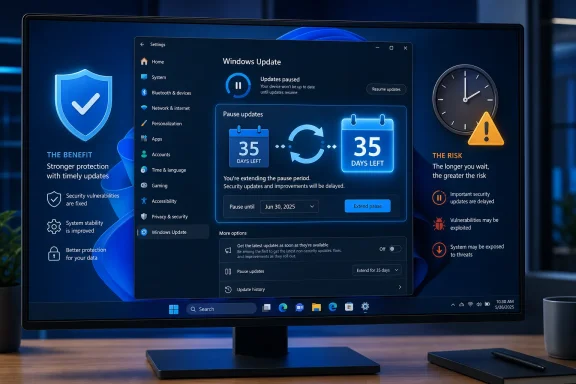 Microsoft Bets the Calendar on a Rolling Deadline
The redesigned Pause updates control replaces the previous set of fixed-duration choices with a calendar. A user can select any supported date up to 35 days from the current day, then return later and move that deadline another 35 days into the future.Previously paused time does not stack. If a PC has already been paused for 20 days, selecting a new date does not add another 35 days to the existing deadline; it sets a new deadline no more than 35 days from the day the setting is changed. Repeating that process is what creates the effectively indefinite pause.
If the user does nothing, Windows Update resumes automatically on the selected expiration date. Windows then checks for applicable updates and begins downloading and installing them under the usual servicing rules.
Microsoft’s language remains deliberately narrower than the “forever” shorthand. Its support page says that pausing updates does not permanently turn off automatic updates, but it also confirms that users can extend a pause repeatedly as long as each new date stays inside the rolling 35-day limit.
The practical sequence is straightforward:
- Open Settings > Windows Update.
- Select the date picker in the Pause updates control.
- Choose an end date within the next 35 days.
- Return before that date and choose another eligible date.
The result is less like an off switch and more like a renewable hold. It is easy enough for an attentive enthusiast to maintain, but deliberately inconvenient enough that Microsoft can continue describing automatic updating as the normal Windows 11 behavior.
The Pause Button Was Never the Real Story
Windows 11 has long offered temporary update pauses. The important change is that a PC no longer appears to need a catch-up cycle before the user can renew the pause.Older implementations generally treated the 35-day limit as a mandatory servicing boundary. Once that allowance expired, Windows had to scan for and install applicable updates before pausing could be used again. That prevented consumers from indefinitely remaining on one patch level through the Settings interface.
The new calendar removes that boundary for user-managed PCs. Someone preparing a machine for a presentation, audio production session, extended trip, software certification process, or hardware troubleshooting period can keep moving the deadline without accepting an update at an inconvenient moment.
That is useful because update problems are rarely limited to Windows itself. A cumulative update can expose incompatibilities in endpoint security software, VPN clients, storage filters, audio drivers, shell extensions, anti-cheat components, accessibility tools, or specialist peripherals. Giving users more time allows those dependencies to be tested and fixed before a production machine receives the same code.
The feature should not be confused with selective patch management. The Settings control pauses Windows updating broadly; it does not provide a consumer-friendly menu for accepting one security fix while rejecting a problematic driver or feature change. Extending the pause therefore also postpones protections that may be urgently needed.
This makes the new control a better emergency brake, but not a replacement for a servicing strategy. A short delay can reduce operational risk. An open-ended delay steadily increases security and compatibility risk, particularly once software vendors begin assuming that current Windows fixes are present.
July’s Update Is Larger Than Its Pause Control
The new behavior first appeared in the June 23 preview release, KB5095093, which brought Windows 11 25H2 to OS Build 26200.8737 and Windows 11 24H2 to OS Build 26100.8737. Microsoft subsequently folded those production-quality changes into the July 14 security rollout.Microsoft uses a Controlled Feature Rollout for some Windows 11 additions, so installing the cumulative update does not guarantee that every device will expose every new interface immediately. Availability can vary while Microsoft expands deployment across eligible hardware.
The same servicing wave introduces Point-in-time Restore, a recovery feature that can return apps, settings, personal files, and system state to a recent automatic restore point. Microsoft positions it as a way to reduce downtime after a troublesome update, application conflict, or unexpected configuration change.
Together, the two additions address opposite sides of the same problem. The calendar lets users delay potentially disruptive changes, while Point-in-time Restore provides a route back if an installed change breaks the machine.
Other additions include a Screen tint accessibility option, more precise Magnifier zoom controls, and quieter Widgets defaults. Widgets no longer open on hover by default, while notification badges and interruptions have been reduced.
File Explorer receives launch and responsiveness work, fixes for duplicated OneDrive favorites, improved disk-image mounting, and better handling of unusual paths pasted into the address bar. Bluetooth changes target reconnection performance, LE Audio reliability, headset mute synchronization, AirPods discovery, and Beats Studio Pro microphone behavior.
Windows Ready Print also becomes the preferred installation path for newly added printers that support Internet Printing Protocol. Users can change that behavior under Settings > Bluetooth & devices > Printers & scanners using the “Default install printers using Windows Ready Print” toggle.
For virtualization-heavy environments, Microsoft says the update improves networking in nested Hyper-V configurations and enables SR-IOV acceleration by default for Confidential Virtual Machines. WSL mirrored networking should also behave more reliably when a VPN is active.
Enterprise Update Rings Still Set the Rules
The consumer-facing calendar does not supersede Windows Update for Business, Microsoft Intune, Group Policy, or other organizational controls. Administrators can prevent users from pausing updates, define quality and feature-update deferrals, establish deadlines, and deploy patches through staged rings.Microsoft’s enterprise documentation still treats a 35-day pause as a short-term response to a discovered deployment problem. Quality updates can be deferred for validation, paused when an issue emerges, and resumed after mitigation, while feature updates can be held to a selected Windows release through Intune policies.
That distinction matters for domain-joined and Entra ID-managed PCs. A user may not see the calendar at all, or may find that its available choices are constrained by policy. Organizations operating under compliance requirements should not interpret the consumer change as permission to leave endpoints unpatched indefinitely.
Administrators also need to distinguish between postponing a feature release and suspending monthly quality updates. Holding a fleet on Windows 11 25H2 while continuing to receive security fixes is a normal servicing decision. Repeatedly pausing all updates blocks the cumulative security packages that defend the installed release.
For managed deployments, update rings remain the safer mechanism because they provide validation time without relying on a person to reset a calendar every month. Pilot devices can receive patches first, followed by broader groups once application, driver, and security-agent compatibility has been established.
Windows 11’s new control is ultimately a concession to users who need predictability more than immediacy. It does not provide a permanent “Never update” switch, but the mandatory catch-up checkpoint is gone for PCs that can keep renewing the pause.
That freedom carries a clear operational cost: miss the deadline and Windows resumes servicing; keep extending it and the machine misses every fix released in the meantime. The best use of the feature is therefore not to freeze Windows 11 forever, but to decide exactly when the next patch window begins.
Update: July rollout identified as KB5101650 (July 14, 2026)
Digital Trends identifies the July 2026 security update carrying these changes as KB5101650, available through Windows Update and the Microsoft Update Catalog.The release also adds File Explorer hover actions such as “Ask Copilot” for work and school accounts. Separately, a Windows Graphics Kernel change allows PCs with more than 32GB of memory to run larger local AI models, expanding on-device AI capacity for suitably equipped systems.
Update: Dell safeguard hold limits KB5101650 rollout (July 15, 2026)
WinBuzzer reports that Microsoft is withholding KB5101650 from certain Dell PCs with Intel processors because of potential shutdowns, reduced performance, overheating, and battery drain. Affected users should not force-install the update; Microsoft has not announced when the safeguard hold will be lifted.The update’s renewable pause option also delays the complete cumulative package, including fixes for more than 570 reported vulnerabilities across Microsoft products. Nearly 60 are rated critical, while two zero-day vulnerabilities were reportedly already being exploited.
For unmanaged Windows 11 Home and Pro PCs running version 24H2, repeatedly pausing updates changes the installation timing but does not cancel Microsoft’s mandatory transition to Windows 11 25H2.
Update: Point-in-time Restore requirements and retention window detailed (July 17, 2026)
Club386 reports that Windows 11’s new Point-in-time Restore feature retains automatic system snapshots for up to 72 hours, adding more concrete limits to the recovery capability included in July’s servicing release.The snapshots can include installed apps, settings, personal files, and system state, allowing a PC to be rolled back after a problematic update, driver installation, or configuration change. Changes made after the selected restore point are discarded when the rollback is performed.
The report says the feature can require as much as 50GB of storage and is available only on devices with at least 200GB of disk capacity. That makes it potentially valuable for troubleshooting update failures, but less accessible on lower-capacity laptops and tablets.
Club386 also reiterates that feature delivery remains gradual, so eligible systems may not receive the recovery option immediately even after installing the July cumulative update.
References
- Primary source: Windows Central
Published: 2026-07-14T18:39:57+00:00
Windows 11's latest update will let you pause updates indefinitely | Windows Central
The July 2026 Patch Tuesday update is one of the biggest of the year, bringing Point-in-time Restore and major Windows Update changes.www.windowscentral.com - Official source: support.microsoft.com
Pause updates in Windows | Microsoft Support
Under Settings, you can pause the Windows Update from being downloaded and installed for a period of time. You can also select a convenient time to restart your device after the updates are downloaded and installed.support.microsoft.com - Official source: learn.microsoft.com
Windows Update client policies | Microsoft Learn
Learn how Windows Update client policies let you manage when devices receive updates from Windows Update.learn.microsoft.com
Last edited: