

Windows 11’s telemetry plumbing runs deeper than most users expect, and one built‑in service — the Connected User Experiences and Telemetry service (known internally as DiagTrack) — is often the main conduit for background diagnostic and usage data. Disabling that single service is a quick, reversible step that reduces the volume of data leaving a Home PC and can remove the occasional CPU, disk, or RAM spikes users see when telemetry tasks run. That said, disabling it is not a magic wand: other scheduled tasks, registry policies, and cloud‑integrated features still channel telemetry, and turning the service off carries trade‑offs for troubleshooting, update telemetry, and enterprise reporting. This article explains exactly what the service does, why users worry about it, how to disable it safely, what remains after you do, and a measured checklist for privacy‑minded Windows 11 users who want to reduce telemetry without breaking functionality. ws has shipped with telemetry for years. Microsoft collects diagnostic and usage data to improve reliability, prioritize fixes, and refine compatibility signals across millions of devices. On consumer Windows editions the user can opt out of many personalization and optional diagnostic flows, but some components are deliberately deeper in the system — implemented as services and scheduled tasks — and are not surfaced prominently during setup. The most visible of those is the Connected User Experiences and Telemetry service (service name: DiagTrack), a system service that manages event‑driven collection and transmission of diagnostic information when the OS’s diagnostic options are enabled.
Why the conversation keeps returning to DiagTrack:
HKEY_LOCAL_MACHINE\SOFTWARE\Policies\Microsoft\Windows\DataCollection (AllowTelemetry).
How:
If you run a managed device or rely on vendor/Microsoft troubleshooting, prefer policy‑driven controls and avoid destructive edits. And remember: telemetry reduction improves privacy posture for many common scenarios, but it is not a substitute for endpoint protection, good patch hygiene, and safe browsing practices.
This article has summarized the practical steps and the operational trade‑offs so you can make an informed decision about whether and how to disable this specific Windows telemetry pipeline.
Source: Pocket-lint This hidden Windows setting was compromising my security
Why the conversation keeps returning to DiagTrack:
- It runs as a background service and can be scheduled to trigger heavy tasks.
- CompatTelRunner (the Compatibility Appraiser) is a scheduled task that collects detailed compatibility and telemetry artifacts and interacts with the telemetry pipeline.
- Many consumer guides and privacy advocates point to DiagTrack as the single, highest‑value target to reduce telemetry on Home machines.
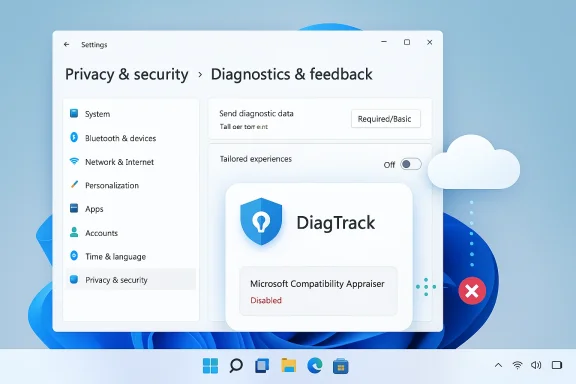 What exactly is “Connected User Experiences and Telemetry” (DiagTrack)?
The technical role
DiagTrack is the display name/service label for the Connected User Experiences and Telemetry service. It:- Manages event‑driven diagnostic collection (crash reports, app usage events).
- Coordinates the local staging and upload of telemetry artifacts.
- Supports “connected user experiences” features that rely on anonymous signals to tailor the OS and feature improvements.
- Display name: Connected User Experiences and Telemetry
- Service name: DiagTrack
- Typical binary path is executed via svchost with the utcsvc host group; service registry entries live under the usual Services hive.
Not all telemetry is the same
Microsoft classifies diagnostic data into levels (Required/Basic vs Optional/Full) and exposes UI toggles to reduce what’s sent. However, some channels are considered required for platform health and are not completely opt‑outable on consumer machines via the Settings UI. Group Policy and registry keys are used by admins to set stricter controls, and these keys ultimately govern what the OS will permit. The authoritative registry location for policy‑applied telemetry control is:HKEY_LOCAL_MACHINE\SOFTWARE\Policies\Microsoft\Windows\DataCollection (AllowTelemetry).
Why people disable DiagTrack: privacy, noise, and occasional performance hits
Privacy and principle
Many users object to the idea of continuous background data collection on a paid OS. Even when data is anonymized, the collection of hardware IDs, app usage patterns, installed software telemetry, and browser data can feel invasive. Disabling the central telemetry pipeline is a straightforward way for privacy‑minded users to reduce the system’s footprint.Performance symptoms
Telemetry collection is usually light, but events like scheduled compatibility scans or large event uploads can trigger temporary CPU, disk, or network activity. Community troubleshooting commonly surfaces CompatTelRunner or related scheduled tasks as the cause of intermittent I/O or CPU spikes. Disabling or deferring these tasks has helped many users eliminate the periodic slowdowns they observed. That said, on modern hardware the real performance gains from disabling telemetry are often modest; the user experience improvement tends to be greatest on older HDD systems or under specific scheduling spikes.The practical reality
Disabltive at stopping a clear, local telemetry pipeline and many users report calmer background behavior after doing so. But it’s not absolute: other scheduled tasks (e.g., Compatibility Appraiser), cloud features, and services may continue to gather or surface information unless you address them too. Many guides therefore recommend a combination of registry or Group Policy changes, scheduled‑task edits, and service toggles for a comprehensive approach.How to disable Connected User Experiences and Telemetry (safe, reversible method)
The following is the pragmatic, reversible workflow I recommend for Windows 11 Home/Pro users who want to reduce telemetry without breaking supportability:1. Create a restore point and backup
Before modifying services, tasks, or the registry, create a System Restore point or a full image backup. These changes are reversible but mistakes in the registry or policy edits can cause unexpected side effects. This is standard operational hygiene.2. Inspect diagnostic settings in the UI
Open Settings → Privacy & security → Diagnostics & feedback and:- Set “Send required diagnostic data” (the lowest user selectable option) if available.
- Turn off “Tailored experiences” and set Feedback frequency to Never.
- Use the Diagnostic Data Viewer if you want to see what the OS is collecting. This ensures you reduce user‑facing telemetry first and identifies whether you still need stronger measures.
3. Disable the Microsoft Compatibility Appraiser scheduled task (surgical, low risk)
This scheduled task often triggers large compatibility scans (CompatTelRunner) and is a common source of spikes.How:
- Press Windows+R, type taskschd.msc, press Enter.
- Navigate to Task Scheduler Library → Microsoft → Windows → Application Experience.
- Right‑click “Microsoft Compatibility Appraiser” → Disable.
4. Stop and disable the Connected User Experiences and Telemetry service (stronger)
If you accept the trade‑offs and need a stronger reduction:- Press Windows+R, type services.msc, press Enter.
- Find “Connected User Experiences and Telemetry” (service name: DiagTrack).
- Right‑click → Properties → click Stop (this stops it immediately).
- Set “Startup type” to Disabled and click Apply → OK.
5. (Optional, for Pro/Enterprise) Enforce via Group Policy
For Windows Pro/Enterprise/Education:- Run gpedit.msc → Computer Configuration → Administrative Templates → Windows Components → Data Collection and Preview Builds → Allow Telemetry.
- Configure the policy to the desired lowest level (note: on Home you’ll use registry changes instead).
6. (Optional, Home) Registry enforcement
For Home users who want a local enforcement:- Open regedit as Administrator.
- Create or navigate to HKEY_LOCAL_MACHINE\SOFTWARE\Policies\Microsoft\Windows\DataCollection
- Create a DWORD (32‑bit) value named AllowTelemetry and set it to 0 for the most restrictive behavior available by policy.
What you lose — trade‑offs and real risks
Disabling DiagTrack and related tasks is not without consequences. It is important to understand the functional trade‑offs:- Reduced diagnostic visibility: Microsoft (and device support teams) lose telemetry signals that can aid in diagnosing crashes, driver regressions, and compatibility problems. If you require Microsoft-assisted troubleshooting, be prepared to temporarily re‑enable telemetry.
- Update/reporting impacts: Some update diagnostics used by Windows Update, Intune reporting, Desktop Analytics, and Update Compliance rely on appraiser data. On managed devices, disabling telemetry or appraiser tasks can make a device appear “unknown” in update reporting dashboards. Enterprises should prefer Group Policy/MDM controls over manual service deletion.
- Feature loss: Certain personalization and “tailored experiences” features require optional telemetry. You may see less tailored recommendations and fewer cloud‑driven personalization signals if you disable optional telemetry.
- Supportability caveats: In managed fleets, local edits can be overridden, and unusual registry/service edits can complicate vendor support or automated update workflows. Use supported configuration channels (GPO, Intune) where possible.
Complementary steps to harden privacy and minimize background chatter
If your goal is to genuinely reduce telemetry, pair service changes with these additional steps:- Turn off “Tailored experiences” and set Feedback frequency to Never in Settings → Privacy & security → Diagnostics & feedback.
- Disable Start/Lock screen ads and Search highlights in Settings → Personalization and Settings → Privacy & security → Search permissions to reduce web queries and cloud lookups.
- Unlink OneDrive or disable its startup if you don’t use it — OneDrive sync and shell integration introduce their own background activity.
- Disable or block web results in Windows Search (BingSearchEnabled registry tweak or Group Policy) if you want purely local search behavior.
- Enable virtualization‑based security (Core isolation / Memory integrity) if hardware and drivers allow — this improves platform resiliency while being separate from telemetry decisions. (This is a security hardening step, not a telemetry control; it’s often recommended concurrently.)
Testing, verificacareful approach ensures you can restore full telemetry quickly if you need Microsoft support:
- Make a restore point or full image.
- Change one element at a time (e.g., disable the Compatibility Appraiser task first; observe behavior for 48–72 hours).
- Use Task Manager and Resource Monitor to measure whether CPU, disk, or network spikes disappear.
- If further reduction is desired, stop and disable the DiagTrack service and continue to monitor.
- If you need to re‑enable telemetry for troubleshooting, reverse the steps (re‑enable tasks, set the service Startup type to Manual/Automatic, and start it).
Critical analysis — strengths, limits, and what remains unverifiable
- Strengths: Disabling DiagTrack and stopping CompatTelRunner are high‑leverage, reversible actions that reduce optional telemetry and often eliminate the periodic I/O/CPU spikes that nag some users. They are easy to apply on a single Home machine without specialized tooling. Many community guides and administrators recommend the same midline approach.
- Limits: These actions do not guarantee a “telemetry blackout.” Windows contains multiple telemetry channels, and Microsoft’s servicing can change how registry flags and policies behave across feature updates. For managed devices, central policies and cloud provisioning can reassert different behavior. The exact composition of diagnostic data and the internal thresholds Microsoft uses for anonymization and sampling are not publicly exhaustively documented; as a result, some claims about what is still transmitted after disabling DiagTrack cannot be verified outside Microsoft’s internal telemetry pipelines. Use caution when interpreting absolute statements like “no telemetry will be sent.”
- Risks: Editing the registry or disabling services without backups can produce supportability issues. A conservative approach — test, measure, document, and maintain restore points — is the right trade‑off between privacy and maintainability.
Recommended checklist (practical, conservative)
- Create a System Restore point and backup your profile.
- Settings → Privacy & security → Diagnostics & feedback → Set to required/basic and turn off Tailored experiences.
- Task Scheduler: disable Microsoft Compatibility Appraiser (Application Experience). Monitor for 48–72 hours.
- If spikes persist and you accept trade‑offs, open Services → stop and set Connected User Experiences and Telemetry (DiagTrack) to Disabled. Observe behavior.
- For Pro/Enterprise fleets use Group Policy/Intune policies (Allow Telemetry) instead of per‑device hacks. Document changes in your support runbook.
- When seeking Microsoft support, be prepared to temporarily restore telemetry and re‑enable the appraiser task to provide diagnostic signals for troubleshooting.
Final verdict
For the average Windows 11 home user who values privacy and wants a calmer machine, the combination of disabling the Microsoft Compatibility Appraiser scheduled task and stopping the Connected User Experiences and Telemetry (DiagTrack) service is an effective, reversible strategy that substantially reduces optional telemetry and the periodic background noise that can cause spikes. Do it thoughtfully: back up first, change one thing at a time, and prefer supported controls (Settings, Group Policy) when managing multiple devices.If you run a managed device or rely on vendor/Microsoft troubleshooting, prefer policy‑driven controls and avoid destructive edits. And remember: telemetry reduction improves privacy posture for many common scenarios, but it is not a substitute for endpoint protection, good patch hygiene, and safe browsing practices.
This article has summarized the practical steps and the operational trade‑offs so you can make an informed decision about whether and how to disable this specific Windows telemetry pipeline.
Source: Pocket-lint This hidden Windows setting was compromising my security
