

MakeUseOf’s Windows app-closing advice, published around a familiar desktop habit, argues that many users who click the X button are only dismissing an app’s visible window, leaving parts of the program running in the background where they can consume memory, CPU time, battery, and attention. The claim is not that the X button is broken. It is that Windows has become a platform where “closed” increasingly means out of sight, not necessarily gone. That distinction matters because modern PCs are fast enough to hide waste until the moment they are not.
Windows users have been trained for decades to treat the X in the top-right corner as the end of the story. In many classic desktop programs, that instinct is basically right: close the last document window, and the application exits. But Windows has never guaranteed that every program will interpret the X the same way, and the modern app ecosystem has stretched that ambiguity into a performance trap.
Some applications use the X button to close a window while keeping a resident process alive. Messaging clients, cloud sync tools, launchers, updaters, note apps, RGB utilities, peripheral dashboards, and game stores all have reasons—some good, some self-serving—to stay loaded after the main interface disappears. They may want to deliver notifications, sync state, watch for hotkeys, handle background updates, or simply reopen faster.
That makes the X button less like a power switch and more like a request. The app decides whether “close” means terminate, minimize to the tray, keep a helper process running, or leave an update service behind. For users, the problem is not that this behavior exists; it is that Windows rarely makes the distinction obvious at the moment the user thinks they are cleaning up.
The MakeUseOf piece is right to poke at that mismatch. The average user is not wrong to assume that closing a window closes the app. The system is wrong to make such a basic action depend on the private design philosophy of every installed program.
That convenience has a real cost. A background app may use very little CPU most of the time, but memory residency still matters, especially on 8GB and 16GB systems that are juggling browser tabs, Teams calls, security tools, and Windows itself. The impact can be subtle: a little more paging here, a little slower app launch there, a fan that spins up during a task that used to be quiet.
Battery life is where the bill becomes easier to see. Laptops do not care whether a background process feels important to the user; they care whether it wakes the processor, polls the network, holds memory, or triggers disk activity. A single sleepy app is rarely the villain. A dozen “closed” apps behaving like they have a backstage pass can absolutely change the feel of a machine.
This is also why the advice lands differently for enthusiasts and IT pros. A power user may know to check the system tray, Task Manager, Startup apps, Services, and scheduled tasks. Most people do not. They click X, see the window disappear, and reasonably assume Windows handled the rest.
But the placement tells its own story. Microsoft has tucked the control under developer-oriented settings rather than presenting it as a mainstream app-management tool. That makes sense from a liability standpoint: ending a task is blunt, and blunt tools can destroy unsaved work. Still, it is strange that a feature useful to ordinary users remains framed as if it belongs mainly to developers and troubleshooters.
There is an important distinction here. Closing a window is polite. Quitting from an app’s own menu is cooperative. Ending a task is coercive. It asks Windows to terminate the process whether the application has neatly wrapped up its work or not.
That is why the feature should be treated as a remedy, not a routine reflex. If Spotify, Discord, Steam, a browser, or a vendor utility refuses to go away when you want it gone, End task is appropriate. If Word, Excel, Photoshop, a code editor, or a sync-heavy notes app still has unsaved state, End task can turn impatience into data loss.
The tray is also where the user experience becomes messy. Some apps use plain language, some bury exit commands, and some treat “close to tray” as a default that users must opt out of. Others offer settings such as “minimize to tray,” “keep running in background,” or “launch at startup,” but scatter them across preference panels that only enthusiasts will inspect.
This is not just a Windows problem. macOS has its own distinction between closing a window and quitting an application, and mobile platforms have normalized background activity as a managed system behavior rather than a user-controlled one. The difference is that Windows still carries the expectations of a traditional desktop while running an ecosystem that increasingly behaves like a collection of always-on services.
That tension makes the X button unusually symbolic. It is visually decisive but technically ambiguous. The interface says “done,” while the process table may say “not remotely.”
The phrase “where available” is doing a lot of work. Windows does not give every app the same tidy background-permission switch. Microsoft Store-style apps are more likely to expose this control cleanly, while traditional Win32 desktop programs may rely on their own settings, startup entries, services, scheduled tasks, or tray agents. That means Windows still lacks a single, universal cockpit for deciding what may live in the background.
Even so, the principle is sound. If an app’s value depends on notifications, sync, device control, or automation, background activity may be justified. If the app is a shopping utility, a game launcher you open once a week, a vendor companion app for hardware you rarely configure, or a media tool that has no business checking in every hour, removing its background privileges is reasonable housekeeping.
The best version of this advice is not “turn everything off.” It is “make every background resident earn its rent.” A Windows install should not become a dormitory for apps the user has not consciously invited to stay awake.
A background process is not automatically bad. Outlook needs to run if you expect mail notifications. Slack or Teams needs background presence if real-time work messages matter. OneDrive must stay awake if files are supposed to sync. PowerToys, clipboard managers, window tiling tools, keyboard remappers, VPN clients, password managers, and security products all become less useful—or actively broken—when users treat background execution as suspicious by default.
The smarter approach is measurement. Task Manager’s Processes tab can show CPU, memory, disk, network, and power usage. The Startup apps page can reveal what is invited to launch at sign-in. Battery usage views can show which apps are consuming power in the background. These are better guides than vibes.
The MakeUseOf argument works best when aimed at unnecessary persistence, not legitimate background work. A lean system is good. A paranoid system that kills its own useful tools is just another kind of broken.
For enthusiasts, this fragmentation is familiar terrain. For ordinary users, it is indistinguishable from mystery. They know only that the laptop feels slower after a few days, the fan runs during simple work, or the battery falls faster than expected. The processes responsible may be individually defensible, but collectively they produce a machine that feels less under the user’s control.
Microsoft has spent years modernizing pieces of Windows settings, but app lifecycle management remains awkward because Windows must support decades of software models. The operating system cannot simply impose mobile-style rules on every traditional desktop program without breaking workflows and angering developers. But the current compromise leaves users guessing too often.
A better Windows would make the distinction explicit. Closing the last visible window could prompt apps that intend to keep running to say so clearly. The system tray could be less of a hiding place. Background permissions could apply more consistently. Power and startup impact could be presented as a plain-language dashboard instead of a scavenger hunt.
A useful cleanup session starts with the obvious offenders. Look at the system tray after closing apps. Open Task Manager and sort by memory or CPU. Check startup entries and disable what does not need to appear every time you sign in. Visit app settings for programs that minimize to tray or launch background agents, and change those defaults where appropriate.
The payoff is not only speed. It is predictability. A PC feels better when the user can explain why it is busy, why it is connected, and why a process is running. Performance is partly about numbers, but trust in a machine comes from cause and effect.
That is why this small MakeUseOf tip has a larger resonance. It turns a routine gesture—the X button—into a reminder that Windows still hides too much of its activity behind familiar icons.
Source: MakeUseOf You’re probably closing Windows apps wrong, and it may be slowing your PC
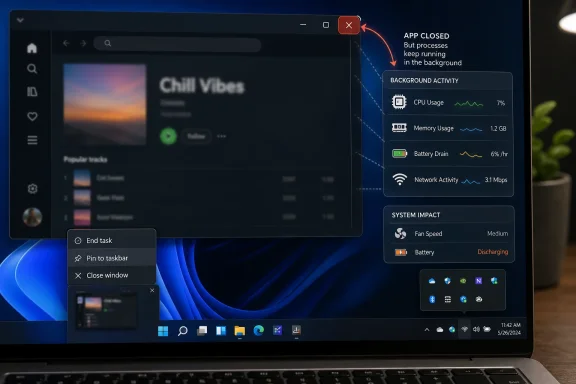 The X Button Was Always a Social Contract, Not a Kill Switch
Windows users have been trained for decades to treat the X in the top-right corner as the end of the story. In many classic desktop programs, that instinct is basically right: close the last document window, and the application exits. But Windows has never guaranteed that every program will interpret the X the same way, and the modern app ecosystem has stretched that ambiguity into a performance trap.Some applications use the X button to close a window while keeping a resident process alive. Messaging clients, cloud sync tools, launchers, updaters, note apps, RGB utilities, peripheral dashboards, and game stores all have reasons—some good, some self-serving—to stay loaded after the main interface disappears. They may want to deliver notifications, sync state, watch for hotkeys, handle background updates, or simply reopen faster.
That makes the X button less like a power switch and more like a request. The app decides whether “close” means terminate, minimize to the tray, keep a helper process running, or leave an update service behind. For users, the problem is not that this behavior exists; it is that Windows rarely makes the distinction obvious at the moment the user thinks they are cleaning up.
The MakeUseOf piece is right to poke at that mismatch. The average user is not wrong to assume that closing a window closes the app. The system is wrong to make such a basic action depend on the private design philosophy of every installed program.
Background Apps Became the Price of Instant Everything
The reason this habit matters more in 2026 than it did in 2006 is that software has become more ambient. The desktop is no longer a place where users launch one big program, finish a task, and exit. It is a standing swarm of chat clients, browser helpers, cloud drives, password managers, launchers, update agents, telemetry collectors, audio control panels, and utilities that promise convenience by never quite going away.That convenience has a real cost. A background app may use very little CPU most of the time, but memory residency still matters, especially on 8GB and 16GB systems that are juggling browser tabs, Teams calls, security tools, and Windows itself. The impact can be subtle: a little more paging here, a little slower app launch there, a fan that spins up during a task that used to be quiet.
Battery life is where the bill becomes easier to see. Laptops do not care whether a background process feels important to the user; they care whether it wakes the processor, polls the network, holds memory, or triggers disk activity. A single sleepy app is rarely the villain. A dozen “closed” apps behaving like they have a backstage pass can absolutely change the feel of a machine.
This is also why the advice lands differently for enthusiasts and IT pros. A power user may know to check the system tray, Task Manager, Startup apps, Services, and scheduled tasks. Most people do not. They click X, see the window disappear, and reasonably assume Windows handled the rest.
Microsoft Gave Users a Bigger Hammer, Then Hid It in Developer Country
The most useful part of the MakeUseOf advice is the reminder that Windows 11 now has a taskbar-based End task option. Once enabled in Settings, it lets users right-click an app on the taskbar and terminate it more forcefully without opening Task Manager. It is the kind of small, practical affordance Windows should have exposed years ago.But the placement tells its own story. Microsoft has tucked the control under developer-oriented settings rather than presenting it as a mainstream app-management tool. That makes sense from a liability standpoint: ending a task is blunt, and blunt tools can destroy unsaved work. Still, it is strange that a feature useful to ordinary users remains framed as if it belongs mainly to developers and troubleshooters.
There is an important distinction here. Closing a window is polite. Quitting from an app’s own menu is cooperative. Ending a task is coercive. It asks Windows to terminate the process whether the application has neatly wrapped up its work or not.
That is why the feature should be treated as a remedy, not a routine reflex. If Spotify, Discord, Steam, a browser, or a vendor utility refuses to go away when you want it gone, End task is appropriate. If Word, Excel, Photoshop, a code editor, or a sync-heavy notes app still has unsaved state, End task can turn impatience into data loss.
The System Tray Is the Desktop’s Back Alley
The other place users should look is the system tray, which has long served as Windows’ half-visible compromise between foreground apps and background residents. If an app vanishes from the taskbar but remains in the tray, it is often still running. Right-clicking the tray icon and choosing Exit, Quit, or a similar command is usually cleaner than killing the process outright.The tray is also where the user experience becomes messy. Some apps use plain language, some bury exit commands, and some treat “close to tray” as a default that users must opt out of. Others offer settings such as “minimize to tray,” “keep running in background,” or “launch at startup,” but scatter them across preference panels that only enthusiasts will inspect.
This is not just a Windows problem. macOS has its own distinction between closing a window and quitting an application, and mobile platforms have normalized background activity as a managed system behavior rather than a user-controlled one. The difference is that Windows still carries the expectations of a traditional desktop while running an ecosystem that increasingly behaves like a collection of always-on services.
That tension makes the X button unusually symbolic. It is visually decisive but technically ambiguous. The interface says “done,” while the process table may say “not remotely.”
Background Permissions Are Cleaner Than Constant Process Whack-a-Mole
MakeUseOf’s second recommendation—cutting off background permissions for apps that do not deserve them—is the more strategic one. Instead of repeatedly killing apps after they linger, users can prevent certain apps from running in the background when they are not being used. In Windows 11, that control lives under the app’s advanced options where available.The phrase “where available” is doing a lot of work. Windows does not give every app the same tidy background-permission switch. Microsoft Store-style apps are more likely to expose this control cleanly, while traditional Win32 desktop programs may rely on their own settings, startup entries, services, scheduled tasks, or tray agents. That means Windows still lacks a single, universal cockpit for deciding what may live in the background.
Even so, the principle is sound. If an app’s value depends on notifications, sync, device control, or automation, background activity may be justified. If the app is a shopping utility, a game launcher you open once a week, a vendor companion app for hardware you rarely configure, or a media tool that has no business checking in every hour, removing its background privileges is reasonable housekeeping.
The best version of this advice is not “turn everything off.” It is “make every background resident earn its rent.” A Windows install should not become a dormitory for apps the user has not consciously invited to stay awake.
Performance Advice Gets Dangerous When It Becomes Ritual
There is a risk, however, in turning this into another Windows superstition. PC culture already has too many rituals: clear the cache, kill every process, disable every service, run registry cleaners, reinstall drivers because a forum post said so. Some of those habits are harmless, some are useful in context, and some create more trouble than they solve.A background process is not automatically bad. Outlook needs to run if you expect mail notifications. Slack or Teams needs background presence if real-time work messages matter. OneDrive must stay awake if files are supposed to sync. PowerToys, clipboard managers, window tiling tools, keyboard remappers, VPN clients, password managers, and security products all become less useful—or actively broken—when users treat background execution as suspicious by default.
The smarter approach is measurement. Task Manager’s Processes tab can show CPU, memory, disk, network, and power usage. The Startup apps page can reveal what is invited to launch at sign-in. Battery usage views can show which apps are consuming power in the background. These are better guides than vibes.
The MakeUseOf argument works best when aimed at unnecessary persistence, not legitimate background work. A lean system is good. A paranoid system that kills its own useful tools is just another kind of broken.
Windows Still Makes Ordinary Maintenance Too Weird
The bigger indictment is not that users misunderstand the X button. It is that Windows still asks them to assemble a mental model from too many scattered surfaces. Taskbar. System tray. Task Manager. Settings. Startup apps. App advanced options. Services. Browser extensions. Vendor updaters. Each one explains a different slice of “why is my PC doing something when I’m not doing anything?”For enthusiasts, this fragmentation is familiar terrain. For ordinary users, it is indistinguishable from mystery. They know only that the laptop feels slower after a few days, the fan runs during simple work, or the battery falls faster than expected. The processes responsible may be individually defensible, but collectively they produce a machine that feels less under the user’s control.
Microsoft has spent years modernizing pieces of Windows settings, but app lifecycle management remains awkward because Windows must support decades of software models. The operating system cannot simply impose mobile-style rules on every traditional desktop program without breaking workflows and angering developers. But the current compromise leaves users guessing too often.
A better Windows would make the distinction explicit. Closing the last visible window could prompt apps that intend to keep running to say so clearly. The system tray could be less of a hiding place. Background permissions could apply more consistently. Power and startup impact could be presented as a plain-language dashboard instead of a scavenger hunt.
The Real Fix Is Attention, Not Aggression
The practical lesson is not to rage-click End task on everything in sight. It is to notice which programs behave as if they own a piece of your PC after you are done with them. That small shift—from assuming closed means closed to verifying what remains—can make a noticeable difference on machines that have accumulated years of utilities, launchers, and “helper” software.A useful cleanup session starts with the obvious offenders. Look at the system tray after closing apps. Open Task Manager and sort by memory or CPU. Check startup entries and disable what does not need to appear every time you sign in. Visit app settings for programs that minimize to tray or launch background agents, and change those defaults where appropriate.
The payoff is not only speed. It is predictability. A PC feels better when the user can explain why it is busy, why it is connected, and why a process is running. Performance is partly about numbers, but trust in a machine comes from cause and effect.
That is why this small MakeUseOf tip has a larger resonance. It turns a routine gesture—the X button—into a reminder that Windows still hides too much of its activity behind familiar icons.
The Apps Worth Closing Are the Ones That Pretend They Already Did
The short version is that users should be more deliberate, but not obsessive. Windows is full of background activity, and some of it is essential. The trick is separating tools that serve you from tools that merely remain.- The X button often closes only the visible window, and some apps continue running in the tray or background afterward.
- The taskbar End task command in Windows 11 is useful for stubborn or unnecessary apps, but it can discard unsaved work if used carelessly.
- Background app permissions are a better long-term fix for apps that do not need to sync, notify, or listen while unused.
- The system tray remains one of the first places to check when an app appears to have closed but is still active.
- Users should preserve background access for apps whose value depends on it, including sync clients, communication tools, security software, and productivity utilities.
- The best performance gains come from reducing needless persistence, not from blindly killing every process that looks unfamiliar.
Source: MakeUseOf You’re probably closing Windows apps wrong, and it may be slowing your PC
