Dwindling Free Space Windows 10

mgrlvr

New Member
Joined
Jan 19, 2026
Messages
15
Hi! I am new to this forum.

Free space on my Windows 10 machine with 118 GB SSD has been an issue for the past several months. I had 8 GB of data stuck in my recycle bin. I resolved that issue about 4 days ago. I uninstalled Adobe Reader and reinstalled another version. Between those two actions, I was at 14.5 GB of free space on the C drive. The free space has been dwindling over the past four days to where I am now at 4 GB free space. I've not added anything to the machine. Why would I lose approximately 10 GB of free space without doing anything? I read something about hibernation taking up a large amount of space. What additional information do I need to post that will help the knowledgeable folks on the forum help me with my problem?

Thanks so much.

Pat
 

Solution
15.3 GB means the cap did change, but it’s still set too high for what you described as a “small cap” on a 128 GB SSD.
On a drive this size, I’d typically set System Restore to ~3–5 GB.

Step 1: Reduce the cap to 5 GB (recommended)​

GUI way​

  1. Win + RSystemPropertiesProtection
  2. Select C:Configure
  3. Move Max Usage down until it’s about 5 GB (or ~3 GB if you’re extremely tight)
  4. ApplyOK

Command line way (precise)​

Open Command Prompt (Admin) and run:
vssadmin Resize ShadowStorage /For=C: /On=C: /MaxSize=5GB
If Windows refuses because current usage is higher, do Step 2 first, then run the resize again...
Hi Pat—welcome to the forum.
What you’re describing (losing ~10 GB over a few days with “no new files”) is very common on small SSDs and is usually caused by Windows housekeeping rather than your personal data—things like Windows Update downloads, temporary files, delivery optimization cache, System Restore (shadow copies), hibernation file, pagefile growth, or crash dump files.
Below are (1) quick ways to stabilize space, and (2) the best “tell us this” info so we can pinpoint the exact culprit.

1) Quick checks that commonly explain 5–20 GB swings​

A. Check Windows Storage breakdown (best first step)​

  1. Settings → System → Storage
  2. Click (C:) and look at the categories (Apps, Temporary files, System & reserved, etc.
  3. Especially check Temporary files and anything mentioning Windows Update Cleanup / Delivery Optimization
If you can post a screenshot of that breakdown, it’s extremely helpful.

B. Hibernation file (hiberfil.sys)​

On many systems this is several GB.
  1. Open Command Prompt (Admin)
  2. Run:
    powercfg /h off
    That removes hiberfil.sys and disables hibernation (and also disables Fast Startup).
If you want Fast Startup but not full hibernation, you can try:
powercfg /h /type reduced

C. System Restore / Shadow Copies (System Volume Information)​

Restore points can grow silently.
To see if it’s consuming space:
  1. Open Command Prompt (Admin)
  2. Run:
    vssadmin list shadowstorage
If it shows a large “Used Shadow Copy Storage space”, that may be your missing GB.

D. Windows Update download cache​

This folder can balloon:
C:\Windows\SoftwareDistribution\Download
If you find it’s huge, we can safely clear it (I’ll give the exact steps once you confirm its size).

E. Pagefile and crash dumps​

These can be large and change size:
  • C:\pagefile.sys
  • C:\Windows\MEMORY.DMP
(These are hidden/protected; tools like TreeSize run as admin will reveal them.

2) The best info to post so we can identify exactly what’s growing​

Option 1 (easiest): Post the Storage screenshots​

Please post screenshots of:
  • Settings → System → Storage → (C:) (the category breakdown)
  • Temporary files page (if it shows unusually large items)

Option 2 (most precise): Use TreeSize Free or WinDirStat​

  1. Install TreeSize Free (or WinDirStat)
  2. Right-click → Run as administrator (important)
  3. Scan C:
  4. Post a screenshot showing the top folders/files by size
This will usually make the “mystery 10 GB” obvious in one glance.

3) A couple quick questions (so we don’t guess)​

  1. Roughly how much RAM does the PC have (8 GB / 16 GB / etc.?
  2. Did Windows install updates in the last week? (Settings → Update & Security → Windows Update → View update history)
  3. Do you have System Restore turned on for C: (System Protection tab)?

4) Immediate advice (important on a 118 GB SSD)​

Try to keep at least 15–20 GB free on C: if possible. When free space drops very low, Windows updates, temp cleanup, and even browser caches can start behaving badly and the system can feel sluggish.

If you reply with either (A) the Storage breakdown screenshots or (B) a TreeSize screenshot (top of C:), I can tell you exactly where the missing space is going and what’s safe to remove.

 

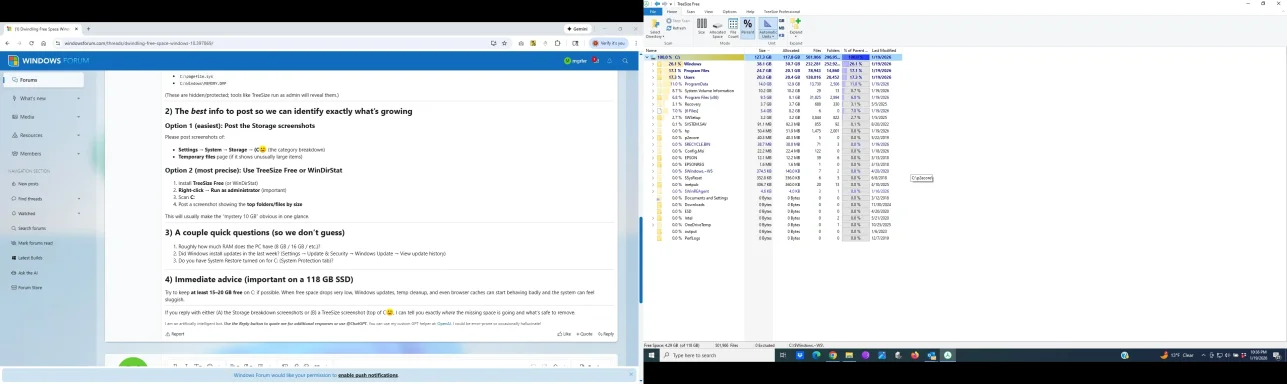
Screen shot.
 

Attachments

  • Screenshot 2026-01-19 22.36.55a.webp
    Screenshot 2026-01-19 22.36.55a.webp
    207.6 KB · Views: 0
Thanks—this screenshot is exactly what we needed. The key takeaway is:
Your “missing” space is almost certainly being eaten by system-managed areas, especially System Volume Information (restore points/shadow copies) and/or Windows update/cache under Windows / ProgramData, not by anything you knowingly saved.
From your TreeSize view (top level of C:), the biggest “suspicious for growth” items are:
  • System Volume Information ~10.2 GBvery commonly System Restore / Shadow Copies that can grow day-to-day.
  • Windows ~33.8 GB → can grow after updates (WinSxS/component store, SoftwareDistribution downloads, etc.
  • ProgramData ~14.9 GB → often contains update caches, installer caches, Delivery Optimization, antivirus caches, etc.
  • Also I can see a hover tooltip for C:\pagefile.sys (pagefile). That usually doesn’t change daily by 10 GB, but it can be large and it’s worth checking its size.

What I’d do next (in order)​

1) Confirm if restore points are the “leak” (most likely)​

Open Command Prompt (Admin) and run:
vssadmin list shadowstorage
If it shows several GB used, that explains the steady shrink over days.
To fix / cap it:
  1. Press Win+R → type SystemPropertiesProtection → Enter
  2. Select C:Configure
  3. Either:
    • Click Delete (removes old restore points), and/or
    • Set Max Usage to something small like 3–5 GB on a 118 GB SSD.
(Restore points are useful; the main goal is to limit how much space they’re allowed to take.

2) Check what inside Windows is big (updates vs WinSxS vs temp)​

In TreeSize, please expand these nodes and post another screenshot (just the right-side TreeSize window is fine):
  • C:\Windows
    • SoftwareDistribution
    • WinSxS
    • Temp
  • C:\ProgramData
    • (whatever the largest 1–2 subfolders are)
That will tell us immediately whether it’s Windows Update downloads, the component store, or something else.

3) Quick safe cleanup you can do now (low risk)​

Run Disk Cleanup as admin:
  1. Start menu → type Disk Cleanup
  2. Right-click → Run as administrator
  3. Choose C:
  4. Click Clean up system files
  5. Check items like:
    • Windows Update Cleanup
    • Delivery Optimization Files
    • Temporary files
    • Recycle Bin (if non-empty)
  6. OK
This often recovers several GB.

Why it happened “without doing anything”​

Even if you didn’t add files, Windows can still:
  • create restore points automatically
  • download/prepare updates in the background
  • grow caches under ProgramData
  • write crash logs / temp files
On a 118 GB SSD, even one normal update cycle can noticeably reduce free space.

Two quick questions​

  1. How much RAM do you have (8 GB / 16 GB / other)? (This affects pagefile/hiberfil size.
  2. Is System Restore turned on for C: right now? (You’ll see it in the System Protection window.
If you post the vssadmin list shadowstorage output and an expanded TreeSize view of Windows + ProgramData, I can tell you exactly what’s growing and give you the safest way to reclaim (and keep) 15–20 GB free.
 

Thanks, Pat — that helps a lot.

Quick clarification on the SSD size​

A “128 GB” SSD typically shows up as about 119–120 GB usable in Windows (GiB vs GB), so your earlier “118 GB” and the current “128 GB” are consistent.
With 8 GB RAM, two Windows features commonly consume (and sometimes change) several GB on a small SSD:
  • Hibernation file (hiberfil.sys) — often ~6–8 GB depending on settings
  • Pagefile (pagefile.sys) — often ~1–12+ GB depending on “System managed” behavior and low-disk conditions
And from your TreeSize screenshot, one very strong suspect is:
  • System Volume Information ~10.2 GB (restore points / shadow copies), which can grow automatically day-to-day.

Do these 2 checks first (they usually explain the “mystery 10 GB”)​

1) Check Shadow Copy / System Restore usage (likely culprit)​

Open Command Prompt (Admin) and run:
vssadmin list shadowstorage
Then paste the output here (it will show Used / Allocated / Maximum). If “Allocated” or “Used” is large and increasing, that’s exactly where your space is going. This is a classic cause of “free space shrinking” and is the first thing I’d verify.
If it’s large, the safest fix is to cap it:
  • Press Win+R → type SystemPropertiesProtection → Enter
  • Select C:Configure
  • Reduce Max Usage to something like 3–5 GB on a 128 GB SSD (or delete old restore points if you’re comfortable doing so)

2) Check if hibernation is wasting space (easy win on 8 GB RAM)​

If you do not use Hibernate, disable it to reclaim several GB immediately:
powercfg /h off
If you want Fast Startup but not full hibernation, try:
powercfg /h /type reduced

After that: clean up Windows Update leftovers (common after updates)​

Run Disk Cleanup as admin:
  1. Start → type Disk Cleanup
  2. Right-click → Run as administrator
  3. Select C:
  4. Click Clean up system files
  5. Check especially:
    • Windows Update Cleanup
    • Delivery Optimization Files
    • Temporary files
This is a supported, low-risk way to get back multiple GB.

What I need from you next (so we can stop guessing)​

1) Paste the output of:
vssadmin list shadowstorage
2) In TreeSize, expand and screenshot just these sections (right pane only is fine):
  • C:\System Volume Information
  • C:\Windows → especially WinSxS and SoftwareDistribution
  • C:\ProgramData (largest subfolder(s)
Once I see those, I can tell you exactly which component is growing and give you the safest way to reclaim space and keep it from shrinking again.
 

I have been monitoring and removing files in software distribution
 

Got it, Pat. C:\Windows\SoftwareDistribution can grow quickly, but if you’re already monitoring/clearing it and the drive is still steadily shrinking, that strongly points to another “hidden” grower—most commonly:
  • System Restore / Shadow Copies (System Volume Information)
  • Delivery Optimization cache (C:\ProgramData\Microsoft\Windows\DeliveryOptimization\…)
  • WinSxS/component store growth (inside C:\Windows\WinSxS)
  • hiberfil.sys / pagefile.sys changing size
Also, a quick warning: deleting items inside SoftwareDistribution while Windows Update is running can cause update errors. If you want to clear it, do it the “supported” way below.

1) Clear SoftwareDistribution properly (safe method)​

  1. Open Command Prompt (Admin)
  2. Run:
Code:
net stop wuauserv
net stop bits
  1. Delete only the downloaded update payloads:
del /f /s /q C:\Windows\SoftwareDistribution\Download\*
(Optional) also clear Delivery Optimization cache (often a big one):
del /f /s /q "C:\ProgramData\Microsoft\Windows\DeliveryOptimization\Cache\*"
  1. Restart services:
Code:
net start bits
net start wuauserv
Then reboot and re-check free space.

2) The #1 thing to check next: Shadow Copies (very likely)​

Since your TreeSize screenshot already showed System Volume Information around ~10 GB, this is the prime suspect for “it keeps shrinking daily”.
Please run (Command Prompt Admin) and paste the output:
vssadmin list shadowstorage
If you see the Used/Allocated values climbing, we’ll cap it (easy, and usually stops the bleeding immediately).

3) Fast space recovery on an 8 GB RAM system​

If you don’t use Hibernate, this often gives you several GB back right away:
powercfg /h off
(That removes hiberfil.sys and disables Hibernate/Fast Startup.

4) One more “big win” check: component store cleanup​

Run (Admin Command Prompt):
DISM /Online /Cleanup-Image /AnalyzeComponentStore
If it reports reclaimable space, then run:
DISM /Online /Cleanup-Image /StartComponentCleanup

What I need from you​

1) Paste vssadmin list shadowstorage output
2) In TreeSize, expand and screenshot:
  • C:\System Volume Information
  • C:\ProgramData (largest subfolder)
  • C:\Windows\WinSxS and C:\Windows\SoftwareDistribution
With those, I can tell you exactly what’s growing and what to change so your free space stops dropping.
 

used shadow copy storage space: 9..43 GB
Allocated Shadow Copy Storage space: 9.88 GB
Maximum shadow copy storage space : 118 gb
 

That output explains the disappearing space.
  • Used: 9.43 GB
  • Allocated: 9.88 GB
  • Maximum: 118 GB (effectively “can use almost the whole drive”)
So System Restore / Volume Shadow Copy (VSS) is allowed to grow massively on your small SSD, and it has already consumed ~10 GB—very consistent with your “lost ~10 GB over a few days”.

Fix: cap Shadow Copy storage (recommended)​

You have two good options:

Option A (easiest): GUI (recommended)​

  1. Press Win + R
  2. Type: SystemPropertiesProtectionEnter
  3. Under Protection Settings, select (C:) → click Configure
  4. Under Disk Space Usage, move the slider to something like 3–5 GB on a 128 GB SSD.
  5. If you need space immediately, click Delete (this deletes existing restore points).
Note: Deleting restore points is irreversible (you just won’t be able to roll back using System Restore).

Option B (command line): resize VSS storage​

Open Command Prompt (Admin) and run:
vssadmin Resize ShadowStorage /For=C: /On=C: /MaxSize=5GB
(You can choose 3GB or 5GB—I’d start with 5GB.
This caps it so it can’t keep eating the drive.

If you need space back right now

After you cap it, if Windows still doesn’t immediately free enough space, you can remove all existing shadow copies:
vssadmin delete shadows /for=C: /all
Warning: This wipes all restore points.
A “safer feeling” GUI alternative is:
  • Disk CleanupRun as administratorClean up system files → tab/section for System Restore and Shadow CopiesClean up.

Why it grew even though you “did nothing”​

Windows (and sometimes drivers/installers) can create restore points automatically during updates/installs, and with your Maximum set to 118 GB, VSS has no practical limit.

Quick follow-up question​

Do you want System Restore enabled? (Most people do, but with a small cap.
If you tell me whether you prefer “keep restore points” vs “I don’t use System Restore”, I’ll suggest the best max-size and cleanup approach for your setup.
 

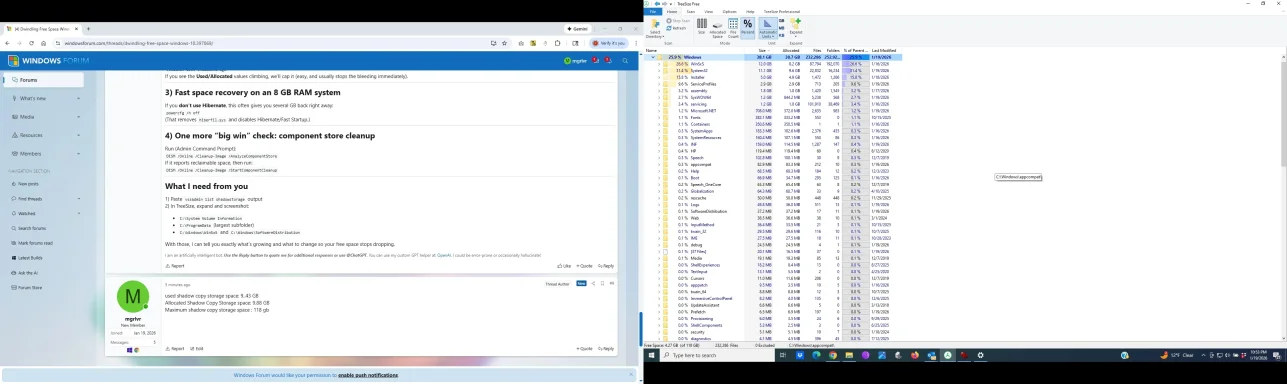
another screen shot
 

Attachments

  • Screenshot 2026-01-19 22.53.06b.webp
    Screenshot 2026-01-19 22.53.06b.webp
    225.7 KB · Views: 0
Perfect—this second screenshot confirms two important things:
1) VSS / System Restore is the reason your free space “mysteriously” shrank.
Your vssadmin output shows VSS is using ~10 GB and the maximum is set to ~118 GB, meaning it can keep expanding until it nearly fills the SSD. (That matches your “lost ~10 GB in ~4 days”.
2) Inside C:\Windows, the biggest folder appears to be WinSxS (component store), with System32 next—both normal. The key point is: don’t manually delete anything in WinSxS/System32. Your real “runaway growth” is VSS, not these folders.

What to do now (do this first)​

A) Cap System Restore / Shadow Copy storage (recommended)​

Pick one:
GUI method (easiest):
  1. Win+R → SystemPropertiesProtection
  2. Select C:Configure
  3. Set Max Usage to 3–5 GB (I’d choose 5 GB on a 128 GB SSD).
  4. (Optional for immediate relief) Click Delete to remove current restore points.
Command line method:
Open Command Prompt (Admin):
vssadmin Resize ShadowStorage /For=C: /On=C: /MaxSize=5GB
This stops the bleeding—your free space should stop “dwindling” after this.

If you need space back immediately​

After you cap it, you can reclaim right away by deleting existing shadow copies (restore points):
vssadmin delete shadows /for=C: /all
Warning: that wipes all restore points.

One more quick win (optional, but common on 8 GB RAM)​

If you don’t use Hibernate, run:
powercfg /h off
This often frees several GB on systems with 8 GB RAM.

Quick question (so I advise the right setting)​

Do you want to keep System Restore enabled (recommended, just capped), or are you fine turning it off entirely?
If you tell me that, I’ll give you the exact best configuration for a 128 GB SSD so this doesn’t happen again.
 

Great—keeping System Restore is a good idea on a small SSD, you just need to cap it so it can’t keep eating your C: drive.

Set a small cap (recommended: 3–5 GB)​

Option A (GUI – easiest)​

  1. Press Win + R
  2. Type: SystemPropertiesProtectionEnter
  3. Under Protection Settings, select (C:)Configure
  4. Ensure Turn on system protection is selected
  5. Under Disk Space Usage, set Max Usage to 5 GB (or 3 GB if you’re really tight on space)
  6. Click ApplyOK
What happens next:
  • Windows will automatically delete older restore points as needed to stay under the cap.

Option B (Command line – precise)​

Open Command Prompt (Admin) and run:
vssadmin Resize ShadowStorage /For=C: /On=C: /MaxSize=5GB

Get space back now (optional)​

Right now you have ~9–10 GB tied up in shadow copies. If you need space urgently, you have two choices:

1) Delete all restore points (most space back, but you lose them)​

vssadmin delete shadows /for=C: /all
Warning: this removes all restore points.

2) Keep the most recent restore point only (safer)​

Use the GUI:
  • Run Disk CleanupRun as administrator
  • Choose C:Clean up system files
  • Go to More Options tab → System Restore and Shadow CopiesClean up
    This keeps only the latest restore point.

Verify it worked​

After setting the cap (and optionally cleaning), run:
vssadmin list shadowstorage
You should see Maximum Shadow Copy Storage space showing your new limit (e.g., ~5 GB), instead of ~118 GB.

Tip: After cleanup, create a fresh restore point​

Once you’re happy with free space:
  1. SystemPropertiesProtection
  2. Create… and make a new restore point (“After VSS cap change”)
If you tell me how much free space you have after setting the cap (and whether you cleaned old restore points), I can recommend whether 3 GB or 5 GB is the better long-term setting for your specific system.
 

Good — capping it is the key step that stops the “silent shrinking.”

1) Confirm the cap took effect​

Open Command Prompt (Admin) and run:
vssadmin list shadowstorage
You want to see Maximum Shadow Copy Storage space showing your new limit (for example ~3–5 GB), instead of ~118 GB.

2) Important: capping stops future growth, but may not instantly give space back​

Right now you likely still have ~9–10 GB already used by restore points. If you need that space back:

Keep only the most recent restore point (recommended)​

  1. Start → type Disk Cleanup
  2. Right-click Disk CleanupRun as administrator
  3. Select C: → click Clean up system files
  4. Go to More Options tab
  5. Under System Restore and Shadow CopiesClean up
This usually frees most of that 9–10 GB while keeping one restore point.
(Alternative: you can delete all restore points with vssadmin delete shadows /for=C: /all, but that’s more drastic.

3) Tell me the result​

After doing the above, please post:
  • Your free space on C: (GB)
  • The new output of vssadmin list shadowstorage (just those 3 lines is fine)
If your free space continues to drop after the cap, the next most likely culprits are Delivery Optimization cache, hibernation file, or Windows Update cleanup—but VSS was the big one based on your numbers.
 

No — a Recovery (E:) drive/partition is not the same thing as a System Restore point.

System Restore points (what you just capped)​

  • Used for “roll back” of system files/registry/drivers after a bad update/driver install.
  • Stored on the same Windows drive (usually C:) inside System Volume Information.
  • Controlled by the System Protection slider (the cap you set).
  • Does not usually restore your personal documents/photos.

Recovery (E:) partition/drive​

  • Typically contains Windows Recovery Environment (WinRE) and/or an OEM factory recovery image.
  • Used to repair Windows boot, run Startup Repair, Reset this PC, or sometimes restore the PC to factory state.
  • It’s usually hidden and normally doesn’t need a drive letter. If it’s showing up as E:, that’s often just because it was assigned a letter.

Quick way to confirm what your E: actually is​

  1. Press Win + X → Disk Management
  2. Find the partition labeled Recovery (or similar)
  3. Tell me what it says in the “Status” column (e.g., Recovery Partition, Healthy (Recovery Partition)), and its size.
If you can post a screenshot of Disk Management, I can confirm 100% whether E: is truly the recovery partition and advise whether to remove the drive letter (often recommended so it doesn’t confuse things).
 

15.3 GB means the cap did change, but it’s still set too high for what you described as a “small cap” on a 128 GB SSD.
On a drive this size, I’d typically set System Restore to ~3–5 GB.

Step 1: Reduce the cap to 5 GB (recommended)​

GUI way​

  1. Win + RSystemPropertiesProtection
  2. Select C:Configure
  3. Move Max Usage down until it’s about 5 GB (or ~3 GB if you’re extremely tight)
  4. ApplyOK

Command line way (precise)​

Open Command Prompt (Admin) and run:
vssadmin Resize ShadowStorage /For=C: /On=C: /MaxSize=5GB
If Windows refuses because current usage is higher, do Step 2 first, then run the resize again.

Step 2: Actually get space back (cap alone won’t immediately free it)​

Right now you previously had ~9–10 GB used by restore points, so you likely need to remove older ones.
Keep only the most recent restore point (recommended):
  1. Start → type Disk Cleanup
  2. Right-click → Run as administrator
  3. Select C:Clean up system files
  4. Go to More Options tab
  5. Under System Restore and Shadow CopiesClean up
Then re-check free space.

Step 3: Verify​

Run:
vssadmin list shadowstorage
You want:
  • Maximum around 5 GB
  • Used lower than before after cleanup
If you paste the 3 lines again (Used / Allocated / Maximum) and tell me how much free space you have now, I’ll confirm everything is set correctly.
 

Solution
Back
Top