

For years the Windows volume controls have felt like a cramped back alley when what users wanted was an open, well‑lit control room — and EarTrumpet finally gives that room back, with a modern tray‑based mixer, per‑app volume sliders, and simple device routing that many power users now prefer to the native Windows UI.
Windows has historically split audio controls across multiple layers of the OS: a compact quick‑settings flyout, the Settings app, and legacy Control Panel dialogs. That fragmentation forces users to click through menus, hunt for the right panel, or rely on obscure keyboard shortcuts to reach per‑app volume controls. Microsoft has improved this over time — most notably by adding an enhanced per‑app mixer into Quick Settings and a shortcut for fast access — but those fixes remain layered into the broader Quick Settings experience rather than restoring the single‑click tray access many power users prefer. EarTrumpet began as a community project to put a modern, fully featured volume mixer back into the system tray. Today it’s open source, distributed via GitHub and the Microsoft Store, and regularly maintained; the project’s README and release notes list features, supported Windows versions, and multiple install channels. The project won community recognition in the Microsoft Store App Awards (Open Platform category), which reflects broad user appreciation for a utility that “just works” where the stock UI doesn’t.
Conclusion: for anyone who spends time juggling music, calls, and games, EarTrumpet restores the missing ergonomics to Windows audio without demanding deep system changes — it’s a focused utility that reduces friction, speeds common tasks, and, in practical terms, makes the built‑in volume mixer feel obsolete for everyday use.
Source: MakeUseOf I replaced the Windows volume mixer with this app and it's so much better
 Background
Windows has historically split audio controls across multiple layers of the OS: a compact quick‑settings flyout, the Settings app, and legacy Control Panel dialogs. That fragmentation forces users to click through menus, hunt for the right panel, or rely on obscure keyboard shortcuts to reach per‑app volume controls. Microsoft has improved this over time — most notably by adding an enhanced per‑app mixer into Quick Settings and a shortcut for fast access — but those fixes remain layered into the broader Quick Settings experience rather than restoring the single‑click tray access many power users prefer. EarTrumpet began as a community project to put a modern, fully featured volume mixer back into the system tray. Today it’s open source, distributed via GitHub and the Microsoft Store, and regularly maintained; the project’s README and release notes list features, supported Windows versions, and multiple install channels. The project won community recognition in the Microsoft Store App Awards (Open Platform category), which reflects broad user appreciation for a utility that “just works” where the stock UI doesn’t. What EarTrumpet actually changes
A tray icon that behaves like a real mixer
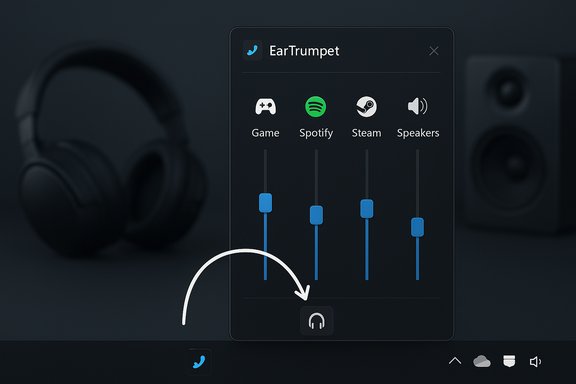
EarTrumpet replaces the passive speaker icon with its own tray icon that opens a compact, standalone volume mixer on a single click. The flyout lists active audio sessions (both modern UWP apps and legacy Win32 programs) with individual sliders. That single interaction — open the tray, adjust a slider — restores the kind of fluid micro‑interaction users expect for high‑frequency tasks. The app also supports dark/light themes and Windows accent colors so it looks native on Windows 10 and Windows 11.Per‑app volumes and device routing — drag, drop, and right‑click
Beyond sliders, EarTrumpet exposes an intuitive routing model: you can move an app’s audio to a different playback device with a right‑click menu or by dragging the app onto another device. This lets users create practical setups (music on desktop speakers, game audio on headset) without navigating into Settings every time. The official documentation and quick‑start guides explicitly describe drag‑and‑drop and context‑menu routing flows, making this one of EarTrumpet’s most used features.Usability features that matter in practice
- Visual peaking: multichannel‑aware meters show which apps are making noise.
- Quick mute and hotkeys: configurable keyboard shortcuts and quick mute toggles for device or app.
- Fallback to legacy controls: links to the classic Volume Mixer and Sound Control Panel for advanced settings still hidden in Control Panel.
- Multiple install channels: Microsoft Store, winget, Chocolatey, or direct GitHub/MSIX builds.
Why EarTrumpet feels faster (and why that matters)
Small daily interruptions add up. When you’re on a call, juggling music, and starting a game, each extra click is cognitive friction. EarTrumpet reduces a common three‑step interaction (open Quick Settings → expand Sound → scroll to per‑app mixer) to a single click into the tray and direct manipulation of the UI. That’s not just subjective convenience — it measurably reduces the time and attention spent on audio microtasks during work or play. User write‑ups and community roundups consistently list EarTrumpet as an early install for this reason. Windows 11’s improved mixer and the new keyboard shortcut (Win + Ctrl + V) close some of the gap by providing direct access to per‑app controls, but the Quick Settings experience still requires additional context-switching for people who want instant tray access. For users who prefer mouse workflows or who frequently change outputs mid‑session, EarTrumpet remains the lower‑friction option.Technical verification: what the code and docs say
To ensure accuracy, the app’s main repository, README, and changelog were inspected. Key, verifiable technical points:- EarTrumpet is open source and hosted on GitHub under the File‑New‑Project organization; the repo documents features, changelog, and supported OS versions (Windows 10 builds and Windows 11).
- The repo and docs list the ability to "move apps between playback devices", a standalone mixer, configurable hotkeys, and support for automatic updates via the Microsoft Store.
- Official install instructions include the Microsoft Store, winget (winget install File‑New‑Project.EarTrumpet), and Chocolatey (choco install eartrumpet). These multiple distribution channels make safe, repeatable deployments easier for power users and administrators.
Real‑world behavior and edge cases
Legacy apps and session detection
Many users report that EarTrumpet detects audio sessions more reliably, or earlier, than the stock Settings mixer — particularly older Win32 apps that sometimes appear with a delay in Windows’ native UI. Community threads and troubleshooting pages document user experiences where EarTrumpet’s more aggressive audio‑session monitoring appears to surface sessions immediately after playback starts. However, this is partly anecdotal and depends on how individual applications initialize audio sessions; it cannot be conclusively proven in every environment. Treat claims of universal superiority here as likely but not guaranteed — test on representative hardware and apps before depending on behavior in production workflows.When routing won’t stick
Some applications (notably older games or apps with internal audio device selection) do not accept Windows’ app‑level routing and will “bounce back” to their previously selected device. This is a limitation of how certain apps manage audio internally, not a bug in EarTrumpet. Documentation and vendor support forums recommend checking in‑app audio settings or using the Windows default device model where the application does not respect external routing assignments. In short: EarTrumpet can route most apps, but certain titles will resist due to design choices.Device and driver interactions
Because EarTrumpet operates at the user‑level by interacting with Windows audio sessions and device lists, low‑level driver bugs, unusual vendor stacks, or docking station quirks can occasionally produce unexpected results (volume resets, missing endpoints, or devices reappearing). Community writ large and issue trackers point to these as environment‑specific problems. For mission‑critical setups, verify device behavior across sleep/resume cycles, driver updates, and reboots. The conservative deployment path is to install from the Microsoft Store (automatic updates and Store signing) and test on representative hardware.Security and privacy considerations
EarTrumpet is open source, which raises confidence in code transparency: anyone can review the repository, build artifacts, and submission history. The project repository includes a privacy policy and a short “Information Collected And Transmitted” document for transparency. Installing from the Microsoft Store adds an additional level of signing and update management, which is generally safer than downloading unsigned binaries from third‑party mirrors. For enterprise or privacy‑sensitive environments, review the repository and run serialized checks or build the app internally if your policies require it.Installation and safe configuration (step‑by‑step)
- Decide your install channel: Microsoft Store (recommended) or winget/Chocolatey for scriptable installs.
- From an elevated PowerShell or Terminal, install via winget: winget install File‑New‑Project.EarTrumpet. Alternatively use: choco install eartrumpet. Both methods are documented in the project README.
- After install, drag the EarTrumpet icon into the visible tray area for single‑click access.
- Test per‑app routing: play audio from two apps, right‑click one entry in the EarTrumpet flyout, choose “Move to device”, and confirm the sound moved as expected.
- If you rely on audio routing in games, test the titles you use — some games require in‑app audio device configuration. If the routing doesn’t persist, check for in‑app settings and driver updates.
Strengths: why EarTrumpet is often recommended first
- Low friction: one click to open a full mixer from the tray.
- Per‑app control: independent sliders for every active session.
- Device routing: simple right‑click/drag flows to move a session to another device.
- Open source + store distribution: transparency and safe updates.
- Small, targeted footprint: it solves a specific UX problem without trying to re‑engineer the audio stack.
Risks, limits, and “gotchas” to watch for
- Some audio routing behavior comes down to how a specific application implements audio — EarTrumpet cannot force an in‑app setting to follow Windows assignments. Expect occasional exceptions with older games and certain store apps.
- Because EarTrumpet runs in the background and hooks into session APIs, extremely strict enterprise policies or deeply locked down environments might block installation or require admin approval.
- There’s no widely published third‑party benchmark proving “negligible CPU/memory” usage across every system; community feedback mostly indicates low overhead, but users with extremely constrained hardware should test before deploying broadly. Flag this as a pragmatic verification item: measure with Task Manager or Performance Monitor on your target machines.
Comparison: EarTrumpet vs. native Windows mixer (practical checklist)
- Access speed: EarTrumpet — single click to tray; Windows — Quick Settings or shortcut (Win + Ctrl + V). EarTrumpet is typically faster for mouse workflows.
- Per‑app routing: EarTrumpet — drag/drop and context menus; Windows — Settings → Sound → App volume and device preferences deeper in the UI. EarTrumpet remains more immediate.
- Compatibility with legacy apps: EarTrumpet often surfaces sessions faster but cannot override apps that explicitly manage audio devices internally. Test specific titles before relying on automated routing.
- Update model: EarTrumpet — Microsoft Store and GitHub; Windows mixer — shipped as part of OS updates. EarTrumpet can ship fixes faster via Store pushes.
Verdict and recommendations
EarTrumpet is a focused, mature, and well‑maintained utility that addresses a specific usability gap left by Windows’ consolidated Quick Settings approach. For users who value immediate tray access, per‑app device routing, and a modern UI that plays well with Windows themes, EarTrumpet is frequently the simplest, least invasive fix. The app’s open‑source status and Store distribution reduce deployment risk, and its feature set is confirmed in both the project documentation and independent reviews. For IT pros and power users considering wider rollout:- Test on a small set of representative machines (especially those with vendor audio stacks or docking stations).
- Prefer the Microsoft Store package for automatic updates and signing.
- Document any exceptions where specific games or apps do not accept routed outputs and maintain simple mitigation steps (in‑app audio settings, driver updates).
Final thoughts
EarTrumpet is one of those rare utilities that feels native because it fixes a narrowly defined but high‑frequency problem: controlling and routing audio quickly. It won a community‑focused Microsoft Store award for good reason, and the active GitHub repository shows ongoing maintenance and responsiveness. If managing sound on Windows still feels like a chore, EarTrumpet is a low‑risk, high‑reward first install — just verify behavior on your particular hardware for the few cases where routing or session detection may be constrained by app or driver design.Conclusion: for anyone who spends time juggling music, calls, and games, EarTrumpet restores the missing ergonomics to Windows audio without demanding deep system changes — it’s a focused utility that reduces friction, speeds common tasks, and, in practical terms, makes the built‑in volume mixer feel obsolete for everyday use.
Source: MakeUseOf I replaced the Windows volume mixer with this app and it's so much better
