

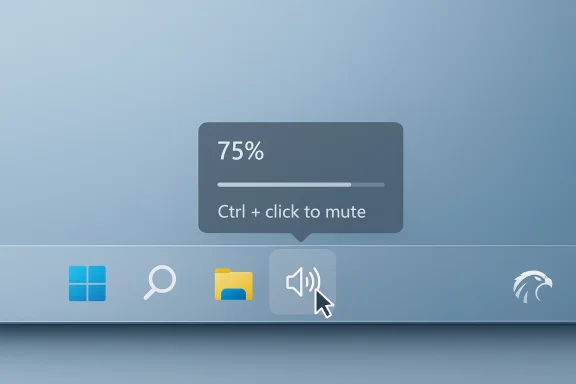
Windhawk’s new Taskbar Volume Control Per‑App mod turns a fiddly, multi‑click mixer into a one‑motion tweak: hover a cursor over any app’s taskbar button and scroll to change that app’s volume, Ctrl+click to mute, and read the current percentage in a tooltip — all without opening the Quick Settings panel.
Background
Windows 11's native audio controls have improved over past versions, but the workflow for adjusting an individual app’s volume still requires opening Quick Settings, expanding Sound, and hunting for the right slider. Windhawk — a lightweight, modular mod host — fills that gap by injecting narrowly scoped changes into Explorer and other Shell processes so discrete features can feel native without wholesale replacement of the OS.Windhawk is community‑driven and open source; its catalog of community and author‑maintained mods ranges from visual tweaks (taskbar styling, Start menu redesign) to productivity micro‑features (middle‑click to close, scroll‑to‑switch tabs, and volume‑on‑scroll). The Taskbar Volume Control Per‑App mod is the latest example of a focused usability fix that packs a lot of daily value into one small interaction.
What the Taskbar Volume Control Per‑App mod does
The interaction model
- Scroll over a taskbar button (the app’s icon) to raise or lower that app’s volume.
- Press and hold Ctrl, then click a taskbar button to toggle mute for that app.
- Hovering shows a tooltip with the current volume percentage, or a “No audio session” message when the app isn’t producing sound.
How it differs from system Quick Settings and existing tools
Windows’ built‑in per‑app mixer is buried in Quick Settings and the modern Sound settings; Windhawk’s mod surfaces the per‑app controls directly on the taskbar in-context, reducing the number of clicks and context switches. It’s functionally similar to dedicated tray mixers like EarTrumpet but integrated into the taskbar itself, so you don’t need to switch to a different UI element to manage audio.Why this matters: productivity and UX gains
Short interactions multiply. If you change volumes several times a day — during meetings, when switching from music to video calls, or while watching a streaming app — the time saved by avoiding multiple clicks quickly adds up. The mod:- Reduces task switching by keeping audio controls in-context.
- Makes per‑app mixing faster and more discoverable.
- Provides instant visual feedback via the tooltip, reducing overshoot/back‑and‑forth adjustments.
Installing and using the mod (practical walkthrough)
Windhawk mods are not native Windows features; a short install procedure is required.- Download and install Windhawk from its official project page or GitHub releases. The host runtime is small and designed to be lightweight.
- Launch Windhawk and open the Explore/Mods catalog inside the app.
- Locate “Taskbar Volume Control Per‑App” (or the Taskbar Volume family) and click Install.
- Configure options if the mod exposes settings (for example, whether a modifier key is required to scroll).
- Try it: hover a cursor over an app’s taskbar icon and scroll; Ctrl+click to mute. If an app has no audio, the tooltip will read “No audio session.”
Technical mechanics — how Windhawk makes this possible
Windhawk’s technical model is modular injection: the host loads a lightweight module that hooks into target processes (typically explorer.exe or related Shell hosts) and alters UI behavior at runtime. This avoids permanent system file edits and makes most changes instantly reversible by disabling the mod or exiting Windhawk. The tradeoff is that low‑level hooks are sensitive to changes in Windows internals, so mods sometimes need updates after major OS patches.A few implementation notes pulled from community reports:
- Windhawk supports precompiled mod binaries to make installs easier for non‑developers, with an option to compile from source if you prefer.
- The runtime and commonly used mods have low resource usage — community tests report minimal CPU and modest memory footprints, though exact numbers depend on installed mods. One community summary noted Windhawk’s memory usage in a typical setup was around ~100 MB, but this will vary by system and enabled mods. Treat such numbers as indicative, not absolute.
Security, stability, and compatibility — the unavoidable caveats
Windhawk is powerful because it hooks into running processes. That power comes with a set of real and documented tradeoffs that every user should understand before they install a suite of mods.Supply‑chain and binary trust
Precompiled mods are convenient, but they introduce a supply‑chain consideration: trusting the author and the build pipeline is necessary when you allow binaries to be fetched and loaded. Windhawk mitigates this by exposing source code, but installing only from trusted authors or compiling locally reduces risk. If supply‑chain integrity is critical in your environment, prefer source builds or validate checksums where provided.AV/endpoint behavior and enterprise concerns
Because Windhawk injects code, some antivirus or endpoint protection tools may flag its behavior as suspicious. Community threads show occasional false positives; the typical mitigation is to confirm the file’s provenance and, if necessary, whitelist the host in trusted environments after verification. For enterprise deployment, formal support contracts and curated, signed tools often remain a safer choice than community mod hosts.Windows updates and breakage risk
Major Windows updates can change internal APIs and process behavior, which occasionally breaks mods that rely on specific UI internals. The Windhawk community and maintainers typically issue updates quickly, but expect periodic disruption after big OS patches. Recommended practice: disable Windhawk before applying major Windows updates or create a restore point before you experiment with new mods.Games and anti‑cheat systems
Code injection can conflict with anti‑cheat systems used by competitive games. If you play games with strict anti‑cheat, avoid running injection‑based mods in the background during gameplay or configure exclusions. Windhawk documentation and community threads highlight game compatibility as a common source of issues.Comparisons and alternatives
EarTrumpet: tray‑based per‑app mixer
EarTrumpet remains the classic tray‑based audio mixer for Windows, surfacing per‑app sliders in a single click and offering device routing. It installs via the Microsoft Store or package managers and is a polished, single‑purpose alternative if you prefer a dedicated mixer UI rather than taskbar in‑context controls. Windhawk’s mod competes with EarTrumpet by offering per‑app control without adding another tray icon — instead, it re‑uses the existing taskbar interactions.Start11 / StartAllBack and other paid tools
Paid customization tools like Start11 and StartAllBack focus on classic Start menu and taskbar restoration with commercial polish and vendor support. Windhawk’s open, modular approach contrasts with these paid options: it’s free, community‑driven, and broader in scope, but it lacks the same vendor guarantee and formal support channels that enterprises might prefer. For home users and enthusiasts, Windhawk’s breadth is compelling; for managed fleets, the stability and contractual assurances of commercial products remain attractive.Practical tips and recommended setup
- Create a system restore point before installing Windhawk or multiple mods. This gives you a quick rollback path if something goes wrong.
- Install one mod at a time and test for compatibility with your common apps (video conferencing tools, streaming apps, and games).
- Prefer mods with clear source code, GitHub presence, and active maintainer engagement.
- If you use an AV or endpoint agent, check community threads for any known false positives or official guidance before adding Windhawk to managed systems.
- Use Windhawk’s rollback and safe mode tools to quickly disable mods that cause instability.
Real‑world scenarios where Per‑App taskbar volume shines
- Remote meetings: Quickly mute background music (Ctrl+click) or reduce its volume without opening Settings while in a call.
- Streaming and media consumption: Lower a browser’s volume while preserving system sounds or voice chat levels.
- Productivity setups: When background music distracts, cut a specific app without disrupting timers, notifications, or other audio streams.
- Multi‑user desktops: Shared computers where multiple apps play audio benefit from per‑app control without the overhead of launching a mixer UI.
Critical assessment: strengths and notable risks
Strengths
- High utility, low friction: The mod maps a common, repetitive task to a single intuitive gesture.
- Modular, reversible changes: Windhawk’s host approach avoids permanent system changes and makes rollback straightforward.
- Open development model: Source code and an active community mean issues are discovered and fixed quickly for popular mods.
Risks and blind spots
- Injection‑based model: While powerful, injection is inherently fragile with OS updates and can trigger security tooling. Users should be prepared for occasional maintenance.
- Supply‑chain trust for precompiled mods: Prebuilt binaries are convenient but require trust in the build source. Prefer mods with reproducible builds or verified checksums where possible.
- Not enterprise‑grade out of the box: For managed environments, Windhawk lacks the vendor warranties and centralized management of commercial alternatives; careful policy review is required before wide deployment.
Developer and community context
Windhawk’s architecture and the modding ecosystem are driven by a small team and an engaged community. The project’s design goals emphasize transparency, low resource usage, and a modular catalog of single‑purpose mods that can be mixed and matched. Recent improvements in the Windhawk host — including precompiled mod support and better rollback tooling — make it easier for casual users to try mods safely while keeping power users’ options open.Community threads and technical summaries repeatedly emphasize a practical approach: install one or two trusted mods, confirm stability, and keep a restore point handy. That measured strategy minimizes disruption while unlocking the best user‑experience payoffs.
Final verdict
The Taskbar Volume Control Per‑App mod is a textbook example of what Windhawk does best: small, focused UX fixes that feel native because they’re integrated into existing interactions. For users who frequently manage multiple audio streams, the ability to scroll a taskbar button to change that app’s volume and Ctrl+click to mute will become a fast, reliable habit that saves seconds repeatedly across the day.That convenience comes with manageable but real tradeoffs: code injection, supply‑chain considerations for precompiled mods, and the risk of breakage after major Windows updates. By following conservative installation practices — prefer trusted mods, keep backups, and disable before big OS upgrades — most home users can reap the benefits while keeping risks low.
If Windows 11 still feels like it was designed without you in mind, tools like Windhawk offer a practical path to reclaiming the small interactions that define daily computing. For power users and enthusiasts, this per‑app taskbar volume mod is more than a convenience: it’s a small, elegant change that makes the system feel smarter and more responsive to human workflows.
Acknowledgement: The description of the Taskbar Volume Control Per‑App mod and Windhawk behavior is grounded in community reporting and the Windhawk project documentation and forum summaries. Some runtime numbers and implementation details are drawn from community tests and may vary by system; treat precise memory/CPU figures as approximate and validate them on your hardware before drawing firm conclusions.
Source: XDA My favorite Windows 11 modding tool just made adjusting app volumes a breeze
