

 This genius mod that makes volume control in Windows 11 so much better — a deep dive
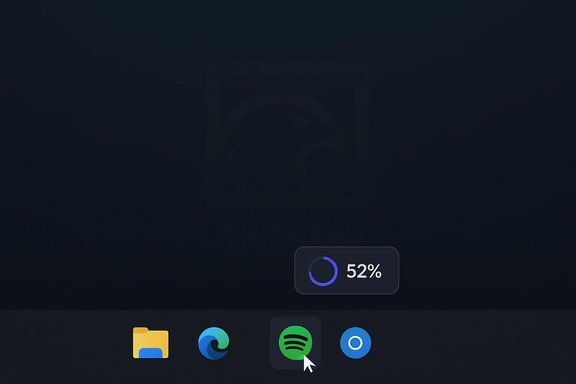
Windows 11 finally cleaned up a lot of UI cruft, but in the process Microsoft consolidated several tiny, incredibly frequent interactions (volume, media, battery, lock‑keys) into the Quick Settings panel. That’s tidy — until you need to lower the music during a meeting, mute one noisy app, or balance game audio without opening Settings. A small, community‑built mod fixes that exact friction: it surfaces per‑app volume controls directly on the taskbar so you can scroll to change an app’s volume, Ctrl+click to mute, and see the exact percentage in a tooltip — all without opening Quick Settings. The result is a tiny interaction that saves seconds dozens of times a day and quickly becomes muscle memory.This article explains what the mod does, how it works, how to install and use it safely, how it compares to other solutions (EarTrumpet, FluentFlyout and the old ModernFlyouts), and the real risks and caveats you should know before you install it.
TL;DR — What this mod gives you
- Hover a cursor over an app’s taskbar icon and use the mouse wheel to change that app’s volume. Immediate feedback appears in a tooltip showing the percent or “No audio session.”
- Ctrl+click a taskbar icon to toggle mute for that app.
- A reversible, lightweight install (the mod runs inside a small host app) — no permanent system file edits.
Who made it (and how it’s delivered)
The mod comes from the Windhawk ecosystem — a small, open‑source “mod host” that loads modular tweaks you can enable or disable independently. Windhawk doesn’t replace Explorer permanently; it injects narrowly scoped changes into Explorer (and similar shell processes) so a mod can feel native while remaining reversible. That modular design is why you can add a single convenience tweak — like taskbar volume control — without replacing the whole shell.Windhawk exposes a browsable catalog of mods, and authors can publish precompiled modules (for convenience) or share source code for users who prefer to build locally. The host aims to be lightweight and low‑impact; community reports indicate modest memory usage for a typical setup.
The interaction model — quick, predictable, discoverable
The design is intentionally minimal:- Scroll over a taskbar button (the app’s icon) to raise or lower that app’s volume.
- Press and hold Ctrl and click the taskbar button to toggle mute for that app.
- Hovering shows a tooltip with the current volume percentage or “No audio session.”
How the mod works (in plain language)
Windhawk’s approach is runtime injection: the host loads a small module that hooks into the target process (usually explorer.exe) and changes UI behavior on the fly. That avoids permanent file edits and makes the change instantly reversible by disabling the mod or quitting Windhawk. The tradeoff: hooking is sensitive to internal OS changes, so major Windows updates sometimes break mods until maintainers update them.Because this mod operates in the shell, it uses the system’s audio APIs to find per‑app audio sessions and adjust them — it doesn’t intercept audio streams at the driver level. That means it behaves much like EarTrumpet or the built‑in per‑app mixer, just with a different and more immediate UI.
Installing the mod — step‑by‑step (safe approach)
Note: this is a community modding workflow. If you need enterprise‑grade assurances, use official Microsoft tooling. For home or enthusiast use, follow these conservative steps.- Create a Windows restore point (optional but strongly recommended). This gives you a rollback path if anything goes wrong.
- Download Windhawk from its official project page or GitHub releases. Prefer the host’s official source or GitHub to reduce supply‑chain risk.
- Install Windhawk and run it (no heavy system changes are made by simply installing the host).
- Open Windhawk’s Explore / Mods catalog, locate the “Taskbar Volume Control Per‑App” mod (the name may vary slightly in the catalog), and click Install. The host will load the mod into Explorer.
- Test the interaction: hover a cursor over an app’s taskbar icon and scroll the wheel; hold Ctrl and click to mute. If you see the tooltip and the app volume changes, you’re set.
- Enable only one mod at a time initially so you can verify stability before adding more.
- If you prefer maximum trust, compile the mod from source (if available) instead of installing a prebuilt binary. Windhawk supports precompiled mods for convenience but exposes source code for most popular mods.
Real usage examples
- During a Zoom call: quickly lower Spotify by hovering its taskbar icon and scrolling down — your co‑hosts won’t hear the music, and your voice stays loud. No need to open Quick Settings.
- When streaming a game but hearing both system sounds and a background player: quietly lower the music app without touching the game audio.
- On a multi‑monitor setup: reduce the browser tab that is autoplaying video by scrolling over its taskbar group entry without hunting for the source. The tooltip shows the percent so you can set a precise level.
Safety, stability and trust — what to watch out for
Windhawk’s injection model provides great flexibility, but it comes with some unavoidable tradeoffs:- Injection fragility: Windows internal changes (major updates, Shell tweaks) can break mods until the community or author updates them. Expect to disable the mod if something behaves oddly after a big OS update.
- Supply‑chain trust: convenient precompiled mods are widely used, but installing binaries means trusting the build source. If you’re privacy/security conscious, prefer compiling the mod from source or only install mods from trusted authors with a GitHub presence.
- Security tooling: some anti‑cheat systems and corporate endpoint agents may treat process injection differently. If you use strict enterprise security or play competitive titles with anti‑cheat, test in a controlled environment; some games may require you to disable Windhawk to avoid conflicts.
Alternatives and how they differ
If you want better audio controls in Windows 11, there are several well‑established alternatives — each with a different UX philosophy:- EarTrumpet — the classic tray‑based per‑app mixer. Click the tray icon and get a compact mixer with per‑app sliders, routing and quick mute. It restores the one‑click tray access many power users prefer and supports store and winget installs. Great if you like a dedicated mixer UI rather than in‑context taskbar controls.
- FluentFlyout / Fluent Flyouts — restores and enhances media and other flyouts (media controls with seek, Up Next, lock‑key indicators, taskbar widget). This is aimed at replacing the modern media overlay with a native‑feeling flyout, not taskbar scroll controls. If your pain point is media keys and rich media info, FluentFlyout is an excellent fit.
- ModernFlyouts — an older project that aimed to replace Windows flyouts. It historically filled the same space as FluentFlyout, but maintenance/compatibility can vary over time; community threads show it sometimes breaks after updates.
- Want immediate per‑app control without opening any UI? Windhawk taskbar scroll mod.
- Want a standalone mixer with routing and persistent tray presence? EarTrumpet.
- Want rich media flyouts that match Windows 11 visuals and media key behavior? FluentFlyout or ModernFlyouts.
Troubleshooting & FAQ
Q — Nothing happens when I scroll the taskbar icon.A — Verify the mod is enabled in Windhawk and that Windhawk is running. Try toggling the mod off and on. If the behavior started after a Windows update, check the mod’s repository or Windhawk for a compatibility update.
Q — Both Windhawk and Windows’ Quick Settings show flyouts at the same time.
A — That situation is more common with flyout‑replacement projects (ModernFlyouts/FluentFlyout). For the taskbar scroll mod, you might see the system volume UI in some edge cases; toggling display options or updating the mod usually resolves it. If you rely on absolute predictability, prefer EarTrumpet/FluentFlyout which have been adapted to different Windows behaviors.
Q — Is this safe for work machines?
A — In managed corporate environments, check with IT. Injection‑based mods may violate security policies or interfere with monitoring agents. For personal machines, use the safety steps above (restore point, prefer source builds).
Q — Can I get the same behavior with keyboard shortcuts?
A — Windows has some built‑in shortcuts (and the Win+Ctrl+V quick access for per‑app mixer), but they still open panels. The Windhawk mod is specifically for mouse‑centric, in‑context control. If you prefer keyboard, explore EarTrumpet’s hotkeys or scriptable tooling.
Developer & community context
Windhawk’s catalog and community are the reason this kind of micro‑feature exists. The modular approach lets many small authors iterate on single tasks. That community model makes it possible to converge on very focused usability improvements without waiting for a platform vendor to implement them. At the same time, active maintenance and a visible GitHub presence matter: mods with public repos and frequent commits are the ones that adapt fastest when Windows evolves.The same community ethos produced other “must‑install” utilities for Windows 11: taskbar tweaks, Start menu stylers, and the Fluent/Modern Flyouts that bring back richer media overlays. The ecosystem is pragmatic: small, reversible fixes that reclaim lost convenience.
Final verdict — who should try it
- Try this mod if: you frequently adjust per‑app volumes, you use a mouse‑centric workflow, and you want faster, in‑context controls without switching panels. It’s a tiny interaction with outsized daily benefit.
- Be cautious if: you’re on a tightly locked corporate machine, you play competitive games that use strict anti‑cheat, or you’re uncomfortable installing community mods that inject into explorer.exe. Use the safety steps (restore point, prefer source builds).
If you want, I can:
- Walk you through the exact Windhawk install steps (with commands and screenshots).
- Fetch the official Windhawk and mod GitHub pages and the latest release numbers so you can download the exact build recommended by the community.
- Compare this mod head‑to‑head with EarTrumpet and FluentFlyout and produce a short decision matrix for your setup.
Source: Neowin https://www.neowin.net/news/this-genius-mod-makes-volume-control-in-windows-11-so-much-better/
