

Windhawk — an open-source “mod marketplace” for Windows — has become the go-to solution for users who want to un-shackle Windows 11’s restrictive taskbar and restore the look, behavior, and useful shortcuts that Microsoft removed or limited. In short: if you’ve been annoyed by the simplified, bottom‑locked Windows 11 taskbar, Windhawk gives you back deep customization — from macOS‑style docks and Vista translucency to a restored vertical taskbar and volume‑on‑scroll — all packaged as lightweight, toggleable mods.
Windows’ taskbar has been a remarkably stable part of the OS for decades, but the switch from Windows 10 to Windows 11 removed several power‑user comforts: moving the taskbar to the screen edge, multi‑row taskbars, easy right‑click window arrangements, and a richer taskbar context experience. Microsoft has been iteratively restoring some features via Insider and stable updates, yet many users still prefer more radical or immediate changes than the OS offers. Recent platform experiments show Microsoft is continuing to tweak the taskbar (for example, testing dynamic icon scaling and more compact icon options), but those changes aren’t the same as full customization. Third‑party tools have long filled this gap: paid utilities such as Start11/StartAllBack and free open‑source projects like ExplorerPatcher and TranslucentTB offer incremental reclamation of older behaviors. Windhawk stands out by taking a modular approach: a small runtime for installing and managing community‑created “mods” that hook into the Shell and other UI processes. This modularity lets you apply single focused fixes (like volume‑on‑scroll) without wholesale replacement of Explorer.
Practical recommendation:
Source: How-To Geek This open-source tool fixed Windows 11's ugly taskbar
 Background / Overview
Windows’ taskbar has been a remarkably stable part of the OS for decades, but the switch from Windows 10 to Windows 11 removed several power‑user comforts: moving the taskbar to the screen edge, multi‑row taskbars, easy right‑click window arrangements, and a richer taskbar context experience. Microsoft has been iteratively restoring some features via Insider and stable updates, yet many users still prefer more radical or immediate changes than the OS offers. Recent platform experiments show Microsoft is continuing to tweak the taskbar (for example, testing dynamic icon scaling and more compact icon options), but those changes aren’t the same as full customization. Third‑party tools have long filled this gap: paid utilities such as Start11/StartAllBack and free open‑source projects like ExplorerPatcher and TranslucentTB offer incremental reclamation of older behaviors. Windhawk stands out by taking a modular approach: a small runtime for installing and managing community‑created “mods” that hook into the Shell and other UI processes. This modularity lets you apply single focused fixes (like volume‑on‑scroll) without wholesale replacement of Explorer. What Windhawk Is — and How It Works
A lightweight mod manager, not a theme pack
Windhawk is presented as a customization marketplace for Windows: a small host application plus a browsable catalog of mods that target specific components (Taskbar, StartMenu, Explorer, specific apps). Each mod is published with source code and optional precompiled modules. The Windhawk site emphasizes stability, transparency, and low resource impact; it displays usage counts for popular mods so you can judge community traction before installing.The technical model: runtime hooking/injection
Windhawk’s mods operate by injecting lightweight code into the processes they target (for example, explorer.exe or StartMenuExperienceHost). That’s how the mods can change live UI elements without touching system files or requiring permanent registry hacks. This approach makes changes instantly reversible (disable the mod, or end Windhawk to revert), but it also means Windhawk is sensitive to changes in Windows internals — major OS updates can temporarily break mods until maintainers adapt. Several community summaries and technical writeups explain this trade‑off and recommend simple mitigations (disable Windhawk before major updates, keep a restore point).The Taskbar Fixes You Can Apply Today
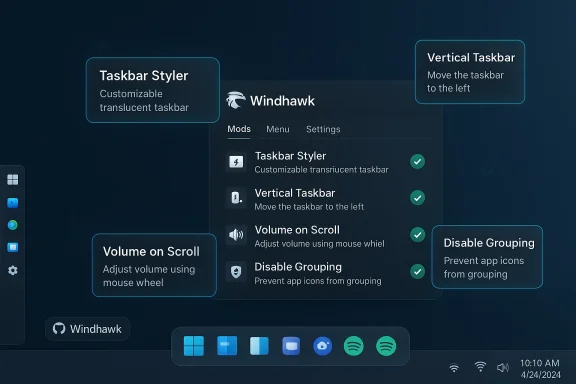
Windhawk’s catalog contains dozens of taskbar mods. Here are the ones most likely to solve common complaints about Windows 11’s default bar.- Windows 11 Taskbar Styler — Replace the default visuals with community themes (Windows Vista, translucent, macOS‑like docks, or custom looks). Themes are selectable via a dropdown and editable for fine tweaks.
- Vertical Taskbar for Windows 11 — Restore the ability to place the taskbar on the left or right side of ultrawide monitors. Suddenly, bottom‑anchored single‑row taskbars aren’t a limitation anymore.
- Taskbar Volume Control — Scroll your mouse wheel over the taskbar to raise/lower system volume (a tiny productivity win that feels native).
- Disable grouping on the taskbar / Taskbar Labels — Recreate Windows 10 “never combine” behavior so each window gets its own button and label.
- Taskbar Thumbnail Reorder / Thumbnail behavior — Reorder thumbnails and improve multitasking behaviors that Microsoft’s new shell sometimes handles poorly.
Step‑by‑Step: Install Windhawk and Restore a Taskbar Style
- Create a system restore point (recommended).
- Download Windhawk from its official page and install the latest stable release. Windhawk lists mods on its site and in a central “Explore” view.
- Open Windhawk and go to the “Explore” tab. Search for the mod you want (for example, “Windows 11 Taskbar Styler”) and click “Details,” then “Install.”
- After installing, open the mod’s Settings tab, pick a preset from the dropdown, tweak parameters, then save. Changes apply instantly.
- If a mod misbehaves, disable it from the Windhawk Home page, or entirely end Windhawk in Task Manager (Ctrl+Shift+Esc → locate Windhawk → End Task) to force the default shell to reload.
- Many popular mods carry thousands — hundreds of thousands in some cases — of installs. That community adoption gives practical credibility but is not a guarantee. Always test one mod at a time.
- If you need the default visuals temporarily (for screenshots or support diagnostics), use Windhawk’s disable/remove controls or end the Windhawk task as above.
Alternatives and Complementary Tools
Windhawk is not the only option — choose the tool that matches your risk tolerance, support needs, and desired depth of change.- ExplorerPatcher — Open‑source, narrower scope than Windhawk, focused on restoring Windows 10 style behavior (multi‑row taskbar, classic context menus). Often a safer single‑purpose pick for taskbar/Explorer rollbacks.
- Start11 / StartAllBack (paid) — Polished, supported commercial tools for enterprises and users who want GUI polish and formal support contracts. They do many of the same things more reliably for a fee.
- RoundedTB, TranslucentTB, RetroBar — Lightweight focused utilities for rounded corners, translucency, or nostalgic taskbar skins. Combine well with Windhawk for a customized but layered setup.
Security, Stability, and Update Risk — The Tradeoffs
Windhawk’s strengths are also its primary risks. Be explicit about what to expect.Strengths
- Open source and modular: Mods ship as source code and (optionally) compiled artifacts, so technically-savvy users can audit or rebuild locally. Windhawk’s catalog includes author names and usage counts so you can pick well‑maintained mods.
- Quick, reversible changes: Because Windhawk hooks at runtime, disabling a mod or ending Windhawk typically restores the default Windows UI without a full reinstall.
- Large, active mod community: Popular mods are actively updated and often have issue trackers and community support threads.
Risks and limitations
- Process injection sensitivity: Mods inject into Explorer and related processes; a Windows feature update that changes internals can break mods until the mod author updates them. This has happened occasionally across the ecosystem. Users should expect to troubleshoot after major Windows updates.
- Supply‑chain concerns with precompiled mods: The introduction of precompiled/packaged mods (for convenience) improves UX but raises trust questions — verify authorship, prefer official distribution channels, or compile mod source yourself if you require maximal trust.
- Enterprise policies and compliance: Windhawk’s runtime hooking is not suitable for managed endpoints where signed, supported software is required. Organizations should restrict these mods from company fleets.
- One‑off compatibility quirks: Some older or poorly maintained mods may conflict with other UI‑tweaking tools (for instance, two mods trying to change the same shell behavior), so avoid stacking conflicting mods.
Best Practices for Safe Customization
- Make a System Restore point before you start tinkering.
- Install one mod at a time and verify behavior for a day before adding more.
- Use official channels: download Windhawk and mods from the project site or the official GitHub repository. Avoid random zip files from unknown forums.
- Prefer source or verified builds if supply‑chain integrity matters — compile precompiled mods yourself or enable only mods published by authors you trust.
- Keep Windhawk updated and check the mod issue trackers after major Windows updates (users often post early break‑fixes there).
- Document your tweaks: keep a short changelog so you can undo configurations quickly if something goes wrong.
Real‑World Usage Notes and Common Gotchas
- Some users report that a mod may stop functioning after a major feature update or build upgrade. The practical workaround is to disable Windhawk before the upgrade and re‑enable it only when mod updates are available. The community often posts quick fixes or patched mod versions within days.
- If you need to take screenshots of the stock UI for support or documentation, Windhawk’s “Disable” or “Remove” buttons let you revert quickly; otherwise use Task Manager to end the Windhawk process.
- Mods that alter the taskbar layout (vertical placements, adding labels, or changing icon sizes) can interact with Microsoft’s own feature rollouts (like the reintroduction of “ungrouped icons” or taskbar icon scaling in Insider builds). If Microsoft surfaces a native feature that overlaps with a mod, consider switching to the native feature for long‑term stability.
Community, Governance, and Long‑term Viability
Windhawk benefits from an active open‑source community: mod authors publish on GitHub, maintain issue trackers, and contribute styles and feature tweaks that collectively evolve the tool quickly. The ecosystem shows signs of healthy growth: multiple community repos host Windhawk themes and setups, and popular mods have tens or hundreds of thousands of installs, indicating broad interest and practical testing. That community momentum means Windhawk is more likely to stay current with Windows internals changes than a one‑person hobby project — but it’s still a community project, not commercial software with contractual SLAs. From a governance perspective, the most important user responsibility is supply‑chain hygiene: prefer official Windhawk releases, verify authorship, and keep local copies of mod source code if audits are necessary.Expert Takeaway — Strengths, Weak Spots, and Recommendations
Windhawk is a practical, low‑barrier tool that delivers meaningful restoration and creative redesign of the Windows 11 taskbar. Its biggest strengths are modularity, community momentum, and quick recoverability, letting experienced users regain lost functionality (vertical taskbars, ungrouping, thumbnail behavior) and add new conveniences (volume‑on‑scroll) with minimal overhead. The principal downsides are technical fragility after Windows internals changes, and potential supply‑chain risk when using precompiled mods. For most home users who like experimentation and can follow basic troubleshooting steps (restore point, disable Windhawk, uninstall a mod), Windhawk is low‑risk and high‑reward. For managed or enterprise environments, the recommendation is conservative: use vendor‑supported commercial alternatives or wait for Microsoft to reintroduce native features if strict compliance is required.Practical recommendation:
- Home power users: try Windhawk, start with a backup and one or two popular mods (Taskbar Volume Control, Vertical Taskbar, Taskbar Styler), and keep an eye on mod issue pages after Windows updates.
- Casual users: use single‑purpose, well‑maintained tools like ExplorerPatcher or paid alternatives with support if you need consistent behavior and a lower troubleshooting burden.
- IT admins: avoid deploying Windhawk on managed endpoints unless you control update windows and can validate mod compatibility.
Conclusion
Windows 11’s aesthetic and functional choices left many users craving more control over the taskbar. Windhawk answers that call with a modular, open‑source approach that lets users restore lost behaviors, radically alter visuals, and add small but powerful conveniences — all while keeping changes reversible. It’s not a silver bullet, and it introduces legitimate considerations around injection‑based mods and update compatibility, but for the majority of enthusiasts Windhawk represents a responsible, well‑engineered middle ground between doing nothing and replacing the shell entirely. If the Windows 11 taskbar has been an irritant, Windhawk is the fastest, lowest‑cost way to make it behave like the taskbar you actually want.Source: How-To Geek This open-source tool fixed Windows 11's ugly taskbar
