

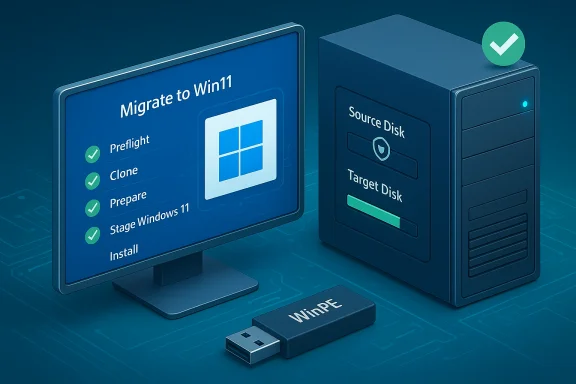
EaseUS’ latest Disk Copy 6.9.0 bundles disk cloning, UEFI/GPT preparation, Windows 11 payload staging and an in-place OS upgrade into a single guided wizard called “Migrate to Win11”, promising to move a running Windows 10 system to a new drive and complete the Windows 11 upgrade on that clone without reinstalling apps or reconfiguring user settings.
Microsoft’s announced end-of-support for Windows 10 on October 14, 2025 has put many consumers and small IT teams on a tight timeline to choose a path forward: upgrade to Windows 11 where hardware allows, purchase Extended Security Updates (ESU) for a limited bridge, or accept the growing security risk of running an unsupported OS. Microsoft’s lifecycle guidance is explicit about the choices and the recommended path to stay supported. EaseUS positions Disk Copy 6.9.0 against that calendar pressure by combining established migration steps — image/clone the system, prepare the target disk for UEFI/GPT and Secure Boot, stage Windows 11 installation media, and perform the in-place upgrade on the cloned disk — into one automated workflow. The vendor’s public materials and press release describe a wizard that selects the target disk, clones system partitions (with options for sector‑by‑sector or intelligent copy), downloads or stages Windows 11 payloads, and hands off to the standard Windows Setup on reboot.
Source: The Malaysian Reserve https://themalaysianreserve.com/202...e-to-win11-upgrade-and-clone-in-one-step/amp/
 Background / Overview
Microsoft’s announced end-of-support for Windows 10 on October 14, 2025 has put many consumers and small IT teams on a tight timeline to choose a path forward: upgrade to Windows 11 where hardware allows, purchase Extended Security Updates (ESU) for a limited bridge, or accept the growing security risk of running an unsupported OS. Microsoft’s lifecycle guidance is explicit about the choices and the recommended path to stay supported. EaseUS positions Disk Copy 6.9.0 against that calendar pressure by combining established migration steps — image/clone the system, prepare the target disk for UEFI/GPT and Secure Boot, stage Windows 11 installation media, and perform the in-place upgrade on the cloned disk — into one automated workflow. The vendor’s public materials and press release describe a wizard that selects the target disk, clones system partitions (with options for sector‑by‑sector or intelligent copy), downloads or stages Windows 11 payloads, and hands off to the standard Windows Setup on reboot. What EaseUS Says the Feature Does
- One-step migration + upgrade: Clone the system to a new disk and perform the Windows 11 upgrade on the clone during the reboot/install phase, preserving user data, apps and settings.
- Automated compatibility handling: When the tool detects TPM 2.0, Secure Boot, or CPU checks would block setup, it applies automated compatibility workarounds to allow the Windows 11 installer to proceed.
- Cleaner clone: Automatically excludes temporary files, caches and other non-essential data to reduce image size and speed transfer.
- Read-only source / rollback emphasis: The flow emphasizes keeping the source disk unchanged and building verified images and WinPE rescue media as rollback insurance.
How “Migrate to Win11” Works — Technical Breakdown
1. Preflight and cloning
The wizard starts by verifying the source and selecting the target disk. It offers either a sector-by-sector clone or an intelligent (file-aware) copy and typically excludes caches and temp files to reduce transferred data. The clone is written to the target disk while the source is left untouched to preserve rollback options.2. Target disk preparation
Disk Copy checks partition layout and firmware mode, creating or resizing EFI System and Recovery partitions, and where applicable converting MBR→GPT in a non‑destructive manner — preparing the target for UEFI boot and Windows 11’s expectations. Proper partition alignment (4K alignment) and multithreaded I/O optimizations are reported improvements in 6.9.0 designed to shorten clone windows on modern SSDs.3. Windows 11 payload staging and installer handoff
Disk Copy downloads or stages the Windows 11 installation payload locally on the target and then reboots into the target environment to run the standard Microsoft Windows Setup. The cloning tool’s role is orchestration and preparation; the actual OS setup is the standard Windows installer process.4. Compatibility workarounds
When the installer would normally stop because of missing TPM 2.0, disabled Secure Boot, or an unsupported CPU, EaseUS documents applying workarounds to allow the installer to continue. These are conceptually the same techniques long used by power users and other tools: registry LabConfig keys, customized install media, or installer flags that bypass hardware checks. Those bypass techniques are widely documented and have existing community and tool implementations.5. Post‑install finalization
After Setup finishes, Disk Copy expands partitions as required, reapplies or reorders drivers, and presents the user with a bootable Windows 11 clone on the target disk. Users are expected to validate activation, re-enable BitLocker if used, and run driver updates.Independent Verification and Cross‑Checks
Key vendor claims can be mapped to independent evidence:- EaseUS’ own product pages and a corporate press release outline the Migrate to Win11 workflow and the accompanying engine improvements. Those public pages explicitly describe automated partition prep, Windows 11 download/staging, and compatibility workarounds.
- The technical feasibility of bypassing Windows 11 hardware checks is corroborated by multiple independent outlets and community tools: Tom’s Hardware and PC Gamer explain registry LabConfig edits and utility-driven installers (for example Rufus) that remove TPM/Secure Boot/CPU blockers; these are established, widely-reported workarounds used by enthusiasts and some admin playbooks. That confirms EaseUS’ compatibility-bypass claim is plausible because the mechanisms already exist and are widely implemented.
- Microsoft’s lifecycle guidance and documentation confirm the policy context driving demand for such tools: Windows 10 reached end of support on October 14, 2025 and Microsoft recommends upgrading eligible systems to Windows 11 or enrolling in ESU where compatible hardware is lacking. That policy context is the primary commercial motivation behind one‑step migration tools.
Strengths — What EaseUS Delivers Well
- Workflow consolidation: Bringing imaging, partition prep and OS staging into a single guided wizard materially reduces the skill floor for common migrations (HDD→SSD, drive replacement, single‑machine refresh). This is a real operational win for home users and small IT teams that lack dedicated migration playbooks.
- Operational safety defaults: Emphasizing a read‑only source policy, verified images and WinPE rescue media is sound migration hygiene. When followed, these reduce the odds of irreversible failures during partition conversion or Setup.
- Practical performance improvements: 4K alignment, multithreaded I/O and smarter error recovery are legitimate engineering upgrades for SSD workflows; they shorten clone windows and reduce transient I/O failure impacts during large transfer jobs. These are measurable and meaningful when validated on target hardware.
- User convenience: For individual power users replacing an old HDD with an SSD or moving a Windows 10 environment to a new internal drive, the one‑wizard flow saves hours of manual work and reduces the chance of operator error during partition and firmware steps.
Risks, Caveats and Security Concerns
EaseUS’ convenience model introduces non‑trivial tradeoffs that must be explicitly considered before adopting the feature for production or long‑term deployments.- Unsupported hardware = update and support risk. Microsoft’s policy is explicit: installing Windows 11 on hardware that does not meet the minimum requirements places the device outside guaranteed update and support paths. A successful install does not guarantee that cumulative updates, feature updates, or security patches will be reliably delivered to that device by Microsoft. This is a policy risk, not merely technical.
- Bypassing TPM/Secure Boot reduces platform integrity. TPM 2.0 and Secure Boot provide hardware-backed protections for credentials (BitLocker key protection), measured boot and early-boot integrity checks. Bypassing these protections increases exposure to firmware attacks, pre-boot malware and certain ransomware vectors. Industry reporting consistently warns that bypassing built-in security gates is a trade‑off that reduces long‑term security posture.
- Partition conversion and firmware quirks remain fragile. Non‑destructive MBR→GPT conversion and toggling firmware from Legacy/BIOS to UEFI work in many typical cases, but OEM partition layouts, BitLocker-encrypted drives, dynamic volumes, or unusual recovery partitions can break automated flows and cause unbootable systems. Verified images and tested rescue media are not optional.
- “Zero‑risk” marketing is aspirational. The vendor’s messaging stresses read-only source behavior and rollback options, but human error (incorrect target selection), power loss during a critical write, driver incompatibilities or firmware idiosyncrasies can still produce irrecoverable states. Treat the tool as an automation that needs operator discipline, not a removal of risk.
- Licensing and activation headaches. Some software and DRM systems tie keys to disk signatures or hardware IDs. Cloning plus an in-place upgrade can trigger reactivation requirements for Windows, Office, Adobe products, and specialty applications. Cataloging keys and testing reactivation flows is part of safe migration.
- Enterprise compliance and audit scope. For regulated environments, using a tool that permanently bypasses hardware security checks may violate internal security baselines or external compliance requirements. Such decisions must be made at the policy level, not left to an automated tool.
Practical, Safe Step‑by‑Step Migration Checklist
Treat Disk Copy’s “Migrate to Win11” as an automation inside a validated migration playbook. The checklist below is a conservative operational flow you can run on a pilot machine before any wide rollout.- Create and verify backups
- Make a full system image using a proven imager (EaseUS Todo Backup, Macrium Reflect, Acronis). Verify by mounting/restoring a sample file and keeping an offline copy.
- Export licensing keys and recovery credentials
- Export Windows & Office product keys, suspend BitLocker and export recovery keys, and document app-specific licensing that may need reactivation.
- Build WinPE rescue media and test it
- Create a WinPE USB and confirm it boots on the target firmware mode (UEFI/Legacy) for troubleshooting and bare-metal restores.
- Pilot on a non‑critical machine
- Run Disk Copy’s Migrate to Win11 on a representative test device. Validate boot, drivers, application activation, and at least one Windows Update cycle.
- Confirm update delivery and support eligibility
- If the target device required compatibility bypasses, confirm whether Windows Update continues to deliver cumulative updates and validate patch behavior for 30–60 days before wider rollout. Document the policy decision if bypasses are used.
- Re-enable security features after validation
- Where possible, re-enable Secure Boot and BitLocker (with keys exported) once the system is stable. If hardware genuinely lacks TPM 2.0, evaluate migrating to supported hardware for long-term security.
- Keep rollback images available for at least two weeks
- Retain verified images for each migrated device until operations, updates and activations are confirmed stable.
Alternatives and Complementary Tools
No single tool is a silver bullet. Consider mixing and matching:- Macrium Reflect — enterprise-grade imaging and reliable bare‑metal restore capabilities; strong for safety‑first migration.
- Acronis True Image — cloud backup integration and anti‑ransomware features.
- Rufus / customized ISO workflows — if you need fine control over installer behavior or to create a tailored bootable USB with bypass options for a manually supervised install. Rufus’ Extended Windows 11 installation options are a community‑trusted way to create bypassing media.
- Microsoft native tools — MBR2GPT for partition conversion and the Media Creation Tool for a deterministic Windows 11 installer step. When audits or compliance demand traceability, prefer Microsoft’s documented steps.
Enterprise and Compliance Considerations
- Policy first: Any permanent bypass of TPM or Secure Boot must be a formal policy decision reviewed by security, compliance and procurement. Unsupported devices may be excluded from vendor SLAs and segmentation plans should reflect the increased risk.
- Pilot & measure: Migrate small batches, run update cycles for each batch, and document regression behavior. Keep rollback images and maintain an incident playbook for unbootable devices.
- Licensing & procurement: For fleets, budget for potential hardware refreshes and software reactivation labor rather than treating bypassing as a permanent cost saver. Often the long‑term TCO of replacing old hardware is lower than the support and risk overhead of unsupported Windows 11 installations.
How to Validate EaseUS’ Performance Claims in Your Environment
- Time an identical clone job with and without 4K alignment on the same source → target pair to quantify throughput gains.
- Test non‑destructive MBR→GPT conversions on representative systems, then boot the cloned target in UEFI mode. Document firmware quirks.
- Introduce a controlled read error on a non‑production disk to observe error recovery and logging behavior. Assess whether the tool logs enough information to diagnose failed operations.
Final Assessment — Practical, but Use With Operational Caution
EaseUS Disk Copy 6.9.0’s Migrate to Win11 is a pragmatic, well‑timed tool that addresses the real and urgent migration pressure created by Windows 10’s end-of-support. Packaging imaging, partition prep and Windows Setup staging into a single wizard solves a genuine pain point for home users and small IT shops and can save substantial time on typical HDD→SSD or drive-replacement migrations. The engineering improvements (4K alignment, multithreaded I/O) are concrete, measurable optimizations that matter on modern NVMe/SSD platforms. However, using automated compatibility bypasses is a policy decision with security and update-delivery consequences. Microsoft’s support policy and independent reporting make clear that installing Windows 11 on unsupported hardware may exclude devices from expected update channels or official support, and bypassing TPM/Secure Boot reduces platform integrity protections. Those are not theoretical hazards — they create long‑term maintenance and security burdens that must be balanced against short‑term convenience. Recommended posture:- Use Disk Copy 6.9.0 as an operational automation inside a disciplined playbook: verified images, WinPE rescue media, pilot testing and explicit update validation windows.
- For mission‑critical or regulated endpoints, favor supported hardware upgrades or clean installs on compatible hardware rather than permanent bypasses.
- For single machines or home users with a tested rollback plan, the tool is a strong productivity enhancer — but treat any compatibility bypass as a compromise, not a best‑practice.
Conclusion
EaseUS’ Disk Copy 6.9.0 captures a sensible operational idea: automate the established sequence of image → prepare → upgrade and make it accessible in a single guided flow. That convenience will materially reduce migration time and operator mistakes for many common consumer and small‑business scenarios. The underlying techniques — partition prep, staging Windows Setup, and bypassing hardware checks where necessary — are all long‑standing, documented practices; EaseUS’ value is orchestration and user experience. Yet convenience comes with trade‑offs. Bypassing TPM and Secure Boot or installing Windows 11 on hardware outside Microsoft’s supported list is an operational and security decision, not merely a technical one. Organizations and cautious individuals must pilot thoroughly, retain verified rollback images, validate Windows Update behavior after migration, and only deploy bypass strategies where the risk has been consciously accepted and mitigated. When used within that framework, Disk Copy 6.9.0’s “Migrate to Win11” can be a powerful, time‑saving tool — but it is not a one‑click substitute for careful migration planning.Source: The Malaysian Reserve https://themalaysianreserve.com/202...e-to-win11-upgrade-and-clone-in-one-step/amp/
