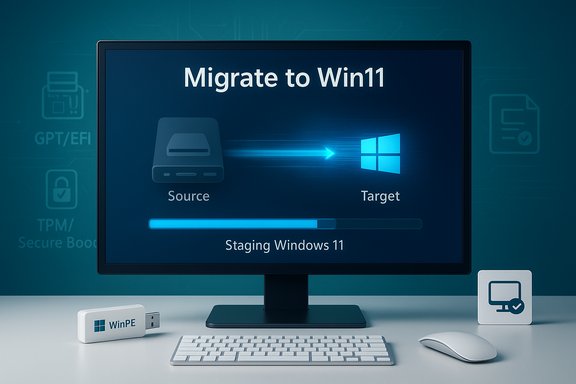
EaseUS’ Disk Copy 6.9.0 introduces a single‑wizard “Migrate to Win11” workflow that promises to clone a system drive to a new disk and upgrade that clone to Windows 11 in one automated sequence — including built‑in logic to bypass common Windows 11 hardware checks such as TPM and Secure Boot where required.
The Windows 10 end‑of‑support date and the stricter hardware gates in Windows 11 forced many users and small IT teams into a short, practical problem: how to preserve applications, settings and data while moving a system to new storage or new hardware and meeting (or working around) Windows 11 requirements. EaseUS has long marketed a family of imaging and migration utilities — Todo Backup, Partition Master and Todo PCTrans — that, when combined, provide the traditional image‑first, prepare‑disk, migrate sequence. Disk Copy 6.9.0 folds those steps into one focused cloning product and adds a one‑step Windows 11 migration option as a core feature.
This update is positioned as a convenience for consumers, enthusiasts and small IT shops that want to replace an aging HDD with a larger HDD/SSD, or move a Windows 10 installation to a new drive while also performing the OS upgrade without reinstalling apps and reconfiguring settings.
However, there are clear, non‑negotiable caveats: bypassing Windows 11 hardware checks creates long‑term update and security implications; partition and firmware operations remain fragile; and vendor claims about universal success are inherently hard to validate without broad, independent testing. The only reliable path to success is disciplined preparation: verified images, rescue media, pilot testing, license inventory and staged rollouts.
Source: digitalmore.co EaseUS Disk Copy 6.9.0 Adds "Migrate to… | Digital More
Source: Laotian Times EaseUS Disk Copy 6.9.0 Adds "Migrate to Win11" - Upgrade and Clone in One Step - Laotian Times
 Background / Overview
The Windows 10 end‑of‑support date and the stricter hardware gates in Windows 11 forced many users and small IT teams into a short, practical problem: how to preserve applications, settings and data while moving a system to new storage or new hardware and meeting (or working around) Windows 11 requirements. EaseUS has long marketed a family of imaging and migration utilities — Todo Backup, Partition Master and Todo PCTrans — that, when combined, provide the traditional image‑first, prepare‑disk, migrate sequence. Disk Copy 6.9.0 folds those steps into one focused cloning product and adds a one‑step Windows 11 migration option as a core feature.This update is positioned as a convenience for consumers, enthusiasts and small IT shops that want to replace an aging HDD with a larger HDD/SSD, or move a Windows 10 installation to a new drive while also performing the OS upgrade without reinstalling apps and reconfiguring settings.
What’s new in EaseUS Disk Copy 6.9.0
The headline feature: “Migrate to Win11”
- A single wizard that selects a target disk, clones system partitions, downloads Windows 11 installation payloads, and triggers an in‑place upgrade on the target drive during the reboot/install phase.
- Option to exclude temporary files and caches automatically so the cloned image is leaner and faster to transfer.
- The tool claims to keep the original source disk unchanged — a read‑only source policy during migration to preserve rollback options.
Compatibility bypass and automated prep
- EaseUS documents that Disk Copy will automatically apply compatibility workarounds when it detects blockers such as missing TPM 2.0, disabled Secure Boot, or processor generation checks, enabling the Windows 11 setup to proceed on hardware that originally failed Microsoft’s eligibility checks.
- The product includes partition layout checks and will prepare the target disk with appropriate EFI/Recovery partitions and GPT layout when required for UEFI boot.
Performance and reliability enhancements
- Multithreaded read/write engine, 4K sector alignment for SSDs, and smarter error recovery during clone operations are listed as part of the 6.9.0 engine improvements to reduce clone time and increase success rates on modern drives.
How the “Migrate to Win11” flow works (technical breakdown)
At a technical level the workflow combines established, well‑known operations; what EaseUS advertises is an automated orchestration of them:- Create a verified clone of the system partitions on the target disk (sector‑by‑sector or intelligent file copy depending on options).
- Ensure the target disk layout is UEFI/GPT ready — adding an EFI system partition and recovery partitions if necessary, or converting MBR→GPT when prerequisites are met.
- Download or stage Windows 11 installation media and trigger the installer on the next boot into the target environment.
- Apply compatibility bypass modifications so the Windows setup proceeds where official checks would otherwise halt the process.
- After installation, automatically expand partitions, reapply drivers and finalize user settings so the target boots as Windows 11.
Strengths and practical benefits
Consolidates a multi‑step migration into a single workflow
For hobbyists and small IT teams without formal migration playbooks, the most tangible benefit is simplicity: imaging, disk prep and OS upgrade traditionally required at least two or three different utilities and manual verification steps. Disk Copy 6.9.0 packages these into a guided wizard that reduces operator friction.Safer rollback options when used correctly
EaseUS emphasizes keeping the source disk untouched and creating verified images and bootable WinPE rescue media before performing risky operations such as MBR→GPT conversion. When teams follow these best practices the likelihood of a recoverable failure state increases significantly.Optimizations for modern SSD workflows
4K alignment, multithreaded I/O and targeted exclusion of non‑essential files reduce the time to clone and lower the chance of encountering transient I/O errors on newer NVMe/SSD platforms. These improvements are meaningful for users migrating to smaller maintenance windows.Practical for common real‑world scenarios
- Migrating from older HDDs to SSDs while upgrading to Windows 11.
- Moving a Windows 10 image to a new machine’s drive and installing Windows 11 with minimal app reinstallation.
- Small businesses that need a guided, lower‑skill‑bar migration path.
Real risks and important caveats
1. Unsupported hardware equals potential update and support restrictions
Installing Windows 11 on hardware that Microsoft considers unsupported remains a policy and lifecycle problem. Microsoft does not guarantee that cumulative updates, security updates or feature updates will be delivered reliably to machines that bypass TPM/Secure Boot/CPU checks, and such systems may be excluded from official support paths. This is a practical, not theoretical, limitation.2. Bypassing checks increases security and maintenance exposure
The market provides multiple documented ways to bypass Windows 11 checks (registry LabConfig tweaks, Rufus’ extended installer options, and customized media). While technically feasible, bypassing TPM or Secure Boot reduces platform integrity protections and can increase exposure to boot‑level attacks, firmware exploits and certain classes of ransomware. Independent coverage warns that such workarounds carry trade‑offs and should be treated as temporary or last‑resort measures.3. Partition and boot fragility remains a major failure mode
Converting partition layouts (MBR→GPT), toggling firmware from Legacy/BIOS to UEFI, or moving boot partitions can render systems unbootable if any step fails or if the machine’s firmware has quirks. Even “non‑destructive” conversions depend on layout simplicity and the absence of exotic setups (dynamic disks, OEM recovery partitions, BitLocker encryption). A verified image and tested WinPE rescue media are mandatory.4. Licensing, DRM and driver reactivation issues
Automated migration tools can preserve many applications, but machine‑tied licenses and DRM often require reactivation on the target hardware. Kernel drivers and hardware‑specific components may need manual reinstallation or updates. Plan for license keys and vendor support calls after migrating.5. Vendor product quality, upsells and support variability
Community reports about EaseUS and similar vendors show a mix of successful migrations and complaints: trial limitations that block full workflows, aggressive upsell prompts, or edge‑case support scenarios where vendor guidance is slow. Where mission‑critical systems are at stake, evaluate support SLAs and consider professional services.6. Unverifiable large‑scale reliability claims
EaseUS can demonstrate the workflow in lab environments and on many combinations of hardware. However, claims about consistent success across “every OEM, firmware and drive combination” are effectively untestable outside of large‑scale independent audits. Treat cross‑vendor success rate claims as marketing until validated by pilot testing in your specific environment.Cross‑checking key claims (vendor vs independent reporting)
EaseUS’ official documentation explicitly describes the “Migrate to Win11” flow — the product pages show the step sequence and note that hardware checks may be bypassed during the process. That vendor description is the definitive claim of capability. Independent technology outlets and community guides confirm that bypass methods exist (registry edits, Rufus’ installer options, and other modified media), and they uniformly caution about the trade‑offs: unsupported hardware may lose update eligibility and be exposed to security and compatibility risks. Major outlets including Windows Central and Tom’s Hardware have published step‑by‑step guides and warnings describing these techniques and their potential consequences. Taken together, vendor claims about functionality are plausible and demonstrable in many cases; the open question is how reliably the tool performs across heterogeneous firmware and driver ecosystems — a question that only careful pilot testing and rollback planning can answer.Practical migration checklist — prioritized and actionable
The following is a concise, practical checklist adapted from both EaseUS guidance and independent migration playbooks. These steps prioritize safety and rollback:- Inventory & triage
- Run Microsoft PC Health Check on every Windows 10 device and record blockers (TPM, Secure Boot, CPU). Tag mission‑critical machines for a conservative migration path.
- Create verified images
- Use EaseUS Todo Backup or an equivalent imager to produce a full system image. Immediately verify the image by mounting it and restoring a sample file, or run a bare‑metal restore to a spare machine/VM. Keep one offline copy.
- Export keys & prepare rescue media
- Export product keys for Windows, Office, and critical apps. Suspend BitLocker and export recovery keys. Build a WinPE rescue USB and confirm it boots on the target firmware.
- Pilot the EaseUS flow
- Test “Migrate to Win11” on a non‑critical machine that approximates production hardware. Validate that the resulting Windows 11 system boots, drivers install, apps activate, and Windows Update functions. Keep the verified image as a rollback.
- Scale with care
- For fleets, migrate in small batches and keep rollback images accessible. Treat any failure during pilot as a lesson to refine documentation and preflight checks.
- Post‑migration validation
- Reinstall or update drivers, re‑activate BitLocker, confirm EDR/AV and Windows Update behavior, and keep the old image for at least two weeks for safety.
A step‑by‑step example: Using “Migrate to Win11” safely
- Prepare: connect target disk (internal slot or USB‑to‑SATA), make a verified image of the source, export keys and disable BitLocker.
- In Disk Copy: choose “Migrate to Win11”, select the target disk and confirm Windows 11 is the desired OS. The tool will download the Windows 11 payload and begin cloning.
- Reboot when prompted; allow Windows setup to run on the target. Disk Copy will attempt compatibility workarounds if the installer blocks the upgrade.
- After install: check boot order, re‑enable BitLocker after confirming stable boot, install missing drivers and update software licenses. Test Windows Update and security tools for at least one full update cycle.
Alternatives and complementary tools
No single tool is a silver bullet. Consider mixing and matching to reduce vendor‑specific risk:- Macrium Reflect — widely used for enterprise‑grade bare‑metal imaging and trusted restores.
- Acronis True Image — strong cloud and anti‑ransomware features.
- Rufus + customized ISO workflows — useful when you need fine control over install media and bypass options.
- Native Microsoft tools (MBR2GPT, Media Creation Tool) — useful for deterministic steps that you want to script or audit.
Enterprise and compliance considerations
- Regulatory and compliance teams should treat any bypass of hardware security features as a policy decision, not a technical trick. Devices that no longer meet baseline security requirements may violate internal or external controls.
- For managed fleets, pilot and acceptance criteria must include full update validation (quality updates and monthly cumulative updates) rather than just initial boot success. Microsoft’s stance on unsupported hardware and updates is explicit: bypassing checks can put a device outside guaranteed update paths.
- For sensitive environments, running Windows 10 as a VM on supported host hardware may be a safer option than bypassing hardware gates permanently.
Final assessment — measured endorsement with caveats
EaseUS Disk Copy 6.9.0’s “Migrate to Win11” is a pragmatic response to a real market need: many users want to swap drives, preserve their environment, and move to Windows 11 without reinstalling everything. The technical approach is familiar to experienced admins, but EaseUS’ value—if it matches the marketing—is the automation of that sequence into a GUI‑driven, safer‑by‑default flow that minimizes human error in routine scenarios.However, there are clear, non‑negotiable caveats: bypassing Windows 11 hardware checks creates long‑term update and security implications; partition and firmware operations remain fragile; and vendor claims about universal success are inherently hard to validate without broad, independent testing. The only reliable path to success is disciplined preparation: verified images, rescue media, pilot testing, license inventory and staged rollouts.
Bottom line: recommended approach for home users and small IT teams
- Use Disk Copy 6.9.0’s “Migrate to Win11” as a tool in a validated process, not as a shortcut that replaces backups and testing.
- Create a verified image and test restore before touching partitions or firmware.
- Pilot on a non‑critical machine and validate updates, drivers and licensing.
- If compliance or supportability matters, prefer hardware replacement or official upgrade paths rather than a permanent bypass of security gates.
Source: digitalmore.co EaseUS Disk Copy 6.9.0 Adds "Migrate to… | Digital More
Source: Laotian Times EaseUS Disk Copy 6.9.0 Adds "Migrate to Win11" - Upgrade and Clone in One Step - Laotian Times