Edge 144 Update Lets You Hide Copilot Icon and Brings Enterprise Controls

  • Thread Author
Microsoft Edge’s latest Stable update finally hands users a simple, supported way to remove the Copilot toolbar icon — but that small win sits inside a much larger, messy landscape of WebGL backend changes, new enterprise controls, and ongoing questions about how Microsoft is reshaping Edge around Copilot and Microsoft 365 integrations.

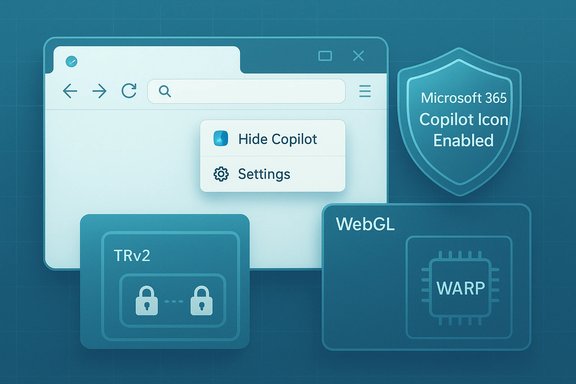
Stylized Edge browser window showing Copilot and security icons.Background​

Microsoft is rolling Copilot deeper into Windows and Edge while simultaneously adding admin controls that let organizations limit AI surfaces. The Stable channel for Edge was recently updated to version 144.0.3719.82, and the release bundles a mix of bug fixes, UI adjustments and policy hooks intended for enterprise management. Key items in this release include an opt-out for the Copilot toolbar icon, a change in the WebGL software backend on headless or GPU‑less Windows systems, policy updates for admin control, and new tenant‑level restrictions designed to prevent cross‑tenant data leakage. This article summarizes what changed, verifies the most important technical and policy claims against Microsoft documentation, and offers a critical look at the practical and security implications for everyday users and enterprise admins.

What shipped in Edge 144.0.3719.82 — concise overview​

  • Hide Copilot toolbar icon: Users can now right‑click the Copilot icon and choose Hide Copilot, which opens Settings to toggle icon visibility. Administrators can lock visibility using the Microsoft365CopilotChatIconEnabled policy.
  • WebGL backend change: On Windows systems without a physical GPU (commonly headless servers and virtual machines), Edge now uses the Windows Advanced Rasterization Platform (WARP) rasterizer instead of SwiftShader. SwiftShader is being deprecated; a temporary policy (EnableUnsafeSwiftShader) can restore it briefly but is scheduled for removal.
  • Tenant Restrictions v2 (TRv2): New enforcement guards in Edge for Business intended to block unauthorized Microsoft 365 tenants at the browser level, reducing the risk of inadvertent data leakage across tenant boundaries. TRv2 is part of a cloud‑centric strategy using Microsoft Entra controls and Global Secure Access.
  • Policy and UX changes: Several naming and setting updates (efficiency mode → energy saver, efficiency mode for PC gaming → PC gaming boost), improved Autofill prompts for addresses, and address‑bar contextual nudges that summon Microsoft 365 Copilot Chat summaries for open pages.
Each of these bullets is more than cosmetic. The Copilot hide control is a UX convenience and a response to user frustration; the WARP/SwiftShader change affects WebGL compatibility and security posture for headless/browser automation scenarios; TRv2 and the Copilot icon policy are explicit attempts to give IT teams boundaries and enforcement tools.

Background: why this matters now​

Edge is no longer just a Chromium browser skin — Microsoft has been steadily integrating Copilot as a first‑class assistant across Windows and Microsoft 365. That integration is visible in Edge via Copilot Mode, the sidebar, address‑bar nudges, and new tab experiments that center AI. The result: Copilot is more discoverable but also more intrusive, depending on your point of view.
  • For end users, a visible Copilot icon is a constant nudge toward AI features. Some users welcome that; others consider it clutter or “AI slop.” Adding a simple hide option reduces visual noise without requiring hacks or third‑party tools.
  • For enterprises, a visible AI affordance can be a compliance hazard. Admin knobs like Microsoft365CopilotChatIconEnabled let IT decide whether employees see the toolbar entry at all, removing inconsistent experiences across a managed fleet.
  • For engineers and automation maintainers, removing SwiftShader as a silent fallback affects headless testing, VM screenshots, and server‑side WebGL workloads. Microsoft’s recommended substitute is WARP on Windows; other platforms will require a physical GPU for WebGL. The temporary policy to re-enable SwiftShader is an escape hatch, not a long‑term solution.

How to hide Copilot in Edge — step‑by‑step (user and admin)​

For readers looking for the quick, supported way to remove the Copilot button, here’s what the release formalizes.

User steps (quick)​

  • Right‑click the Copilot icon in the Edge toolbar.
  • Choose Hide Copilot; this action opens Settings to the relevant toggle.
  • In Settings, toggle Show Copilot off to remove the toolbar button.
This UI flow is the supported path reported in the Stable channel notes and in hands‑on coverage of the update. If your toggle is greyed out, your profile may be managed by IT and the policy may be enforced.

Admin enforcement (Group Policy / MDM)​

  • Use the Microsoft365CopilotChatIconEnabled policy to control visibility centrally. The policy accepts a Boolean value, can be mandatory, and applies per Entra ID profile. Setting it to Enabled forces the icon to show; Disabled hides it; Not Configured leaves the toggle available to users. The ADMX path and registry keys are documented in Microsoft’s policy reference.
Practical admin checklist:
  • Evaluate whether Copilot toolbar visibility aligns with your training and change management plan.
  • If you enforce a policy, test the behavior across device types (Windows, macOS) and profile types (personal vs Entra).
  • Communicate the change to users — hiding the icon doesn’t necessarily remove all Copilot entry points (keyboard shortcuts, sidepane, address‑bar nudges).

WARP replaces SwiftShader for WebGL on GPU‑less Windows — implications and caveats​

Edge’s WebGL handling changed in this release: systems without a physical GPU will now use WARP instead of SwiftShader for WebGL workloads. Microsoft deprecated SwiftShader as an automatic fallback and enabled WARP by default starting in Edge 144. Why this technical shift matters:
  • Security: Microsoft explicitly calls SwiftShader unsupported due to security concerns. Relying on WARP reduces reliance on an unsupported component. If you are running headless tests or VM instances, plan for the change — WebGL contexts may behave differently.
  • Compatibility: On non‑Windows platforms, the change means a physical GPU is required for WebGL in Edge going forward. Automation frameworks that relied on SwiftShader must be reworked or run on Windows with WARP.
  • Temporary mitigation: Administrators can enable SwiftShader with the EnableUnsafeSwiftShader policy to postpone the deprecation, but Microsoft warns this is temporary and does not guarantee security for environments where it’s enabled. Treat this as a short‑term migration tool only.
Action items for sysadmins and CI owners:
  • Audit any headless test runners and VM images for WebGL reliance.
  • For cross‑platform automation, prefer physical GPU instances or update tests to handle WebGL context failures.
  • Apply the EnableUnsafeSwiftShader policy only as a stopgap while you migrate; schedule a plan to remove dependence on SwiftShader.

Tenant Restrictions v2: browser‑side enforcement for cross‑tenant safety​

Edge 144 surfaces new enforcement to block access from unauthorized Microsoft 365 tenants directly at the browser level. This capability is part of a broader Tenant Restrictions v2 (TRv2) program that Microsoft is rolling out in Entra and Global Secure Access. TRv2 lets organizations define which external tenants are allowed and blocks access where not permitted, helping stop accidental or malicious cross‑tenant data exposure. Notable properties and limitations:
  • TRv2 offers both authentication plane and data plane protections, depending on how it’s deployed. When paired with Global Secure Access, policies can be applied consistently across browsers and devices.
  • There are known limitations: TRv2 doesn’t automatically cover every cross‑cloud scenario and requires careful configuration for macOS Platform SSO and proxy scenarios. Administrators should read the TRv2 guidance and test before broad enforcement.
Practical takeaways:
  • Treat TRv2 as a powerful compliance control — but one that needs testing. Turn it on in a pilot group, validate admin portal access flows (some admin pages may require feature flags), and confirm SSO behavior on macOS and other edge cases.

Other notable feature and naming changes​

  • Performance settings renamed: Efficiency mode is now Energy saver; efficiency mode for PC gaming becomes PC gaming boost to better reflect intent. These are cosmetic but reflect Microsoft’s attempt to make settings more understandable.
  • Autofill address prompts: Edge now prompts users whether to save an Address after filling a form, reducing accidental or unwanted stored entries. This is a small but welcome UX improvement for privacy‑conscious users.
  • Address‑bar Copilot nudges: Edge for Business can surface contextual nudges in the address bar to offer summaries of the open page via Microsoft 365 Copilot Chat. This feature aims to speed comprehension for heavy document or research workflows; admins can control its availability.
  • Desktop Visual Search: Quick send images to Bing Visual Search from the Edge Desktop Search Bar — image identification, text extraction/translation, and product discovery — currently a controlled rollout on Windows devices. Admins can toggle the capability with VisualSearchEnabled.

The big picture: strengths and real risks​

Strengths​

  • User control at last: Giving people a supported way to hide Copilot is an easy win for UX and reduces the need for third‑party debloat tools or registry hacks. That’s good design hygiene.
  • Admin policy coverage: Microsoft provides explicit policies like Microsoft365CopilotChatIconEnabled and EnableUnsafeSwiftShader, which give IT teams deterministic levers for managing Copilot surface area and WebGL fallbacks. Policies include ADMX/registry guidance, which is crucial for managed fleets.
  • Security‑minded WebGL move: Deprecating SwiftShader as an automatic fallback is aligned with reducing attack surface and improving consistency for GPU‑less environments.
  • More enterprise controls (TRv2): Browser‑level tenant enforcement is meaningful for organizations that need to tightly control cross‑tenant data flow.

Risks and weaknesses​

  • Feature churn and discoverability: Copilot is appearing in more places (sidebar, new tab, address bar). Short, surface‑level toggles help, but they don’t replace full, durable governance — especially for agentic features like Actions and Journeys. Users can be surprised by behavior unless Microsoft’s documentation and in‑UI explanations keep pace.
  • Policy confusion across versions: Multiple flags and legacy settings from earlier Edge releases still exist. Admins must audit and reconcile overlapping policies or risk inconsistent behavior across versions and platforms.
  • TRv2 complexity: Tenant Restrictions v2 is powerful but not frictionless. Known limitations around macOS Platform SSO, proxy signaling, and cross‑cloud scenarios require careful validation and may break some admin workflows if enabled without testing.
  • Collections and user data questions: There are reports and news stories indicating Microsoft is retiring Collections. Coverage suggests users should export Collections data because images and notes may not migrate cleanly to Favorites. The status and timeline of Collections’ retirement are subject to confirmation and vary between channels and reports; treat the claim with caution and verify in your Edge instance.

Practical recommendations​

For everyday users​

  • If Copilot’s toolbar icon is cluttering your workflow, use the right‑click > Hide Copilot flow first — it’s supported and reversible. If the option is disabled, ask your IT admin whether a policy is enforced.
  • If you rely on headless WebGL tests or run Edge in VMs, verify whether WARP meets your needs and plan for potential incompatibilities on non‑Windows platforms. Use the temporary SwiftShader policy only to buy migration time.
  • Regularly back up Collections or any Edge data you depend on, and export it if you see deprecation notices in Dev or Canary. The migration story for Collections (links, notes, images) may be lossy depending on the export path.

For IT and security teams​

  • Add Microsoft365CopilotChatIconEnabled to your policy baseline if you need predictable UX across Entra ID profiles. Test behavior across Windows, macOS and Linux builds and document the user experience for help desk staff.
  • Plan TRv2 rollouts slowly: pilot with a small set of users, validate admin console access (some admin pages may need feature flags), and confirm Platform SSO behavior on macOS. Use Global Secure Access for consistent enforcement where needed.
  • For CI and automation teams, migrate away from SwiftShader dependence. Update VM and container images to either include WARP (Windows hosts) or test on physical GPU instances for non‑Windows automation.
  • Keep a policy audit: Edge’s landscape includes many evolving flags, ADMX changes and new policies. Build a short audit script that enumerates current policy keys for a sample device to detect collisions or unintended defaults.

What to watch next​

  • Microsoft’s rollout cadence: Edge and Copilot features are frequently staged, and timing varies by channel and tenant. Admins should monitor the Microsoft 365 Message Center and Edge release notes for tenant‑specific windows.
  • Collections fate and migrations: If you use Collections heavily, export and archive your data immediately after seeing deprecation prompts. Coverage now points to a formal phase‑out, but the exact timing and data migration guarantees remain in flux.
  • The maturation of Copilot governance: Microsoft is shipping both surface controls and admin policies, but the long‑term test is whether enterprises can safely adopt Copilot‑driven workflows without surfacing new data leakage paths. Tenant restrictions, Page Context permissions and model‑training opt‑outs are all parts of that story.

Conclusion​

Edge 144.0.3719.82 is a pragmatic update: it gives users a supported way to hide the Copilot icon and gives admins policy control, while also making larger, technically significant changes to WebGL behavior and tenant enforcement. Those changes are meaningful — WARP replaces SwiftShader as the default software rasterizer on GPU‑less Windows and Tenant Restrictions v2 brings browser‑level controls for tenant boundaries — but they also raise migration, testing, and education challenges for both consumers and enterprises. The release surfaces the broader tension in Microsoft’s product strategy: make AI features discoverable and useful, but provide the transparency and controls users and IT teams need to manage risk. The hide‑Copilot UI is a good, small step toward choice and cleanliness. The larger question is whether Microsoft’s policy and governance features will keep pace with the pace of feature rollouts and the diversity of enterprise deployment scenarios. Evidence so far shows Microsoft is adding the necessary policy knobs — but the work of communicating changes, testing edge cases, and migrating legacy automation remains with administrators and power users. If you manage devices or build automation around Edge, verify these changes in your environment and treat the SwiftShader policy as temporary. If you’re an everyday user frustrated by AI clutter, the supported hide option removes the immediate annoyance — but be mindful that Copilot will continue to appear in other areas unless IT policy or deeper settings are adjusted.
Source: Windows Central Tired of Copilot clutter? Microsoft Edge’s latest update gives you control
 

Microsoft Edge’s recent Stable-channel update finally gives users a supported, one‑click way to remove the persistent Copilot toolbar icon — but that small convenience arrives inside a much larger release that changes Edge’s WebGL behavior, strengthens tenant‑level controls, and adds admin policies that make Copilot visibility manageable across fleets.

Blue infographic showing a browser window with Copilot options, security shields, and WebGL/WARP icons.Background​

Microsoft has been steadily weaving Copilot into Windows, Microsoft 365, and Edge to make the assistant a first‑class feature across the platform. That strategy improved discoverability and introduced productivity features, but it also produced growing frustration among users who prize a minimal UI and among administrators who must manage compliance and data‑flow risks. The latest Edge release continues both tracks: more Copilot surfaces in the product, and clearer controls for users and IT to limit or hide those surfaces.
The update landed in Edge Stable as version 144.0.3719.82 (Stable channel), bundling a mix of UI tweaks, enterprise policies, and a technical change to the WebGL software rasterizer on GPU‑less Windows systems. Those changes are modest individually, but together they materially affect usability, automation, and enterprise security posture.

What shipped in Edge 144 — concise overview​

The release includes several items that matter to everyday users, developers and IT teams:
  • Hide Copilot toolbar icon (user + admin controls): Users can now right‑click the Copilot icon and choose Hide Copilot, which opens Settings to toggle visibility; organizations can enforce icon visibility via the Microsoft365CopilotChatIconEnabled policy.
  • WebGL backend change on Windows without GPU: Edge now prefers the Windows Advanced Rasterization Platform (WARP) instead of SwiftShader on Windows systems that lack a physical GPU (commonly headless servers and many virtual machines). SwiftShader is being deprecated as a silent fallback; a temporary policy (EnableUnsafeSwiftShader) can restore it briefly but is not a long‑term solution.
  • Tenant Restrictions v2 (TRv2): New enforcement in Edge for Business designed to block unauthorized Microsoft 365 tenants at the browser level and reduce inadvertent cross‑tenant data leakage. TRv2 integrates with Microsoft Entra controls and enterprise secure access patterns.
  • UX and policy renames / small behavior updates: Several settings were renamed (e.g., efficiency modeenergy saver) and Edge added contextual address‑bar nudges that can summon Microsoft 365 Copilot Chat summaries for open pages. These appear small but reflect Microsoft’s broader Copilot‑first design direction.
These items are more than cosmetic: they aim to balance aggressive Copilot exposure with the user and admin controls that mitigate annoyance and compliance risk.

Hiding Copilot in Edge: what changed for users​

The simple, supported path​

Edge now provides a supported UI path to remove the Copilot toolbar button:
  • Right‑click the Copilot icon in the Edge toolbar.
  • Choose Hide Copilot; Edge opens Settings at the appropriate control.
  • Toggle Show Copilot off to remove the toolbar button.
If the setting is grayed out, the profile is likely managed and the visibility is controlled by policy. This straightforward flow replaces brittle workarounds and third‑party tweaks that users previously needed to remove the button.

Quick GUI alternatives (taskbar and sidebar)​

  • In Windows, hiding the Copilot taskbar item still works via Settings → Personalization → Taskbar → Copilot toggle — useful when the annoyance is the taskbar icon rather than the Edge toolbar entry.
  • In Edge, the Sidebar settings also provide Show Copilot toggles per profile; turning the sidebar integration off removes another common Copilot entry point.
These UI approaches are reversible and low risk—recommended first steps for users who want to reduce surface noise without touching policy or power tools.

Admin controls: Microsoft365CopilotChatIconEnabled and policy enforcement​

What the policy does​

Microsoft added a policy, Microsoft365CopilotChatIconEnabled, which lets administrators control whether the Copilot toolbar icon appears for managed profiles. The policy is Boolean:
  • Enabled — icon is forced visible.
  • Disabled — icon is hidden.
  • Not configured — users retain the toggle.
This is an important addition because it moves icon visibility from “user only” control into a centrally enforceable setting, helping IT maintain consistent user experiences in business environments.

Management vectors​

Admins can manage visibility via:
  • Group Policy (ADMX templates) for domain‑joined devices.
  • MDM/Intune configuration for cloud‑managed endpoints.
  • Registry mappings that correspond to the ADMX settings (SOFTWARE\Policies\Microsoft\Edge or similar paths).
Deployments should be piloted on a small group because the user experience differs by platform and profile type (personal vs Entra‑managed). Also, hiding the icon does not necessarily block all Copilot launch paths (protocol handlers, Edge sidebar fallbacks), so layered controls remain necessary for durable enforcement.

WebGL backend change: WARP replaces SwiftShader on GPU‑less Windows​

Two technical changes in this release matter deeply to developers, automation engineers and cloud operators:
  • Edge on Windows systems that lack a physical GPU will use WARP as the WebGL software rasterizer.
  • SwiftShader, the previous software fallback commonly used for headless VMs and automation, is being deprecated as an automatic fallback. A temporary policy, EnableUnsafeSwiftShader, can re‑enable it for specific environments while teams migrate, but Microsoft warns that it is an interim escape hatch.

Why this matters​

  • Security: SwiftShader has been flagged as unsupported in this context; moving to WARP reduces dependence on an unsupported component and improves alignment with Microsoft’s security posture for Windows.
  • Compatibility and automation: Many CI pipelines, screenshot services, and headless browser stacks running in Linux VMs or GPU‑less Windows environments relied on SwiftShader to run WebGL content. Expect different rendering behavior and possible test breakages until automation stacks are updated or run on instances with a GPU.
  • Migration options: On Windows, WARP is the supported substitute; on non‑Windows platforms, teams should provision VMs with GPU capability or update test suites to avoid relying on the deprecated fallback. The temporary policy may buy time but should not be treated as a permanent fix.
Admins and CI owners should audit WebGL usage across headless tests and virtual desktops and plan migration paths now.

Tenant Restrictions v2 (TRv2): blocking unauthorized tenants​

Edge for Business gains stronger enforcement to prevent the browser from interacting with unauthorized Microsoft 365 tenants that could otherwise lead to cross‑tenant data leakage. TRv2 aims to:
  • Enforce tenant boundaries at the browser level.
  • Integrate with Microsoft Entra and cloud secure access controls.
  • Reduce accidental sign‑ins or cross‑tenant session leakage that can expose documents or context to the wrong tenant.
This change reflects Microsoft’s cloud‑first approach to tenant isolation: rather than relying solely on endpoint controls, the browser itself becomes a guardrail for tenant‑aware scenarios. For security teams, TRv2 is a useful addition — but it should be validated against corporate identity flows and cross‑tenant collaboration patterns before broad rollout.

Practical security and privacy analysis​

Strengths and benefits​

  • Real user control: The hide icon UX removes a frequent irritation without risky hacks, improving user satisfaction and reducing social engineering surfaces created by visible AI prompts.
  • Admin enforcement: Microsoft365CopilotChatIconEnabled lets administrators create consistent experiences across managed fleets, which is essential for compliance and helpdesk predictability.
  • Reduced reliance on unsafe components: Replacing SwiftShader with WARP on Windows aligns the client with supported, maintained rasterization infrastructure, tightening the security posture for headless workloads on Windows.
  • Tenant‑level protections: TRv2 adds a browser‑level barrier against accidental cross‑tenant exfiltration — a practical improvement for multi‑tenant organizations.

Risks and caveats​

  • Hiding ≠ disabling: Removing the toolbar icon or taskbar button reduces visibility but does not necessarily eliminate all Copilot invocation vectors. Copilot can still appear via keyboard shortcuts, protocol handlers (e.g., ms‑copilot:), Edge sidebar fallbacks, or deep links. Administrators who require durable removal must layer policies, AppLocker/WDAC rules, or tenant controls.
  • Update churn and packaging changes: Microsoft frequently modifies how Copilot is packaged and delivered. Registry edits or community “hacks” that work today may be undone or broken by future updates. Enterprise controls should favor supported policies and layered enforcement.
  • Automation breakage from rasterizer changes: The WARP/SwiftShader switch can cause visual differences in WebGL rendering and headless tests — expect intermittently failing visual checks or behavioral differences until CI environments are updated. Using the temporary EnableUnsafeSwiftShader policy is a stopgap, not a long‑term fix.
  • Policy coverage gaps: The TurnOffWindowsCopilot policy and the Copilot icon policy are essential but may not cover every future Copilot surface. Regular verification is necessary after major Windows and Edge updates.
Where claims about permanent removal or “one‑click total disable” appear online, treat them with caution: most reliable paths require layering supported policies with AppLocker/MDM and tenant controls to be durable.

Recommended admin playbook — practical steps​

  • Inventory and impact analysis
  • Audit how Copilot surfaces appear in your environment: Edge toolbar, Edge sidebar, taskbar, protocol handlers, and keyboard shortcuts. Test on multiple Windows builds and macOS where Edge is used.
  • Apply supported policies as baseline
  • Use Microsoft365CopilotChatIconEnabled to control toolbar visibility.
  • Use TurnOffWindowsCopilot GPO/MDM (SOFTWARE\Policies\Microsoft\Windows\WindowsCopilot TurnOffWindowsCopilot = 1) to remove common launch paths. These are the supported first steps and should be enforced through ADMX or Intune.
  • Layer enforcement for durability
  • Deploy AppLocker or WDAC rules to block Copilot package families or executable paths if you must prevent re‑provisioning.
  • Optionally block ms‑copilot: and other URI handlers at the system or network layer where needed. Test rules to avoid collateral breakage.
  • Address Edge fallbacks
  • Disable Sidebar Copilot via Edge administrative templates and confirm that Edge cannot open Copilot via deep links or address‑bar nudges.
  • CI and automation adjustments
  • For headless browser automation, evaluate whether your CI runs on Windows with WARP or on instances with physical GPU resources.
  • If you temporarily need SwiftShader, apply EnableUnsafeSwiftShader only as a stopgap and plan migration.
  • Communicate and train
  • Announce changes to pilot groups and helpdesk teams. Hiding the icon may confuse users who expect Copilot; provide reactivation instructions and a short FAQ.
  • Monitor updates
  • Maintain a test device for the same Windows servicing channel as your fleet to detect re‑introductions or packaging changes after feature updates. Keep a playbook for reapplying controls.
This layered approach balances Microsoft’s supported controls with defensive measures that maintain predictability and compliance across a fleet.

Guidance for end users and power users​

  • Start with safe, reversible steps: Settings → Personalization → Taskbar → toggle Copilot off, and in Edge right‑click the Copilot icon → Hide Copilot → toggle Show Copilot off. These actions solve most day‑to‑day annoyances.
  • If you want stronger local effects:
  • Uninstall the Copilot app via Settings → Apps → Installed apps if the Uninstall option is available.
  • Use PowerShell (Get‑AppxPackage / Remove‑AppxPackage) only after confirming package names and creating a system restore point. Power user removal is effective but brittle across updates.
  • Avoid unsupported deep system hacks that remove system files or alter system packages; they can break updates and supportability.
  • If a Copilot key on your keyboard triggers the assistant, remap it with Microsoft PowerToys Keyboard Manager for a reversible, low‑risk change.

What to watch next (risk indicators and red flags)​

  • Policy and ADMX changes: Any shift in the ADMX templates for Copilot or deprecation notices on the TurnOffWindowsCopilot policy. These will affect management plans and require action.
  • Edge packaging and fallback behavior: If Microsoft changes how Copilot is invoked (new protocol handlers, additional fallback URIs, or deeper Windows integration), previously adequate controls may be insufficient. Regularly test after feature updates.
  • Automation compatibility issues: Unexpected differences in WebGL rendering for headless tests after the WARP migration can cause test regressions; plan for visual test recalibration or GPU‑backed runners.
  • Tenant provisioning behavior: Watch for tenant provisioning flows that silently re‑deploy Copilot experiences via Microsoft 365 provisioning — tenant controls and AppLocker remain the durable mitigation strategy.

Conclusion​

The latest Edge Stable update gives everyday users a simple, supported way to hide the Copilot toolbar icon and hands administrators a clear policy knob to enforce visibility across managed profiles — a welcome parity between discoverability and control. But the update is also a reminder that UI tweaks alone don’t solve the underlying complexity of a platform increasingly designed around an AI assistant: other Copilot entry points, packaging churn, and platform‑level changes (notably the WARP vs SwiftShader shift and Tenant Restrictions v2) mean that lasting control requires layered, tested policies and operational readiness.
For most users, the new right‑click → Hide Copilot flow is a practical, low‑risk win. For administrators, this release warrants immediate inventory and a staged enforcement plan: apply supported policies, add AppLocker/MDM protections where necessary, test CI environments for WebGL changes, and maintain a test device to detect reintroductions after updates. Treat the temporary SwiftShader policy as an emergency bridge, not a migration endpoint.
In short: the update makes it easier to hide Copilot visually, but it does not make Copilot disappear from the platform. Durable control still requires policy discipline, layered enforcement and ongoing vigilance.

Source: Windows Report https://windowsreport.com/latest-microsoft-edge-update-makes-it-easier-to-hide-copilot/
 

Microsoft’s latest Edge Stable update is a small, late-stage concession wrapped inside a much larger policy and product play: with Edge 144 (Stable channel build 144.0.3719.82) users can finally right‑click the Copilot toolbar icon and choose “Hide Copilot,” removing the visible AI button from the browser UI — while Microsoft simultaneously deepens Copilot’s integration into the browser and Surface/Windows stacks and expands admin controls that let enterprises manage, limit, or enforce Copilot visibility. This is not a reversal so much as a calibrated compromise: easier local hiding for individuals, stronger tenant controls for IT, and continued default‑on placement and contextual nudges designed to preserve engagement metrics and enterprise adoption.

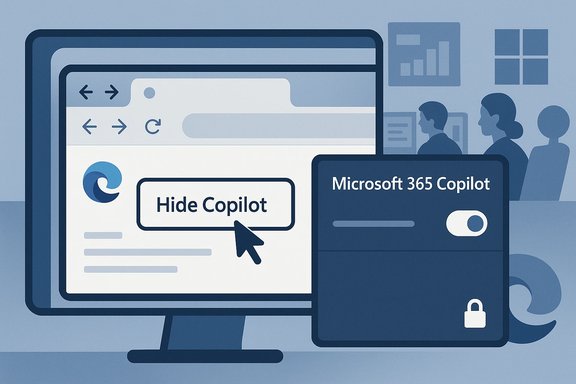
A computer screen shows a 'Hide Copilot' option and a Microsoft 365 Copilot toggle.Background / Overview​

Microsoft has been threading Copilot — a family of AI experiences including the consumer Copilot app, Microsoft 365 Copilot, and multiple shell and browser entry points — into Windows, Office, Edge, and the company’s cloud identity fabric for more than two years. That strategy has delivered capabilities many enterprises find compelling, while provoking vocal backlash from users who see an “AI everywhere” posture as intrusive or unwanted. The Edge 144 update arrives against that context: months of visible user frustration and organized community reactions forced Microsoft to make the Copilot toolbar affordance easier to hide, even while preserving the agentic, default‑on model for mainstream and enterprise customers.
This article explains what changed in Edge 144, how the new controls work for users and administrators, why the concession is partial rather than total, the accompanying platform and security updates you need to know about, and the wider strategic implications for Microsoft’s browser and Windows ecosystems.

What Edge 144 actually delivers​

The visible change: hide the toolbar icon​

  • Users can now right‑click the Copilot icon in the Edge toolbar and select Hide Copilot, which directs them to the Copilot/Sidebar settings where switching Show Copilot off will remove the toolbar button from view. This is the supported, UI‑driven path Microsoft has documented and pushed in the Stable channel release.
  • For many end users this is the single most tangible improvement: it reduces visual clutter and makes Copilot less immediately visible. It is a UX concession rather than a technical opt‑out — hiding the icon reduces friction but does not necessarily disable Copilot’s deeper integrations (keyboard shortcuts, context prompts, or tenant‑side features).

The enterprise control: Microsoft365CopilotChatIconEnabled​

  • Administrators have a direct policy: Microsoft365CopilotChatIconEnabled. Set by tenant/MDM or Group Policy for Entra ID profiles, this policy controls whether the Microsoft 365 Copilot Chat icon appears in the Edge for Business toolbar. When configured it can force the icon to show, force it to be hidden, or leave the toggle to users. That makes the toolbar button a centrally manageable artifact for managed profiles.
  • The policy is the authoritative control for Edge for Business behavior and takes precedence over older sidebar visibility policies; it applies to Windows and macOS profiles on supported Edge builds. For admins who need a deterministic UI state across a fleet, this is the proper lever.

What hiding does — and does not — change​

  • Hiding the icon removes the toolbar affordance and lowers the chance of casual discovery, which is the primary complaint for many frustrated users. But it is not an uninstall, not a permanent ban, and not a blanket disabling of all Copilot interactions inside Edge or Windows. Other prompts, address‑bar nudges, sidepane features, and keyboard shortcuts may still surface AI capabilities unless other settings or policies are applied. End users on unmanaged Home devices can hide the icon; administrators can enforce visibility for managed profiles.

Why this is a partial retreat, not a rollback​

Microsoft’s playbook: default‑on, opt‑out path​

Microsoft has repeatedly chosen a pattern across multiple products: ship AI features enabled by default, monitor engagement, and then add graduated controls if backlash or regulatory pressure mounts. The company frames these as user choice additions, but the underlying product design still favors discovery and activation. Edge 144 fits that model: visibility is now easier to control locally, yet Copilot remains default in many managed and unmanaged installs unless changed. This approach preserves activation metrics and the enterprise sales narrative while giving critics something they can point to as responsiveness.

The mechanics ensure inertia works for Microsoft​

Hiding requires a deliberate user action (right‑click → Hide → toggle off) — most users won’t hunt through settings to make that change. Administrators can lock the state for managed users, but even then Microsoft preserves tenant‑level Copilot features and cloud‑side capabilities for customers who pay for Microsoft 365 Copilot. In short: the default remains powerful, the opt‑out exists but is mildly gated by awareness and enterprise policy.

The political dimension: community backlash and the “Microslop” meme​

Public criticism and organized user campaigns — including derisive nicknames and coordinated social pushes — amplified the optics of Microsoft’s aggressive AI push. Those reputational effects matter; they forced product teams to add visible local controls sooner than they may have planned. However, community anecdotes about nickname‑driven campaigns are inherently social and difficult to quantify; they should be treated as credible signals of sentiment rather than empirically measurable impacts on usage. Where possible Microsoft will treat that as PR and design feedback, but the product strategy itself is still driven by adoption metrics and enterprise revenue priorities. This social reaction is observable across forums and social platforms but precise impact on market share or revenue is hard to verify without Microsoft’s internal telemetry.

Deeper enterprise integration in the same release​

Edge 144 does more than add a hiding option — it expands controls and AI capabilities aimed squarely at business customers.

Contextual nudges and Copilot for Business​

  • Edge for Business now surfaces contextual nudges in the address bar that offer to summarize open pages using Microsoft 365 Copilot Chat. That’s an explicit product effort to make Copilot a productivity helper for knowledge workers and IT admins. These nudges increase feature discoverability for enterprise users and are likely to boost usage where Copilot subscriptions already exist.

Tenant Restrictions v2 and data‑boundary controls​

  • The release rolls out Tenant Restrictions v2 (TRv2) to help block unauthorized Microsoft 365 tenants from being used in Edge for Business, reducing cross‑tenant data leakage risk. TRv2 is part of a larger cloud‑centric enforcement posture that ties browser identity, cloud policy, and edge controls into a single governance model. For enterprises managing multiple tenants, TRv2 provides a meaningful additional control.

Admin enforcement vs. user hiding — a bifurcated strategy​

  • Microsoft’s dual strategy is clear: give individuals a way to hide a visible icon while giving enterprises robust policy hooks to keep Copilot available (or forced off) depending on corporate policy. That lets Microsoft defuse consumer backlash without abandoning the vision of AI‑infused workplace workflows that it can sell to enterprise customers.

Platform and security changes you should care about​

WARP replaces SwiftShader on headless/VM Windows systems​

  • Edge 144 switches software WebGL rendering for Windows systems without a physical GPU from SwiftShader to Windows Advanced Rasterization Platform (WARP). SwiftShader is being deprecated and WARP provides a Windows‑native rasterization path for headless servers and VMs. Administrators with automation or virtualization workloads should test this change — Microsoft provides a temporary policy (EnableUnsafeSwiftShader) for short‑term compatibility but marks it for removal. This shift reflects Microsoft leveraging Windows‑specific platform capabilities to optimize Edge on Windows.

Chromium security fixes (CVE‑2026‑0628 and related)​

  • Edge’s Stable channel builds incorporated upstream Chromium security updates. A high‑severity vulnerability, CVE‑2026‑0628, was fixed upstream in Chromium and addressed in Edge builds; the bug could allow a malicious extension (once installed by a user) to inject scripts or HTML into privileged pages via an insufficiently enforced WebView policy. Organizations should ensure Edge is updated to the patched Stable build to close this vector. This CVE is documented by the NVD and corroborated in Chromium release notes and downstream advisories.

Developer and web platform improvements​

  • The release also includes modern web APIs and developer features — for example the Temporal API for robust date/time handling and improvements to view transitions for richer animated UI. While not headline features, these keep Edge aligned with modern web standards and developer expectations.

Practical guidance: what to do now​

If you’re an everyday user​

  • Right‑click the Copilot icon in Edge’s toolbar.
  • Choose Hide Copilot.
  • In Settings, toggle Show Copilot off to remove the toolbar icon.
  • If you want to suppress other Copilot entry points, check Edge’s Copilot and Sidebar, Keyboard shortcuts, and Windows Copilot settings for further toggles.
Hiding the icon is a low‑risk, reversible action. It reduces visual nudging but does not necessarily remove all AI surface area.

If you’re an IT admin​

  • Evaluate whether you want to centrally control Copilot visibility for managed Entra ID profiles.
  • Use Microsoft365CopilotChatIconEnabled (ADMX / MDM) to force show/hide of the Copilot toolbar icon for Edge for Business profiles. Test on pilot groups.
  • For environments that must permanently prevent Copilot reappearance, do not rely solely on the hide toggle — combine:
  • AppLocker/WDAC rules that block reinstallation,
  • Intune app install restrictions (prevent Store installs or tenant provisioning),
  • Image hygiene to remove inbox packages, and
  • Monitoring/verification post feature updates (feature updates can re‑provision inbox apps).
  • Ensure Edge and Windows are patched promptly for upstream Chromium CVEs such as CVE‑2026‑0628. Use automated software distribution and vulnerability scanners to verify build levels.

Market position and the reputation problem​

Microsoft Edge’s market share is driven by Windows defaults and enterprise deployment rather than unconditional user preference. StatCounter’s public data shows Edge’s worldwide market share sits in the low single digits while its desktop share is considerably higher in Windows‑heavy regions; these patterns reflect OS bundling and enterprise rollouts more than preference-driven adoption. That asymmetry explains why Microsoft is willing to double‑down on default‑on AI features: the company can leverage Windows defaults and tenant tooling to drive exposure even if vocal communities resist. Two important implications:
  • Default placement in Windows and managed enrollments gives Microsoft a structural advantage that can sustain usage metrics even during brand trust erosion.
  • Vocal user backlash and negative branding (derisive nicknames, public criticisms) damage long‑term goodwill and can increase churn among the most engaged and influential users — the people who write guides, make videos, and influence procurement decisions. Addressing optics with a hide button helps, but it does not repair trust.

Strengths, risks, and final assessment​

Notable strengths in Microsoft’s approach​

  • Practical compromise: The hide UI and the Microsoft365CopilotChatIconEnabled policy are pragmatic moves that give both consumer users and enterprise admins measurable control without fully dismantling Copilot as a strategic capability.
  • Enterprise focus: Tenant restrictions and admin policies are designed to protect data boundaries and are attractive to organizations that must meet compliance and data‑control requirements. TRv2 is a constructive step in that direction.
  • Platform leverage: Moving WebGL software rasterization to WARP on Windows demonstrates how Microsoft can optimize Edge by tapping Windows platform features, an engineering advantage competitors without OS control don’t enjoy.

Potential risks and shortcomings​

  • Surface‑level concession: The hide option is primarily cosmetic. Deep integrations, sidepane features, keyboard shortcuts, and cloud‑side Copilot capabilities remain in the product and can still be surfaced to users. Hiding the icon reduces annoyance but does not restore pre‑AI behavior for users who want a more extensive opt‑out.
  • One‑time uninstall and re‑provisioning hazards: On Windows more broadly Microsoft has used gated, one‑time administrative uninstall controls for Copilot components — useful for image hygiene but not a durable ban. Feature updates, tenant provisioning, or Store reinstalls can reintroduce Copilot unless layered controls are applied. That operational reality limits how final an “uninstall” can be for many admins.
  • Trust erosion: The sequence of default‑on launches followed by reactive opt‑outs risks long‑term brand trust, especially among power users and IT professionals who prize predictable, transparent platform behavior. Cosmetic toggles may not repair that.

Where claims are uncertain or require vendor confirmation​

  • Community claims about the scope and scale of nickname campaigns, daily coordinated search pushes, and related social media metrics are real signals of sentiment but are inherently hard to quantify and verify externally. Treat these as qualitative evidence of backlash rather than precise measures. If a rigorous impact assessment is needed, that requires access to platform telemetry or a third‑party social analytics study.

Conclusion​

Edge 144’s “Hide Copilot” option is a meaningful, pragmatic user control that answers months of public frustration with a quick, supported UX path. But in strategic terms it is a controlled retreat: Microsoft preserves default‑on AI placements, expands enterprise controls to preserve paid Copilot workflows, and continues to bake contextual nudges into the browsing experience that will keep Copilot visible to many users by design. Enterprise administrators gain useful policy levers, and platform engineers get performance and security improvements, yet the deeper tension remains: Microsoft wants AI to be ubiquitous by default, while a significant portion of its user base wants control, predictability, and the ability to avoid persistent AI nudges.
For IT leaders the practical takeaway is straightforward: apply the new Microsoft365CopilotChatIconEnabled policy to create predictable UI behavior in managed profiles; combine UI toggles with image hygiene, AppLocker/WDAC, and Intune controls for durable outcomes; and prioritize updating Edge to patched builds to mitigate Chromium CVEs such as CVE‑2026‑0628. For consumers and enthusiasts, hiding the toolbar icon buys visual relief and lowers accidental activation — but it is not a full opt‑out for Copilot experiences spread across Windows and Office.
Edge 144 is a case study in modern product politics: a small UX concession addressing noise and optics, delivered inside a release that keeps the engine running toward Microsoft’s AI‑first destination. The compromise will calm some users, please some admins, and leave others unconvinced — which is precisely the mix Microsoft appears willing to tolerate as it pursues scale for Copilot across Windows and enterprise customers.
Source: WinBuzzer New Microsoft Edge 144 Allows Copilot Removal After Sustained User Backlash - WinBuzzer
 

Back
Top