

Microsoft Edge is quietly retiring its long‑standing Collections feature, and a raft of users — from casual shoppers and students to research teams and managed IT environments — have been caught scrambling to export and preserve data that until now lived comfortably inside the browser. The deprecation first surfaced in Edge preview channels as an in‑product prompt that bluntly states “Collections is being retired,” and it forces a binary choice: move pages to Favorites (losing images and notes) or export your data to a CSV file. The change is visible in Dev/Canary builds and has been corroborated by multiple independent reports, while Microsoft’s public support documentation still describes Collections’ capabilities, leaving a confusing gap between preview‑channel behavior and stable‑channel policy.
There’s also a reputational cost. When users invest time into a feature and it vanishes with imperfect migration tooling, trust erodes. Microsoft can mitigate this by providing clearer timelines, robust migration tools that preserve fidelity (for example, a packaged visual export or native import to OneNote/Loop), and explicit enterprise guidance. In the absence of those remedies, the community reaction — frustration amplified on forums and social channels — is understandable.
Source: Windows Central https://www.windowscentral.com/software-apps/microsoft-edge-is-killing-off-its-collections-feature]
 Background
Where Collections came from and why it mattered
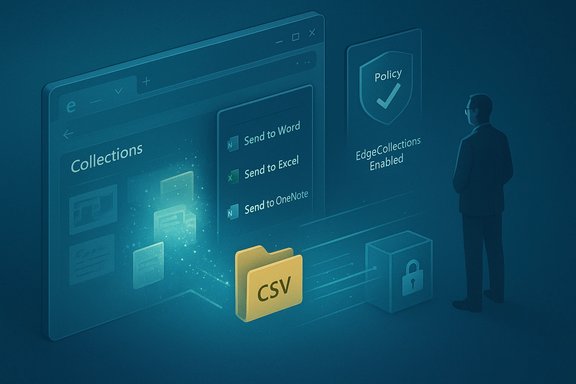
Collections was introduced as a visual, research‑friendly layer inside the Chromium‑based Microsoft Edge: a place to clip web pages, save images, add notes, and organize materials into topical boards. The feature emphasized richer previews and Office integration — Send to Word, Send to Excel and Send to OneNote — making it attractive for shopping comparisons, research projects, lesson planning, and lightweight collaborative work. Historically, Microsoft pitched Collections as more than bookmarks; it was a compact workspace inside the browser that synced across signed‑in devices. Over the past year, Edge’s interface has been aggressively refocused around Copilot and other AI surfaces. Microsoft has consolidated multiple accessory UI elements — the Sidebar app list, toolbar extras and similar small surfaces — into a narrower set of instrumented entry points where the company can reliably apply agentic features and telemetry. That product direction makes strategic sense from a development and telemetry perspective, but it also raises the risk that smaller, lower‑usage features will be de‑prioritized or removed. Early preview‑channel prompts indicate Collections may be next in line for consolidation or retirement.What happened (the verified facts)
- In Edge Dev and Canary builds users are seeing an in‑product prompt that reads: “Collections is being retired. You will no longer be able to add new items to Collections. To keep your saved content, you can export it, or move all pages to your Favorites before removal.” That prompt presents two concrete actions: Move to Favorites or Export your data.
- The Move to Favorites option creates a folder (reported as CollectionsExport) inside your Favorites and migrates saved pages into per‑collection subfolders. Crucial caveat: only page URLs are preserved — images, clipped screenshots, and attached notes are not moved in this flow, which means a substantial loss of fidelity for visual or annotated Collections.
- The Export your data option writes a CSV file (commonly collections_export.csv) into the user’s Documents folder. This CSV provides a machine‑readable list of saved items and links, but it is not a functional in‑browser workspace; it does not recreate the Collections UI, thumbnails, or in‑place notes.
- Microsoft’s official support documentation still describes Collections as a usable feature — and explains in‑browser export flows such as Send to Word/Excel/OneNote — which indicates the retirement prompt is currently visible in preview channels and may not yet reflect a completed change to Stable builds. In short: the action is visible in Dev/Canary; it by a clear, formal, stable‑channel removal notice with dates or enterprise guidance. Treat preview‑channel prompts as probable signals, not final policy — but act on them if your data matters.
Why users are upset — what’s at stake
Collections was often used as a lightweight, visual workspace — not just a list of URLs. For many people the feature stored:- Web page snapshots and large visual thumbnails
- Inline notes attached to saved items
- Clipped images and screenshots
- Grouped research (shopping, comparative lists, lesson plans)
The technical picture: what you can and can’t preserve
What the built‑in export options keep
- Send to Word/Excel/OneNote: exported documents preserve more fidelity than the CSV; these flows produce editable Office documents via the web versions of Office apps and are recommended for richer backups. Use the Collections Sharing and more menu to access these options.
- Move to Favorites: preserves URLs and creates a Favorites folder grouping, but does not transfer images, notes, or the Collections’ visual thumbnails. This is a quick, in‑browser fallback but not a like‑for‑like migration.
- Export to CSV: creates collections_export.csv in Documents. The CSV is useful as a machine‑readable inventory and a last‑resort archive, but it lacks the visual and note‑taking data that made Collections a unique workspace.
What advanced users can do (profile‑level backup)
Power users and admins can make a full local snapshot of Collections data from the Edge profile. Collections are stored in the Edge user profile folder as a small SQLite database (commonly under: %LocalAppData%\Microsoft\Edge\User Data{Profile}\Collections). Copying the Collections SQLite files when Edge is closed produces a low‑level backup that preserves more of the original state, but this approach is advanced, fragile, and unsupported as an official migration path — and it requires careful handling and backups.What Microsoft has (and hasn’t) said
- Microsoft Support still documents Collections’ capabilities and the Send to Word/Excel/OneNote export flows, which suggests the feature rable builds for the time being and that the preview prompts are part of an experimental deprecation path rather than an immediate, company‑wide deletion.
- At the time of reporting Microsoft has not published an explicit, stable‑channel deprecation notice with timelines, nor has the company published enterprise guidance describing retention windows or automated migration behaviors for managed fleets. That absence of a definitive statement is consequential: users and IT teams are being asked to act on preview behavior without a hard deadline or clear remediation SLA. This remains a developing story: meanwhile, assume the preview prompt is a real signal and prepare to export.
Practical survival steps — what to do now (clear, prioritized)
If Collections contain any material you care about, follow this prioritized checklist immediately:- Export the richest backups first:
- Select a collection and use Sharing and more → Send to Word / Send to Excel / Send to OneNote to create editable Office copies. These preserve visual context better than the CSV.
- Create a machine‑readable inventory:
- Use the in‑product Export your data option if visible to write collections_export.csv to Documents. Store that CSV in a backed‑up location.
- Move pages to Favorites (if you want in‑browser links preserved):
- Use Move to Favorites to generate a CollectionsExport Favorites folder. Review contents and manually reattach notes to exported Office documents where necessary. Be aware images and notes will be lost in this conversion.
- Save high‑value pages as PDFs or web archives:
- For visual fidelity, open the page and use Print → Save as PDF, or use a web‑archiving tool. PDFs preserve layout and images.
- Back up your Edge profile (advanced):
- With Edge closed, copy the Collections files from %LocalAppData%\Microsoft\Edge\User Data{Profile}\Collections (the collectionsSQLite file and journal). This preserves raw data for advanced recovery, but treat this as an expert move and keep multiple copies.
- For organizations: inventory and policy
- Identify users and teams that rely on Collections, and require immediate export for critical projects.
- Consider enforcing a consistent state with Group Policy: Edge has a policy named EdgeCollectionsEnabled that lets administrators enable or disable the Collections feature centrally. Use ited states during a larger rollout.
Migration and replacement strategies
Collections’ retirement forces a practical decision about where to continue workflows. Replace visual‑research functionality with combinations of:- Office workflows: Use Word/Excel/OneNote exports as a primary archival format for editable, searchable documents. This is the path Microsoft itself exposes in the UI.
- Dedicated note apps: Notion, OneNote, Evernote, Obsidian or Milanote provide richer, long‑term research boards with embedded notes and images. These are explicit, cross‑platform alternatives that offer export/import flexibility.
- Bookmark managers: Raindrop.io, Pinboard and similar tools support tags, folders and image thumbnails; they are more durable than in‑browser features.
- Web archives and PDFs: For visual fidelity and offline portability, savefile web archives (.mhtml, .webarchive) or the WARC format for long‑term preservation.
- Audit your existing Collections and prioritize:
- High‑value, in‑progress projects (export to Word/OneNote + PDF)
- Reference lists (export to Excel + bookmark folder)
- Archival items (save as PDF or web archive)
- Rebuild only what you need:
- Don’t migrate everything wholesale; migrate active projects first and archive the rest.
- Test the replacement:
- Create a proof‑of‑concept folder and ensure team members can access and edit exports in the replacement tool before decommissioning Collections.
Enterprise considerations and governance
- Policy controls: Admins can proactively disable Collections using the EdgeCollectionsEnabled Group Policy to avoid inconsistent, partially‑migrated user states during a staggered update. That policy exists — and is already surfaced in Microsoft Learn — and enterprise teams should include it in their change control playbooks behavior across a fleet.
- Data flows and compliance: Exports to Office may place documents into OneDrive or local drives, changing custodianship and retention policies. Evaluate where exports are stored and whether they require legal hold or special retention.
- Pilots for Copilot replacement: If Microsoft’s consolidation is indeed a Copilot‑first pivot (as preview signals suggest), pilots should validate DLP, telemetry, and retention controls for Copilot surfaces before broad exposure to sensitive data. The move from many small host surfaces to a centralized assistant raises governance questions that security teams must test.
The product logic and the risk trade‑off
From Microsoft’s engineering perspective, pruning under‑used features and focusing on a smaller set of instrumentable surfaces is rational: fewer UI permutations reduce QA complexity, speed iteration on agentic features, and concentrate telemetry. It’s also consistent with a broader corporate strategy to make Copilot a cross‑product anchor. However, that consolidation imposes real costs on users who built workflows around niche features like Collections. The practical impact is not just feature loss but workflow debt: time spent rebuilding processes, reattaching notes to exported documents, and retraining teams on replacement tools.There’s also a reputational cost. When users invest time into a feature and it vanishes with imperfect migration tooling, trust erodes. Microsoft can mitigate this by providing clearer timelines, robust migration tools that preserve fidelity (for example, a packaged visual export or native import to OneNote/Loop), and explicit enterprise guidance. In the absence of those remedies, the community reaction — frustration amplified on forums and social channels — is understandable.
What remains uncertain (and cautionary notes)
- Whether the retirement will reach Stable builds globally — and when — remains unconfirmed. The visible prompts appear in Dev/Canary; Microsoft has not published a clear, dated deprecation bmobile platforms. Treat the Dev/Canary prompt as a high‑priority signal but not a guaranteed immediate deletion for every user. Plan for the worst, hope for the best.
- The long‑term fate of Collections’ unique capabilities (visual boards, integrated notes, thumbnails) is unresolved. There is no public record of a Microsoft plan that replaces Collection‑style boards with an equivalent visual workspace inside Copilot or another Microsoft product that preserves user notes and images. If Microsoft intends to rehome Collections’ functions into a different product, an automated import path would significantly reduce harm; until that appears, preservation by export is the prudent course.
Bottom line and recommended action plan
- Act now if Collections matter to you: export to Word/Excel/OneNote for the best fidelity, create a CSV inventory, save critical pages as PDFs, and consider backing up profile collectionsSQLite files if you’re comfortable with advanced recovery.
- For IT teams: inventory usage, pilot Copilot replacements under strict DLP controls, and use the EdgeGroups policy EdgeCollectionsEnabled to enforce a predictable state across managed devices.
- For Microsoft: the responsible move is to publish a clear timeline, provide migration tools that preserve images and notes (not just URLs), and offer enterprise guidance that explains retention, backup, and audit implications.
Quick export cheat‑sheet (one page)
- Open Collections: Ctrl+Shift+Y (or via toolbar).
- Export to Office: Select a collection → Sharing and more → Send to Word/Excel/OneNote.
- Export CSV (if prompt present): Choose Export your data → find collections_export.csv in Documents.
- Move to Favorites: Use Move to Favorites and review the CollectionsExport folder in Favorites; expect images and notes to be lost.
- Profile backup (advanced): Close Edge, copy %LocalAppData%\Microsoft\Edge\User Data{Profile}\Collections files (collectionsSQLite and journal). Keep duplicates.
Source: Windows Central https://www.windowscentral.com/software-apps/microsoft-edge-is-killing-off-its-collections-feature]
