

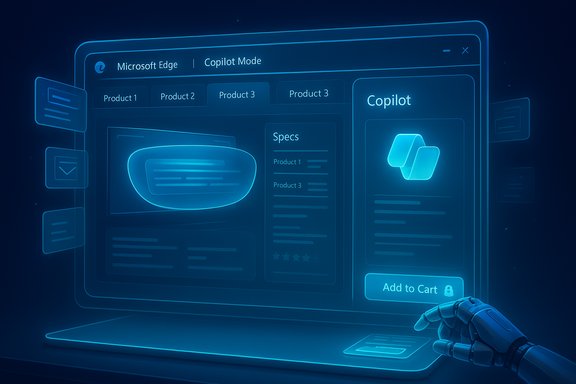
Microsoft’s latest update to Edge—Copilot Mode—is one of the more consequential shifts in how mainstream browsers treat artificial intelligence: it turns the browser from a passive viewer into an active assistant that can see what’s on your screen, reason across multiple tabs, remember ongoing research, and, with permission, act on your behalf to fill carts, click buttons, or prepare bookings.
Background
Copilot Mode is Microsoft’s attempt to make AI an integrated, day‑to‑day tool inside the browser rather than an add‑on. It bundles a unified command bar that intelligently decides whether you want a web search, a site navigation, or a chat with Copilot; a set of reasoning modes that let you nudge the assistant’s depth and style; multi‑tab context and “vision” features that let Copilot understand page content; Journeys, which groups prior browsing sessions into resumable cards; and Actions, an agentic mode that can perform multi‑step web tasks on your behalf when you opt in. These capabilities are opt‑in and permissioned, and many are currently staged as previews in select markets.What Copilot Mode actually does (and how it looks on the screen)
A single command bar that behaves like a smart terminal
Edge now features a command field that acts like a hybrid omnibox and prompt line. Type a URL, ask a short factual question, or ask for a comparative chat and Copilot decides which mode to use. You can also pick a reasoning mode—such as a quick reply or more thorough, step‑by‑step thinking—so the assistant’s output matches your workflow needs. This design reduces context switching: the same entry point handles web navigation, search, and AI conversation.- Why it matters: the unified prompt reduces friction and makes using an AI assistant feel like part of regular browsing rather than a separate app.
- Practical tips: if you want concise answers, choose the quick mode; pick the “think deeper” style for complex research or planning.
Multi‑tab reasoning and the @tab trick
One of Copilot Mode’s most practical features is multi‑tab context. With permission, Copilot can read and synthesize the content of multiple open tabs—product pages, reviews, spec sheets—and produce side‑by‑side comparisons, tables of specs, or a recommendation based on combined evidence. Edge exposes controls so you can explicitly restrict which tabs Copilot analyzes (reviewers have used an @tab selector flow to confine the assistant’s scope), which is an important guardrail for both utility and privacy.- Example: open four product pages for heaters and ask Copilot to compare heat output, energy efficiency, noise, and price; it will assemble a comparison chart in seconds.
- Practical tip: grant Page Context only when you want cross‑tab synthesis to avoid unnecessary broad access.
Copilot Vision: understanding “what’s on my screen”
Copilot Vision lets the assistant interpret visible page content—text, images, transcripts, and comments—so you can ask for summaries or sentiment analysis without copying and pasting. In practice, Copilot can scan a YouTube transcript, summarize the reviewer’s points, and even give a quick read on comment sentiment. This is an acceleration tool: instead of watching a 10‑minute video or sifting through hundreds of comments, you can get a concise synthesis instantly.- Limitations: Vision works only on content Copilot can access in a page or tab; it does not bypass content protections, and performance varies by site.
Journeys: pick up where you left off
Journeys is a background feature that automatically groups related browsing activity into cards so you can resume research or projects later. Cards appear on the new‑tab page and open into a Copilot chat that summarizes prior work and suggests next steps. Journeys operates quietly—if you opt in—and is intended to make ongoing tasks easier to revisit. Microsoft’s support documentation notes Journeys data is automatically cycled and subject to retention policies, reflecting an attempt to balance convenience with privacy safeguards.- Practical caveat: Journeys must be enabled in settings and requires some browsing activity before cards appear; it’s not instantaneous.
Actions: letting the browser do manual chores (carefully)
Copilot Actions is the most consequential and controversial piece: it’s the agentic layer that can click, scroll, fill forms, add items to carts, and perform other multi‑step tasks on web pages you authorize. When Actions runs, Copilot takes screenshots of the pages it interacts with (saved alongside the conversation) and can use cookies and signed‑in sessions to operate within accounts you’re already logged into. Microsoft explicitly warns that Actions can increase exposure to malicious activity and provides controls—such as “allow once” vs “always allow” permissions and site allow/block lists—to help users manage risk.- Important safety behavior: Actions can prepare a checkout and even populate your stored address and payment method, but by default it will not finalize payments without your confirmation. That final consent step is intentional and a key defense against unintended transactions.
How Copilot compares with other AI browsers (Atlas, agentic assistants)
OpenAI’s ChatGPT Atlas and Microsoft’s Copilot Mode represent two different philosophies built on a similar premise: the browser as an AI workspace. Atlas launched with an “Agent” mode that visually took over a tab—showing cursor movements and clicking while it executed tasks—whereas Copilot’s Actions tend to run faster and with less visible cursor choreography; both stop short of fully autonomous purchases without user confirmation in normal configurations. The hands‑on shopping tests published in recent reviews show similar end results (AI preparing carts and bringing up checkout screens) but different UX flavors—Atlas’s visual cursor tracing vs Edge’s speed‑first, side‑pane integration.- What this means for users: if you want to watch each click and intervene in real time, Atlas’s visual agent may be more satisfying; if you want speed and tighter integration with a side chat interface, Copilot’s approach is often quicker.
Strengths: where Copilot Mode delivers real value
- Real time synthesis of scattered information. Copilot excels when you have many tabs and need a quick synthesis—product comparisons, side‑by‑side spec tables, or research summaries that would otherwise take an hour of manual reading.
- Integrated workflows without switching apps. The unified prompt reduces friction between searching, chatting, and navigating, making common workflows feel faster and more cohesive than toggling between a search engine and a separate chat app.
- Permissioned automation that cuts busywork. Actions can handle repetitive chores—filling forms, adding items to carts, or unsubscribing from mailing lists—saving time when used responsibly. The permission model (allow once/always) and visible indicators are sensible design choices to reduce accidental overreach.
- Practical memory for longer projects. Journeys helps users return to ongoing tasks with context already collected—useful for planning, shopping lists, trip research, or longform investigations. This is a productivity multiplier for people working on multi‑session projects.
- Local and UX improvements. The Edge implementation keeps chat visible in a pane as you browse, so answers and actions stay in view without breaking your reading flow—an ergonomic improvement over separate windows or tabs.
Risks, unknowns, and the security calculus
Expanded attack surface and site automation
Giving an AI permission to interact with sites—click, fill, and screenshot—introduces a new attack surface. Copilot Actions can read cookies, and while screenshots are retained only for the conversation and not used for model training, they are retained for a limited time (Microsoft documents a retention window for such artifacts). Actions also temporarily suspends certain device permissions during interactions, which can have complex security implications if misconfigured. These behaviors are explicitly documented by Microsoft, and they underline why conservative defaults and granular site permissions are essential.Privacy and retention policies
Journeys and Actions leave traces: Journeys groups and holds session summaries (with some automatic deletion policy), and Actions stores screenshots tied to conversations for a period. Microsoft’s public documentation indicates Journeys content is cycled and that Action screenshots are kept for up to a defined window. These retention decisions and where the data is stored (account history vs local session cache) matter for privacy‑conscious users and enterprises planning deployment.Reliability and hallucination risk
Agentic automation requires high reliability: an AI that misreads a page could click the wrong button or choose an incorrect SKU. Independent tests of AI browsers have shown mixed reliability when automating bookings or complex forms—some tasks succeed, others fail or report inaccurate completions. For any workflow with legal, financial, or compliance implications, automated agents must be audited and confirmed rather than blindly trusted. Recent reporting and hands‑on tests highlight both successes and failures across product previews.Prompt injection and malicious page content
Because Copilot reasons using page content, a maliciously crafted page could attempt to influence its actions (a prompt‑injection style attack). Microsoft and the broader research community are aware of these risks, but they remain a real vulnerability vector when agents execute actions across third‑party pages. Treat agent access with caution, and keep critical accounts off automated profiles until you’re confident in the behavior and logs.Practical, safe workflows for everyday users
- Start with summaries and comparisons before enabling Actions. Use the multi‑tab synthesis to reduce research time.
- Create a separate browser profile for automation testing. Keep sensitive accounts (banking, primary email) in a profile where Actions is disabled.
- Use the “allow once” permission when trying Actions on a new site. Reserve “always allow” for sites you truly trust.
- Watch the plan step: when Copilot presents a list of actions it will take, read it before giving permission. Treat this like a two‑factor sanity check.
- For purchases: let Copilot add items to cart and prefill checkout, but always confirm the final order, card, and address yourself. Copilot is a time‑saver, not a replacement for financial authorization.
For IT admins and security teams: deployment considerations
- Policy control: enforce Copilot Mode settings through enterprise configuration policies; require opt‑in at the organizational level and limit Actions to allow‑listed domains.
- Audit trails: log Copilot conversations and Actions execution where feasible; ensure screenshots and conversation artifacts are obtainable for post‑action review.
- Staged pilot: begin with a small cohort to observe common failure modes and adjust policy before broad rollouts.
- User training: educate end users on the “confirm before buy” rule and how to manage permissions. Copilot can accelerate tasks, but the human remains the final authority.
Why some labels and claims still need caution
Hands‑on reviewers have reported UI elements like a dropdown of reasoning modes named “Quick Response,” “Study and Learn,” “Smart (GPT‑5),” “Search,” and “Think Deeper.” Those labels appeared in preview builds and hands‑on screenshots, but Microsoft’s public documentation does not rigidly commit to every exact label or internal model name as final across all markets or builds. Treat such naming as observed in previews, not immutable product architecture until company documentation confirms it. This is especially important where names imply specific model versions (for example, “GPT‑5”)—those are best understood as experimental or branding choices in early builds rather than technical guarantees.My assessment: who should try Copilot Mode and when
- Power users and researchers who juggle many tabs and do comparative research will see immediate value from Copilot’s cross‑tab synthesis and Vision summarization.
- Productivity seekers who want repetitive chores offloaded (form filling, unsubscribes) can benefit, provided they use the permission controls and keep financial confirmations manual.
- Privacy‑conscious users and IT admins should evaluate Journeys and Actions in a controlled environment, define allow lists, and ensure data retention policies align with organizational rules.
- Users expecting perfect automation should temper expectations—agentic features are promising but not infallible; they will save time mostly by preparing and pre‑filling tasks, not by fully replacing human review.
The bigger picture: browsers are becoming agentic platforms
Edge’s Copilot Mode is part of a broader industry pivot—the browser is no longer just a renderer of HTML and CSS but an agentic platform that can perceive, reason, remember, and act. That shift changes user expectations and the threat model for browsers, web apps, and publishers. It also reshuffles the incentives for search, affiliate flows, and how content is monetized, since intelligent assistants may synthesize results rather than sending users through multiple publisher pages. Regulators, enterprises, and publishers will all have a stake in how these assistant actions are controlled and audited.Final verdict
Copilot Mode is not a gimmick. It brings genuine utility—faster research, smarter comparisons, and useful automation—into a mainstream browser while keeping reasonable guardrails in place. The experience today is not perfect; preview builds vary by region, some features require toggles, and agentic automation remains an area where reliability and security must be treated carefully. But for users who want an assistant that can summarize tabs, prep checkouts, and remember project contexts, Edge’s Copilot Mode is a compelling new tool—one that feels, in many practical moments, like having a personal assistant sitting beside you while you browse.Quick start: enable Copilot Mode safely (step‑by‑step)
- Open Microsoft Edge and visit the Copilot enable flow (or look for the Copilot toggle in settings).
- Turn on Copilot Mode and then go to Settings → Copilot Mode Settings → AI Innovations.
- Enable Journeys if you want automatic session cards; enable Actions only when you’re ready to test agentic behavior.
- Grant Page Context selectively—use it when you want cross‑tab comparison, not as a default for every browsing session.
- Use the new‑tab command bar for queries and experiment with reasoning modes if they appear in your build.
- When trying Actions on a site for the first time, select Allow once and monitor the assistant’s steps. Confirm any transaction before finalizing.
Copilot Mode is a significant step in making the browser conversational, contextual, and action‑capable. It smartly folds AI into everyday browsing tasks while giving users controls to limit scope and preserve safety. The trade‑off is real: more convenience and speed in exchange for new permission surfaces and an increased need for cautious operation. For the curious and the productivity‑oriented, Copilot Mode is worth trying—just treat it like a capable junior assistant that still needs your oversight.
Source: gamenexus.com.br I tested all of Edge's new AI browser features - and it felt like having a personal assistant - GameNexus
