

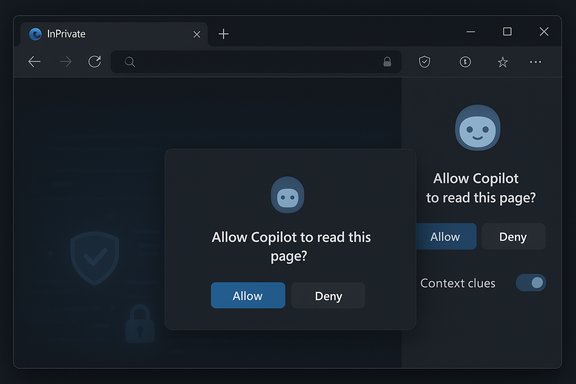
Microsoft Edge has quietly started loading the Copilot sidebar inside InPrivate windows, and the assistant now prompts users for explicit permission before it reads page content — a behavior that changes the assumptions most people had about private browsing in Edge. This shift landed with little fanfare: no prominent release notes, no expanded help pages, and — for many users — a surprising new prompt the first time they ask Copilot to “summarize this page” while in an InPrivate session.
Microsoft’s assistant is now available inside private browsing; it asks for permission before reading content, and it honors the global Context clues preference. The behavioral change is verified by Microsoft’s own support pages and hands‑on reporting, but the rollout’s undocumented nature means users and admins should proactively check settings and policies to ensure they get the privacy posture they expect.
Source: Windows Report Wait, Microsoft Edge Lets Copilot Work in InPrivate Mode Now? Yes, and It Just Appeared
 Background
What Copilot in Edge is designed to do
Copilot is Microsoft’s integrated browser assistant inside Edge that can summarize pages, answer questions about videos and documents, synthesize content across multiple tabs, and — in some preview features — perform multi‑step tasks on your behalf (Copilot Actions). Microsoft positions Copilot as a permissioned layer: it can use your current page, open tabs, browsing history, and other context only when you allow it to. The browser includes an explicit toggle called Context clues that controls whether Copilot may use page content and browser context to respond. Microsoft’s support documentation states the first time you ask Copilot to reference page content it will ask for permission, and you can toggle Context clues off to prevent Copilot from using page content.Why InPrivate mattered before
Historically, InPrivate mode in Edge has meant two user expectations: (1) the session won’t write persistent history or cookies to the main profile, and (2) features and extensions that rely on profile data should have reduced capability or remain off. Copilot’s earlier behavior in Stable Edge respected this user expectation by not loading a fully interactive sidebar inside InPrivate windows — users could open the copilot.microsoft.com site but could not summon the in‑browser sidebar to read or interact with the page content. That has now changed for some users and builds.What changed (the observable behavior)
Copilot now appears and functions in InPrivate
- Open an Edge InPrivate window and click the Copilot icon. The sidebar will now load the full Copilot interface in Stable builds for many users. Responses to chat prompts appear as they do in regular browsing sessions. This is the most visible change: the assistant is no longer simply unreachable inside InPrivate.
Page access is gated by an approval prompt
- When Copilot needs to read page content (for example, when you ask it to “Summarize the main points on this page”), Edge presents a permission prompt that directs you to Copilot settings or prompts you to confirm that Copilot may read the page. The prompt appears for videos and files as well, indicating the browser blocks content access in InPrivate until you explicitly allow it. This mirrors Microsoft’s documented behavior where Copilot requests permission before using page context.
Browsing personalization and conversation history are not retained
- InPrivate still does what it promises for persistent data: Copilot does not show past chats or personalization settings in the sidebar unless you sign in to a Microsoft account during the InPrivate session. In short, the assistant will run and chat, but history and personalization are suppressed until sign-in. WindowsReport’s hands‑on testing observed the same behavior.
Global settings carry into InPrivate
- The global Context clues toggle controls page access uniformly. If you turn Context clues off in a normal window, it appears off in InPrivate too. Edge does not maintain a separate persistent preference specifically for private windows, although each InPrivate session may still show the on‑screen prompt before Copilot can actually read the page. Microsoft’s support pages document this configuration point and the first‑time permission flow.
Verification and cross‑checks
To verify these behaviors and claims, multiple independent sources were consulted:- Microsoft’s official support documentation describes the Context clues toggle and the first‑time permission prompt when Copilot attempts to use page content. It explicitly notes that Copilot may use the current webpage, open tabs, and browser history to answer prompts and that the first time it will explicitly ask for permission.
- WindowsReport conducted hands‑on tests and reported Copilot loading inside InPrivate windows on Stable Edge, with a permission prompt when Copilot attempted to read page content, and the absence of persisted conversation history until sign‑in. That hands‑on reporting corresponds closely to Microsoft’s stated permission model.
- Coverage from major tech outlets and aggregated reporting on Copilot Mode and its opt‑in, permissioned design confirms Microsoft’s overall direction: Copilot Mode centralizes AI features in Edge and emphasizes visible consent flows for content access and agentic operations. This broader context helps explain the design rationale for gating page reads behind explicit prompts, especially in private browsing contexts.
Why Microsoft may have done this
A balancing act: usefulness versus expectations of privacy
Edge’s Copilot tries to be helpful where users are browsing — summarizing pages, extracting key points, and assisting with videos and PDFs. Allowing those capabilities in InPrivate increases the assistant’s utility for users who want ephemeral, context‑aware help without signing in or leaving traces. At the same time, Microsoft had to preserve the core promise of InPrivate: no persistent chats or personalization unless explicitly consented to. The approval prompt is the compromise: make the feature available, but gate content access behind user intent and settings. Microsoft’s public messaging about Copilot emphasizes opt‑in context access and visible consent flows, which aligns with this rollout.Product parity and deployment practicality
Rolling Copilot into InPrivate decreases feature surface disparity between normal and private windows. Maintaining two UX branches — one where Copilot is available and one where it’s not — adds complexity and friction for support, documentation, and telemetry. Making Copilot available but permissioned in private mode reduces engineering and support divergence while still honoring privacy constraints through runtime consent.Practical implications for users
What changes in how you’ll use Edge
- If you routinely use InPrivate to avoid leaving traceable history, Copilot’s presence means you can get immediate summaries and on‑page help in a session that still won’t save chats or personalization unless you sign in or allow it. This is useful for one‑off research or content review where you don’t want to leave a breadcrumb trail.
- If you are privacy‑conscious, the new runtime prompt is an important reminder: Copilot must be allowed to read the page before it can analyze content, and the Context clues setting controls that behavior. Turning Context clues off in Settings prevents Copilot from using page content across normal and InPrivate windows.
Security and privacy caveats
- Granting Copilot page access in InPrivate is not the same as enabling persistent personalization. The session permission covers the immediate action; but if you sign in to a Microsoft account in the InPrivate session, Copilot may start showing account‑tied behavior such as conversation history. Users should treat signing in in InPrivate as a separate decision with its own privacy implications. WindowsReport observed Copilot prompting for sign‑in and withholding history until an account login occurs.
- Be cautious with sensitive pages (banking, medical records) even in InPrivate. While InPrivate reduces local persistence, it does not alter a site’s content or how network requests are handled. If Copilot is granted permission to read the page, the assistant will process that content to answer your request. Users should rely on their judgment about what content they are comfortable allowing an assistant to ingest during a private session.
Administrative and enterprise concerns
Policy control and manageability
- Organizations that control browsing policies via Microsoft 365 or Intune should validate how Copilot behaves in private sessions and whether Copilot pinning and sidebar availability aligns with corporate policy. Past admin controls (Pin Copilot, EdgeSidebar settings, MAM/MDM features) have influenced whether Copilot appears in different environments; administrators should test current group policies and new Edge administrative templates to confirm behavior in their tenant. Some prior observations indicate tenant-level Copilot pinning affects InPrivate availability. Administrators should confirm and pilot before mass deployments.
Auditability and compliance
- Copilot’s permission prompts and the Context clues toggle are user‑facing mitigations, but for regulated environments the question is whether the runtime prompts are sufficient for compliance standards that require stricter control over data flows. Enterprises may prefer to disable Copilot, remove the Copilot toolbar, or use management policies to restrict Copilot features until they have a clear compliance posture.
How to control Copilot behavior in Edge (quick guide)
- Open Edge and click the Copilot icon in the toolbar or sidebar.
- In the Copilot pane, click the More Menu (…).
- Select Settings → Privacy (or navigate to edge://settings/sidebar then Copilot settings).
- Toggle Context clues off to prevent Copilot from using page content (this applies to normal and InPrivate windows).
- Use the sidebar settings to hide the Copilot toolbar button if you prefer not to see Copilot in any window.
Strengths of the rollout
- Utility without long‑term persistence: Users can get the immediate benefits of AI summarization in a private session without having the resulting conversation persist to their Copilot history unless they sign in.
- Visible consent flow: The runtime permission prompt provides a clear, step‑by‑step confirmation the assistant needs before it accesses page content, reducing the risk of accidental page reads.
- Unified settings model: A single global Context clues preference simplifies administration and user understanding — set it once and it applies consistently to normal and private windows.
Potential problems and risks
- Expectation mismatch: Many users equate InPrivate with “everything about me is hidden and inaccessible” rather than “local browsing state isn’t persisted.” The presence of Copilot in InPrivate may create surprise or mistrust if users aren’t informed that the assistant can be allowed to read pages at runtime.
- Undocumented rollout & discoverability: The change arrived without conspicuous release notes or help‑center updates. That complicates user education and increases the chance of confusion. Microsoft’s official documentation does cover the permission model, but help pages weren’t updated specifically to highlight Copilot in InPrivate as a recent behavioral change. Early reporting flagged this silence.
- Sign‑in confusion: Signing into a Microsoft account in InPrivate restores history and personalization within that session. Some users may not realize that signing in changes the ephemeral nature of InPrivate, so the UX needs to be explicit about what sign‑in implies while in a private session.
- Edge cases and reliability: As with other agentic Copilot features, reading complex pages (dynamic sites, SPA content, or embedded frames) can be brittle. If the assistant misreads a page while acting (e.g., Copilot Actions), it could produce incorrect or misleading outcomes. This is a broader issue with web‑facing agents, not unique to private windows.
Recommendations for users and IT teams
- For privacy‑focused users: Verify Context clues is off if you never want Copilot to read page content. Do not sign into your Microsoft account in an InPrivate window if you expect a fully ephemeral experience.
- For power users and researchers: Use Copilot in InPrivate when you want on‑the‑fly assistance without leaving permanent local traces, but evaluate whether signing in is necessary for the session.
- For administrators: Test current Edge admin templates and MDM settings that touch Copilot visibility and pinning. Consider pilot programs and user education before allowing Copilot broadly in managed environments.
- For security teams: Review logging and telemetry policies to ensure that Copilot interactions tied to private browsing sessions do not inadvertently leak sensitive metadata to enterprise monitoring systems.
Where Microsoft should improve transparency
- Publish a concise help page or release note calling out the availability of Copilot inside InPrivate windows and the exact user controls that gate content access.
- Add clearer in‑UI messaging when Copilot is first opened in InPrivate that explains the difference between granting page access for a single session and signing in — making persistent effects explicit.
- Provide enterprise admins with granular policy knobs to control Copilot sidebar availability in private browsing sessions without requiring users to toggle the setting themselves.
Final assessment
Edge’s new behavior — loading Copilot in InPrivate but gating page reads behind an explicit approval prompt — is a pragmatic compromise that increases the assistant’s utility while attempting to preserve privacy expectations. Microsoft’s official documentation on Copilot’s permission model and the Context clues setting supports this approach, and independent hands‑on reporting shows the feature works that way in practice. That said, the quiet rollout and lack of a clear, prominent announcement risk confusing users who rely on InPrivate to avoid feature parity with normal browsing. For privacy‑conscious people and regulated environments, the capability to allow Copilot to read pages in InPrivate introduces a nuance that must be explicitly communicated and controlled. Administrators and users should treat enabling Copilot page access in private sessions as an intentional, informed decision — not an automatic safety net.Microsoft’s assistant is now available inside private browsing; it asks for permission before reading content, and it honors the global Context clues preference. The behavioral change is verified by Microsoft’s own support pages and hands‑on reporting, but the rollout’s undocumented nature means users and admins should proactively check settings and policies to ensure they get the privacy posture they expect.
Source: Windows Report Wait, Microsoft Edge Lets Copilot Work in InPrivate Mode Now? Yes, and It Just Appeared
