

Microsoft’s extensions story for Edge and the steady stream of small Windows utilities that BetaNews highlights are useful, but the path between a how‑to, a weekly app pick and safe daily use has changed significantly since the days when Edge extensions lived only in the Windows Store — and that history, plus recent platform changes, matter when you choose what to install and how to manage it.
Microsoft Edge has been through two major identities in the Windows 10 era. The original, EdgeHTML‑based Edge shipped with early Windows 10 builds and relied on the Windows Store for extensions; that model is what many early guides — and the BetaNews how‑to the user provided — described when instructing Windows 10 users how to add ad‑blockers, translation tools and other add‑ons to Edge.
In January 2020 Microsoft replaced that legacy engine with the new Chromium‑based Microsoft Edge. The Chromium rewrite changed where extensions come from (Microsoft’s Edge Add‑ons site and compatible Chrome/Chromium stores), how they’re installed, and what administrators should expect from lifecycle and security. Microsoft documents this change and notes the new Chromium Edge replaces the legacy browser on Windows 10 PCs. At the same time, weekly app roundups such as BetaNews’s “Best Windows apps this week” and “Best Windows 10 apps this week” still serve an important discovery role for many Windows users, surfacing compact utilities and thin clients that solve one problem quickly. BetaNews’s selections and short guides remain pragmatic discovery tools — but they need stronger verification steps and risk flags than a simple download link.
Separately, system‑level integration features introduced in Windows 10’s Fall Creators Update — notably Continue on PC (the cross‑device web‑browsing integration surfaced in Edge mobile and the desktop OS) — provided convenience for moving pages between phone and PC. Those flows are still relevant for users who want to move a mobile browsing session into a desktop workflow, but they require correct account linking and periodic troubleshooting. BetaNews covered the original cross‑device web‑browsing feature as a practical how‑to guide for Fall Creators Update users.
For practical day‑to‑day use: rely on Microsoft’s current extension management UI and documentation for installs, treat curated app lists as a testing queue rather than an immediate endorsement, and adopt conservative security practices — review permissions, pilot installs, and watch for unusual network or behavioral changes after updates. Following that disciplined approach will let users get the convenience and productivity these guides promise while minimizing the real risks that live in today’s extension and app ecosystems.
Source: BetaNews https://betanews.com/commentary/use...eb-browsing-windows-10-fall-creators-update/]
 Background / Overview
Microsoft Edge has been through two major identities in the Windows 10 era. The original, EdgeHTML‑based Edge shipped with early Windows 10 builds and relied on the Windows Store for extensions; that model is what many early guides — and the BetaNews how‑to the user provided — described when instructing Windows 10 users how to add ad‑blockers, translation tools and other add‑ons to Edge.In January 2020 Microsoft replaced that legacy engine with the new Chromium‑based Microsoft Edge. The Chromium rewrite changed where extensions come from (Microsoft’s Edge Add‑ons site and compatible Chrome/Chromium stores), how they’re installed, and what administrators should expect from lifecycle and security. Microsoft documents this change and notes the new Chromium Edge replaces the legacy browser on Windows 10 PCs. At the same time, weekly app roundups such as BetaNews’s “Best Windows apps this week” and “Best Windows 10 apps this week” still serve an important discovery role for many Windows users, surfacing compact utilities and thin clients that solve one problem quickly. BetaNews’s selections and short guides remain pragmatic discovery tools — but they need stronger verification steps and risk flags than a simple download link.
Separately, system‑level integration features introduced in Windows 10’s Fall Creators Update — notably Continue on PC (the cross‑device web‑browsing integration surfaced in Edge mobile and the desktop OS) — provided convenience for moving pages between phone and PC. Those flows are still relevant for users who want to move a mobile browsing session into a desktop workflow, but they require correct account linking and periodic troubleshooting. BetaNews covered the original cross‑device web‑browsing feature as a practical how‑to guide for Fall Creators Update users.
How to install and use extensions in Microsoft Edge on Windows 10 — the modern reality
What changed since the BetaNews guide
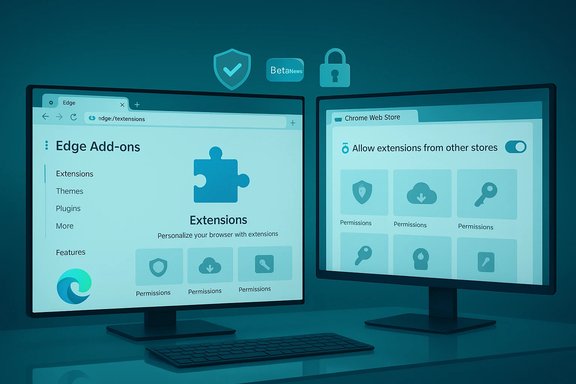
BetaNews’s original step‑by‑step guidance for Edge running on older Windows 10 builds correctly pointed users at the Extensions entry in the browser menu and the Windows Store, because legacy Edge used Store extensions. That advice is now historical: the modern Edge on Windows 10 uses the Chromium engine, exposes extensions via the Extensions icon (puzzle‑piece) and directs users to the Microsoft Edge Add‑ons site — while also allowing Chrome Web Store extensions when the user opts in. Microsoft’s current support docs list the canonical steps for adding extensions in Edge (puzzle‑piece → Get extensions for Microsoft Edge → Install) and explicitly document how to add Chrome extensions by enabling “Allow extensions from other stores” and visiting the Chrome Web Store. Those steps are the authoritative, up‑to‑date flow for Windows 10 users on Chromium Edge.Step‑by‑step (validated, current)
- Open the new Microsoft Edge on Windows 10 and click the puzzle‑piece icon to the right of the address bar. If you don’t see it, open Settings and more (…) → Extensions.
- Select Get Extensions for Microsoft Edge and browse or search for the add‑on you want. Click Get then Add extension after you review permissions.
- To use Chrome Web Store extensions, open Edge, go to the Chrome Web Store, and select Allow extensions from other stores when prompted. Then install as you would in Chrome. How‑To Geek and Microsoft both recommend this route for broader access but caution that such extensions are not Edge‑verified.
Practical tips for everyday users
- Install one extension at a time. After a new add‑on installs, test performance and site compatibility. Mixed extension sets can cause conflicts that are hard to diagnose.
- Review permissions carefully. Extensions often ask for broad host permissions (read/modify data on all sites). That level of access is common but risky; prefer extensions that limit scope or allow explicit site permissions.
- Prefer vendor‑verified listings. Use entries hosted on the Microsoft Edge Add‑ons site where possible; when you go to the Chrome Web Store, more diligence is required.
Security, trust and extension hygiene — why the stakes are higher now
The real risk: malicious updates and sideloaded extensions
The browser extension ecosystem has repeatedly been exploited. Recent investigations showed a multi‑year malicious extension campaign that reached millions of users by publishing seemingly benign extensions and then updating them with spyware functionality — an important warning that even store‑listed extensions can become dangerous via post‑publication updates. This underscores the need for ongoing vigilance, not a one‑time vetting check. Microsoft has responded with platform changes to tighten security around sideloaded or unverified extensions and has indicated ongoing enhancements to detect and revoke harmful extensions, but those protections are evolving and will not replace careful user and admin practices.Enterprise controls and recommended policies
- Use managed browser policies when possible to restrict which extensions can be installed, or configure the enterprise extension whitelist. Enterprise deployment should avoid ad‑hoc installs from third‑party stores.
- Require extensions to be installed from approved sources and test them in a pilot group before broad rollout. BetaNews’s app picks are a discovery lead; treat them as candidates for testing, not immediate approvals.
- Monitor extension update channels and set up telemetry or endpoint alerts for unusual outbound connections that a newly‑updated extension might create.
Practical defensive checklist for consumers
- Use the built‑in Edge extension manager to disable or remove unused add‑ons.
- Periodically review installed extensions and check recent reviews and change logs. A sudden surge of negative reviews or a change in publisher details is a red flag.
- If you rely on a critical extension, create a backup plan: document functionality, export settings where possible, and have an alternative tested in case the extension is pulled or compromised.
BetaNews’s “Best Windows apps” and “Best Windows 10 apps” — practical discovery, variable longevity
What BetaNews offers
BetaNews’s weekly app roundups focus on short, curated lists of utilities — everything from wallpaper utilities and small productivity tools to security extensions and media clients. Those roundups are valuable for users who want quick suggestions of what to try this week, and the articles often include basic install notes and short usage tips.Strengths of this format
- Curated discovery: The weekly cadence surfaces useful small apps that may otherwise be buried in Store listings. BetaNews curations often save readers time when looking for a focused solution.
- Practical, bite‑sized guidance: Shorthow‑tos and checks (e.g., check publisher, last updated date) encourage safer experimentation.
Common risks and failure modes
- App availability volatility: Many small Store apps are one‑person projects; they can be renamed, delisted, or abandoned with little notice. BetaNews often flags the app but cannot guarantee ongoing support. Always check the Store listing for last update date and the developer’s support channel.
- Third‑party API fragility: Some apps (YouTube clients, social media helpers, downloaders) rely on external APIs that change without notice and can break functionality overnight. BetaNews’s picks are discovery, not permanence guarantees.
- Privacy and cloud processing: Several utility apps offload processing (OCR, translation, AI summarization) to cloud services. For regulated or privacy‑sensitive scenarios, verify whether processing is local or remote before adopting a tool.
How to use BetaNews picks safely — recommended workflow
- Read BetaNews for discovery and initial context.
- Open the Microsoft Store entry and confirm publisher, last update date, ratings and changelog.
- Install to a non‑critical device or VM and test your core workflows. Check resource use, permissions, network calls and file handling.
- For IT deployments, pilot with a small user group and monitor telemetry before enterprise‑wide rollouts.
Cross‑device web‑browsing (Fall Creators Update): Continue on PC and real‑world behavior
What BetaNews explained
BetaNews covered the Fall Creators Update cross‑device web‑browsing feature as a way to forward mobile pages into Windows 10 — a convenience feature that was simple to use: install the Microsoft Edge mobile app, sign in with the same Microsoft account on phone and PC, then use Continue on PC to open a mobile page on your desktop or save it for later in Action Center.Verification against Microsoft and independent reporting
The Windows Experience Blog and Windows Central documented the Continue on PC flow at launch and provided the same practical steps: pair your phone via Settings → Phone → Add a phone, install the companion Microsoft Apps package on mobile, and share a page to Continue on PC where it opens on the selected device or appears in Action Center for later. Those instructions remain accurate for the original Fall Creators Update flow.Practical caveats and troubleshooting
- Continue on PC depends on account linkage and background services; users sometimes need to sign into Cortana or the Microsoft account in multiple places to ensure reliable handoffs. Third‑party reports and community threads documented intermittent reliability issues — particularly when the receiving PC was offline or the browser was closed. Treat the feature as useful but occasionally brittle.
- Modern Edge’s syncing features and “Open tabs from other devices” flows have partly replaced the original Continue on PC experience for many users, and behavior has evolved across Edge versions. If you rely heavily on cross‑device continuity, validate the end‑to‑end flow for your current browser versions and device combinations.
Putting it all together — recommendations for readers and admins
For everyday Windows 10 users
- Follow the modern install path: use Edge’s Extensions manager and the Microsoft Edge Add‑ons site for primary installs; allow Chrome Web Store add‑ons only when you need them, and review permissions carefully.
- Treat BetaNews picks as discovery rather than an endorsement — verify publisher, recent updates and privacy behavior before trusting any app with sensitive data.
- Keep Edge and Windows updated; Microsoft continues to ship Edge updates for Windows 10 and is maintaining WebView2 and Edge patches beyond Windows 10’s general lifecycle, which affects compatibility and security. (Microsoft has kept Edge updates going on Windows 10 and third‑party coverage confirms continued support windows.
For power users and IT administrators
- Implement managed extension policies to limit installs to a curated list. Test each extension against corporate web apps and SSO flows.
- Pilot weekly Store utility picks on a small group before organization‑wide deployment. Use MDM tooling to stage, monitor and roll back installs.
- Monitor vendor channel announcements and set up a process for reviewing extension updates; treat sudden changes in an extension’s behavior or permissions as a trigger for immediate re‑validation. Recent extension malware campaigns prove how quickly a trusted add‑on can become a vector for dataexfiltration.
Strengths, limitations and final assessment
Notable strengths
- Practical discovery: BetaNews’ weekly lists shorten the time to find small utilities that solve single problems—social‑media grid tools, wallpaper managers, or compact security helpers can be real productivity gains.
- Clear, actionable install flows (modern Edge): Microsoft’s current documentation and Edge’s UI make installing and managing extensions simple and predictable when you follow the documented paths.
Potential risks and weak points
- Extension ecosystem risk: The extension supply chain remains an attractive attack surface. The combination of store updates, sideload paths and cross‑store installations increases exposure unless users and admins apply strict vetting and monitoring.
- Store volatility: Many Store apps are small projects; availability and API dependencies mean a helpful app today may vanish tomorrow. BetaNews’ recommendations need to be validated against the live Store listing.
- Feature drift over time: Platform features such as Continue on PC have matured and changed; advice from the Fall Creators Update era still works in principle but must be tested on current builds and Edge channels for reliability.
Unverifiable or time‑sensitive claims (flagged)
- Any statement that quotes a precise number of available extensions, or that asserts a specific extension will always be present in the Edge Add‑ons catalog, is time‑sensitive and should be treated with caution. Extension counts, exact availability and store listings are fluid and can vary by region and time — verify them against the live Microsoft Edge Add‑ons site and the extension’s developer page before acting.
Conclusion
BetaNews’ how‑tos and weekly app roundups remain valuable starting points for Windows users who want to try new utilities, install browser add‑ons, or leverage cross‑device features. But the landscape has shifted: Edge’s move to Chromium changed installation channels and compatibility considerations, modern extension security threats demand continual vigilance, and Store apps’ fragility means discovery must be followed by verification and testing.For practical day‑to‑day use: rely on Microsoft’s current extension management UI and documentation for installs, treat curated app lists as a testing queue rather than an immediate endorsement, and adopt conservative security practices — review permissions, pilot installs, and watch for unusual network or behavioral changes after updates. Following that disciplined approach will let users get the convenience and productivity these guides promise while minimizing the real risks that live in today’s extension and app ecosystems.
Source: BetaNews https://betanews.com/commentary/use...eb-browsing-windows-10-fall-creators-update/]
