

Apple’s Edge Light idea — turn the screen into a soft, rectangular ring light for video calls — has already been reimagined for Windows by a Microsoft executive and an open-source community, yielding a lightweight Windows app that brings immediate, no-hardware lighting improvements to low-light video chats.
Apple introduced Edge Light as part of the macOS Tahoe 26.2 developer beta: the OS can draw a soft, bright rim around the display and use on-device processing to brighten faces in video calls without physical accessories. That feature is explicitly tied to Apple Silicon’s on-chip capabilities — the Neural Engine and the Image Signal Processor — so Edge Light can detect faces and dynamically tune the effect to match the environment. Almost simultaneously, Scott Hanselman — Microsoft’s vice president for developer community — published a Windows implementation, “Windows Edge Light,” on GitHub. The Windows version is a small WPF application built on .NET 10 and intended as a pragmatic, immediate tool for improving webcam image quality by using the display itself as a light source. It runs as an overlay, supports click-through transparency and multi‑monitor setups, and is available now rather than in a lengthy beta cycle. This development matters because it shows how quickly clever platform UI ideas can be adapted and deployed across ecosystems. It also underscores a broader trend: software-based lighting and camera improvements are becoming first-class optical enhancements for everyday users, not just features for pro streamers.
Edge Light takes an elegant shortcut: people already look at their screens during calls, so the screen can be a practical, immediate light source. A display sitting inches from a face can provide a softer, more diffuse fill than many desk lamps because the light is broad and close to the subject. That produces a visible improvement for most webcams, especially in the ubiquitous low-to-medium tier that ships with laptops. Key user benefits:
The Windows port is not a one-to-one match for Apple’s hardware-accelerated variant yet, but it’s a pragmatic, immediate tool that improves video-call lighting for many users without extra equipment. The most meaningful next steps are smarter automation, camera integration with per-device tuning, and careful accessibility testing — all plausible in short order thanks to the open-source approach and community interest.
Source: Windows Central https://www.windowscentral.com/soft...ng-video-calls-and-beating-them-to-the-punch/
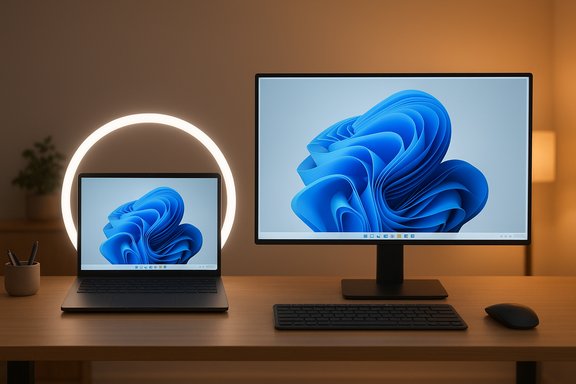 Background / Overview
Apple introduced Edge Light as part of the macOS Tahoe 26.2 developer beta: the OS can draw a soft, bright rim around the display and use on-device processing to brighten faces in video calls without physical accessories. That feature is explicitly tied to Apple Silicon’s on-chip capabilities — the Neural Engine and the Image Signal Processor — so Edge Light can detect faces and dynamically tune the effect to match the environment. Almost simultaneously, Scott Hanselman — Microsoft’s vice president for developer community — published a Windows implementation, “Windows Edge Light,” on GitHub. The Windows version is a small WPF application built on .NET 10 and intended as a pragmatic, immediate tool for improving webcam image quality by using the display itself as a light source. It runs as an overlay, supports click-through transparency and multi‑monitor setups, and is available now rather than in a lengthy beta cycle. This development matters because it shows how quickly clever platform UI ideas can be adapted and deployed across ecosystems. It also underscores a broader trend: software-based lighting and camera improvements are becoming first-class optical enhancements for everyday users, not just features for pro streamers.Why Edge Light matters for video calls
Lighting has always been the single biggest limiter for webcam quality. Good light reduces noise, lifts shadow detail, and improves perceived sharpness without increasing resolution. A ring light placed near the lens produces even illumination that reduces shadows under the eyes and chin — but not everyone has one, and external lights add cost and friction.Edge Light takes an elegant shortcut: people already look at their screens during calls, so the screen can be a practical, immediate light source. A display sitting inches from a face can provide a softer, more diffuse fill than many desk lamps because the light is broad and close to the subject. That produces a visible improvement for most webcams, especially in the ubiquitous low-to-medium tier that ships with laptops. Key user benefits:
- Faster, no-hardware lighting improvement for remote workers and students.
- Systemwide compatibility across video apps (FaceTime, Teams, Zoom, etc., because the lighting is external to the video pipeline — it affects how the webcam sees you rather than altering the camera feed in software.
- Low friction: flip on an overlay and your face gets more light immediately.
What Apple’s Edge Light actually does (technical overview)
Neural Engine + Image Signal Processor
Edge Light isn’t just a static white bar: on Apple devices it’s integrated with the Neural Engine and the Image Signal Processor (ISP). The Neural Engine helps detect faces, position, and size; the ISP helps tune brightness and color to match ambient conditions. In practice this means the effect can center light on a detected face and modulate intensity to avoid overblow or distracting hot spots. This combination is why Apple only guarantees the “automatic” behaviors on newer Apple Silicon Macs.UI niceties Apple implemented
- The glow fades when the pointer approaches the edge so it doesn’t obstruct interaction.
- Users can choose warmth/coolness and brightness levels.
- Edge Light does not appear in screenshots (the overlay is composited on top of the desktop), preserving captured content.
These refinements make Edge Light both practical and unobtrusive.
How the Windows port works and what it does today
Scott Hanselman’s Windows Edge Light is intentionally lean and immediate: it draws a soft white/gradient band around the primary monitor and exposes controls to adjust brightness and toggle the effect. It is packaged as a single executable built for .NET 10 and published on GitHub releases; early builds support x64 and arm64 and run on Windows 11. The app runs as an always-on, topmost overlay and implements click-through transparency so you can still interact with the desktop and windows beneath the glow. Major features in the first public release:- A glowing rim overlay that follows the edges of the primary display.
- Click‑through transparency so clicks go to underlying windows.
- Preset controls for brightness and a quick toggle (keyboard shortcuts are supported).
- Multi-monitor awareness; it attempts to show on the primary screen.
- Small, modern UI built with Windows 11 design sensibilities.
Effectiveness: what to expect in real-world use
The app’s effect depends heavily on two variables: your display’s peak brightness and the ambient lighting in the room.- High-brightness OLED or Mini-LED panels can produce much more useful face illumination than dimmer IPS panels. If a monitor only reaches a modest brightness, the rim will still brighten a face, but not as dramatically.
- Color temperature adjustments matter: warmer tones can be more flattering under some conditions; cooler tones may be perceived as harsher. Apple’s version explicitly exposes temperature controls; Windows Edge Light currently focuses on brightness but plans to add more tuning.
- Use a moderately bright screen and sit close enough that the screen luminance reaches your face without causing eye strain.
- Combine the overlay with a low-level ambient lamp behind the camera to reduce contrast and avoid the “floating head” effect.
- Test calls with and without the overlay: results vary by webcam dynamic range and auto‑exposure behavior.
Strengths of the Windows approach
- Speed to ship. The GitHub release is available now; no waiting for OS updates or vendor rollouts. That’s a real advantage for people who need a quick improvement.
- Simplicity and minimal permissions. The overlay is local UI; it doesn’t require hooking into the webcam feed or elevated device drivers, reducing attack surface and complexity.
- Open-source / community‑driven. The code is on GitHub, so community contributions, packaging into PowerToys, or downstream forks are straightforward. That fosters quick iterations and experimentation.
- Cross-hardware availability. Because it’s software-only, it works on a wide variety of Windows PCs regardless of vendor, unlike Apple’s Edge Light which relies on Apple Silicon for some automation.
Shortcomings and risks to be aware of
- Hardware limits the benefit. A dim or low-contrast panel can only do so much. Users on inexpensive laptops or older monitors will see smaller gains. This is a principal limit of any screen-as-light approach.
- Glare and reflections. If you use an external monitor with a glossy surface, the edge illumination can reflect back into the lens or create hotspot streaks. Matte displays fare better. Test for glare before relying exclusively on the overlay.
- No ISP/Neural Engine optimizations (yet). Apple’s Edge Light leverages the Neural Engine/ISP to detect faces and dynamically tune the effect. The initial Windows port lacks on-device camera ISP integration and automatic darkness detection. That means the Windows version is more manual and less adaptive for now. Expect improvements, but treat current behavior as a simpler, more brittle approximation.
- Accessibility & usability edge cases. Overlays that sit on top of content must be careful to avoid interfering with screen readers, hotspots, or edge gestures. The app currently fades away when needed, but accessibility testing across setups is incomplete; users should verify that interacting with edge UI still works reliably on their machines.
- Security and trust. Any third-party executable — even authored by a known Microsoft VP — should be treated like any other binary: inspect releases, prefer signed builds if available, and run on non-critical machines first. The GitHub repo simplifies code review, but end users must follow standard safety hygiene.
Where the idea could go next (opportunities)
- Deeper camera integration: incorporate auto-detection of faces using Windows AI APIs, and coordinate overlay brightness with webcam exposure settings (a closer analogue to Apple’s Neural Engine + ISP behavior). This would make the overlay truly “smart” (automatically enabling when the room is dark).
- Per-monitor profiles: allow different brightness/temperature settings for each display, useful in docking setups and ultrawide configurations.
- Smooth animations and cursor-aware fading: automatically back off whenever mouse or taskbar interactions require edge space, and provide granular controls for power users. Apple already does this; Windows users expect parity.
- PowerToys integration: add Edge Light as a PowerToys plugin so it can be centrally managed, updated, and included in Windows power user bundles. Community interest suggests this would be well received.
Cross-referencing and verification notes
- Apple’s Edge Light inclusion in macOS Tahoe 26.2 (developer beta) and its use of Neural Engine + ISP are reported across multiple outlets and confirmed in the developer beta notes; this is a solid, verifiable claim.
- The Windows Edge Light app authored by Scott Hanselman has been published publicly on GitHub releases; multiple outlets picked up the story and displayed Hanselman’s social posts, and the app is available as a .NET 10 executable for x64 and arm64. The initial Windows release lacks some of Apple’s hardware-driven automation and camera ISP integration — this is a fact of difference and not an assumption.
- Where claims could not be fully verified: any assertion about exact lumen output, precise lux increases on specific monitors, or guarantees about how much a particular webcam will improve cannot be stated definitively without controlled measurements. Those kinds of metrics were not published by Apple or the Windows app’s developer, so they are flagged as unverifiable claims in this coverage. Readers should run practical A/B comparisons on their own hardware to decide.
Practical checklist for readers who want to try Windows Edge Light
- Confirm system and trust:
- Download the release from the GitHub releases page, prefer signed builds, and review the release notes.
- Install .NET 10 runtime if not present.
- Unzip the release and run the single executable; it will sit in the system tray.
- Test video calls with the overlay on and off to determine real-world difference for your webcam setup.
- If glare or UI obstruction occurs, reduce overlay brightness or disable it for that monitor.
Conclusion — a small trick, big practical impact
Edge Light is a striking example of how a small UX idea can deliver outsized practical value. Apple’s original implementation pairs software cleverness with hardware-software co-design on Apple Silicon. The Windows community’s rapid reimagining — led by a Microsoft VP and shared as open source — shows the OS-agnostic power of the underlying concept: use the screen you already have as a fast, cheap lighting source.The Windows port is not a one-to-one match for Apple’s hardware-accelerated variant yet, but it’s a pragmatic, immediate tool that improves video-call lighting for many users without extra equipment. The most meaningful next steps are smarter automation, camera integration with per-device tuning, and careful accessibility testing — all plausible in short order thanks to the open-source approach and community interest.
Source: Windows Central https://www.windowscentral.com/soft...ng-video-calls-and-beating-them-to-the-punch/
