

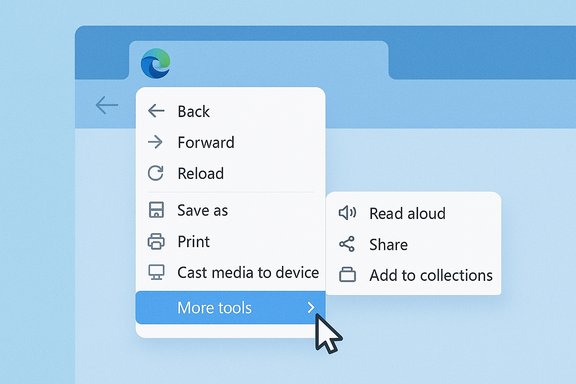
Microsoft Edge’s right‑click menu just stopped being a small test of patience and became usable again — at least on the surface. After years of complaints about endlessly long, duplicate, and hard‑to‑scan context menus, Edge now folds a swath of secondary commands into a single More tools submenu, moving options such as Add to collections, Read aloud, Share, and other less‑used features out of the top‑level right‑click list. The change noticeably shortens the menu you see when you right‑click a page, a link, or an image and also surfaces inside the main three‑dot (Settings and more) menu — a tidy fix for one of the browser’s most persistent UX complaints.
The context menu in modern browsers and operating systems is a delicate balance between power and simplicity. Over the past several years Microsoft has added innumerable capabilities to Edge: shopping tools, collections, accessibility features, sharing, built‑in reading aids, developer tools, Copilot integrations, and more. Those additions improved capability but multiplied menu entries, often producing several near‑duplicate verbs for the same file or element — a classic symptom of feature accretion.
Microsoft itself acknowledged the problem in its Top Feedback Summary for April 2022, noting that users had described Edge’s context menus as “obscenely large” and that both the right‑click context and the main “…” menus were “too long, too wide, and don’t offer any ways to customize.” The team said it was experimenting with fixes in Canary and solicited feedback from the community. Community reporting and forum threads over the next months and years repeatedly documented the same frustration: users wanted fewer menu items, faster scanning, and a way to hide niche features that they never use. Many users started to rely on workarounds — keyboard shortcuts, toolbar buttons, or third‑party tweaks — because the menus were simply too noisy to be effective. The long‑running conversation around decluttering Edge’s UI shows why this particular fix mattered: context menus are high‑frequency touchpoints, and every extra line increases friction.
This is similar to earlier Microsoft efforts on Windows’ own context menus (WinUI’s SplitMenuFlyoutItem, for instance), which aim to collapse related verbs into single, denser rows that surface a primary action while keeping additional choices discoverable via a secondary affordance. The split‑menu idea and other menu consolidation experiments show Microsoft thinking broadly about context‑menu bloat across both browser and operating system surfaces.
For enterprises and product teams, the lesson is clear: feature creep in UI surfaces accumulates technical debt that impacts usability. The ability to group and promote actions intelligently — ideally with policy controls for admins — matters as much as the raw list of available capabilities.
For most users, the result should be a faster, less overwhelming browsing experience. For power users and IT teams, the change is a reminder to test and update training or documentation: how you right‑click today may be simpler visually, but some of your favorite features might now live one click deeper in a More tools submenu.
Source: Windows Report Microsoft Edge Finally Fixes Its Cluttered Right-Click Menu
 Background: why the context menu became a problem
The context menu in modern browsers and operating systems is a delicate balance between power and simplicity. Over the past several years Microsoft has added innumerable capabilities to Edge: shopping tools, collections, accessibility features, sharing, built‑in reading aids, developer tools, Copilot integrations, and more. Those additions improved capability but multiplied menu entries, often producing several near‑duplicate verbs for the same file or element — a classic symptom of feature accretion.Microsoft itself acknowledged the problem in its Top Feedback Summary for April 2022, noting that users had described Edge’s context menus as “obscenely large” and that both the right‑click context and the main “…” menus were “too long, too wide, and don’t offer any ways to customize.” The team said it was experimenting with fixes in Canary and solicited feedback from the community. Community reporting and forum threads over the next months and years repeatedly documented the same frustration: users wanted fewer menu items, faster scanning, and a way to hide niche features that they never use. Many users started to rely on workarounds — keyboard shortcuts, toolbar buttons, or third‑party tweaks — because the menus were simply too noisy to be effective. The long‑running conversation around decluttering Edge’s UI shows why this particular fix mattered: context menus are high‑frequency touchpoints, and every extra line increases friction.
What changed — the new More tools submenu, explained
What’s moved and what remains
The visible change is straightforward: a More tools entry now acts as a compact submenu that contains secondary and less frequently used commands. In practice this means:- Top‑level menu items now show only the most common or essential actions for the selected element (page, link, image).
- Less‑used features — examples include Add to collections, Read aloud, Share, screenshot/clip options, and other inline utilities — are tucked into More tools.
- The More tools pattern appears consistently across right‑click context menus and in Edge’s main three‑dot menu, so the decluttering is applied in multiple UI surfaces.
The design rationale
The move follows a familiar design principle: preserve discoverability while reducing visual noise. Group infrequent or advanced actions behind a labeled submenu so the primary commands are faster to find and activate.This is similar to earlier Microsoft efforts on Windows’ own context menus (WinUI’s SplitMenuFlyoutItem, for instance), which aim to collapse related verbs into single, denser rows that surface a primary action while keeping additional choices discoverable via a secondary affordance. The split‑menu idea and other menu consolidation experiments show Microsoft thinking broadly about context‑menu bloat across both browser and operating system surfaces.
Verification: what we could confirm and what remains unofficial
- Microsoft publicly recognized the problem in April 2022 in its feedback summary, explicitly describing the context menu as “obscenely large.” That statement is an authoritative admission the company later referenced while testing UI changes.
- Multiple independent outlets and user communities documented menu changes and the relocation of features such as Read Aloud into More tools. These include technical tutorials and how‑to sites that now show Read Aloud accessible under “More tools,” community forum threads where users report the shift, and Microsoft Q&A threads asking how to move Read Aloud back to the top‑level menu.
- Microsoft’s formal stable‑channel release notes do not appear to contain a plain‑language bullet that says “we moved these items under More tools,” which means the company opted for a quiet rollout rather than a headline in the official changelog. Where release notes mention changes to menus, they tend to describe broader organization choices, feature deprecations, or policy updates rather than detailed menu relocations. Given that, the most reliable indicators that the feature has reached general release are widespread user reports and the presence of the change in multiple stable builds observed in the wild. This is typical for UI adjustments that are rolled out gradually and controlled via feature flags or staged deployments.
Strengths: why this matters for everyday users
- Reduced cognitive load. Shorter menus are easier to scan. By lifting common commands and collapsing niche ones into a submenu, everyday browsing becomes faster.
- Cleaner UX for power and casual users alike. Casual users benefit immediately from a less overwhelming menu. Power users still have access to the same features via the More tools submenu or Shift+right‑click (classic menu) when needed.
- Consistency across UI surfaces. Applying the same More tools pattern to the three‑dot menu and right‑click menus reduces mental friction when switching between the two.
- Incremental, reversible change. Because Microsoft is leveraging staged rollouts and existing menu affordances, the change can be iterated on quickly in response to user feedback — a pragmatic approach that avoids sweeping breaking changes.
Tradeoffs and risks: what the redesign leaves behind
- Extra clicks for moved actions. The most obvious downside is the additional click required to reach items now tucked into More tools. For users who relied on single‑click access to Read Aloud or Add to collections, this feels like a regression in efficiency.
- Discoverability blunting. While the approach preserves discoverability via the submenu, hiding items does make them less visible to casual discoverers — especially nontechnical users who never open nested menus. That can reduce feature adoption for legitimately useful tools.
- Inconsistent experiences across channels or regions. Feature rollouts that are staged or controlled via flags can produce inconsistent user experiences. Some users may see the compact menu in Canary or Dev earlier, while others on Stable or Enterprise may not see it until later, which complicates support guidance and internal documentation.
- No built‑in customization (yet). User requests for a configurable context menu — where you can pin or unpin commands — remain largely unanswered. Microsoft’s April 2022 feedback acknowledgment asked for customization but the current approach uses a static fold rather than per‑user pinning. That means users who want to retain certain items at the top have limited options beyond keyboard shortcuts or toolbar placement.
Practical guidance: how to adapt and where to find moved items
If the More tools submenu has made a previously one‑click action harder to reach, here are practical ways to adapt:- Use keyboard shortcuts for frequently used features (for example, Ctrl+Shift+U for Read Aloud in Edge where available).
- Add the most‑used tools to the Edge toolbar where possible (Collections, extensions, etc. so they remain one click away.
- Use the classic menu when needed: Shift+right‑click or Shift+F10 can reveal the legacy context menu in many cases.
- Check Settings > Privacy, search, and services and other preference pages to disable or hide features you never use — some entries only appear when corresponding features are enabled.
- Identify the specific action you use most.
- Look for a toolbar or shortcut alternative.
- If developer or admin: test the new layout on representative devices before broad rollout.
- Communicate changes to users or create a short tip sheet highlighting the More tools location.
Broader implications: a trend toward consolidation and platform design
Edge’s More tools submenu is a single data point in a broader movement inside Microsoft and across the industry: UI consolidation rather than ever‑more features eagerly appended to top‑level menus. The WinUI team has prototyped split‑menu controls (SplitMenuFlyoutItem) to condense related verbs and give apps programmatic control over which action is primary and which are nested. That pattern, if broadly adopted, would reduce vertical bloat while preserving discoverability for secondary tasks. The Edge change is consistent with that direction.For enterprises and product teams, the lesson is clear: feature creep in UI surfaces accumulates technical debt that impacts usability. The ability to group and promote actions intelligently — ideally with policy controls for admins — matters as much as the raw list of available capabilities.
What we’d like to see next
- Official documentation and changelog entry. Microsoft should explicitly list moved items and explain the rationale in the release notes so admins and power users aren’t surprised by behavior changes.
- User customization. A drag‑to‑pin or pin/unpin control for the context menu would let individuals keep the commands they use most accessible without re‑exposing the entire menu.
- Policy controls for organizations. Enterprises should be able to manage which menu items appear at top level via Group Policy or Edge admin templates, especially for managed devices where consistent UX matters.
- Telemetry‑driven promotion. If Microsoft can promote frequently used submenu items into the top level based on aggregate usage (with privacy safeguards), it would reconcile discoverability and concision dynamically.
- Accessibility validation. Ensuring that screen readers, keyboard navigation, and other assistive tech reach More tools entries reliably is essential — hiding content behind submenus increases the importance of solid ARIA semantics and keyboard affordances.
Conclusion
Microsoft Edge’s addition of a More tools submenu is a quiet but meaningful UX improvement: it reduces the immediate visual clutter on the right‑click menu and aligns the browser with larger platform efforts to address menu bloat. The move addresses a complaint Microsoft publicly acknowledged in 2022 and demonstrates an incremental, user‑feedback‑driven approach to interface design. At the same time, the change trades a visible menu line for an extra click, and it highlights outstanding user requests for menu customization and clearer rollout communication.For most users, the result should be a faster, less overwhelming browsing experience. For power users and IT teams, the change is a reminder to test and update training or documentation: how you right‑click today may be simpler visually, but some of your favorite features might now live one click deeper in a More tools submenu.
Source: Windows Report Microsoft Edge Finally Fixes Its Cluttered Right-Click Menu
