

Microsoft Edge is rolling out a major upgrade to its on-device anti-scam defenses: the browser’s Scareware blocker is now broadly available on qualifying Windows and macOS devices, and Edge 142 introduces a new scareware sensor that can notify Microsoft Defender SmartScreen in near real time when full‑screen scam pages are detected.
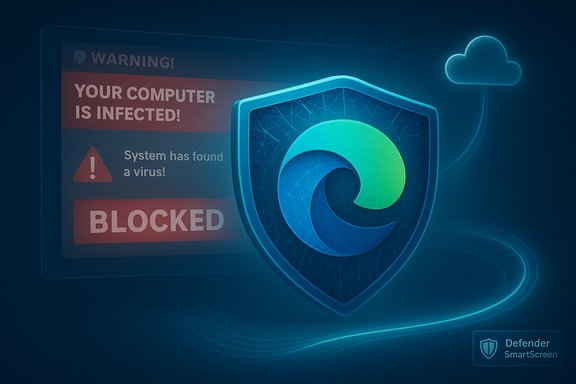
Microsoft has long combined cloud reputation services and local heuristics to protect Edge users from phishing, malicious downloads, and malvertising. The Scareware blocker is the latest stage in that evolution: it embeds a local computer‑vision and behavior model inside Edge to identify pages that mimic system dialogs, force full‑screen overlays, play loud audio, or otherwise attempt to frighten users into calling fake support numbers or installing software. When a page is flagged, Edge exits full‑screen, mutes audio, and surfaces a clear warning with options to close, continue, or report. This is a layered approach: on‑device detection gives immediate protection to the individual user, while integration with Defender SmartScreen enables networked, reputation‑based blocking once a suspicious page has been confirmed and indexed at scale. The new scareware sensor and administrative policies make that integration faster and more manageable for IT teams.
Microsoft’s approach demonstrates how local AI and cloud reputation systems can complement each other to reduce the window of opportunity for social‑engineering attacks. The key next steps for defenders are measured: validate the feature on representative devices, monitor false positives, and use policy controls to align protection with privacy and operational requirements.
Source: Windows Report Microsoft Expands Edge’s Scareware Blocker to Shield More Users from Online Scams
 Background
Microsoft has long combined cloud reputation services and local heuristics to protect Edge users from phishing, malicious downloads, and malvertising. The Scareware blocker is the latest stage in that evolution: it embeds a local computer‑vision and behavior model inside Edge to identify pages that mimic system dialogs, force full‑screen overlays, play loud audio, or otherwise attempt to frighten users into calling fake support numbers or installing software. When a page is flagged, Edge exits full‑screen, mutes audio, and surfaces a clear warning with options to close, continue, or report. This is a layered approach: on‑device detection gives immediate protection to the individual user, while integration with Defender SmartScreen enables networked, reputation‑based blocking once a suspicious page has been confirmed and indexed at scale. The new scareware sensor and administrative policies make that integration faster and more manageable for IT teams. What’s new in this rollout
Local detection expanded by default
Microsoft is enabling Scareware blocker by default on devices that meet a minimal performance threshold: at least 2 GB of RAM and four CPU cores. The stated rationale is to ensure the local model runs without perceptible impact to normal browsing. The protection remains a local, on‑device model so basic detection and interruption happen immediately, without needing a cloud lookup.Scareware sensor (Edge 142)
Starting with Edge 142, Microsoft has added a scareware sensor option. When enabled, the sensor can immediately notify Defender SmartScreen that a suspicious full‑screen page was detected — without sending screenshots or extra page content beyond the usual metadata SmartScreen receives. The sensor is off by default for now, but Microsoft plans to enable it for users who already have SmartScreen turned on. The sensor is also disabled automatically when browsing InPrivate.Faster pipeline to SmartScreen
Preview telemetry and a Microsoft blog post describe upgrades to the reporting pipeline so that user reports and sensor signals from Scareware blocker are processed faster by SmartScreen and can result in global blocking much sooner than before. Microsoft reported that Scareware blocker often protected users hours or days before the same pages appeared on blocklists, and claimed each user report protected an average of about 50 other users during preview. Those figures are reported by Microsoft based on preview telemetry; treat them as vendor data rather than independently audited metrics.How the technology works (technical overview)
The Scareware blocker blends visual analysis, behavioral heuristics, and policy logic to detect scare tactics.- Local computer vision model: Edge uses an on‑device model trained to recognize visual patterns common to scareware — for example, fake system dialogs, mimicry of OS error windows, forced overlays, or full‑screen pages with urgent language and phone numbers. Running locally reduces latency and limits what needs to be sent to the cloud.
- Behavioral signals: Beyond static appearance, the model looks for behavior consistent with scams, including attempts to lock navigation, aggressive audio playback, repeated overlays, and attempts to hijack keyboard or mouse input. When these behaviors appear in combination with visual cues, the confidence in a scam classification increases.
- Immediate mitigation: When Edge flags a page, it exits full‑screen mode, mutes audio, and shows a user‑facing interstitial that explains the risk and offers clear choices: close the tab, continue (if the user believes the page is legitimate), or report the page to help improve detection. This gives users time to make a rational decision instead of reacting under duress.
- Optional reporting and sharing: Users can report suspected scams via the interstitial. With reporting enabled, Edge can forward a minimal set of signals — typically the URL and a classification label — to Microsoft Defender SmartScreen. The new scareware sensor enables an automated, low‑bandwidth signal to SmartScreen to speed up global protections; screenshots or extra page data are not shared by default. Enterprise admins can opt to tune or disable sharing via policy.
Enterprise controls and policy surface
Microsoft added explicit enterprise policies to let organizations manage Scareware blocker behavior centrally. The publicly documented policy names include:- ScarewareBlockerAllowListDomains — define domains where Scareware blocker will not run
- ScarewareBlockerBlocksDetectedSitesEnabled — configure whether Edge should block sites it detects as scams
- ScarewareBlockerSendDetectedSitesToSmartScreenEnabled — toggle sharing detected URLs/classifications with Defender SmartScreen
Effectiveness: what the previews showed
Microsoft’s own preview testing shows strong early gains:- Faster protection: Scareware blocker detected and protected users from fresh scam pages hours or days before SmartScreen’s blocklists were updated, which reduced the window of exposure for victims.
- Amplification effect: Microsoft reported that each user report from Scareware blocker helped protect roughly 50 other users during preview. That multiplier comes from SmartScreen indexing and applying reputation updates after human or automated confirmation. This metric is compelling but originates from internal telemetry; independent verification is not available in the public record. Treat the figure as indicative rather than definitive.
- Real‑world scenarios: Reported scams encountered during testing included more than the classic “Virus Alert!” popups — operators reported fake blue screens, control‑panel mimicry, and even pages impersonating law enforcement demanding payment. In at least one described case the blocker caught scams that SmartScreen had not yet flagged.
Privacy and telemetry — the tradeoffs
The design attempts to balance speed of response with data minimization. Key privacy points:- Local-first detection: The model runs on the device for the initial detection step. This limits upload of page content and reduces latency. Microsoft emphasizes the local model specifically to protect privacy and performance.
- Minimal reporting payload: The scareware sensor and reporting flows are described as sending only what SmartScreen already ingests — typically the URL and a classification — rather than full page screenshots or raw HTML. Microsoft explicitly states screenshots and extra data are not sent automatically by the sensor. Users who manually report can attach screenshots if they choose, which helps analysts but increases the personal data shared.
- Defaults matter: The sensor is off by default at rollout; Microsoft plans to enable it for users who already opt into SmartScreen. Enterprises can control sharing via policy, and the sensor is disabled for InPrivate sessions. Admins should build these settings into their governance playbooks.
Risks, limitations, and operational concerns
The Scareware blocker addresses a high‑impact social‑engineering vector, but it is not without limitations and potential downsides:- False positives and UX friction: Any heuristic or ML detector risks misclassifying legitimate full‑screen experiences (video players, web kiosk apps, games, or internal admin portals). Excessive false positives will frustrate users and can create helpdesk overhead. Admins should validate allow‑lists and test Experience flows in representative environments.
- Bypass behavior: Edge’s consumer‑friendly flow allows users to bypass warnings. While this reduces friction, it also means determined users or coerced victims could ignore warnings. Enterprises can tighten controls via policy to reduce bypass options on high‑risk endpoints.
- Telemetry policy conflicts: Sharing detected URLs to SmartScreen accelerates global protections but may conflict with organizational telemetry restrictions. The new policies let admins disable sharing or create allow‑lists, but that choice also means relying solely on local detection for protection.
- Performance on very low‑end devices: Microsoft sets the default enablement threshold at 2 GB RAM and four CPU cores to avoid slowdowns, but in fleets with a range of hardware, performance testing is essential before enabling on all devices. Organizations that manage legacy hardware should plan exception policies.
- Lack of independent audits so far: The strongest public numbers on multiplier effects and detection lead times come from Microsoft preview telemetry. Independent, third‑party evaluations of true/false positive rates, detection latency, and resource usage are not yet publicly available. Those evaluations would be valuable for enterprise risk assessments.
Practical recommendations for users and IT administrators
For everyday users- Keep Microsoft Defender SmartScreen enabled — it’s a low‑friction protection that works well with Scareware blocker.
- Keep Edge updated to the latest stable channel if you want the widest protections and policy updates.
- If you encounter a suspected scam page, use the report option — manual reports (with optional screenshots) help improve detection and accelerate protections for others.
- Pilot: Test Scareware blocker and the scareware sensor in a controlled pilot group representing the diversity of devices and workflows in your environment.
- Policy mapping: Decide whether to enable ScarewareBlockerSendDetectedSitesToSmartScreenEnabled in your organization — enabling it improves global protections but must align with telemetry policies.
- Build allow‑lists: Use ScarewareBlockerAllowListDomains to exempt internal tools that use full‑screen workflows or aggressive overlays.
- Harden bypass rules for high‑risk endpoints: Consider stricter enforcement (disable “keep anyway”) on devices handling sensitive data or critical infrastructure.
- Monitor telemetry and helpdesk impact: Track interstitial frequency, false positive reports, and any increase in support tickets after enabling the blocker or sensor. Adjust policies accordingly.
How this fits into the broader security landscape
Scareware-style scams are an enduring social‑engineering vector because they combine believable visuals with urgency. Reputation systems like SmartScreen are effective for known threats but can lag against fast‑moving campaigns that use malvertising, rapid domain changes, or cloned landing pages. Adding a local, visual ML layer addresses that gap by catching suspicious behavior at the moment of exposure. The ability to feed early, low‑bandwidth signals back into SmartScreen shortens the time between outbreak and global protection — an important improvement in speed and coverage. This local-plus-cloud pattern is increasingly common: on‑device ML provides responsiveness and privacy benefits, while cloud reputation and human analysis provide scale and confirmation. For defenders, the combination is powerful; for privacy‑sensitive organizations, it creates policy decisions that need governance.Final assessment
Microsoft’s Scareware blocker is a pragmatic, well‑scoped defense against a long‑running and high‑impact scam vector. The local computer‑vision model and immediate remediation actions address the core threat — users forced into panic decisions by realistic‑looking full‑screen scams. The addition of the scareware sensor in Edge 142 and the policy controls give defenders the tools to convert local detections into global protections faster, while still allowing organizations to control telemetry sharing. Strengths:- Immediate, on‑device protection that reduces user exposure.
- Policy controls for enterprise governance and allow‑listing.
- Faster networked response via the scareware sensor and improved SmartScreen pipeline.
- Vendor‑reported effectiveness metrics (for example, the “one report protects 50 others” figure) are promising but require independent validation.
- False positives and UX friction are real operational concerns, especially for full‑screen business applications and kiosk scenarios.
- Telemetry and privacy decisions must be evaluated by organizations with strict regulatory or compliance requirements.
Microsoft’s approach demonstrates how local AI and cloud reputation systems can complement each other to reduce the window of opportunity for social‑engineering attacks. The key next steps for defenders are measured: validate the feature on representative devices, monitor false positives, and use policy controls to align protection with privacy and operational requirements.
Source: Windows Report Microsoft Expands Edge’s Scareware Blocker to Shield More Users from Online Scams
