

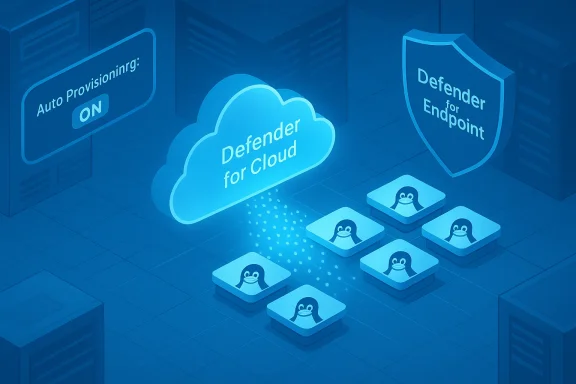
Microsoft’s advisory for CVE-2026-21537 demands one simple, urgent operational response from most Azure customers: turn on Defender for Endpoint auto‑provisioning in Defender for Cloud so that Azure can automatically push the fixed Microsoft Defender for Endpoint (MDE) for Linux extension (release 1.0.9.0) to all eligible Linux VMs. Enabling the built‑in provisioning mechanism is the supported fix — the backend will update the extension for you, and no manual package rebuild or per‑VM patching is required in the common case. (msrc.microsoft.com)
Microsoft has published CVE‑2026‑21537 as a remote code execution risk tied to the Microsoft Defender for Endpoint agent’s Linux extension. The vendor’s operational recommendation is explicit: customers who rely on Defender for Endpoint integration should ensure auto‑provisioning is enabled in Defender for Cloud so the platform can deliver the patched MDE extension (version 1.0.9.0) to all eligible machines. Where auto‑provisioning is already enabled, eligible Linux machines will receive the extension update automatically. Where it is disabled, administrators must enable it — after that change the fix is pushed to eligible VMs within the propagation window Microsoft describes. (msrc.microsoft.com)
This advisory is operational in nature: it changes how customers should manage Defender for Cloud provisioning rather than asking Linux administrators to download and install a distribution package immediately. That makes the recommended action straightforward — but it also means administrators must validate that the automatic pipeline actually touched every workload that needs protection.
Operationally, the vendor’s model gives two practical advantages:
Follow the prioritized playbook in this article: inventory, toggle check, propagation verification, remediate exceptions, and run detection hunts for telemetry anomalies. Those concrete steps will close the vulnerability quickly while giving defenders the assurance they need that the fix reached every eligible machine. (msrc.microsoft.com)
Source: MSRC Security Update Guide - Microsoft Security Response Center
 Background / Overview
Microsoft has published CVE‑2026‑21537 as a remote code execution risk tied to the Microsoft Defender for Endpoint agent’s Linux extension. The vendor’s operational recommendation is explicit: customers who rely on Defender for Endpoint integration should ensure auto‑provisioning is enabled in Defender for Cloud so the platform can deliver the patched MDE extension (version 1.0.9.0) to all eligible machines. Where auto‑provisioning is already enabled, eligible Linux machines will receive the extension update automatically. Where it is disabled, administrators must enable it — after that change the fix is pushed to eligible VMs within the propagation window Microsoft describes. (msrc.microsoft.com) This advisory is operational in nature: it changes how customers should manage Defender for Cloud provisioning rather than asking Linux administrators to download and install a distribution package immediately. That makes the recommended action straightforward — but it also means administrators must validate that the automatic pipeline actually touched every workload that needs protection.
What customers must do now — short checklist
- Verify whether Defender for Endpoint auto‑provisioning is enabled for each subscription. ()
- If it is Off, enable auto‑provisioning in Defender for Cloud → Environment settings → Defender Plans → Servers → Settings (turn the MDE / WDAgent auto‑provision toggle On).
- Confirm the MDE extension version on each Linux VM (look for the MDE.Linux extension and check its version; use the Azure Portal, az CLI, or PowerShell).
- Validate the sensor health inside each Linux VM with mdatp health and, where needed, update the mdatp package manually or via your configuration management system.
- If provisioning was disabled and you enable it now, allow the propagation window (Microsoft notes that the backend may take a short window to push updates; plan for verification within hours). (msrc.microsoft.com)
Why auto‑provisioning is Microsoft’s chosen remediation path
Microsoft’s cloud tooling allows Defender for Cloud to manage endpoint onboarding at scale. When Defender for Servers (the Servers plan in Defender for Cloud) is enabled for a subscription, Defender for Cloud can push the MDE agent and the MDE.Linux extension to eligible virtual machines automatically. This approach reduces per‑VM toil and ensures the vendor’s service pipeline can roll out emergency fixes quickly across thousands of VM images and Azure Arc connected machines. Microsoft documents the integration steps, prerequisites (Python on Linux, supported distributions), and the fact that auto‑onboarding is the default for new subscriptions or when you enable the Servers plan.Operationally, the vendor’s model gives two practical advantages:
- It removes the need for administrators to track and manually upgrade disparate mdatp distributions and images.
- It creates a single control plane (Defender for Cloud’s Environment settings) where you can affect all eligible machines in a subscription or scope. That single toggle is precch Microsoft is pointing to for this CVE remediation.
How to verify and enable auto‑provisioning (step‑by‑step)
1. Quick verification in the Azure portal (UI)
- Open Microsoft Defender for Cloud.
- Select Environment settings and choose the subscription to inspect.
- Open Defender plans → Servers → Settings & monitoring.
- Confirm Endpoint protection (Defender for Endpoint integration) is set to On and that the auto‑provisioning setting for the MDE agent/extension is enabled. If it’s Off, toggle to On and save.
2. Programmatic checks (Azure CLI / PowerShell)
- To list extensions installed on a VM (Azure CLI):
az vm extension list --resource-group <rg> --vm-name <vm> -o table
This returns the extension name (look for MDE.Linux) and the version column. - PowerShell example to enumerate VM extensions across VMs (conceptual; adapt to your environment):
foreach ($vm in $vms) { Get‑AzVMExtension -ResourceGroupName $vm.ResourceGroupName -VMName $vm.Name }
Filter results where Publisher/Type indicates MDE to surface the MDE.Linux extension and its version.
3. On‑host verification (Linux)
- Confirm the Defender sensor is healthy:
sudo mdatp health
Look for healthy : true and licensed : true. If the agent reports an unpatched client or problems, follow the Linux update guidance. - To update the Linux client manually if needed:
- RHEL/CentOS: sudo yum update mdatp
- Ubuntu/Debian: sudo apt-get install --only-upgrade mdatp
- SLES: sudo zypper update mdatp
Expected timing and propagation details — what to plan for
Microsoft’s operational guidance mixes a few timing signals:- Defender for Cloud’s onboarding flow for new machines is typically fast (onboarding may take up to an hour in common scenarios).
- The vendor’s advisory for CVE‑2026‑21537 indicates that, once auto‑provisioning is enabled, the backend will push the updated extension and that eligible machines will receive the updated MDE for Linux extension (version 1.0.9.0) automatically; Microsoft notes a short propagation window after the toggle is turned on (the vendor guidance describes a rollout window measured in hours). Administrators should allow for a short delay and confirm via the VM extension list and mdatp health. (msrc.microsoft.com)
Verification and automation examples (practical recipes)
- Use Azure Resource Graph to produce a subscription‑wide report of VMs and installed extensions, then filter for MDE.Linux and its version. This gives a quick compliance view (script templates exist and can be adapted to your telemetry pipeline).
- PowerShell/CLI scripted pattern to detect older extension versions:
- Enumerate VMs in the subscription/resource group.
- For each VM run az vm extension list (or Get‑AzVMExtension) and parse the ExtensionType/Version fields for MDE.Linux.
- Emit a CSV/JSON report of VMs missing version 1.0.9.0 and trigger an alert or remediation playbook.
- If you use centralized configuration management (Ansible, Chef, Puppet, Salt), deploy a lightweight “health check” job tha each Linux node and reports results back to your CMDB or SIEM. Use the mdatp CLI output as your canonical on‑host signal.
Exceptions, caveats and edge cases you must watch for
- Some images (generalized OS images or specific VMSS/Uniform VM scale set types) do not support or are not covered by the default auto‑provisioning path; those require manuted policy to install MDE.Linux. Don’t assume a subscription‑level toggle affects every image variant — verify at the resource level.
- Customers who previously disabled auto‑provisioning intentionally (for compatibility or performance reasons) may have tags or policies that block automatic extension pushes. Example: the tag ExcludeMdeAutoUpdate suppresses MDE auto‑updates for VMs that you explicitly want to exclude. If such tags are present, rework your exemption policy or patch those VMs manually.
- Custom kernels, specialized drivers, or third‑party EDR/AV products may cause the extension to behave differently or require special handling; where an automatic upgrade would cause operational disruption, test the fixed extension in a patch ring before broad deployment. Use the Defender for Endpoint release notes and the mdatp health checks during testing.
- The vendor’s public advisory pages sometimes render dynamically and omit low‑level exploit mechanics in the public text. If your organization requires technical exploit details for risk modeling, treat Microsoft’s Update Guide/Known Issues page as the canonical operational mapping and request additional technical writeups from Microsoft support if you need deeper telemetry signatures. Flag any claim you cannot verify with Microsoft artifacts as “unverified” in your internal tracking.
Detection, telemetry and hunting guidance
Because the immediate vendor action centers on extension updates, defenders should focus on visibility around extension lifecycle events, agent health, and sudden telemetry gaps:- Alert on new or changed VM extension installations where the extension name is MDE.Linux or the publisher corresponds to Microsoft’s MDE extension. Unexpected exindicate misconfiguration or a malicious attempt to tamper with telemetry.
- Create EDR hunts for anomalous process creation patterns or child processes spawned by the Defender sensor itself. Any unexpected behavior originating from the extension process should be treated as high signal and reported for investigation.
- Monitor your SIEM for mdatp health failures, missing licenses, or agent version mismatches. Collect mdatp health output centrally and alert when clients report health_issues.
- Correlate Azure Activity Log events that show extension updates or VM restarts with on‑host telemetry; a sudden burst of extension installs followed by unexpected reboots is worth immediate attention. Automate the correlation in your incident response playbooks.
annot be enabled immediately — mitigation options
If you cannot enable auto‑provisioning in Defender for Cloud right away due to change control windows or compatibility testing, follow a compensating‑controls approach:- Manually update the MDE client on each impacted Linux VM using your standard package management or a scripted CM job. The mdatp package can be updated via apt/yum/zypper as appropriate.
- For Azure Arc or non‑Azure machines, coordinate a manual onboarding or use your orchestration tool to push the MDE.Linux extension on a per‑host basis. Defender for Cloud’s resource‑level controls allow you to scope actions if subscription‑wide toggles are not available.
- Narrow network exposure and tighten administrative access to affected machines until you can deploy the fix: remove unnecessary SSH access, enforce Just‑In‑Time privileged access, and restrict which accounts can perform extension installation or VM restarts. These are temporary compensating controls rather than a substitute for the update.
Operational playbook — prioritized actions for the next 24–72 hours
- Inventory: Enumerate every Azure subscription and external cloud account where Defender for Servers is expected to operate. Export the list of Linux VMs and check for the MDE.Linux extension. Use Azure CLI/PowerShell or Resource Graph queries.
- Toggle check: Confirm the Defender for Endpoint auto‑provisioning toggle per subscription. If Off, change it to On and note the timestamp and change ticket.
- Verify propagation: Continuously monitor the extension list and mdatp health for each VM for the next 6–12 hours. Flag VMs that do not receive the 1.0.9.0 extension for manual intervention. (msrc.microsoft.com)
- Remediate exceptions: For VMs that do not accept the extension because of custom images, VMSS type, or explicit exclusion tags, plan manual updates or controlled reimaging in a patch ring.
- Post‑fix validation: Run a detection sweep for indicators oted extension installs, telemetry gaps, or unfamiliar child processes of the Defender sensor). If you observe anomalies, treat them as an incident — isolate the host, collect logs, and conduct full forensic capture.
Critical assessment — strengths and residual risks
Strengths- The vendor’s choice to push the fix through Defender for Cloud’s auto‑provisioning pipeline is operationally sound: it reduces fragmentation and lets Microsoft deliver a single, tested extension to a large set of Azure VMs quickly. This centralized strategy is faster and less error‑prone than requiring individual admins to source packages for many distributions.
- Microsoft’s agent ecosystem provides on‑host health checks (mdatp health) and standard package update paths, whiify patch status programmatically and with standard tooling.
- Scope mismatch and hidden exclusions. Auto‑provisioning is powerful but not universal: generalized images, certain VMSS types, images with customization, or VMs intentionally excluded via tags/policies may be left behind. These exceptions create a long tail of unpatched systems that attackers can exploit. Administrators must verify at scale — not assume the toggle fixed everything.
- Operational side effects. Auto‑installed agents can interact with third‑party drivers (GPU drivers, kernel modules) or custom kernel configurations in ways that disrupt workloads. Test the updated extension on representative hosts before broad enablement where uptime or specialized hardware is critical. Community reports show such interactions can occur in complex environments.
- Visibility / telemetry gaps. If an attacker had ith telemetry or installed a rogue extension, the automated update flow may not surface that at first. Defenders should detect for unusual extension installation patterns and treat them as potentially malicious until proven otherwise.
Recommended validation queries and scripts (copy‑ready templates)
- Azure CLI quick check (single VM):
az vm extension list --resource-group MyResourceGroup --vm-name MyVM -o table
Look for an extension named MDE.Linux and confirm Version == 1.0.9.0. - PowerShell multi‑VM snapshot (conceptual):
$vms = Get-AzVM -SubscriptionId <subid>
foreach ($vm in $vms) {
$exts = Get-AzVMExtension -ResourceGroupName $vm.ResourceGroupName -VMName $vm.Name
$exts | Where-Object { $.Publisher -like 'Microsoft' -and $.Type -like 'MDE*' } | Select VMName = $vm.Name, Name, Type, Version
}
Export results to CSV and reconcile against required version. - On‑host mdatp health test:
sudo mdatp health --field product_version
sudo mdatp health --field health_issues
Assert product_version and absence of health_issues.
Final technical cautions and governance notes
- Do not flip the auto‑provisioning toggle without change control in highly regulated or production‑critical subscriptions. Treat this as an emergency change but follow your organization’s risk acceptance and rollback procedures. Document the time and scope of the toggle change and who authorized it.
- If you manage non‑Azure Linux fleets (on‑prem, other clouds) or custom WSL kernels, validate whether those artifacts are covered by Microsoft’s attestation and remediation guidance. The cloud auto‑provisioning flow only affects machines that Defender for Cloud can reach and manage; other assets will require manual updating.
- If your estate uses tags like ExcludeMdeAutoUpdate to avoid auto‑updates, reconcile a mitigation plan: either register those hosts for manual patching or remove the exclusion for this emergency patch window. Exclusions block the vendor’s automatic remediation pipeline and therefore increase patching overhead and risk.
Conclusion
CVE‑2026‑21537 is best handled by enabling the mechanism Microsoft designed for rapid agent updates: Defender for Cloud’s MDE auto‑provisioning. For most Azure customers the required fix is operational — turn on auto‑provisioning, verify the MDE.Linux extension version (1.0.9.0) across Linux VMs, and confirm sensor health with mdatp. Where automatic provisioning is intentionally disabled or where specialized images exist, follow the manual update recipes and ensure your CM/EDR tooling verifies the fix.Follow the prioritized playbook in this article: inventory, toggle check, propagation verification, remediate exceptions, and run detection hunts for telemetry anomalies. Those concrete steps will close the vulnerability quickly while giving defenders the assurance they need that the fix reached every eligible machine. (msrc.microsoft.com)
Source: MSRC Security Update Guide - Microsoft Security Response Center
