

You can make Windows 11 behave like an EEA-installed PC and finally uninstall Microsoft Edge and Bing — without installing a sketchy debloat script — by flipping a little-known region switch that Microsoft uses to decide whether to apply the European Digital Markets Act (DMA) rules to your machine. (blogs.windows.com)
The Digital Markets Act is an EU regulation designed to rein in “gatekeeper” platforms and restore user choice across operating systems and services. For Windows this has concrete consequences: in the European Economic Area (EEA) Microsoft must allow users to remove preinstalled apps like Edge, opt out of Bing in the system search experience, and let third‑party browsers claim more file types in one go. Microsoft describes a range of changes rolling into Windows 10 and Windows 11 in the EEA — from default app behavior to uninstallability of the Microsoft Store itself — as part of DMA compliance. (blogs.windows.com)
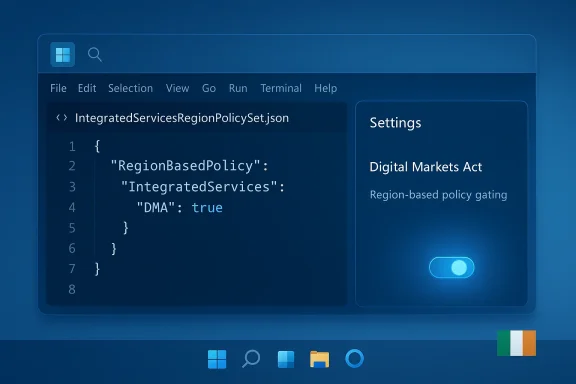
Those DMA-driven changes are not arbitrary UI tweaks: they’re enforced through Windows’ regional policy logic. Windows consults a cached geographic identifier (a registry value called DeviceRegion) and an on‑disk policy blob (IntegratedServicesRegionPolicySet.json) that contains feature flags conditioned on two‑letter region codes (for example, IE for Ireland). If the system believes it’s within an EEA country according to that logic, the DMA feature set is enabled and previously greyed‑out controls — like the uninstall button for Microsoft Edge — become live. (withinrafael.com)
Why Wintoys appeals:
But there’s a catch: Microsoft introduced a kernel‑level filter — the User Choice Protection Driver (UCPD.sys) — that prevents arbitrary programs and scripts from tampering with a set of registry keys used to control defaults and related behavior (Shell association user choices, PDF associations, and DeviceRegion among them). The driver stops third‑party installers or malware from silently flipping these values. Security researchers and sysadmins documented the driver and the keys it protects, and published mitigation/bypass techniques.
Two common workarounds have circulated:
For Microsoft, compliance is straightforward in the EEA but legally required. The company implemented DMA gating logic and updated components to honor defaults and uninstallation in the EEA, then exposed that logic in system policy so it could be applied conditionally. That’s why changing the DeviceRegion value or the JSON file produces the same effect: you’re switching the policy context Windows uses to apply the rules. Microsoft’s public messaging on these changes comes from the Windows Insider blog and product statements. (blogs.windows.com)
That said, there are real trade‑offs and responsibilities:
For most users who want to “declutter” Windows 11 without running aggressive debloaters, the cleanest approach today is to use a vetted tool like Wintoys or to re‑run OOBE and choose an EEA country at setup. If you’re comfortable with registry edits and system‑level changes, the DeviceRegion key and IntegratedServicesRegionPolicySet.json are the knobs you can turn — but do so deliberately, with backups, and with an eye toward reapplying or reverting changes after future Windows updates. (blogs.windows.com)
In short: you can have the Windows you want without dangerous hacks — but you should treat the underlying mechanisms with respect.
Source: MakeUseOf The weird Windows 11 setting that finally let me uninstall Edge and Bing
 Background: why this exists and what it changes
The Digital Markets Act is an EU regulation designed to rein in “gatekeeper” platforms and restore user choice across operating systems and services. For Windows this has concrete consequences: in the European Economic Area (EEA) Microsoft must allow users to remove preinstalled apps like Edge, opt out of Bing in the system search experience, and let third‑party browsers claim more file types in one go. Microsoft describes a range of changes rolling into Windows 10 and Windows 11 in the EEA — from default app behavior to uninstallability of the Microsoft Store itself — as part of DMA compliance. (blogs.windows.com)Those DMA-driven changes are not arbitrary UI tweaks: they’re enforced through Windows’ regional policy logic. Windows consults a cached geographic identifier (a registry value called DeviceRegion) and an on‑disk policy blob (IntegratedServicesRegionPolicySet.json) that contains feature flags conditioned on two‑letter region codes (for example, IE for Ireland). If the system believes it’s within an EEA country according to that logic, the DMA feature set is enabled and previously greyed‑out controls — like the uninstall button for Microsoft Edge — become live. (withinrafael.com)
What the change really does (in practical terms)
If DMA mode is activated for your PC you will notice several immediate, user‑facing differences:- Microsoft Edge can be uninstalled through Settings the same way other apps are removed. (blogs.windows.com)
- Bing as a Windows Search provider can be disabled or removed from Settings and Search providers, and web results can open in your chosen default browser. (blogs.windows.com)
- Third‑party browsers can be set as defaults for many more link and file types (including certain HTML and PDF associations) with a single “Set default” flow. (blogs.windows.com)
- Microsoft apps won’t aggressively re‑promote Edge or override your defaults when they are running — behavior that Microsoft documented as part of its DMA rollout. (blogs.windows.com)
How Windows decides you’re in the EEA: DeviceRegion, policies and the JSON file
The region detection logic has two key pieces:- Windows reads a cached geographic location identifier from the registry at HKLM\SOFTWARE\Microsoft\Windows\CurrentVersion\Control Panel\DeviceRegion. If present, that DWORD is treated as the authoritative device region identifier. If absent, Windows falls back to a Win32 geolocation API and then caches the result. (withinrafael.com)
- The file C:\Windows\System32\IntegratedServicesRegionPolicySet.json contains policy entries for many features. Each entry has a defaultState and a list of regions where the feature should be enabled. If your device region matches a region in an entry’s “enabled” list, that feature is permitted for the machine. That’s how uninstallability of Edge, or changing how default apps behave, is gated. (withinrafael.com)
The two common paths users are using today
There are three practical ways users have been enabling DMA features on machines that were originally set up outside the EEA:- Use the official OOBE (out‑of‑box experience) or reinstall Windows and choose an EEA country (like Ireland) during setup. This sets the device‑setup region at install time and Windows treats the machine as EEA for DMA features. (blogs.windows.com)
- Use a third‑party tweaker (the most popular is Wintoys) which automates the JSON edits and toggles the DMA flag for you. Wintoys exposes a “Digital Markets Act” toggle in its Tweaks → System area and will update the system file so DMA features become active without reinstalling. This approach is the least technical and avoids manual registry fiddling.
- Manually patch the system: edit the IntegratedServicesRegionPolicySet.json to add your country code to the “enabled” list for DMA features or change the cached DeviceRegion registry value. Advanced users have been doing this with elevated tools or by circumventing protections that block writes to that key (see UCPD discussion below). TheWindowsClub documents the JSON method in detail. (thewindowsclub.com)
Wintoys: the one‑click way, and what it changes
Wintoys is a popular free app in the Microsoft Store that consolidates many power‑user tweaks. Recent versions added a dedicated “Digital Markets Act” toggle which modifies the same IntegratedServicesRegionPolicySet.json system file Windows uses to gate DMA features. The app’s changelog and independent reporting show the addition specifically unlocks the EEA DMA features such as the ability to uninstall Edge and adjust default app behavior.Why Wintoys appeals:
- It automates the file ownership and ACL changes required to edit C:\Windows\System32 and edits the JSON for you.
- It toggles all DMA features at once, so you don’t need to hunt which entry controls Edge or Bing.
- It’s simple and reversible: toggle off and, in many reports, restore the original file (though that depends on Windows updates and system resets).
The “manual” PowerShell trick and the User Choice Protection Driver (UCPD)
If you prefer not to use third‑party software, the community documented a manual registry-based route: the DeviceRegion key at HKLM\…\DeviceRegion can be set to the GEOID corresponding to an EEA country (for Ireland that GEOID is 0x44 hex = 68 decimal). The Microsoft Win32 Table of Geographical Locations lists Ireland as 0x44 (68). Setting that DWORD causes Windows to show “Device setup region: Ireland” in Settings and to enable DMA behavior.But there’s a catch: Microsoft introduced a kernel‑level filter — the User Choice Protection Driver (UCPD.sys) — that prevents arbitrary programs and scripts from tampering with a set of registry keys used to control defaults and related behavior (Shell association user choices, PDF associations, and DeviceRegion among them). The driver stops third‑party installers or malware from silently flipping these values. Security researchers and sysadmins documented the driver and the keys it protects, and published mitigation/bypass techniques.
Two common workarounds have circulated:
- The executable copy bypass — copying PowerShell or Reg.exe to a new filename in System32 (for example, “powershell - Copy.exe” or “reg2.exe”) and running the copy, which bypasses UCPD’s filename checks, then setting the registry value. After the change, delete the copy. This is the technique MakeUseOf and many community posts describe. It works because UCPD identifies processes by binary path or filename; a copy slips past that check.
- Temporarily disabling UCPD — setting HKLM\SYSTEM\CurrentControlSet\Services\UCPD Start to 4 (disabled), rebooting, making the DeviceRegion change, and then re‑enabling the driver. This method is more surgical but involves reboot cycles and carries the higher risk of leaving the driver disabled if the subsequent re‑enable step is forgotten. Researchers have also found scheduled tasks that re‑enable UCPD, complicating permanent changes.
- Bypassing a defensive driver reduces the system’s protections. UCPD exists to prevent silent, unauthorized changes to defaults that could be abused by malware; disabling or circumventing it temporarily reduces that defense window.
- Microsoft can and does update the driver and the detection heuristics; copy‑byfile trick may be patched. What works today may not work tomorrow.
- If you’re uncomfortable with low‑level system changes, use Wintoys or reinstall with an EEA device setup selection — both are lower‑risk for most consumers.
Verifying the numeric values (so you don’t pick the wrong GEOID)
If you go the registry route, make sure you use the correct GEOID. Microsoft’s official Table of Geographical Locations lists identifiers in both hex and decimal. For the common example used in community guides:- Ireland = 0x44 (hex) = 68 (decimal). Setting DeviceRegion to that value makes Windows report Device setup region = Ireland and flips the DMA gates associated with EEA countries.
Real world effects and edge cases you should know about
A number of finer points and practical consequences are worth calling out before you attempt any change:- UI is cosmetic for some settings, but not for others. Device setup region is the flag Windows uses to gate features. Your Country or region (the user‑visible setting in Settings → Time & language → Language & region) can remain your true country but the device will be treated as EEA for DMA enforcement. That said, editing the JSON or region policy manually can change how some apps display local content and may affect Store availability for region‑restricted content. TheWindowsClub and others warn that locale‑specific displays (date/time/currency) or app availability could be influenced by messing with region policy files. (thewindowsclub.com)
- Uninstalling the Microsoft Store is permitted in the EEA, but apps still update. Microsoft explicitly stated that apps installed from the Store will continue to receive updates even after the Store app itself is uninstalled. That reduces one traditional worry people have about removing the Store entirely. Still, uninstalling core components can increase complexity for troubleshooting. (blogs.windows.com)
- Some Microsoft components still have dependencies. Removing Edge may break apps that rely on WebView2 or expect Edge to be present as an implementation detail. Many apps ship their own WebView2 runtime, but in some edge cases internal integrations may require follow‑up fixes. Test critical apps after removal. (blogs.windows.com)
- Windows updates can overwrite policy changes. If you edit the JSON file manually or let a third‑party tool do it, a future update could restore the original policy. Keep a backup of the original JSON if you want a fast restore. (thewindowsclub.com)
- Enterprise or managed devices may block these changes. If your PC is managed by an organization, group policies or management channels (Intune, SCCM) may prevent editing the JSON, toggling the UCPD driver, or uninstalling built‑in apps. Don’t attempt this on corporate hardware without authorization. (thewindowsclub.com)
A safe checklist before you try this
If you decide to enable DMA features on a personal device, follow these precautions:- Install a fallback browser first. Before removing Edge, install your preferred browser (Chrome, Firefox, Brave, etc.) and set it as the default so you won’t lose web access. (blogs.windows.com)
- Create a system restore point and a full backup. If something goes wrong, you want a way back that doesn’t require a reinstall. (thewindowsclub.com)
- Backup IntegratedServicesRegionPolicySet.json if you intend to edit it manually. Save a copy outside C:\Windows\System32. (thewindowsclub.com)
- Prefer the Wintoys toggle over manual UCPD bypasses unless you are an advanced user. Wintoys handles file ownership and restores more cleanly than ad‑hoc registry hacks.
- Re‑enable protections and verify them. If you disabled UCPD to change DeviceRegion, re‑enable it and confirm scheduled tasks aren’t going to re‑enable it in an undesired state.
Why doing this matters — and why it matters to Microsoft
From a user’s perspective, the DMA changes restore a level of control many Windows users feel they should already have: the right to choose defaults, remove bundled apps, and stop being nudged toward Microsoft services. For power users, the ability to remove Edge and avoid baked‑in Bing results is the culmination of years of requests and frustration.For Microsoft, compliance is straightforward in the EEA but legally required. The company implemented DMA gating logic and updated components to honor defaults and uninstallation in the EEA, then exposed that logic in system policy so it could be applied conditionally. That’s why changing the DeviceRegion value or the JSON file produces the same effect: you’re switching the policy context Windows uses to apply the rules. Microsoft’s public messaging on these changes comes from the Windows Insider blog and product statements. (blogs.windows.com)
Final assessment: practical, sensible, but with trade‑offs
Enabling DMA mode on a non‑EEA PC can legitimately make Windows far less intrusive: fewer nags, real default control, the ability to remove Edge and the Bing search app, and a cleaner Widgets/News feed. For many users that’s a clear win and a pragmatic way to regain control without running untrusted debloaters or uninstall scripts. Wintoys provides a low‑friction path to that state and is the safest route for non‑technical users.That said, there are real trade‑offs and responsibilities:
- You are intentionally altering how Windows classifies your device. That classification drives policy and, in some edge cases, app/content behavior. Expect minor differences in locale behavior or store availability and keep backups. (thewindowsclub.com)
- Bypassing protective drivers (UCPD) is not recommended unless you know what you’re doing; the driver exists for security reasons and Microsoft can patch bypasses. If you must modify UCPD, re‑enable it promptly and confirm scheduled tasks aren’t defeating your changes.
- Windows updates can revert or alter the custom JSON you edited. Keep a copy of your modifications and be prepared to reapply them after major updates. (thewindowsclub.com)
- Install and set a preferred browser as default. (blogs.windows.com)
- Use a tested tool like Wintoys to enable DMA features (toggle on), then uninstall Edge/Bing through Settings. This minimizes manual filesystem or registry surgery.
- Keep a backup and system restore point, and monitor for Windows updates that may reset policy files. (thewindowsclub.com)
Conclusion
The Digital Markets Act has created a formal, supportable pathway for users to control the Windows they run. The underlying mechanism is simple: Windows applies DMA‑specific behavior based on a cached device region and a JSON policy file. That makes the behavior discoverable and — if you accept the modest risks — reversible.For most users who want to “declutter” Windows 11 without running aggressive debloaters, the cleanest approach today is to use a vetted tool like Wintoys or to re‑run OOBE and choose an EEA country at setup. If you’re comfortable with registry edits and system‑level changes, the DeviceRegion key and IntegratedServicesRegionPolicySet.json are the knobs you can turn — but do so deliberately, with backups, and with an eye toward reapplying or reverting changes after future Windows updates. (blogs.windows.com)
In short: you can have the Windows you want without dangerous hacks — but you should treat the underlying mechanisms with respect.
Source: MakeUseOf The weird Windows 11 setting that finally let me uninstall Edge and Bing
