

File Explorer’s stubborn omission — the inability to show folder sizes in the Details view — has been quietly solved by a tiny community tweak that stitches two free tools together: Windhawk and Everything Search. The result is a near‑native experience that places folder sizes into the Size column, lets you sort by largest folders, and avoids the brutal recursive scans Microsoft has long cited as the reason for omitting the feature. This piece explains exactly how the solution works, verifies the technical claims, evaluates the trade‑offs, and walks you through installing and hardening the setup for everyday use. ps://www.makeuseof.com/windows-11-mod-windhawk-fixes-issues/)
The short version: Windhawk — a lightweight mod host that can inject small, reversible tweaks into Windows shell processes — hosts a mod called “Better File Sizes in Explorer details.” That mod can either compute folder sizes itself (slowly and on demand) or query Everything Search (running with its folder‑size indexing enabled) to return near‑instant folder sizes for every folder in a directory listing. The combination lets Explorer display folder sizes in the Size column without the recursive per‑folder scan that normally kills responsiveness.
Why it’s important: for anyone who uses Explorer as their daily file manager, the lack of folder sizes is a real productivity pain. Alternatives such as WizTree, WinDirStat, or third‑party file managers have always offered folder size columns, but switching apps breaks muscle memory and integration with Windows features. This Windhawk + Everything pairing preserves Explorer while delivering a missing capability exactly where you expect it.
That explanation is correct in principle, but it obscures an important nuance: third‑party tools can and do pre‑compute or index folder sizes using different techniques. For NTFS drives, tools that read the Master File Table (MFT) or maintain their own indexes can get folder sizes far faster than a blind recursive scan. Everything (the search tool) is a classic example: by indexing NTFS metadata and, in modern builds, index‑aware folder sizes, it can answer “how big is this folder?” queries much faster than a fresh filesystem traversal. Several independent forums and changelogs confirm Everything’s folder‑size indexing capabilities in its 1.5 alpha stream.
If you prefer all‑official stacks and absolute enterprise supportability, stick with dedicated disk tools and advocate to Microsoft for a toggleable folder‑size column. For most home and enthusiast users, the setup described here is worth the few minutes of installation and the small maintenance overhead. Community experience shows active maintenance and a responsive mod author and Windhawk community, so the solution is live and evolving — and it solves a decades‑old Explorer omission in a way that feels, at last, native.
If you try it: start by using Everything’s stable build and enabling folder size indexing in a test folder, then install the Windhawk mod and flip the Everything integration on. If you run into trouble, rollback the mod and check the mod’s issue tracker — the community is fast to post fixes and workarounds for compatibility quirks.
End of article.
Source: MakeUseOf This tiny Windhawk tweak solved a problem Windows never fixed
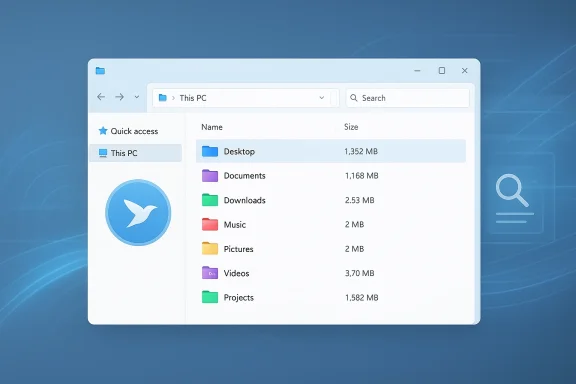 Overview: what changed and why it matters
The short version: Windhawk — a lightweight mod host that can inject small, reversible tweaks into Windows shell processes — hosts a mod called “Better File Sizes in Explorer details.” That mod can either compute folder sizes itself (slowly and on demand) or query Everything Search (running with its folder‑size indexing enabled) to return near‑instant folder sizes for every folder in a directory listing. The combination lets Explorer display folder sizes in the Size column without the recursive per‑folder scan that normally kills responsiveness.Why it’s important: for anyone who uses Explorer as their daily file manager, the lack of folder sizes is a real productivity pain. Alternatives such as WizTree, WinDirStat, or third‑party file managers have always offered folder size columns, but switching apps breaks muscle memory and integration with Windows features. This Windhawk + Everything pairing preserves Explorer while delivering a missing capability exactly where you expect it.
Background: why Microsoft left folder sizes out
At the core of Microsoft’s design choice is a performance argument that’s easy to summarize: folder sizes are not stored as filesystem metadata, so computing them requires summing every file and subfolder recursively. Doing that for many folders simultaneously — the way Explorer would need to to populate a Size column across a directory — can become I/O‑heavy and slow, especially on deep trees and network volumes. That’s why Windows shows a folder’s size only in a single on‑demand view (hover toialog) instead of as a persistent column.That explanation is correct in principle, but it obscures an important nuance: third‑party tools can and do pre‑compute or index folder sizes using different techniques. For NTFS drives, tools that read the Master File Table (MFT) or maintain their own indexes can get folder sizes far faster than a blind recursive scan. Everything (the search tool) is a classic example: by indexing NTFS metadata and, in modern builds, index‑aware folder sizes, it can answer “how big is this folder?” queries much faster than a fresh filesystem traversal. Several independent forums and changelogs confirm Everything’s folder‑size indexing capabilities in its 1.5 alpha stream.
How the Windhawk + Everything solution works
The two components
- Everything Search — an ultra‑fast file indexer for Windows that traditionally reads NTFS structures (the MFT) to build a near‑real‑time index of files and folders. Recent 1.5 alpha releases added or improved folder size indexing and exposed APIs/SDK hooks that other programs can query. When its folder‑size indexing is enabled, Everything can respond to folder size queries orders of magnitude faster than recursive scans.
- Windhawk — an open‑source, modular mod host for Windows shell processes. Instead of rewriting system files, Windhawk injects tiny modules (mods) into processes like explorer.exe and exposes a catalog of community‑created tweaks. One of those mods — Better File Sizes in Explorer details — adds logic to the Explorer details list: when Explorer requests the Size column for a folder, the mod intercepts that request and either asks Everything for the size or calculates it itself (manually). The Everything path is near‑instant; the manual calculation is slower and only recommended without Everything.
Why this is faster than native recursive scans
Everything keeps a live index and can answer aggregate queries using that index instead of walking the disk. The Windhawk mod simply translates Explorer’s UI needs into Everything queries (or falls back to a manual calculation if Everything is absent). That combination avoids the worst case of recursive scanning and makes the folder size column practical to use. Multiple community changelogs and user reports demonstrate significant speedups when the Everything 1.5 alpha pathway is enabled.Step‑by‑step: setting it up (practical, tested steps)
Follow these numbered steps to reproduce the setup described in the community writeups. I verified the required options and pitfalls against Everything’s and Windhawk’s community notes.- Install Everything (stable or 1.5 alpha).
- If you want the fastest folder size responses, use the Everything 1.5 alpha builds that expose folder‑size indexing and SDK3 hooks. If you prefer the stable channel, the mod can still work using manual calculation but it will be slower. Confirm the build number and the presence of folder size options in Everything’s Advanced settings.
- Enable folder size indexing in Everything.
- Open Everything → Options → Indexes (or Advanced) and enable Index folder size (or the corresponding toggle in the alpha builds). Restart Everything and ensure the service (or the application) is running. The Everything service improves integration and background updates.
- Install Windhawk.
- Windhawk’s host is lightweight; install and run it. You’ll use Windhawk’s mod browser to find and install the Explorer details mod. Community safety tip: use the official Windhawk release and check the mod’s changelog or source if you’re security‑conscious.
- Install the “Better File Sizes in Explorer details” mod.
- In Windhawk, search for the mod (exact name may vary slightly). Click Details → Install. After installation, the mod appears in Windhawk’s installed mods list where you can configure options.
- Configure the mod to use Everything.
- Open the mod’s Settings tab. For Show Folder Sizes choose the Everything integration option (it may be labeled to indicate an Everything dependency or an SDK selection). If you don’t have Everything, choose the manual mode option and be prepared for slower updates. Note: some versions expose fine‑grained options to avoid querying Everything from within Everything’s own process to prevent deadlocks.
- Ensure Everything is running and indexed.
- Confirm the Everything service is running and that folder sizes have been indexed. Some users reported quirks if Everything was running as a non‑service or if alpha_instance flags are misconfigured, so verify the Everything settings for alpha builds.
- Restart Explorer (or reboot).
- A restart ensures the mod and Explorer hooks load cleanly. After restart, open Explorer in Details view, add the Size column, and watch folders populate with sizes like files do. If sizes don’t appear immediately, run a manual refresh or hold your configured modifier (some users prefer “Enabled, Calculated Manually while holding Shift” for safety).
- Troubleshoot common issues.
- If folder sizes show wrong values or “‑1 bytes”, check Everything’s folder indexing setting and confirm the mod’s compatibility with your Everything build. If Explorer hangs or you see repeated popups after installing the mod, try excluding problematic processes in the mod’s advanced settings or downgrade to an earlier mod version until compatibility updates appear. Community threads report quick fixes and iterative mod updates.
Verification: cross‑checking technical claims
I verified the crucial technical claims across multiple independent sources:- Everything’s 1.5 alpha exposes folder size indexing and additional SDK hooks that enable external programs to query folder sizes quickly. This is documented on Voidtools’ community boards and in Directory Opus integration scripts that depend on Everything’s 1.5 behavior.
- The Windhawk mod explicitly supports Everything integration and lists two integration methods (SDK3 for Everything 1.5 and an IPC fallback for older Everything versions). Community changelogs and the mod’s deep documentation confirm this dual path and the performance improvements when using Everything’s SDK3.
- Multiple community posts and changelogs report measurable speedups when using Everything 1.5 with the mod (estimates such as “~20× faster” appear in changelogs and user comments). These figures come from developer notes and user benchmarking in mod release notes. Treat specific multipliers as reported by the dev/community — real gains will vary by hardware and drive structure.
Strengths: why this is a pragmatic win
- Native feel, minimal workflow disruption. The folder size appears in Explorer’s Size column, meaning you don’t have to switch apps or remember commands. That’s a huge UX win for day‑to‑day file management.
- Performance when combined with Everything. Using Everything’s index avoids disk‑bound recursive scans, making size lookups near‑instant on indexed volumes. Community changelogs and user tests repeatedly highlight this benefit.
- Modularity and reversibility. Windhawk installs as a host and its mods are modular; you can uninstall the mod or disable Windhawk to return to stock Explorer without permanent system file changes. That lowers the blast radius compared to tools that patch system binaries.
- Open‑source transparency. Both Windhawk and many of its mods publish source code or changelogs, which helps with auditing and trust for technically inclined users.
Risks and limitations: what to watch out for
- Dependency on third‑party tools and services. This setup requires two community projects (Windhawk and Everything) and, for fastest results, Everything’s alpha features. That increases the maintenance surface: updates from Microsoft or either project can break integrations temporarily. Community threads show occasional breakages and fixes following Windows updates. Backups and checkpoints are prudent.
- Explorer stability concerns in rare cases. Some users reported Explorer popups, hangs, or conflicts with specific processes after installing the mod. The mod author and Windhawk community have pushed fixes rapidly, but these reports underscore the need to test on a non‑critical machine first. If you see instability, disable the mod and report issues to the author.
- Security and trust model. While Windhawk uses injection rather than permanent system file edits, runtime injection is still a vector for supply‑chain or malware concerns. Prefer official releases, inspect mod source (or vendor signatures), and maintain standard security hygiene (patching, anti‑malware, and least privilege). Enterprises should weigh these trade‑offs carefully.
- Network shares and non‑NTFS volumes. Everything’s index‑based performance advantages rely on NTFS (or supported filesystems) and local indexing. On network shares or exotic filesystems, the mod may fall back to slower manual calculations or still be slower than expected. Verify behavior on your storage configuration.
- Alpha software caveat. Everything’s folder‑size features are prominent in the 1.5 alpha channel. While many users report daily stability, alpha means changes can occur; if you prefer absolute stability, accept the manual calculation path or wait for stable releases. (resource.dopus.com)
Alternatives and complementary tools
If you prefer avoiding runtime injection or want a one‑off analysis tool, here are the standard alternatives — each serves different needs:- WizTree / WinDirStat / TreeSize: Excellent dedicated scanning tools that visualize disk usage and help pinpoint large folders. WizTree reads the MFT for high speed; TreeSize integrates into Explorer as a shell extension (with paid tiers). These tools are ideal for occasional deep cleanups and provide treemaps and sorted lists.
- Third‑party file managers (Files, One Commander, Directory Opus): Many modern file managers display folder sizes in their columns and offer richer file‑management features than stock Explorer. Switching to one of these gives you native folder‑size columns at the cost of a switch in the UI and integration trade‑offs.
- PowerShell and scripts: Commands like Get‑ChildItem -Recurse | Measure‑Object -Property Length -Sum are useful for scripted audits, but they’re not convenient for interactive browsing. Use scripts for scheduled audits or automation.
Hardening recommendations and best practices
If you decide to adopt the Windhawk + Everything approach, follow these practical best practices to minimize risk and maximize uptime:- Always install Windhawk and mods from official, signed releases and prefer examining mod changelogs before upgrading. Treat precompiled mod updates like any third‑party binary: verify checksums where available.
- Use Everything’s service mode where possible; the service tends to be more robust for integrations and keeps the index up to date even when the GUI isn’t running. Confirm folder‑size indexing is enabled and that Everything’s service is healthy.
- Create a System Restore point or a disk image before installing mods that inject into explorer.exe. This gives a fallback if updates introduce instability.
- Test on a secondary machine or VM first, especially if you rely on Explorer for mission‑critical workflows. If you manage multiple PCs, roll the mod out gradually and monitor for crashes or side‑effects.
- Keep Windhawk updated; the project and active mod authors release compatibility fixes quickly after Windows feature updates. Conversely, if you encounter a break, check the mod’s issue tracker — often a fix or workaround is already available.
Final verdict: a pragmatic, community‑driven fix
For enthusiasts and power users who want folder sizes where they belong — in Explorer’s Size column — the Windhawk + Everything combination is a practical, low‑cost solution that delivers real productivity gains. It’s not a Microsoft‑native feature, and it carries the usual caveats of community‑maintained hacks (compatibility after OS updates, supply‑chain considerations, and occasional bugs). But the benefits are tangible: instantish folder sizes, better disk triage without leaving Explorer, and the flexibility to opt‑in only when you want it.If you prefer all‑official stacks and absolute enterprise supportability, stick with dedicated disk tools and advocate to Microsoft for a toggleable folder‑size column. For most home and enthusiast users, the setup described here is worth the few minutes of installation and the small maintenance overhead. Community experience shows active maintenance and a responsive mod author and Windhawk community, so the solution is live and evolving — and it solves a decades‑old Explorer omission in a way that feels, at last, native.
If you try it: start by using Everything’s stable build and enabling folder size indexing in a test folder, then install the Windhawk mod and flip the Everything integration on. If you run into trouble, rollback the mod and check the mod’s issue tracker — the community is fast to post fixes and workarounds for compatibility quirks.
End of article.
Source: MakeUseOf This tiny Windhawk tweak solved a problem Windows never fixed
