

Microsoft Edge dark mode is simple to enable once you separate the browser’s own theme from the other layers that can affect what appears on screen. The key setting changes the Edge window, menus, tabs, settings pages, and other browser controls. It does not automatically force every website, document, phone interface, or accessibility feature into a dark presentation.
That distinction matters because “turn on dark mode in Edge” can mean several different things. A user may want a dark browser frame while leaving web pages untouched. Another may want Edge to follow Windows or macOS automatically. Someone reading a long article may only need a darker reading view, while a user working late at night may be looking for a way to darken almost every website they visit.
Microsoft Edge offers routes for each of those needs, but they work differently and carry different trade-offs. The most dependable starting point is Edge’s built-in Overall appearance setting. From there, Windows, macOS, mobile device settings, Immersive Reader, extensions, and accessibility tools can fill in the gaps.
For the standard Microsoft Edge dark mode experience on a Windows PC, Mac, or Linux computer, use the browser’s appearance controls.
For a faster route, type the following into Edge’s address bar:
Then choose Dark under Overall appearance.
This is the setting to use when the Edge window itself is bright. It is also the appropriate fix if menus, tabs, and settings still appear light even though Windows is set to a dark theme.
That is not a malfunction. It is the expected behavior of a browser-level theme. Websites may use their own dark themes, honor a device’s color preference, offer a manual theme switch, or ignore dark-mode preferences entirely.
This division between the browser interface and web content is the main reason dark mode can seem inconsistent. The solution depends on which part of the experience is still too bright.
First, enable dark mode in Windows:
The system option also keeps the desktop visually consistent. Instead of seeing a dark taskbar and a bright browser, Windows and Edge present a more unified interface.
There is one important limitation: System default only tells Edge how to theme its own interface. It does not force every website to follow the Windows theme. Sites that support modern color preferences may adapt, but others will remain unchanged.
If Edge refuses to match Windows even after both settings are selected, restart the browser. In managed work environments, an organizational policy may also restrict or override certain appearance controls.
This approach is useful for Mac users who prefer the system’s automatic day-and-night behavior. It also avoids maintaining separate preferences across individual applications.
As on Windows, the result applies primarily to Edge’s interface. Individual websites still decide whether their pages should use a dark design.
This changes the browser app’s interface, including its controls and supported internal screens. It is useful when Edge should be dark even though the rest of the phone remains in a light theme.
On iPhone or iPad, the broader setting is generally found under:
Immersive Reader is not a full-browser dark mode. Instead, it creates a simplified reading view for an individual article or compatible page. It can remove visual clutter and provide dark page themes that are easier on the eyes.
To use it:
Its benefits include:
It also does not make the regular Edge interface darker. For that, Overall appearance remains the correct setting.
To install an extension from Edge’s add-on catalog:
They are particularly useful for websites that do not support a native dark theme. For users who spend hours browsing documentation, forums, news pages, and web-based tools, the difference can be substantial.
A quality extension can offer:
That can produce mixed results. Some sites may look excellent, while others may display unreadable text, incorrect brand colors, strange image treatment, or unexpected layout problems.
There are also privacy considerations. An extension that changes web pages generally requires access to the content of the sites it runs on. Before installing one, review its permissions, developer information, update history, and privacy disclosures.
For sensitive sites such as online banking, healthcare portals, company administration systems, and internal business tools, it may be safer to disable website-recoloring extensions unless there is a compelling accessibility need.
If a website has a dark-mode option in its settings, use that first. An Edge extension is best treated as a fallback for pages that lack one.
To review these options:
Color inversion may distort photographs, video, illustrations, logos, charts, and website color cues. A red warning indicator, a green confirmation button, or a product image may no longer look as intended.
Use these settings when they address an actual accessibility requirement, not merely because a web page is bright. For typical use, Edge’s built-in dark theme, Immersive Reader, and carefully chosen web-page themes provide a more natural result.
Keeping Edge current matters because the browser’s layout and settings labels can change over time. Microsoft also gradually updates visual design elements, so two Edge installations may not look identical even when both are working normally.
To inspect applied Edge policies, enter:
This page can reveal whether a policy is affecting the browser. It does not necessarily mean that dark mode is directly blocked, but it can explain why menus, extensions, or personalization choices differ from what is expected.
Open the Extensions menu, manage installed extensions, and turn them off one at a time. This helps identify whether an add-on is changing the browser interface or only the websites inside it.
Avoid using experimental edge://flags settings for basic dark mode. Flags are intended for testing and development, can change or disappear, and may create unexpected behavior. The standard Appearance page is the stable route for Edge’s normal dark theme.
This layered model avoids a common frustration: changing one setting and expecting it to control another part of the experience. Edge’s browser theme, a website’s colors, the operating system theme, and accessibility settings are related but separate controls.
At the same time, darker is not always better for every task. Bright environments can make dark text-on-black backgrounds harder to read for some people, and extremely high contrast can introduce visual fatigue of its own. The most comfortable setup is often a balanced dark gray interface paired with readable text, reasonable page zoom, and a site-specific theme when needed.
Microsoft Edge makes that flexibility possible without requiring an all-or-nothing switch. Set Overall appearance to Dark for the browser itself, use System default when operating system consistency matters, turn to Immersive Reader for supported articles, and reserve extensions or display-level accessibility tools for the situations where they provide a clear benefit.
That distinction matters because “turn on dark mode in Edge” can mean several different things. A user may want a dark browser frame while leaving web pages untouched. Another may want Edge to follow Windows or macOS automatically. Someone reading a long article may only need a darker reading view, while a user working late at night may be looking for a way to darken almost every website they visit.
Microsoft Edge offers routes for each of those needs, but they work differently and carry different trade-offs. The most dependable starting point is Edge’s built-in Overall appearance setting. From there, Windows, macOS, mobile device settings, Immersive Reader, extensions, and accessibility tools can fill in the gaps.
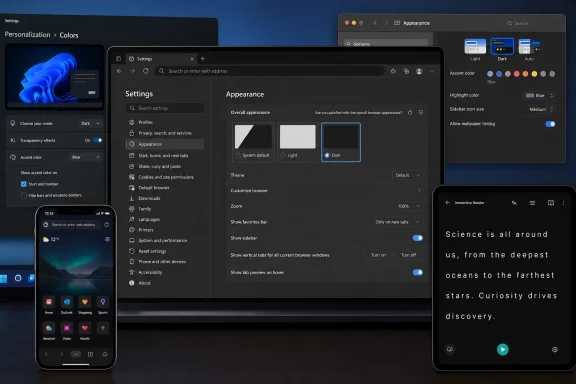 The Fastest Way to Turn On Microsoft Edge Dark Mode
For the standard Microsoft Edge dark mode experience on a Windows PC, Mac, or Linux computer, use the browser’s appearance controls.- Open Microsoft Edge.
- Select Settings and more — the three-dot menu in the upper-right corner.
- Select Settings.
- Open Appearance.
- Under Overall appearance, choose Dark.
For a faster route, type the following into Edge’s address bar:
edge://settings/appearanceThen choose Dark under Overall appearance.
This is the setting to use when the Edge window itself is bright. It is also the appropriate fix if menus, tabs, and settings still appear light even though Windows is set to a dark theme.
What Edge Dark Mode Changes
When Overall appearance is set to Dark, Edge changes its browser chrome rather than every page loaded inside the browser. In practical terms, that includes:- Tabs and the tab strip
- The address bar and toolbar
- Sidebars and built-in panels
- Context menus and most settings pages
- New tab page elements that support Edge’s theme
- Supported built-in dialogs and browser controls
What It Does Not Change
A dark Edge interface does not guarantee that websites will become dark. A site controls its own design, and many pages remain white or light-colored even after the browser theme has changed.That is not a malfunction. It is the expected behavior of a browser-level theme. Websites may use their own dark themes, honor a device’s color preference, offer a manual theme switch, or ignore dark-mode preferences entirely.
This division between the browser interface and web content is the main reason dark mode can seem inconsistent. The solution depends on which part of the experience is still too bright.
Make Edge Follow Windows Dark Mode
Users who want a consistent Windows desktop can set Edge to follow the operating system instead of choosing a permanent browser-only theme.First, enable dark mode in Windows:
- Open Start.
- Select Settings.
- Go to Personalization.
- Select Colors.
- Find Choose your mode and select Dark.
- Open Settings and more > Settings.
- Select Appearance.
- Under Overall appearance, choose System default.
Why System Default Is Often the Better Choice
Using System default is especially useful for people who change themes regularly. Some users prefer a light interface in bright offices and a dark interface in the evening. Others use automated Windows personalization tools or device-wide schedules.The system option also keeps the desktop visually consistent. Instead of seeing a dark taskbar and a bright browser, Windows and Edge present a more unified interface.
There is one important limitation: System default only tells Edge how to theme its own interface. It does not force every website to follow the Windows theme. Sites that support modern color preferences may adapt, but others will remain unchanged.
Windows 10 and Windows 11 Considerations
The basic concept works on both Windows 10 and Windows 11, although labels and page layouts can vary slightly with Windows updates. In either version, the important setting is the operating system color mode, followed by Edge’s System default appearance choice.If Edge refuses to match Windows even after both settings are selected, restart the browser. In managed work environments, an organizational policy may also restrict or override certain appearance controls.
Match Microsoft Edge With macOS Dark Appearance
On a Mac, Microsoft Edge can follow the appearance selected in macOS. The process begins with the operating system rather than the browser.- Open the Apple menu.
- Select System Settings.
- Open Appearance.
- Choose Dark.
- Settings and more > Settings
- Appearance
- Set Overall appearance to System default
Automatic Appearance on Mac
macOS can also switch between light and dark appearances automatically. When Edge is set to System default, it can follow that change without requiring a separate browser adjustment each time.This approach is useful for Mac users who prefer the system’s automatic day-and-night behavior. It also avoids maintaining separate preferences across individual applications.
As on Windows, the result applies primarily to Edge’s interface. Individual websites still decide whether their pages should use a dark design.
Use Dark Mode in Microsoft Edge on Android, iPhone, and iPad
Microsoft Edge mobile includes its own appearance options, but the layout can vary by platform and app version. The typical route is to open Edge, select the three-dot menu, choose Settings, then open Appearance and select Dark.This changes the browser app’s interface, including its controls and supported internal screens. It is useful when Edge should be dark even though the rest of the phone remains in a light theme.
Let Edge Follow the Phone’s Theme
Users who prefer a device-wide experience should enable dark mode at the operating system level and select a system-following appearance option in Edge when available.On iPhone or iPad, the broader setting is generally found under:
- Open Settings.
- Select Display & Brightness.
- Choose Dark.
App Theme Versus Device Theme
The distinction is important on mobile devices:- Edge’s appearance setting changes Edge.
- The phone or tablet dark theme changes the operating system and other compatible apps.
- A website’s theme affects the page displayed in Edge.
- Accessibility color tools can alter the entire display, often with compromises.
Darken Articles With Immersive Reader
Some pages are difficult to read because they use bright backgrounds, distracting sidebars, autoplaying media, oversized advertisements, or awkward typography. Edge’s Immersive Reader can help on supported pages.Immersive Reader is not a full-browser dark mode. Instead, it creates a simplified reading view for an individual article or compatible page. It can remove visual clutter and provide dark page themes that are easier on the eyes.
To use it:
- Open a supported article or page in Microsoft Edge.
- Select the Immersive Reader button in the address bar, if it appears.
- Alternatively, press F9 on a keyboard.
- Open Text preferences or the reader’s appearance controls.
- Choose a dark or black page theme.
Why Immersive Reader Is Useful
Immersive Reader can be a better option than a website-darkening extension when the priority is reading. It preserves a simplified, text-centered layout rather than attempting to recolor an entire web application.Its benefits include:
- A cleaner article layout
- Adjustable text size and spacing
- Dark page theme options
- Reduced background clutter
- Better focus on long-form content
- Accessibility-oriented reading controls
The Limits of Reading View
Immersive Reader is not designed for every kind of web content. It may not be appropriate for complex dashboards, online stores, banking sites, interactive documentation, social networks, or pages where visual layout is essential.It also does not make the regular Edge interface darker. For that, Overall appearance remains the correct setting.
Make Light Websites Dark With an Extension
When the Edge browser frame is dark but websites stay white, an extension can provide a more aggressive solution. Extensions such as Dark Reader and similar tools attempt to apply dark styling to web pages that do not offer a suitable dark mode of their own.To install an extension from Edge’s add-on catalog:
- Open the Extensions menu in Microsoft Edge.
- Choose the option to get extensions for Edge.
- Search for a website dark-mode extension.
- Select Get.
- Confirm the installation.
- Use the extension’s toolbar button or settings page to enable darkening for sites.
What Website Dark-Mode Extensions Do
These tools usually work by applying generated styles, filters, or color transformations to the pages Edge displays. Many allow per-site controls, custom contrast adjustments, brightness tuning, exception lists, and schedules.They are particularly useful for websites that do not support a native dark theme. For users who spend hours browsing documentation, forums, news pages, and web-based tools, the difference can be substantial.
A quality extension can offer:
- A dark version of otherwise bright sites
- Per-site enable and disable controls
- Adjustable brightness and contrast
- Custom color palettes
- Scheduling options
- Whitelists for websites that already have a good dark theme
The Risks of Website-Recoloring Extensions
Website darkening is inherently more complicated than changing Edge’s own theme. The extension has to interpret a site’s design and modify it without breaking buttons, forms, icons, images, or embedded content.That can produce mixed results. Some sites may look excellent, while others may display unreadable text, incorrect brand colors, strange image treatment, or unexpected layout problems.
There are also privacy considerations. An extension that changes web pages generally requires access to the content of the sites it runs on. Before installing one, review its permissions, developer information, update history, and privacy disclosures.
For sensitive sites such as online banking, healthcare portals, company administration systems, and internal business tools, it may be safer to disable website-recoloring extensions unless there is a compelling accessibility need.
Prefer a Website’s Built-In Dark Mode When Available
Many major websites now offer their own appearance switch. A site-native dark theme generally provides a more accurate and stable result than a browser extension because the site’s developers control the colors, images, charts, and interactive components.If a website has a dark-mode option in its settings, use that first. An Edge extension is best treated as a fallback for pages that lack one.
Accessibility Options Are Not the Same as Edge Dark Mode
Windows provides several display accessibility features that can change contrast and colors across Edge and other applications. These tools are valuable for users who need them, but they should not be confused with Edge’s normal dark appearance setting.Contrast Themes
Windows contrast themes can alter the appearance of system controls, applications, and web content to emphasize readability. They are designed for accessibility rather than aesthetics.To review these options:
- Open Start > Settings.
- Go to Accessibility.
- Select Contrast themes.
- Choose an available theme.
- Select Apply.
Color Filters and Inversion
Windows also includes color filters and display inversion options. These can help specific users, but inversion is often unsuitable as a general browsing preference.Color inversion may distort photographs, video, illustrations, logos, charts, and website color cues. A red warning indicator, a green confirmation button, or a product image may no longer look as intended.
Use these settings when they address an actual accessibility requirement, not merely because a web page is bright. For typical use, Edge’s built-in dark theme, Immersive Reader, and carefully chosen web-page themes provide a more natural result.
Troubleshooting Edge Dark Mode Problems
If the Overall appearance option is missing, grayed out, or does not behave as expected, start with the simplest checks.Update Microsoft Edge
Open:- Settings and more
- Help and feedback
- About Microsoft Edge
Keeping Edge current matters because the browser’s layout and settings labels can change over time. Microsoft also gradually updates visual design elements, so two Edge installations may not look identical even when both are working normally.
Check for Managed Browser Policies
On a work or school PC, Edge may be managed by an organization. Administrators can use policy controls to manage browser behavior, install extensions, limit settings, and enforce configurations.To inspect applied Edge policies, enter:
edge://policyThis page can reveal whether a policy is affecting the browser. It does not necessarily mean that dark mode is directly blocked, but it can explain why menus, extensions, or personalization choices differ from what is expected.
Disable Conflicting Extensions
A theme extension, custom new-tab extension, accessibility add-on, or website styling tool can interfere with appearance settings. If Edge looks inconsistent, temporarily disable extensions and test the browser again.Open the Extensions menu, manage installed extensions, and turn them off one at a time. This helps identify whether an add-on is changing the browser interface or only the websites inside it.
Do Not Rely on Old Edge Legacy Tutorials
Older tutorials may refer to Microsoft Edge Legacy, the discontinued browser that preceded the Chromium-based Edge used today. Those instructions can point to menus, theme selectors, or flags that no longer match the current browser.Avoid using experimental edge://flags settings for basic dark mode. Flags are intended for testing and development, can change or disappear, and may create unexpected behavior. The standard Appearance page is the stable route for Edge’s normal dark theme.
Choosing the Right Dark Mode Method
The best option depends on what needs to be dark.| Goal | Best Method |
|---|---|
| Dark tabs, menus, and Edge settings | Overall appearance > Dark |
| Keep Edge synchronized with Windows or macOS | Overall appearance > System default |
| Darken a readable article | Immersive Reader with a dark page theme |
| Darken websites without native support | A reputable dark-mode extension |
| Change the entire device and compatible apps | Windows, macOS, Android, or iOS dark mode |
| Meet a high-contrast accessibility requirement | Windows Contrast themes |
| Invert the whole display for a specialized need | Windows color filters or Magnifier inversion |
A More Comfortable Edge Experience Without Overcorrecting
Dark mode can make late-night browsing feel less visually harsh and can create a cleaner match with a dark Windows desktop or macOS workspace. It can also reduce the jarring transition between browser controls and dark-themed productivity apps.At the same time, darker is not always better for every task. Bright environments can make dark text-on-black backgrounds harder to read for some people, and extremely high contrast can introduce visual fatigue of its own. The most comfortable setup is often a balanced dark gray interface paired with readable text, reasonable page zoom, and a site-specific theme when needed.
Microsoft Edge makes that flexibility possible without requiring an all-or-nothing switch. Set Overall appearance to Dark for the browser itself, use System default when operating system consistency matters, turn to Immersive Reader for supported articles, and reserve extensions or display-level accessibility tools for the situations where they provide a clear benefit.
References
- Primary source: Technobezz
Published: 2026-07-23T18:43:49.137000+00:00
How to Turn On Microsoft Edge Dark Mode | Technobezz
Turn on Microsoft Edge dark mode on desktop, mobile, Windows, macOS, reading pages, and websites using current settings.www.technobezz.com - Official source: support.microsoft.com
Visual changes to Microsoft Edge | Microsoft Support
Learn how Microsoft Edge's updated design helps streamline and improve your browser experience.support.microsoft.com - Official source: learn.microsoft.com
Microsoft Edge Browser Policy Documentation EdgeThemeEnabled | Microsoft Learn
Windows and Mac documentation for supported Microsoft Edge Browser policy: Enable Theme and Wallpaper customization in Microsoft Edgelearn.microsoft.com - Official source: cdn-dynmedia-1.microsoft.com