

Microsoft’s published guidance for enabling Secure Boot certificate updates via Microsoft Intune is both timely and operationally important: Intune administrators can now use the Settings catalog to push the Enable Secure Boot Certificate Updates control and then scope that deployment to validated hardware using model‑based assignment filters, allowing a staged, low‑risk rollout ahead of the platform‑level certificate refresh that affects millions of Windows devices.
UEFI Secure Boot is a firmware‑level trust anchor that prevents unsigned or tampered code from running before the operating system loads. For Windows devices this trust model relies on a small set of certificate authorities (CAs) persisted in UEFI variables (DB, KEK and PCA entries), and Microsoft — together with OEM partners — periodically refreshes those certificates to maintain pre‑OS updateability and to replace expiring roots. A coordinated “2023 CA” replacement was produced to supplant Microsoft’s long‑lived 2011 certificates, which begin to reach end‑of‑validity in mid‑2026. If a device does not receive the updated certificates (or cannot persist them in firmware), it will slowly enter a degraded security state where future pre‑boot mitigations and revocations cannot be applied.
Why this matters now
That said, the rollout is not frictionless. Known operational headaches include edition licensing blocks (historically preventing Pro edition deployments until service updates propagated), Intune error 65000 outcomes that sometimes obscure the true device state, and firmware idiosyncrasies across OEM models. These issues make a conservative, device‑validated rollout plan essential, with a strong emphasis on preflight firmware checks, servicing baselines, and centralized log collection to verify success.
If you manage a fleet, treat the Secure Boot certificate refresh as a multi‑phase project: inventory, baseline, pilot, expand, remediate, and prove. Model‑based assignment filters in Intune give you the control you need to do this without exploding group management, but they are only one part of a broader set of operational controls — firmware updates, servicing cadence, and vendor coordination remain the gating factors for a successful transition.
In short: enable the Intune Settings catalog control, test on validated models with assignment filters, verify device‑side artifacts (registry and event logs), and keep a remediation path ready (firmware updates, manual scheduled task runs, registry remediation scripts) for devices that do not apply the updates automatically. The calendar is unforgiving — mid‑2026 expirations are real — so start your piloting and validation now rather than later.
Source: Microsoft Support Applying Secure Boot certificate update settings using model-based targeting in Microsoft Intune - Microsoft Support
 Background
UEFI Secure Boot is a firmware‑level trust anchor that prevents unsigned or tampered code from running before the operating system loads. For Windows devices this trust model relies on a small set of certificate authorities (CAs) persisted in UEFI variables (DB, KEK and PCA entries), and Microsoft — together with OEM partners — periodically refreshes those certificates to maintain pre‑OS updateability and to replace expiring roots. A coordinated “2023 CA” replacement was produced to supplant Microsoft’s long‑lived 2011 certificates, which begin to reach end‑of‑validity in mid‑2026. If a device does not receive the updated certificates (or cannot persist them in firmware), it will slowly enter a degraded security state where future pre‑boot mitigations and revocations cannot be applied.Why this matters now
- The certificate refresh is calendar‑bound: several 2011‑era signing certificates begin expiring in June 2026, with additional expiries later in the year. That timetable creates an operational deadline for fleets that rely on Secure Boot.
- Many devices will receive the new certificates automatically via Windows servicing and OEM firmware updates, but a material minority — older devices, firmware‑stale systems, air‑gapped machines, or unsupported Windows editions — may require administrator intervention.
- Intune provides an OS‑side mechanism to opt devices into the certificate update workflow and to orchestrate controlled rollouts; the Microsoft guidance ties these MDM controls to existing servicing and OEM update channels.
Overview of Microsoft’s Intune method
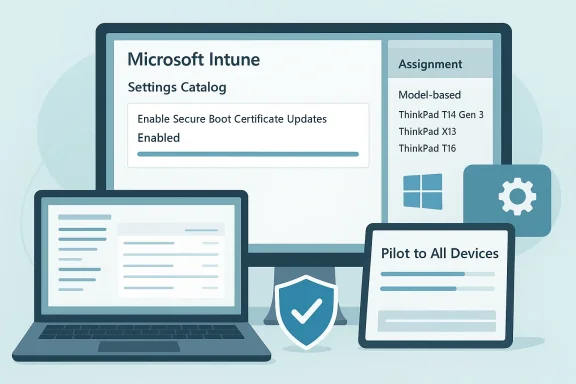
Microsoft’s stepwise guidance walks Intune administrators through three core activities:- Create a Windows Settings catalog device configuration profile that contains the Enable Secure Boot Certificate Updates setting and configure it to Enabled.
- Build an Intune assignment filter that matches device model properties so you can scope the update to only those hardware SKUs that you have validated.
- Assign the profile to a group (including the built‑in All devices virtual group if desired) and then apply the model‑based filter in Include or Exclude mode to control which managed devices process the setting during policy evaluation.
Step‑by‑step practical translation (what to do, and why)
1) Build the Settings catalog profile
- Platform: Windows 10 and later, Profile type: Settings catalog. Add the Secure Boot category and include Enable Secure Boot Certificate Updates; set it to Enabled. This single toggle is the OS‑side opt‑in the Windows update infrastructure expects before it schedules certificate application.
2) Create a model‑based assignment filter
- In Intune: Tenant administration > Assignment filters > Create > Managed devices. Use the rule builder to select the model property and enter exact model strings (for example, manufacturer SKU values such as “ThinkPad T14 Gen 3” or the exact OEM model identifier reported by Intune). Use the Preview devices tool to validate matched devices before you finalize the filter.
- Firmware variability: OEMs and firmware revisions differ; limiting the rollout to model SKUs you’ve validated reduces the risk of firmware rejection or unexpected behavior.
- Iterative validation: you can pilot on a small validated set, monitor telemetry and event logs, then widen the rollout by adding models to the filter.
3) Assign the profile and apply the filter
- Assign the profile to an appropriate device group (All devices is a practical default) then Edit filter and attach the model‑based filter in Include or Exclude mode depending on your strategy. Intune evaluates filters at enrollment, at check‑in, and on policy re‑evaluation.
How the update is applied on the device
- When Windows determines a device is targeted for Secure Boot certificate updates, it writes indicator bits under HKLM\SYSTEM\CurrentControlSet\Control\SecureBoot\ (Servicing and AvailableUpdates keys).
- A scheduled task named \Microsoft\Windows\PI\Secure‑Boot‑Update runs on the device to process pending updates. That task is configured to trigger about 5 minutes after boot and then roughly every 12 hours; administrators can also run it manually (Start‑ScheduledTask) to accelerate pilot testing. Some phases require a reboot to complete.
- Event log entries tied to the Secure Boot task (specific event IDs document success/failure states).
- Registry keys (e.g., UEFICA2023Status) and the SecureBoot servicing keys which indicate which updates are queued, in progress, or completed. You can inventory these via PowerShell scripts Microsoft published in its guidance.
Real‑world gotchas and known issues
Licensing / edition blocking (Error 65000)
A known and widely reported symptom is Intune returning Error 65000 when applying Secure Boot configuration settings. Two conditions stand out:- Historically, Secure Boot configuration settings deployed via MDM were blocked on Windows Pro editions, causing policy rejection messages such as Policy is rejected by licensing (0x82B00006). Microsoft updated its Intune licensing service (January 27, 2026) to address deployment on Pro editions, but some tenants still observed 65000 outcomes and related telemetry anomalies as the fix rolled out.
- Error 65000 has also appeared where feature prerequisites (OS servicing level, specific cumulative updates, or updated licensing metadata on the device) were missing. Community troubleshooting and vendor writeups show that ensuring devices are on the required cumulative update baseline and have the updated licensing metadata reduces 65000 occurrences.
- Confirm devices are on the servicing baseline required by Microsoft’s Secure Boot deployment docs before targeting them with the Settings catalog profile.
- If you hit 65000 at scale, pivot to a small pilot of devices on the validated update baseline and escalate to Microsoft support for tenant‑level licensing propagation issues.
- Use the registry fallback (deployment of the documented registry keys plus triggering the scheduled task) as a remediation path for urgent pilots, noting that registry‑only approaches may not record the policy application cleanly in Intune’s policy reporting.
Firmware and OEM compatibility
- Some OEM firmwares implement Secure Boot variable persistence differently. Windows will attempt the updates, but if firmware refuses or returns errors when the OS writes UEFI variables the update will fail and hold a failure code in the registry and event logs. Always check for OEM BIOS/UEFI updates and OEM advisories for specific models before including them in a broad rollout.
Reporting and visibility
- At the time of writing, some tenants reported delays between the Secure Boot certificate being applied on devices and the Intune Secure Boot status surface reflecting that change; the status view and the Settings catalog policy outcomes can temporarily be out of sync as Microsoft’s telemetry and tenant licensing propagation complete. Monitor both device‑side artifacts (events/registry) and Intune reporting.
Monitoring, verification and remediation — a concrete playbook
Below is a practical, repeatable playbook you can apply when preparing a fleet.- Inventory and triage
- Identify all devices with Secure Boot enabled via your existing asset inventory.
- Mark devices running unsupported Windows editions (e.g., out‑of‑support Windows 10 not in ESU) as at‑risk; they may not accept the new certificates.
- Baseline updates
- Ensure devices are on the servicing and quality update baseline Microsoft requires for Secure Boot updates. Many documented issues (Error 65000, policy rejection) correlate to missing required quality updates or licensing metadata.
- Firmware readiness
- Check OEM firmware versions and apply BIOS/UEFI updates for models where vendors have published fixes or confirmations of compatibility.
- Pilot using model filters
- Build a model‑based assignment filter in Intune that includes a small number of validated models.
- Create the Settings catalog profile with Enable Secure Boot Certificate Updates = Enabled, assign to All devices + apply the model filter in Include mode.
- Force the scheduled task on pilot devices: Start‑ScheduledTask -TaskName "\Microsoft\Windows\PI\Secure‑Boot‑Update" to avoid waiting for the 12‑hour cycle.
- Verify
- On pilot devices examine:
- HKLM\SYSTEM\CurrentControlSet\Control\SecureBoot\Servicing keys and UEFICA2023Status/UEFICA2023Error values.
- Event log entries for the Secure Boot scheduled task that show success or error entries.
- Validate that Intune Secure Boot status report entries eventually reflect the device state; if not, reconcile with device‑side evidence.
- Remediate and expand
- For failing devices, check for:
- Missing OS cumulative updates or licensing metadata.
- Firmware errors that the OEM advises resolving via BIOS updates.
- Policy being rejected due to edition licensing (use Microsoft support if tenant licensing propagation appears delayed).
- Expand the model filter to include additional OEM models as they are validated.
- Record and report
- Feed registry and event data into a central Log Analytics or SIEM pipeline for long‑term reporting and compliance evidence. Several community guides provide Kusto and PowerShell examples to query device attributes for reporting.
Recommended CLI/PowerShell checks (operational examples)
- Start the Secure Boot scheduled task on a test device:
- Start‑ScheduledTask -TaskName "\Microsoft\Windows\PI\Secure‑Boot‑Update" (run elevated).
- Inspect Secure Boot servicing keys:
- Query HKLM\SYSTEM\CurrentControlSet\Control\SecureBoot\Servicing and UEFICA2023Status to determine pending/completed state.
- Check event logs for the Secure Boot task and for event IDs the Microsoft guidance highlights as success/failure markers.
Risk analysis — what can go wrong, and how likely it is
- Firmware rejection on unpatched OEM models (Medium risk): Modern OEMs have patched widely, but older models and niche SKUs still show failures. Mitigation: firmware updates and model scoping.
- Policy rejection due to licensing or OS baseline (Low–Medium risk): Tenant licensing propagation and device servicing baselines can cause temporary blocking (Error 65000). Mitigation: keep devices updated, pilot, and engage Microsoft support if tenant licensing changes didn’t propagate.
- Reporting delays and telemetry inconsistency (Low risk): Some tenants will see delays between device updates and the Intune Secure Boot status surface; monitor device‑side evidence rather than relying solely on portal state.
- Unmanaged or unsupported devices (High risk): Devices not enrolled in Intune, air‑gapped systems, or Windows images out of servicing will likely not receive the replacement certificates and will become security‑impaired over time. These require manual remediation or enrollment into supported update pathways.
Strengths of Microsoft’s model‑based Intune approach
- Precision without group sprawl: model filters let administrators select exact SKUs without creating long‑lived device groups.
- Safe, staged rollouts: by testing a validated model set first, firmware incompatibilities are caught before wide deployment.
- Integration with servicing: the Intune setting merely opts devices into the OS‑side workflow Microsoft and OEMs coordinate — it doesn’t replace OEM firmware updates, preserving multi‑party safety controls.
Practical recommendations (quick checklist)
- Inventory: list Secure Boot enabled devices, their models, OS version, and firmware revision.
- Baseline: patch devices to Microsoft’s required quality update baseline before pushing the Settings catalog profile.
- Pilot: create a small model filter and pilot; trigger the scheduled task manually and verify registry/events.
- Monitor: collect Secure Boot registry keys and event logs centrally; don’t rely solely on Intune policy success metrics while 65000 issues remain in some environments.
- Escalate: if policies fail tenant‑wide with licensing rejections, open a Microsoft support ticket and reference the Intune licensing metadata update (Jan 27, 2026) and the known issue symptoms.
Final assessment
Microsoft’s Settings catalog + assignment filters pattern for Secure Boot certificate updates is a pragmatic, well‑scoped operational model: it gives IT teams a standard MDM mechanism to opt devices into an OS‑mediated certificate replacement workflow while enabling model‑level controls that mitigate firmware variability risk. The combination of a scheduled device task that runs roughly every 12 hours, model‑based targeting, and the ability to manually trigger processing equips administrators to run disciplined pilots and broad rollouts.That said, the rollout is not frictionless. Known operational headaches include edition licensing blocks (historically preventing Pro edition deployments until service updates propagated), Intune error 65000 outcomes that sometimes obscure the true device state, and firmware idiosyncrasies across OEM models. These issues make a conservative, device‑validated rollout plan essential, with a strong emphasis on preflight firmware checks, servicing baselines, and centralized log collection to verify success.
If you manage a fleet, treat the Secure Boot certificate refresh as a multi‑phase project: inventory, baseline, pilot, expand, remediate, and prove. Model‑based assignment filters in Intune give you the control you need to do this without exploding group management, but they are only one part of a broader set of operational controls — firmware updates, servicing cadence, and vendor coordination remain the gating factors for a successful transition.
In short: enable the Intune Settings catalog control, test on validated models with assignment filters, verify device‑side artifacts (registry and event logs), and keep a remediation path ready (firmware updates, manual scheduled task runs, registry remediation scripts) for devices that do not apply the updates automatically. The calendar is unforgiving — mid‑2026 expirations are real — so start your piloting and validation now rather than later.
Source: Microsoft Support Applying Secure Boot certificate update settings using model-based targeting in Microsoft Intune - Microsoft Support
