

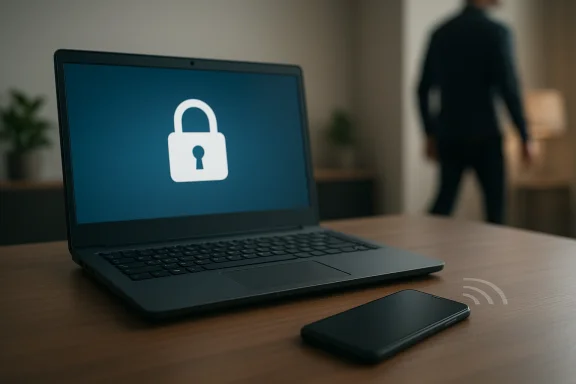
Windows has a built-in feature called Dynamic Lock that uses a paired Bluetooth device—usually your phone—to automatically lock your PC when you walk away. The idea is simple: if your phone is no longer nearby, Windows assumes you’ve left and locks the session for you. It is one of those quietly excellent security settings that many people never turn on, even though it can reduce the risk of someone peeking at or using an unlocked machine. In practice, it’s a small convenience feature with a much bigger privacy payoff.
Dynamic Lock is part of a broader shift in Windows toward ambient security—features that try to protect you without demanding constant attention. Rather than relying only on passwords, PINs, or manual habits, Microsoft has increasingly built controls that use signals from devices, sensors, and account context to make security more automatic. That matters because the biggest security failures are often behavioral, not technical: people step away for “just a minute,” forget to lock the screen, and leave sensitive data exposed.
The feature is especially relevant in shared homes, offices, classrooms, and public spaces where a computer can be accessed in seconds. Even if you trust the people around you, an unlocked screen can reveal email, documents, browser tabs, password managers, and chat apps. Dynamic Lock does not eliminate the need for good habits, but it lowers the odds that a moment of distraction becomes an incident. The best security tools are often the ones that catch you when you forget.
Windows already offers several ways to lock a PC, including the Windows key + L shortcut, screen timeout settings, and sign-in requirements after sleep. Dynamic Lock is different because it is proactive rather than reactive. It attempts to infer that you have left the device, and it can lock your session before someone else touches the keyboard. That makes it a useful layer on top of the settings most people already know about, not a replacement for them.
The reason articles like the one from MakeUseOf keep resurfacing is that these built-in features are easy to overlook. Windows is full of tools that sit in plain sight but are buried deep enough in Settings that many users never discover them. The article’s underlying argument is persuasive: if the setting already exists and costs nothing to enable, the real question is why more people are not using it.
The practical value is straightforward. If you get up to answer the door, grab coffee, step into another room, or leave a hotel desk, your PC can lock automatically in the background. It is not meant for high-security environments where every access event must be logged and managed centrally, but it is a smart everyday protection for consumers and small offices. For most people, that is exactly the right level of friction.
A few reasons it stands out:
That layered approach matters more now than it did a decade ago. Work happens everywhere: at kitchen tables, in coworking spaces, on trains, in cafés, and in home offices where other people may walk by. In those environments, the classic “I’ll just be a second” risk becomes routine. A feature that quietly locks the screen when you leave is useful precisely because the real threat is so ordinary.
It also changes behavior over time. Once people trust that the screen will lock when they walk away, they become less anxious about leaving the desk briefly. That is a subtle but important productivity gain. Security works best when it feels like a habit rather than a burden.
A good setup is one you can forget about after the first day. If you have to keep troubleshooting it, the feature loses much of its appeal. In that sense, Dynamic Lock is similar to Night Light or automatic backups: the goal is not constant engagement, but reliable background behavior.
A useful caution: if your Bluetooth environment is noisy, or if your phone sometimes stays close to the PC even when you leave, Dynamic Lock may not trigger as quickly as you expect. That does not make it useless; it just means it should be treated as a helpful layer, not a guarantee.
This is especially true for laptops, which are carried from place to place and used in more public contexts than desktop PCs. A desktop in a locked home office has a different risk profile from a laptop on a kitchen counter, a conference table, or a coffee shop desk. Dynamic Lock is one of those features that makes the most sense precisely when you are least likely to remember it.
Enterprise admins, of course, will care about manageability, device compliance, and policy consistency more than a single feature. But that does not mean Dynamic Lock is irrelevant. It can be part of a larger user-security culture that encourages automated protections wherever possible. Sometimes the most effective security improvement is not a dramatic new control; it is a small, enforced habit that scales.
That approximation is acceptable because Dynamic Lock is not trying to measure a precise distance. It is trying to infer whether you are probably near your PC. In other words, it is a heuristic, not a sensor-based identity system. For everyday security, heuristics can be good enough if they are fast, cheap, and dependable.
That kind of design matters because people rarely optimize security from scratch. They adopt defaults. If the default behavior is too loose, many users never tighten it. If the platform offers a sensible automated option, adoption can happen organically. That is why features like this deserve more attention than they typically get.
The broader lesson is that software often has more value than users realize. The challenge is not always invention; it is discovery. Microsoft can improve security significantly just by making built-in protections easier to find, easier to trust, and easier to enable.
It also works well for people who are already carrying a phone everywhere. Since the phone is usually the thing you forget least, using it as the proximity signal is a practical choice. The feature piggybacks on a habit you already have, which is why it can be so effective.
It also introduces a mild dependency on the paired phone. That can be awkward if you switch phones frequently, forget the phone at home, or use multiple devices that move in and out of your workspace. In practice, these are manageable issues, but they are still worth acknowledging. Convenience security is only convenient if it stays dependable.
That is why more people should use it. The feature does not demand a new mindset, just a better default. You pair the phone once, let Windows watch for your absence, and move on with your day. Security that disappears into the background is often the kind people actually keep using.
For people working long hours, small reductions in mental overhead matter. They make the environment feel calmer and more controlled. Calmer computing is still productivity, even if it does not show up in a speed test.
The interesting question is not whether the idea is useful. It clearly is. The question is whether Microsoft can make these protections more visible and more reliable so ordinary users embrace them without needing a tutorial. If that happens, small features like this could have an outsized impact on everyday Windows security.
Source: MakeUseOf This Windows setting locks your PC when you walk away — and more people should use it
 Background
Dynamic Lock is part of a broader shift in Windows toward ambient security—features that try to protect you without demanding constant attention. Rather than relying only on passwords, PINs, or manual habits, Microsoft has increasingly built controls that use signals from devices, sensors, and account context to make security more automatic. That matters because the biggest security failures are often behavioral, not technical: people step away for “just a minute,” forget to lock the screen, and leave sensitive data exposed.The feature is especially relevant in shared homes, offices, classrooms, and public spaces where a computer can be accessed in seconds. Even if you trust the people around you, an unlocked screen can reveal email, documents, browser tabs, password managers, and chat apps. Dynamic Lock does not eliminate the need for good habits, but it lowers the odds that a moment of distraction becomes an incident. The best security tools are often the ones that catch you when you forget.
Windows already offers several ways to lock a PC, including the Windows key + L shortcut, screen timeout settings, and sign-in requirements after sleep. Dynamic Lock is different because it is proactive rather than reactive. It attempts to infer that you have left the device, and it can lock your session before someone else touches the keyboard. That makes it a useful layer on top of the settings most people already know about, not a replacement for them.
The reason articles like the one from MakeUseOf keep resurfacing is that these built-in features are easy to overlook. Windows is full of tools that sit in plain sight but are buried deep enough in Settings that many users never discover them. The article’s underlying argument is persuasive: if the setting already exists and costs nothing to enable, the real question is why more people are not using it.
What Dynamic Lock Actually Does
Dynamic Lock works by pairing Windows with a Bluetooth-capable phone or other nearby device. When the paired device moves out of Bluetooth range for a certain period, Windows assumes you are no longer at the machine and locks the session. That makes it a presence-aware safeguard, which is a fancy way of saying it tries to detect when you are gone rather than waiting for you to remember to secure the PC yourself.The practical value is straightforward. If you get up to answer the door, grab coffee, step into another room, or leave a hotel desk, your PC can lock automatically in the background. It is not meant for high-security environments where every access event must be logged and managed centrally, but it is a smart everyday protection for consumers and small offices. For most people, that is exactly the right level of friction.
Why It Feels So Useful
The strongest case for Dynamic Lock is that it solves a familiar human problem: we are all a little careless when we are in a hurry. Manual locking works well until you forget. Sleep timers help, but they only kick in after inactivity and may leave a window of exposure. Dynamic Lock shortens that window by tying the lock action to your actual departure.A few reasons it stands out:
- It is automatic once configured.
- It complements, rather than replaces, your normal sign-in security.
- It is particularly useful on laptops and hybrid work setups.
- It reduces the chance of accidental exposure in shared spaces.
- It adds a layer of protection without forcing a new workflow.
How It Fits Into Windows Security
Dynamic Lock belongs in the same conversation as Windows Hello, automatic screen locking, and device encryption, because all of these features are part of a larger defense-in-depth mindset. Each one addresses a different failure mode. Windows Hello protects the sign-in event, BitLocker protects the data at rest, and Dynamic Lock helps protect the session while the PC is idle and unattended.That layered approach matters more now than it did a decade ago. Work happens everywhere: at kitchen tables, in coworking spaces, on trains, in cafés, and in home offices where other people may walk by. In those environments, the classic “I’ll just be a second” risk becomes routine. A feature that quietly locks the screen when you leave is useful precisely because the real threat is so ordinary.
Why Automatic Locking Still Matters
Many users assume they are safe if they have a strong password. That assumption misses the point. If the session is already open, a password is irrelevant until the next lock event. Dynamic Lock narrows that gap by making the lock happen sooner and more consistently.It also changes behavior over time. Once people trust that the screen will lock when they walk away, they become less anxious about leaving the desk briefly. That is a subtle but important productivity gain. Security works best when it feels like a habit rather than a burden.
Setting It Up Without Overthinking It
The setup process is not complicated, but it does require a few prerequisites. You need a Windows device with Bluetooth, a paired phone or nearby Bluetooth device, and the setting enabled in Windows’ sign-in options. The key is that your paired device needs to be the one you usually carry with you, because Windows is watching for that signal to disappear.A good setup is one you can forget about after the first day. If you have to keep troubleshooting it, the feature loses much of its appeal. In that sense, Dynamic Lock is similar to Night Light or automatic backups: the goal is not constant engagement, but reliable background behavior.
Best Practices for Setup
- Pair your phone normally in Bluetooth settings first.
- Make sure Bluetooth stays enabled on the phone and the PC.
- Enable Dynamic Lock in the sign-in or account settings area.
- Test walking away a few times to confirm the lock behavior.
- Keep using your regular PIN or password as the fallback.
A useful caution: if your Bluetooth environment is noisy, or if your phone sometimes stays close to the PC even when you leave, Dynamic Lock may not trigger as quickly as you expect. That does not make it useless; it just means it should be treated as a helpful layer, not a guarantee.
Why More People Should Turn It On
The biggest reason more users should use Dynamic Lock is that it reduces dependence on memory. Humans are very good at learning routines and very bad at sticking to them perfectly under stress. Manual screen locking is reliable in theory, but real life is messy. A feature that acts on your behalf can close the gap between intention and behavior.This is especially true for laptops, which are carried from place to place and used in more public contexts than desktop PCs. A desktop in a locked home office has a different risk profile from a laptop on a kitchen counter, a conference table, or a coffee shop desk. Dynamic Lock is one of those features that makes the most sense precisely when you are least likely to remember it.
Consumer Value vs. Enterprise Value
For consumers, the appeal is simple: less chance of casual snooping, theft-related exposure, or someone glancing at an open session. For businesses, the value is broader and more procedural. It can help reduce accidental access in open-plan offices, meeting rooms, and hot-desking environments where employees frequently leave workstations unattended.Enterprise admins, of course, will care about manageability, device compliance, and policy consistency more than a single feature. But that does not mean Dynamic Lock is irrelevant. It can be part of a larger user-security culture that encourages automated protections wherever possible. Sometimes the most effective security improvement is not a dramatic new control; it is a small, enforced habit that scales.
The Technology Behind the Convenience
Dynamic Lock relies on Bluetooth proximity, which is both its strength and its limitation. Bluetooth is ubiquitous, built into most modern laptops and phones, and easy to pair. That makes the feature widely accessible. But Bluetooth is also approximate. Walls, interference, device sleep states, battery conditions, and radio conditions can all affect when a device appears to leave range.That approximation is acceptable because Dynamic Lock is not trying to measure a precise distance. It is trying to infer whether you are probably near your PC. In other words, it is a heuristic, not a sensor-based identity system. For everyday security, heuristics can be good enough if they are fast, cheap, and dependable.
What It Is Not
Dynamic Lock is not a replacement for:- A strong sign-in method.
- Full-disk encryption.
- Screen timeout policies.
- Smart user habits.
- Physical device security.
The Case for Better Default Security
One of the quiet achievements of Windows over the past several years has been the addition of security settings that help ordinary users do the right thing more often. Dynamic Lock fits that pattern well. It is not flashy, it does not require a new app ecosystem, and it does not change how you work in obvious ways. But it adds friction where friction is useful: at the moment you leave an unattended screen behind.That kind of design matters because people rarely optimize security from scratch. They adopt defaults. If the default behavior is too loose, many users never tighten it. If the platform offers a sensible automated option, adoption can happen organically. That is why features like this deserve more attention than they typically get.
Why Hidden Settings Matter
Hidden features have an interesting lifecycle. First, only enthusiasts know about them. Then writers explain them. Then ordinary users start turning them on after one good scare or one good recommendation. Dynamic Lock is somewhere in that middle phase. It is not new, but it is still underused because it sits below the surface of daily Windows use.The broader lesson is that software often has more value than users realize. The challenge is not always invention; it is discovery. Microsoft can improve security significantly just by making built-in protections easier to find, easier to trust, and easier to enable.
Where Dynamic Lock Shines
Dynamic Lock is most effective in situations where you leave your device briefly and often. That includes home offices, shared family spaces, meeting rooms, and hybrid work setups where you move around with your laptop throughout the day. In those environments, the feature can feel less like a security gimmick and more like a quiet safety net.It also works well for people who are already carrying a phone everywhere. Since the phone is usually the thing you forget least, using it as the proximity signal is a practical choice. The feature piggybacks on a habit you already have, which is why it can be so effective.
Real-World Use Cases
- Stepping away from a desk in a shared office.
- Leaving a laptop open at home with kids or guests around.
- Working from a café or airport lounge.
- Using hot desks in a hybrid workplace.
- Leaving a room briefly during a call or meeting.
Where It Falls Short
Dynamic Lock is not a magic shield, and users should not mistake it for one. If Bluetooth pairing fails, if the phone battery dies, if the connection behaves unpredictably, or if the device remains within range longer than expected, the lock may not trigger as soon as you hope. The feature depends on real-world radio behavior, which is inherently less deterministic than a manual command.It also introduces a mild dependency on the paired phone. That can be awkward if you switch phones frequently, forget the phone at home, or use multiple devices that move in and out of your workspace. In practice, these are manageable issues, but they are still worth acknowledging. Convenience security is only convenient if it stays dependable.
Tradeoffs to Keep in Mind
- Bluetooth proximity is approximate, not exact.
- The feature depends on device pairing and ongoing connectivity.
- It may behave differently across room layouts and environments.
- It is less useful if you do not always carry the paired device.
- It does not replace a fast manual lock habit.
Why This Setting Deserves More Attention
A lot of Windows advice focuses on dramatic changes: debloating, tweaking performance, swapping browsers, or turning off telemetry. Those topics generate clicks because they sound transformative. But the most useful PC improvements are often smaller and more practical. A setting like Dynamic Lock may never make your machine feel “faster,” yet it can make your daily routine meaningfully safer.That is why more people should use it. The feature does not demand a new mindset, just a better default. You pair the phone once, let Windows watch for your absence, and move on with your day. Security that disappears into the background is often the kind people actually keep using.
The Productivity Angle
There is also a mental benefit here. If you know the PC will lock when you leave, you do not have to keep second-guessing yourself or interrupting your flow to check whether you remembered to secure the machine. That reduced cognitive load is a real gain, even if it is not as easy to measure as a benchmark score.For people working long hours, small reductions in mental overhead matter. They make the environment feel calmer and more controlled. Calmer computing is still productivity, even if it does not show up in a speed test.
Strengths and Opportunities
Dynamic Lock is a good example of a Windows feature that improves safety without demanding a major workflow change. Its strongest advantage is that it leverages a device most people already carry: a phone. That makes it easy to recommend, easy to explain, and easy to adopt.- Uses a familiar Bluetooth pairing model.
- Helps protect unattended sessions automatically.
- Reduces reliance on memory and habit.
- Works well for laptops and mobile workflows.
- Complements existing Windows sign-in protections.
- Adds value in both home and office settings.
- Encourages broader use of built-in Windows security tools.
Risks and Concerns
The main concern is not that Dynamic Lock is dangerous, but that it may create false confidence if users treat it like a complete solution. Bluetooth proximity is only one signal, and real-world conditions can make it imperfect. That means people still need stronger lock habits and proper device security in place.- Bluetooth can be inconsistent in certain environments.
- A nearby phone may delay locking in some cases.
- Users may forget to configure the feature correctly.
- It does not protect against every physical access scenario.
- It should not replace strong passwords or PINs.
- Battery and connectivity issues can affect reliability.
- Some users may never discover the setting at all.
Looking Ahead
Windows will likely keep moving toward more automatic, context-aware protections. That trend makes sense because modern computing is mobile, interrupted, and shared across more environments than ever. Features like Dynamic Lock fit that reality better than purely manual security habits do.The interesting question is not whether the idea is useful. It clearly is. The question is whether Microsoft can make these protections more visible and more reliable so ordinary users embrace them without needing a tutorial. If that happens, small features like this could have an outsized impact on everyday Windows security.
- Better onboarding could increase adoption dramatically.
- More stable Bluetooth handling would improve trust.
- Clearer wording in Settings could reduce confusion.
- Stronger integration with Windows Hello would feel more seamless.
- Broader education could make automatic locking a normal habit.
Source: MakeUseOf This Windows setting locks your PC when you walk away — and more people should use it
