

Eusing Free File Recovery 2.1.0.0 arrives as a compact, point‑and‑click front end for Microsoft’s command‑line Windows File Recovery tool, promising an easier route for Windows 10 and Windows 11 users who want to recover deleted files without wrestling with winfr syntax.
Source: Neowin Eusing Free File Recovery 2.1.0.0
 Background
Why this matters now
Microsoft’s official recovery utility, Windows File Recovery, is powerful and free, but it is strictly a command‑line tool that runs from an elevated Command Prompt. That creates a practical barrier for many everyday users who prefer graphical workflows. Microsoft’s documentation makes clear the tool’s core behaviors — there are two main modes (Regular and Extensive), the source and destination drives must be different, and the tool creates a Recovery_ folder on the destination drive when it runs. Eusing Free File Recovery positions itself as a lightweight GUI wrapper that exposes those same engine capabilities to point‑and‑click users. The vendor and third‑party software indexes list version 2.1.0.0 as the current release, with a small installer (~1.3 MB) and a portable variant (≈774 KB) intended for inclusion on rescue USB sticks. These facts are consistent across Eusing’s product pages and independent download sites.Overview: what Eusing Free File Recovery claims to do
- Provide a clear graphical interface over Microsoft’s Windows File Recovery engine so users don’t need to use CMD.
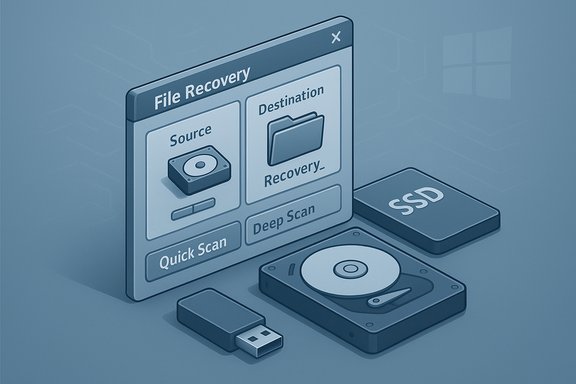
- Automatically detect attached drives and let users pick a Source (where files were lost) and a Destination (where recovered files will be written). The app enforces different physical drives for source and destination, mirroring Microsoft’s safety requirement.
- Offer two scan modes: Quick Scan (fast, metadata-based, good for recent deletes on NTFS) and Deep Scan (slower, signature/raw scanning for formatted or older deletions, or for FAT/exFAT media).
- Allow filters by file name, path, type, or wildcards to reduce scan scope and time.
- Save recovered files in a dedicated folder, typically named Recovery_<date_andtime> or Recovery, on the destination drive.
- Advertise itself as spyware‑free, adware‑free and clean, and provide both an installer and a portable build for technicians. Treat vendor assurances cautiously — independent, up‑to‑date verification is appropriate before use.
Technical verification — what I checked and why
To evaluate the product claims and explain the practical limits, several core items were verified against independent, authoritative references:- The underlying engine and its behavior: Microsoft’s Windows File Recovery documentation documents the two modes, the requirement that source and destination be different, the Recovery_ folder behavior, and the basic command syntax. This is the authoritative description of the engine that Eusing wraps.
- Eusing’s product help and vendor pages: Eusing’s own help pages state the Windows build requirement (Windows 10 build 19041 or later), the Quick/Deep mapping, the destination‑must‑differ rule, and the recommended workflow. These confirm the wrapper is designed to invoke winfr semantics rather than reimplementing the recovery algorithms.
- Independent listings and download indexes: Softpedia and other mainstream archives list the product as version 2.1.0.0, with an installer size near 1.3 MB and a portable build option. This corroborates the release metadata and the product’s lightweight role as a GUI wrapper.
- TRIM behavior on SSDs: multiple storage and Windows specialists describe how TRIM and SSD garbage collection drastically reduce the chance of successful software recovery on SSDs. This is a hardware/firmware reality that no GUI wrapper can alter. References used here include common, well‑regarded Windows/tech publications and vendor guidance on verifying TRIM status.
Inside the UI: what Eusing actually adds
Eusing’s value proposition is straightforward: take winfr functionality and make it usable without typing commands. The GUI implements common pain‑points for non‑technical users:- Graphical drive detection and selection, presented in an Explorer‑like list. The app scans attached storage on launch and displays both source and destination choices to avoid user errors.
- One‑click scan modes. Two large buttons — Quick Scan and Deep Scan — map to the engine’s Regular and Extensive behaviors, respectively. Users can choose the quick pass first and escalate to deep scanning only if needed.
- Filters and wildcard search fields so scans can be targeted (by filename fragment, extension, path). This reduces scanning time and noise for large volumes.
- Automatic recovery folder creation and enforcement of destination choice. The app creates a Recovery_ folder on the destination drive and prevents saving recovered files back to the scanned device. This step protects against a common and destructive user mistake.
- Portable build option. The small footprint and portable variant make it convenient for inclusion on a rescue USB stick or quick technician toolkit. Softpedia’s listing and Eusing’s site both confirm the lightweight installer and the existence of a portable release.
Strengths — where the tool makes sense
- Accessibility: For users who find the command line intimidating, Eusing removes the friction of memorizing winfr switches while still using Microsoft’s recovery engine underneath. This is a clear usability win for routine undelete scenarios.
- Safety-minded defaults: The enforced rule to recover to a different physical drive and the automatic Recovery_ folder reduce common user mistakes that can destroy recoverable data. Those constraints mirror Microsoft’s own guidance.
- Portability and small footprint: As a wrapper, the program is tiny — easy to keep on a USB stick or run without installation in troubleshooting contexts. Softpedia’s listing confirms the compact package size and portable variant.
- Practical scan workflow: Offering Quick and Deep scans with filter options is sensible: try the fast pass first, then escalate to deeper (and slower) raw scanning only if required. This helps users avoid unnecessarily long scans on large volumes.
Limits, risks and important caveats
- TRIM and SSDs — a hard technical limit. If the deleted files were on a TRIM‑enabled SSD, chances of conventional software recovery drop dramatically once TRIM and subsequent garbage collection have run. TRIM tells the SSD which logical blocks are free; the controller can erase or reuse those blocks, making previous data inaccessible to winfr‑style tools. For SSD cases where files are mission‑critical, a professional data recovery lab (chip‑off or vendor‑level access) may be the only realistic option. This is a hardware/firmware limitation — no GUI wrapper can overcome it.
- No recovery for overwritten or securely erased data. If sectors have been overwritten or an ATA secure erase was used, software recovery is impossible. The GUI cannot change underlying physical realities.
- Vendor marketing vs independent verification. Eusing states the product is “100% spyware‑free.” That is a vendor assurance and should be treated as marketing language unless validated at the moment of download with independent scans and checksums. Download sources change over time and reputations evolve; always verify the build you obtain.
- Not a forensic or enterprise tool. Eusing is not designed for sector‑level imaging, RAID reconstruction, or detailed partition recovery operations. If you require enterprise‑grade features or professional guarantees, paid commercial suites and specialized labs are appropriate alternatives.
Practical triage: step‑by‑step (what to do immediately after accidental deletion)
- Stop using the affected drive immediately. Every write increases the chance of overwriting recoverable sectors. This is the single most important action.
- If possible, shut down the PC and remove the drive (or attach the suspect disk to another machine as a secondary or via a USB adapter). Booting from rescue media and scanning from a separate host reduces writes to the source.
- Prepare a destination drive with enough free space. The destination must be a different physical drive — do not recover to the same disk you’re scanning. Microsoft explicitly requires this for Windows File Recovery; Eusing enforces the rule in its GUI.
- Try a Quick Scan first (the metadata/Regular mode equivalent). If you find what you need, recover and verify file integrity immediately. If Quick Scan fails, switch to Deep Scan (Extensive/raw signature mode). Expect Deep Scans to take much longer on large volumes.
- Use filters (file extension, filename fragment, folder path) to reduce scanning time and false positives. Eusing exposes these filters in the GUI; they map to winfr’s /n switches.
- Verify recovered files by opening them before trusting them as final copies. Some recovered files may be partially corrupted.
Alternatives and when to consider them
Eusing Free File Recovery is a pragmatic, free GUI for the Microsoft engine. There are, however, other options depending on needs:- Use Windows File Recovery (winfr) directly if you want full, scriptable control and are comfortable with the command line. It’s free and maintained by Microsoft.
- Choose a full‑featured commercial GUI (EaseUS Data Recovery, Stellar, Disk Drill, Tenorshare 4DDiG) if you want richer previews, staged recoveries, or paid support and service guarantees. Many commercial tools offer limited free recovery quotas or trial previews. Evaluate cost vs expected data value.
- Use open source tools like PhotoRec for specialized signature‑based recovery (no fancy GUI, but robust file‑type lists). These tools are better suited to users comfortable with their workflows.
- For mission‑critical or physically damaged drives, contact a professional recovery lab. They can perform chip‑off or platform‑level imaging that consumer software cannot.
Security and distribution best practices
- Always download recovery tools from the vendor’s official site or a reputable repository. Eusing maintains a product page and help resources; independent download sites like Softpedia also list the build. Cross‑check file size and version numbers.
- Prefer the portable build for rescue sticks — this avoids installing new software on the machine you are trying to salvage and reduces accidental writes to the source drive.
- If the vendor provides checksums or PGP signatures, verify them. Scan installers with an up‑to‑date antivirus engine before first use. Vendor claims of “100% spyware‑free” are helpful but not a replacement for immediate verification.
- If you need repeatable, non‑destructive recovery attempts, consider creating a sector image of the source disk (if possible) and operate on the image rather than the original. Imaging requires space and care, and some free tools can produce raw images safely; enterprise workflows prefer hardware write‑blockers.
Performance expectations and real‑world tips
- Quick Scan (Regular mode) is fast and often recovers recently deleted files on NTFS by using the Master File Table (MFT) metadata. Start here.
- Deep Scan (Extensive mode) reads raw sectors and uses signature matching. It’s far slower and can take hours for multi‑terabyte disks. Use file filters to narrow the search window and reduce time.
- On HDDs, recovery odds are generally higher because deleted data typically remains until overwritten. On SSDs, the TRIM command and flash controller behavior can make successful recovery unlikely after TRIM runs. If the SSD case is urgent and data is invaluable, consider professional services early.
- If recovering from the system (C
 drive while Windows is running, results are worse because the OS will continue to write data. If possible, use a different host or bootable rescue environment to scan.
Critical view: who should use Eusing Free File Recovery — and who should not
- Use Eusing Free File Recovery if:
- You want a simple, no‑cost GUI that exposes Microsoft’s winfr modes without learning the command line.
- You are recovering from an HDD, USB stick, or memory card (FAT/exFAT), or from an NTFS volume where deletion was recent.
- You want a tiny portable tool for your rescue USB toolkit.
- Avoid relying on it (by itself) if:
- The deleted data is on a TRIM‑enabled SSD and the deletion was not extremely recent. In that case, success is unlikely with consumer tools.
- You require advanced forensic features (sector imaging, RAID reassembly, professional lab methods). Use enterprise tools or a recovery service.
- The data is irreplaceable and you cannot accept the risk of software‑level attempts; contact professionals early.
Final verdict: practical, not magical
Eusing Free File Recovery 2.1.0.0 is a faithful, practical GUI wrapper for Microsoft’s Windows File Recovery engine. It removes the command‑line barrier, enforces important safety defaults, and is small enough to carry on a USB stick — all useful attributes for technicians and everyday users handling routine undelete tasks. Softpedia and Eusing’s own documents confirm the small installer size and portable option, while Microsoft’s documentation establishes the engine behaviors that determine success. However, the tool cannot overcome hardware realities: TRIM on SSDs and overwritten sectors remain the decisive limits on whether deleted data can be recovered. Vendor claims of perfect cleanliness should be independently validated at the point of download. For mission‑critical data or physically failing drives, professional recovery remains the prudent course. In short: Eusing Free File Recovery is a sensible, low‑friction way to put Microsoft’s recovery engine into a GUI workflow — a recommended first stop for routine deletions on HDDs and removable media, but not a substitute for forensic processes or professional services when the stakes are high.Source: Neowin Eusing Free File Recovery 2.1.0.0
