

Excel’s Analyze Data feature, available inside Microsoft 365 versions of Excel as of May 2026, can generate charts, surface trends, and answer plain-English spreadsheet questions without requiring a separate paid Copilot add-on. That does not make it a full substitute for Microsoft’s generative AI assistant. It does, however, expose the awkward truth behind much of the current Office AI upsell: for many spreadsheet jobs, the useful part was already there.
Microsoft has spent the last two years training users to see “AI in Office” as synonymous with Copilot. The company has folded Copilot branding into Microsoft 365 plans, carved out premium experiences for paid licenses, and pushed the message that natural-language productivity belongs behind the newest subscription tier. But Excel, of all Microsoft apps, is a reminder that intelligent assistance is not new, and that the distance between “AI-powered insight” and “a well-designed analysis pane” is smaller than the marketing suggests.
Excel has always been the place where Microsoft’s most ambitious productivity claims meet the least forgiving users. Word can tolerate vibes. PowerPoint can forgive a vague draft. Excel is different: the numbers either reconcile, the formulas either work, and the chart either reflects the data or it does not.
That makes Copilot’s arrival in Excel unusually complicated. A chat interface sounds impressive when the task is “summarize this document,” but spreadsheet work often depends on structure, column names, field types, and repeatable transformations. If the workbook is messy, merged, inconsistently labeled, or full of dates stored as text, no assistant can magically rescue the underlying model.
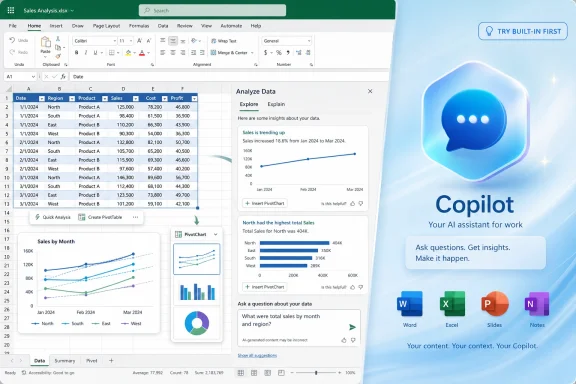
Analyze Data, formerly known as Ideas, attacks a narrower problem. It looks at a selected data range, suggests patterns, builds visual summaries, and accepts plain-English questions that return charts or PivotTable-style results. The pitch is less glamorous than Copilot’s, but in practical terms it maps closely to what many users actually want when they say they need “AI in Excel.”
That is why the How-To Geek argument lands. Before paying more for Copilot, users should ask whether they are trying to automate creative reasoning across documents or simply interrogate a spreadsheet. If the job is “show me total sales by region,” Copilot may be overkill. Excel’s built-in tool may already be enough.
The feature feels hidden for a different reason. It has been buried beneath Microsoft’s Copilot narrative.
That distinction matters. Analyze Data is not an experimental add-on from a forgotten lab. It is a shipping Excel feature for Microsoft 365 subscribers across Windows, Mac, and the web, with support for natural-language questions in several major languages. It is cloud-connected, so it still depends on Microsoft’s services, but it is not the same commercial proposition as buying a Copilot add-on for a business tenant or accepting an AI-flavored consumer subscription tier.
The result is a product oddity. Microsoft has a native Excel assistant that already does many of the things casual users associate with AI: interpreting questions, generating charts, identifying trends, and inserting analysis into the workbook. Yet the company’s broader messaging encourages users to think of AI productivity as something newer, shinier, and separately monetized.
This is not new behavior from Microsoft. The company has often used branding to repackage capabilities already diffused across Windows and Office. But with AI, the stakes are higher because the pricing is more visible and the promise is more expansive.
Excel users often need answers, not companionship. They want a chart of revenue by quarter, a quick view of outliers, or a summary of which product line leads a category. A conversational assistant that pauses, thinks, responds, waits for clarification, and occasionally misunderstands the workbook can feel like a detour through a chatbot just to reach a PivotChart.
Analyze Data’s pane is more constrained, and that constraint is part of its strength. It inspects the selected range and presents cards. If a card is useful, the user inserts it. If not, the user types a single natural-language query and gets a structured result. There is no pretense that the assistant is a coworker, strategist, or analyst with a personality.
That makes the workflow less magical and more Excel-like. It is closer to asking the application to expose what it can already infer from the table than to asking a general-purpose model to reason across a workbook. For many users, that is not a downgrade. It is a better fit.
The catch is that Analyze Data’s simplicity also defines its ceiling. It is not a general automation environment. It will not write a complex VBA project, rebuild a workbook architecture, reconcile a broken model, or carry a multistep analytical conversation through several rounds of context. But the fact that it does not do everything should not obscure the point: a large share of spreadsheet “AI” demand is really demand for faster charting, summarization, and natural-language querying.
This is where the Copilot-versus-Analyze-Data comparison becomes less about licensing and more about spreadsheet culture. AI vendors often imply that natural language can sit on top of chaos and produce clarity. Excel users know better. If a worksheet is built as a visual report rather than a structured dataset, automated analysis will struggle.
That is not a weakness of Analyze Data so much as a reminder of the contract Excel has always demanded. The program is flexible enough to let users build almost anything, including fragile monsters. But the more a workbook depends on visual layout tricks, inconsistent typing, hidden assumptions, and manual edits, the less any analysis engine can safely infer.
Copilot faces the same wall, even if its marketing softens the impact. Microsoft’s own Copilot guidance for Excel has repeatedly emphasized structured tables, clear headers, supported file formats, and cloud storage requirements for certain experiences. The model may be newer, but the preparation burden is familiar.
In that sense, Analyze Data is honest. It does not pretend to replace disciplined spreadsheet design. It exposes the value of disciplined design.
For home users, the issue is simpler and more emotional. People who bought Microsoft 365 for Word, Excel, PowerPoint, Outlook, and OneDrive may not want their subscription reframed around AI credits and Copilot access. Even if the added features are useful, a forced or semi-forced upsell changes the relationship between customer and vendor.
Excel sharpens that frustration because the app already contains powerful analysis tools. PivotTables, charts, Power Query, conditional formatting, formulas, dynamic arrays, Solver, and Analyze Data cover an enormous range of real-world work. Copilot may extend that toolset, but it does not arrive on an empty field.
That is why the practical advice “try Analyze Data first” is more than a money-saving tip. It is a rebuttal to the idea that every productivity problem should be solved by moving up the AI price ladder. Sometimes the cheaper answer is not a lesser assistant. Sometimes it is the feature that was designed for the task before the chatbot era began.
Analyze Data is not governance-free. It is cloud-connected and subject to Microsoft 365 privacy and licensing rules. Organizations with strict data-handling policies still need to understand where analysis happens, which users can access it, and what categories of data are appropriate for the feature.
But the operational footprint is different. A built-in Excel feature that generates local workbook objects from a selected range is easier to reason about than a broad assistant integrated across Office, Teams, Outlook, SharePoint, and the Microsoft Graph. Copilot’s power comes from context. That context is also what makes governance complicated.
This is where IT pros should resist both extremes. It would be wrong to say Analyze Data eliminates the need for Copilot in serious organizations. Copilot can help with cross-document synthesis, drafting, meeting workflows, and broader knowledge work in ways Analyze Data never attempts. But it would be equally wrong to treat Copilot as the default answer to every Excel question.
The rational approach is workload segmentation. If users need quick visual analysis inside a clean workbook, train them on Analyze Data and the native Excel stack. If they need natural-language assistance across files, meetings, emails, and business context, evaluate Copilot with the same rigor applied to any enterprise platform.
A sales manager wants to know which region is outperforming. A student wants a quick chart from a table. A small business owner wants to spot a trend without learning PivotTables. A department analyst wants a suggested visualization before building a more polished report. These are not science-fiction AI tasks. They are the daily friction points that make people search for “Excel AI.”
Analyze Data handles those moments because it is close to the data and constrained by the workbook’s structure. Its suggested cards can be ignored or inserted. Its natural-language box turns a simple question into a chart or table. The user remains in Excel’s familiar environment instead of outsourcing the task to a broader assistant.
There is also a psychological advantage. Copilot invites users to ask big, ambiguous questions. Analyze Data nudges them toward questions the sheet can answer. That difference reduces disappointment.
In productivity software, expectation management is product design. A tool that promises less and delivers consistently can feel better than a tool that promises transformation and returns a plausible-but-wrong answer. Excel users, especially power users, prize that distinction.
That is true, and it is exactly why users should be precise about what they are buying. Copilot makes more sense when the task crosses boundaries: summarize this spreadsheet and turn it into an email, compare this workbook against meeting notes, draft a presentation from this analysis, or help build a model from messy instructions. Analyze Data does not aspire to that role.
But premium AI should be judged by premium tasks. If the use case is a one-off chart, a trend summary, or a plain-English query over a structured table, paying extra for Copilot is hard to justify. The built-in tool may not feel futuristic, but it may be faster, cheaper, and less distracting.
The bigger risk for Microsoft is not that users discover Analyze Data and abandon Copilot entirely. It is that they become more discriminating. Once users realize Excel already contains native intelligence, the Copilot pitch has to move beyond “ask your spreadsheet questions” and prove that the paid assistant solves harder problems reliably.
Excel makes this visible. A clean table with well-named columns is fertile ground for both Analyze Data and Copilot. A workbook full of merged cells, manually typed subtotals, inconsistent date formats, and unlabeled assumptions is hostile terrain for both. The assistant may be different, but the foundation is the same.
That is why the most valuable Excel advice remains stubbornly old-fashioned. Normalize your tables. Name your columns clearly. Keep raw data separate from presentation layers. Use structured references. Convert ranges to tables. Avoid burying logic in formatting. These habits make every tool better, whether the interface is a ribbon button, a PivotTable, Power Query, or an AI prompt.
The irony is that AI may make spreadsheet hygiene more important, not less. As more users ask tools to infer meaning from their workbooks, the penalty for ambiguous structure rises. A human can sometimes read a messy sheet by intuition. An automated system needs signals.
Analyze Data succeeds when those signals are obvious. Copilot also improves when those signals are obvious. The lesson is not that one assistant replaces the other. The lesson is that neither replaces good spreadsheet design.
Analyze Data belongs in that lineage. It is not a chatbot bolted onto Excel. It is a guided analysis surface that turns common spreadsheet questions into concrete workbook artifacts. That makes it less dazzling in a demo but more immediately understandable in everyday use.
There is a product lesson here for the entire AI wave. Users do not always want a universal assistant. Sometimes they want a smaller feature embedded exactly where the task happens. The future of AI in productivity software may be less about giant chat boxes and more about targeted intelligence woven into old workflows.
Microsoft knows this, which is why Copilot itself is becoming more deeply embedded in apps rather than remaining a sidecar. But Excel’s older Analyze Data feature shows that the pattern predates the current AI boom. The best interface for intelligence is often not a conversation. It is the next useful button.
The answer will not always be yes. But it will be yes often enough to matter.
Microsoft has spent the last two years training users to see “AI in Office” as synonymous with Copilot. The company has folded Copilot branding into Microsoft 365 plans, carved out premium experiences for paid licenses, and pushed the message that natural-language productivity belongs behind the newest subscription tier. But Excel, of all Microsoft apps, is a reminder that intelligent assistance is not new, and that the distance between “AI-powered insight” and “a well-designed analysis pane” is smaller than the marketing suggests.
 Microsoft’s AI Upsell Runs Into an Older Excel Truth
Excel has always been the place where Microsoft’s most ambitious productivity claims meet the least forgiving users. Word can tolerate vibes. PowerPoint can forgive a vague draft. Excel is different: the numbers either reconcile, the formulas either work, and the chart either reflects the data or it does not.That makes Copilot’s arrival in Excel unusually complicated. A chat interface sounds impressive when the task is “summarize this document,” but spreadsheet work often depends on structure, column names, field types, and repeatable transformations. If the workbook is messy, merged, inconsistently labeled, or full of dates stored as text, no assistant can magically rescue the underlying model.
Analyze Data, formerly known as Ideas, attacks a narrower problem. It looks at a selected data range, suggests patterns, builds visual summaries, and accepts plain-English questions that return charts or PivotTable-style results. The pitch is less glamorous than Copilot’s, but in practical terms it maps closely to what many users actually want when they say they need “AI in Excel.”
That is why the How-To Geek argument lands. Before paying more for Copilot, users should ask whether they are trying to automate creative reasoning across documents or simply interrogate a spreadsheet. If the job is “show me total sales by region,” Copilot may be overkill. Excel’s built-in tool may already be enough.
Analyze Data Is Not Hidden, But Microsoft Has Made It Feel Secondary
Calling Analyze Data “hidden” is only partly fair. In current Microsoft 365 builds, it sits in Excel’s ribbon, commonly under the Home tab and in some experiences under Data. Microsoft’s own documentation describes it plainly: select a cell in a data range, open Analyze Data, and Excel returns visual summaries, trends, and patterns.The feature feels hidden for a different reason. It has been buried beneath Microsoft’s Copilot narrative.
That distinction matters. Analyze Data is not an experimental add-on from a forgotten lab. It is a shipping Excel feature for Microsoft 365 subscribers across Windows, Mac, and the web, with support for natural-language questions in several major languages. It is cloud-connected, so it still depends on Microsoft’s services, but it is not the same commercial proposition as buying a Copilot add-on for a business tenant or accepting an AI-flavored consumer subscription tier.
The result is a product oddity. Microsoft has a native Excel assistant that already does many of the things casual users associate with AI: interpreting questions, generating charts, identifying trends, and inserting analysis into the workbook. Yet the company’s broader messaging encourages users to think of AI productivity as something newer, shinier, and separately monetized.
This is not new behavior from Microsoft. The company has often used branding to repackage capabilities already diffused across Windows and Office. But with AI, the stakes are higher because the pricing is more visible and the promise is more expansive.
The Better Spreadsheet Assistant Is Sometimes the One That Talks Less
Copilot’s defining interface is conversation. That is useful when the task genuinely benefits from back-and-forth refinement: drafting text, comparing documents, generating a presentation outline, or asking for explanations that can be revised. But chat is not automatically the best interface for spreadsheet analysis.Excel users often need answers, not companionship. They want a chart of revenue by quarter, a quick view of outliers, or a summary of which product line leads a category. A conversational assistant that pauses, thinks, responds, waits for clarification, and occasionally misunderstands the workbook can feel like a detour through a chatbot just to reach a PivotChart.
Analyze Data’s pane is more constrained, and that constraint is part of its strength. It inspects the selected range and presents cards. If a card is useful, the user inserts it. If not, the user types a single natural-language query and gets a structured result. There is no pretense that the assistant is a coworker, strategist, or analyst with a personality.
That makes the workflow less magical and more Excel-like. It is closer to asking the application to expose what it can already infer from the table than to asking a general-purpose model to reason across a workbook. For many users, that is not a downgrade. It is a better fit.
The catch is that Analyze Data’s simplicity also defines its ceiling. It is not a general automation environment. It will not write a complex VBA project, rebuild a workbook architecture, reconcile a broken model, or carry a multistep analytical conversation through several rounds of context. But the fact that it does not do everything should not obscure the point: a large share of spreadsheet “AI” demand is really demand for faster charting, summarization, and natural-language querying.
The Spreadsheet Still Has to Be Worth Analyzing
The most important limitation of Analyze Data is also the healthiest one: it rewards clean data. Microsoft’s guidance is consistent with decades of spreadsheet practice. Use a single header row. Avoid blank rows and columns. Convert the data range into a table. Make sure dates are dates, not text pretending to be dates. Do not expect merged cells and decorative layouts to behave like a database.This is where the Copilot-versus-Analyze-Data comparison becomes less about licensing and more about spreadsheet culture. AI vendors often imply that natural language can sit on top of chaos and produce clarity. Excel users know better. If a worksheet is built as a visual report rather than a structured dataset, automated analysis will struggle.
That is not a weakness of Analyze Data so much as a reminder of the contract Excel has always demanded. The program is flexible enough to let users build almost anything, including fragile monsters. But the more a workbook depends on visual layout tricks, inconsistent typing, hidden assumptions, and manual edits, the less any analysis engine can safely infer.
Copilot faces the same wall, even if its marketing softens the impact. Microsoft’s own Copilot guidance for Excel has repeatedly emphasized structured tables, clear headers, supported file formats, and cloud storage requirements for certain experiences. The model may be newer, but the preparation burden is familiar.
In that sense, Analyze Data is honest. It does not pretend to replace disciplined spreadsheet design. It exposes the value of disciplined design.
Copilot’s Price Problem Is Really a Packaging Problem
The debate over Excel assistance is inseparable from Microsoft 365 packaging. Microsoft has pushed Copilot deeper into consumer and business subscriptions, while preserving “Classic” paths in some markets or account flows for users who want Office without the AI bundle. On the enterprise side, Microsoft 365 Copilot remains a separate commercial decision for many organizations, with licensing, governance, data exposure, and adoption questions attached.For home users, the issue is simpler and more emotional. People who bought Microsoft 365 for Word, Excel, PowerPoint, Outlook, and OneDrive may not want their subscription reframed around AI credits and Copilot access. Even if the added features are useful, a forced or semi-forced upsell changes the relationship between customer and vendor.
Excel sharpens that frustration because the app already contains powerful analysis tools. PivotTables, charts, Power Query, conditional formatting, formulas, dynamic arrays, Solver, and Analyze Data cover an enormous range of real-world work. Copilot may extend that toolset, but it does not arrive on an empty field.
That is why the practical advice “try Analyze Data first” is more than a money-saving tip. It is a rebuttal to the idea that every productivity problem should be solved by moving up the AI price ladder. Sometimes the cheaper answer is not a lesser assistant. Sometimes it is the feature that was designed for the task before the chatbot era began.
Enterprise IT Will See the Governance Angle First
For administrators, the Copilot comparison is not only about cost. It is about control. Copilot in Microsoft 365 touches identity, tenant data, permissions, content indexing, compliance boundaries, and user training. Deploying it well requires more than flipping a switch.Analyze Data is not governance-free. It is cloud-connected and subject to Microsoft 365 privacy and licensing rules. Organizations with strict data-handling policies still need to understand where analysis happens, which users can access it, and what categories of data are appropriate for the feature.
But the operational footprint is different. A built-in Excel feature that generates local workbook objects from a selected range is easier to reason about than a broad assistant integrated across Office, Teams, Outlook, SharePoint, and the Microsoft Graph. Copilot’s power comes from context. That context is also what makes governance complicated.
This is where IT pros should resist both extremes. It would be wrong to say Analyze Data eliminates the need for Copilot in serious organizations. Copilot can help with cross-document synthesis, drafting, meeting workflows, and broader knowledge work in ways Analyze Data never attempts. But it would be equally wrong to treat Copilot as the default answer to every Excel question.
The rational approach is workload segmentation. If users need quick visual analysis inside a clean workbook, train them on Analyze Data and the native Excel stack. If they need natural-language assistance across files, meetings, emails, and business context, evaluate Copilot with the same rigor applied to any enterprise platform.
The Native Tool Wins When the Question Is Narrow
The best case for Analyze Data is not that it beats Copilot in all respects. It is that it wins a surprising number of narrow, common spreadsheet moments.A sales manager wants to know which region is outperforming. A student wants a quick chart from a table. A small business owner wants to spot a trend without learning PivotTables. A department analyst wants a suggested visualization before building a more polished report. These are not science-fiction AI tasks. They are the daily friction points that make people search for “Excel AI.”
Analyze Data handles those moments because it is close to the data and constrained by the workbook’s structure. Its suggested cards can be ignored or inserted. Its natural-language box turns a simple question into a chart or table. The user remains in Excel’s familiar environment instead of outsourcing the task to a broader assistant.
There is also a psychological advantage. Copilot invites users to ask big, ambiguous questions. Analyze Data nudges them toward questions the sheet can answer. That difference reduces disappointment.
In productivity software, expectation management is product design. A tool that promises less and delivers consistently can feel better than a tool that promises transformation and returns a plausible-but-wrong answer. Excel users, especially power users, prize that distinction.
The Chatbot Still Has a Role, But It Is Not the First Stop
Copilot’s defenders can fairly argue that this comparison is too narrow. Copilot is not merely a chart generator. In its more advanced forms, it can help create formulas, explain workbook content, reason through scenarios, and connect Excel work to broader Microsoft 365 context. Microsoft is also evolving Copilot rapidly, with agentic features and deeper app integration becoming a central part of the roadmap.That is true, and it is exactly why users should be precise about what they are buying. Copilot makes more sense when the task crosses boundaries: summarize this spreadsheet and turn it into an email, compare this workbook against meeting notes, draft a presentation from this analysis, or help build a model from messy instructions. Analyze Data does not aspire to that role.
But premium AI should be judged by premium tasks. If the use case is a one-off chart, a trend summary, or a plain-English query over a structured table, paying extra for Copilot is hard to justify. The built-in tool may not feel futuristic, but it may be faster, cheaper, and less distracting.
The bigger risk for Microsoft is not that users discover Analyze Data and abandon Copilot entirely. It is that they become more discriminating. Once users realize Excel already contains native intelligence, the Copilot pitch has to move beyond “ask your spreadsheet questions” and prove that the paid assistant solves harder problems reliably.
Excel’s Real AI Divide Is Between Clean Workbooks and Magical Thinking
The most misleading part of the AI productivity boom is the suggestion that language can replace modeling. It cannot. Language can accelerate interaction with a model, but it does not remove the need for coherent data.Excel makes this visible. A clean table with well-named columns is fertile ground for both Analyze Data and Copilot. A workbook full of merged cells, manually typed subtotals, inconsistent date formats, and unlabeled assumptions is hostile terrain for both. The assistant may be different, but the foundation is the same.
That is why the most valuable Excel advice remains stubbornly old-fashioned. Normalize your tables. Name your columns clearly. Keep raw data separate from presentation layers. Use structured references. Convert ranges to tables. Avoid burying logic in formatting. These habits make every tool better, whether the interface is a ribbon button, a PivotTable, Power Query, or an AI prompt.
The irony is that AI may make spreadsheet hygiene more important, not less. As more users ask tools to infer meaning from their workbooks, the penalty for ambiguous structure rises. A human can sometimes read a messy sheet by intuition. An automated system needs signals.
Analyze Data succeeds when those signals are obvious. Copilot also improves when those signals are obvious. The lesson is not that one assistant replaces the other. The lesson is that neither replaces good spreadsheet design.
Microsoft’s Quiet Feature Deserves a Louder Place in the Ribbon War
Microsoft’s challenge is partly self-inflicted. By putting Copilot at the center of its productivity story, the company risks undervaluing the native features that made Office indispensable in the first place. Excel is not powerful because it has one assistant. It is powerful because it has layers: formulas for precision, tables for structure, PivotTables for aggregation, charts for presentation, Power Query for transformation, and now several flavors of natural-language help.Analyze Data belongs in that lineage. It is not a chatbot bolted onto Excel. It is a guided analysis surface that turns common spreadsheet questions into concrete workbook artifacts. That makes it less dazzling in a demo but more immediately understandable in everyday use.
There is a product lesson here for the entire AI wave. Users do not always want a universal assistant. Sometimes they want a smaller feature embedded exactly where the task happens. The future of AI in productivity software may be less about giant chat boxes and more about targeted intelligence woven into old workflows.
Microsoft knows this, which is why Copilot itself is becoming more deeply embedded in apps rather than remaining a sidecar. But Excel’s older Analyze Data feature shows that the pattern predates the current AI boom. The best interface for intelligence is often not a conversation. It is the next useful button.
The Cheapest Excel AI Is the One You Already Have
Before users accept another subscription increase or lobby IT for a Copilot license, they should test the work they actually need done. Open a clean workbook, select a cell inside a data table, launch Analyze Data, and see whether the pane produces the chart, trend, or query result that would otherwise be delegated to Copilot.The answer will not always be yes. But it will be yes often enough to matter.
- Analyze Data is built into eligible Microsoft 365 versions of Excel and can generate visual summaries, trends, and patterns from structured data.
- The feature supports natural-language questions, but it is a single-query analysis tool rather than a conversational chatbot.
- Clean tables, clear headers, modern workbook formats, and real date fields matter more than the branding of the assistant.
- Copilot is better suited to broader, cross-app, multistep, and generative workflows, not necessarily routine charting or quick spreadsheet interrogation.
- Users and administrators should evaluate Excel AI by workload, not by Microsoft’s marketing hierarchy.
- The existence of Analyze Data weakens the argument that useful spreadsheet intelligence automatically requires a premium Copilot upsell.
References
- Primary source: How-To Geek
Published: Fri, 22 May 2026 17:00:18 GMT
How to use Excel's Analyze Data tool for AI-powered insights
Excel's native Analyze Data tool provides instant visual data summaries without the added cost of a premium chatbot subscription. www.howtogeek.com
- Official source: support.microsoft.com
Analyze Data in Excel | Microsoft Support
Analyze Data in Excel empowers you to understand your data through high-level visual summaries, trends, and patterns. Simply click a cell in a data range, and then click the Analyze Data button on the Home tab. Analyze Data in Excel will analyze your data, and return interesting visuals about it...support.microsoft.com - Official source: learn.microsoft.com
Excel for the web - Service Descriptions | Microsoft Learn
Excel for the web (formerly Excel Web App) extends your Microsoft Excel experience to the web browser, where you can work with workbooks directly on the website where the workbook is stored. All customers can view and lightly edit Office files using Office for the web.learn.microsoft.com - Official source: microsoft.com
Microsoft 365 Copilot Plans and Pricing—AI for Business | Microsoft 365
Explore AI subscription plans for Microsoft 365 Copilot—AI designed to enhance productivity. Discover Copilot pricing options tailored to your business needs.www.microsoft.com
- Related coverage: windowscentral.com
Microsoft 365 is paywalling most of Copilot in its Office apps | Windows Central
Commercial customers will soon need a Microsoft 365 Copilot license to use Copilot Chat in Word, Excel, PowerPoint, and OneNote.www.windowscentral.com - Official source: techcommunity.microsoft.com
- Related coverage: evaluativethinking.org
- Official source: microsoft.ai
- Related coverage: static.tosa.org
