

Microsoft's decision to retire the ribbon-based App Skills entry points in Excel and fold their functionality into Copilot Chat and Agent Mode marks the most conspicuous shift yet in Microsoft’s in‑app Copilot strategy — and it has left a subset of power users with concrete functional gaps and renewed skepticism about the pace and priorities of Microsoft’s AI rollout.
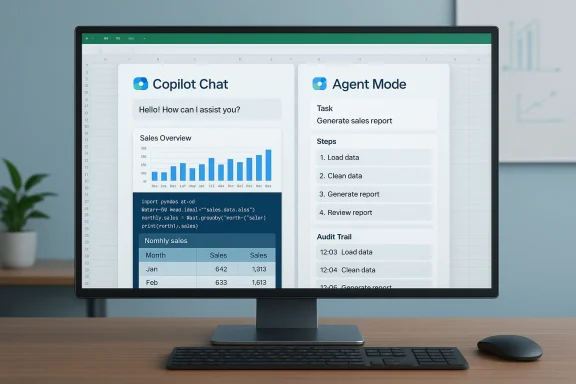
Microsoft introduced multiple, overlapping ways to invoke Copilot inside Excel over the past year: a chat‑style Copilot pane, ribbon‑attached App Skills for common tasks, and an increasingly capable Agent Mode for multi‑step automation. The company has now consolidated the entry points, removing App Skills from the ribbon and context menu and reallocating responsibilities between two clearer interfaces: Copilot Chat for exploratory conversations and read‑only analysis, and Agent Mode for deeper, multi‑step workbook editing and task execution. This consolidation was rolled out as part of the broader Copilot upgrade wave and has been communicated to enterprise channels during the rollout.
That restructuring aims to solve a real problem: users were confused by multiple Copilot start points and uncertain which flow would perform which kind of work. Microsoft’s public messaging frames the move as a taxonomy and UX simplification intended to reduce fragmentation and make the assistant’s capabilities easier to reason about.
Note: some specific administrative artifacts (tenant notices or exact message IDs) are reported in press coverage; those items should be treated as reported by third parties when the original M365 Message Center entry is not directly available for verification in the public corpus. Where precise message IDs or dates are cited in secondary reporting, I mark them as reported rather than independently validated. This matters because enterprise admins rely on exact Message Center entries for timing and remediation planning.
This is not a marginal omission. Python inside Excel unlocks programmatic transformations, custom visualizations, and reproducible analyses that are hard to replicate with single‑turn chat prompts or ad‑hoc agent steps. The lack of a timeline for full parity — and the reality that some users see the App Skills UI appear but not function during the rollout — has increased frustration. Microsoft describes these issues as known limitations during the phase‑out rather than permanent removals, but for power users the distinction between temporary and indefinite is academic if day‑to‑day workflows are broken.
Each of these legacy quirks shares the same trait: the easier or default action leans toward risky behavior, while the correct, safer choice requires deliberate effort. That structural bias limits trust in new, high‑leverage automation because users already expect surprising, irreversible behavior from Excel itself.
The path forward should be clear: restore functional parity swiftly, provide conservative toggles and migration tooling for enterprise admins, and pair every high‑impact UI retirement with tested fallback modes. Microsoft has the technical reach to make Copilot deeply useful inside Excel; whether it can do so without alienating the users who rely on Excel’s determinism will be the defining product discipline test of this phase of the Copilot rollout.
Source: WinBuzzer Microsoft Removes Excel Copilot App Skills After Confusion
 Background / Overview
Microsoft introduced multiple, overlapping ways to invoke Copilot inside Excel over the past year: a chat‑style Copilot pane, ribbon‑attached App Skills for common tasks, and an increasingly capable Agent Mode for multi‑step automation. The company has now consolidated the entry points, removing App Skills from the ribbon and context menu and reallocating responsibilities between two clearer interfaces: Copilot Chat for exploratory conversations and read‑only analysis, and Agent Mode for deeper, multi‑step workbook editing and task execution. This consolidation was rolled out as part of the broader Copilot upgrade wave and has been communicated to enterprise channels during the rollout.That restructuring aims to solve a real problem: users were confused by multiple Copilot start points and uncertain which flow would perform which kind of work. Microsoft’s public messaging frames the move as a taxonomy and UX simplification intended to reduce fragmentation and make the assistant’s capabilities easier to reason about.
What changed and why it matters
The new two‑mode division
- Copilot Chat: Positioned as the conversational, investigative surface for analysis, insights, and data exploration that does not directly modify the workbook. It acts like a queryable, in‑context research pane tied to the open workbook.
- Agent Mode: Designed for task execution — multi‑step reasoning and changes that touch workbook content directly. Agent Mode aims to orchestrate a plan, carry out changes inside the file, and present audit‑ready results. Microsoft has been framing this pattern as part of a broader “vibe working” push to make Copilot operate like a planner + executor pair inside Office.
Timeline and enterprise notification
Microsoft signaled the change in its enterprise channels before the visible ribbon removal, and the consolidation’s broad rollout occurred during late 2025 into February 2026 as Agent Mode moved to wider availability. Community reporting and internal notices circulated during that period as the company folded App Skills into the two‑mode model.Note: some specific administrative artifacts (tenant notices or exact message IDs) are reported in press coverage; those items should be treated as reported by third parties when the original M365 Message Center entry is not directly available for verification in the public corpus. Where precise message IDs or dates are cited in secondary reporting, I mark them as reported rather than independently validated. This matters because enterprise admins rely on exact Message Center entries for timing and remediation planning.
The practical fallout: functionality gaps and user pain
The Python / Advanced Analysis shortfall
One of the most consequential practical gaps created by the consolidation is the temporary absence of Advanced Analysis capabilities — notably the Python‑powered features that many data analysts have started to rely on inside Excel. Microsoft publicly acknowledged that Python‑powered advanced analysis and some advanced text‑analysis features are not yet fully integrated into Copilot Chat or Agent Mode and will be added later. For analysts who built workflows around App Skills that leveraged Python, that means a nontrivial migration burden or a pause in productivity until the replacement interfaces regain parity.This is not a marginal omission. Python inside Excel unlocks programmatic transformations, custom visualizations, and reproducible analyses that are hard to replicate with single‑turn chat prompts or ad‑hoc agent steps. The lack of a timeline for full parity — and the reality that some users see the App Skills UI appear but not function during the rollout — has increased frustration. Microsoft describes these issues as known limitations during the phase‑out rather than permanent removals, but for power users the distinction between temporary and indefinite is academic if day‑to‑day workflows are broken.
Quality regression accusations
Across community reporting, multiple users have described the replacement Copilot interfaces as performing worse than the removed App Skills in specific scenarios — delivering less precise suggestions, failing to replicate previously reliable behavior, or returning answers that require significantly more manual cleanup. Some of this response appears tied to the immaturity of Agent Mode as a replacement for ribbon‑centered, ribbon‑triggered actions. Others reflect the deeper truth that chat and agent interactions introduce a different error surface: when outputs are conversationally generated rather than mechanically deterministic, small changes in wording or context can yield big differences in result quality.Excel’s legacy UX problems: why App Skills’ removal resonated so strongly
The App Skills removal did not happen in a vacuum. Excel carries a set of long‑standing usability patterns that have generated user distrust and a reputation for dangerous defaults. Three of these deserve emphasis because they shape how users responded to the Copilot change.1) Silent data conversion (the date / part‑number trap)
Excel’s automatic data conversion—when Excel transforms a string (like a part number or gene symbol) into a date and then stores that value as an internal serial number—has been a recurrent source of silent data loss. Users who did not explicitly toggle off automatic conversion discover the original strings are gone after conversion; changing the cell back to text does not restore the original content. That behavior is still opt‑out by default and remains widely documented as a hazard. The result: users approach new, non‑deterministic features (like AI assistants) with skepticism because Excel has a history of quietly doing damage to data in the background.2) The global undo stack
Excel uses a shared undo stack across windows, which causes surprising results for users who expect Ctrl+Z to only affect the current workbook. Because the undo history is global, pressing undo in one window can revert the last action performed in another open workbook. Power users can avoid this by launching separate Excel instances, but that workaround breaks cross‑window linking and introduces other complications. In combination with the other legacy behaviors, the shared undo stack fosters user anxiety about automated or agent‑driven edits.3) Merge and Center vs. Center Across Selection
The ribbon's most visible alignment control — Merge and Center — remains prominent and easily invoked, yet it creates real structural problems: merged cells impede sorting, filtering, and many macros. The safer visual alternative, Center Across Selection, sits buried in the Format Cells dialog. This pattern — placing risky defaults or dangerous shortcuts where they are most visible — has trained users to assume Excel’s defaults favor convenience over data safety. That contextual history magnifies backlash whenever Microsoft changes a widely used UI component without providing safe, frictionless migration paths.Each of these legacy quirks shares the same trait: the easier or default action leans toward risky behavior, while the correct, safer choice requires deliberate effort. That structural bias limits trust in new, high‑leverage automation because users already expect surprising, irreversible behavior from Excel itself.
User and analyst reaction: complaints, nuance, and the perception problem
Common user complaints
- Intrusiveness during rollout: users report the App Skills UI sometimes appears but does not function, causing confusion. Where the feature is visible but broken, users face the worst possible outcome: a UI that signals capability but delivers nothing.
- Perceived regression in output quality: several users said the new workflows produced less precise or outright incorrect results compared with App Skills. This is especially damaging for power users who evaluated Copilot by whether it saved them time on repetitive, accuracy‑sensitive tasks.
- Feeling “dictated to”: analysts and observers described a growing sense that product decisions are being driven more by a desire to ship high‑visibility AI demos than by measured, workflow‑centric product design. That sentiment was captured in analyst commentary emphasizing that successful AI must center user workflows, not corporate roadmaps.
Analyst context
Technology analysts who follow Copilot’s evolution point to an important strategic tension: shipping agentic AI at scale requires rigorous productization — stable primitives, explicit affordances, strong revertibility, and migration tools for existing workflows. Without those, rapid iteration can feel like a string of impressive demos that break more than they fix. Some analysts argue Microsoft is moving faster than the ecosystem can absorb, and that the company needs to invest more in conservative defaults and migration tooling.Broader product implications and competitive context
Why this matters beyond Excel
Excel is often the first testbed where enterprise users evaluate whether AI can be trusted for analytical work. When Copilot experiences in Excel break or regress, the fallout ripples across finance, operations, and analytics teams that view spreadsheets as canonical sources of truth. A shaky Excel AI experience creates second‑order effects: slower adoption across other Office apps, tighter governance controls by IT, and increased interest in competitive alternatives that emphasize reproducibility, auditability, or on‑device execution. Community discussion even highlights alternative players aiming to embed competing assistants into the spreadsheet sidebar as direct rivals for this use case.The platform tradeoffs: cloud vs. on‑device, deterministic vs. conversational
Microsoft’s Copilot architecture mixes cloud models, tenant governance, and increasingly agentic automation. That model offers scale and feature richness, but it also introduces variability: cloud models can change subtly, network conditions and service health influence response quality, and conversational outputs are inherently less deterministic than formulaic operations. Enterprises that need reproducibility — regulatory reporting, financial close, compliance workflows — will be wary until the outputs are provably auditable and the system supports deterministic execution modes. Community reporting shows Microsoft is aware of these governance and reliability concerns and is shipping agent governance and audit features in parallel, but those controls are not a substitute for stable functional parity in day‑to‑day tools.What users and IT admins should do now
Microsoft’s consolidation is already in flight, so organizations must treat this as a real migration event, not a minor UI tweak. Practical steps:- Inventory: Identify which spreadsheets, macros, and templates depend on App Skills workflows or Python‑enabled transformations. Prioritize workloads by business impact.
- Test: Validate the same workflows against Copilot Chat and Agent Mode in a staging environment to understand fidelity gaps. Record failure modes for remediation.
- Communicate: Tell analysts and spreadsheet owners about the change and provide a clear timeline for expected capability parity, if Microsoft publishes one — and if not, set internal expectations conservatively.
- Lockdown: For high‑risk work, consider temporary governance: restrict use of conversational agents for critical reports until auditable, deterministic paths exist.
- Contingency: Evaluate alternatives — whether that means keeping older Excel builds in controlled environments, wrapping Python analyses in separate, reproducible scripts, or testing competitors that market deterministic AI for spreadsheets. Community observers have flagged third‑party assistants attempting to occupy this space.
Product design critique: what Microsoft should prioritize
If Microsoft wants Copilot to win trust inside Excel, the company should prioritize three engineering and UX investments:- Parity guarantees with safe fallbacks: when removing a UI feature users depend on, ship verified parity or automatic migration tools alongside the retirement. If parity is delayed, provide an explicit, dated roadmap and temporary feature toggles for admins.
- Deterministic modes for critical workflows: allow users to request reproducible, scriptable outputs (for example, a “generate Python script” button that emits code rather than a one‑off conversational result). This bridges the desire for automation with the need for auditability.
- Better defaults and visible safety nets: rework dangerous defaults in Excel proper (data conversion, Merge and Center prominence, shared undo surprises) to reduce the base rate of accidental damage. If the host app has a history of silent data loss, users will be slow to grant agencies to an automated assistant.
Risks and unresolved questions
- Timeline ambiguity: Microsoft’s public messaging acknowledges the Python gap will be closed “in the coming months” but offers no firm dates. For analysts dependent on Python in Excel, that lack of granularity creates real operational risk.
- Service stability: Copilot’s cloud dependence means intermittent regional degradations are possible; the community observed outages and failure spikes in late 2025 and early 2026. For offline or regulated workflows, dependency on a cloud AI introduces availability and governance hazards.
- User trust deficit: a series of small UX shocks (silent conversions, global undo, Merge and Center) combined with a high‑visibility AI migration creates cumulative erosion of user trust. Repairing that gap requires more than a polished demo; it demands measured releases, explicit migration tooling, and conservative default settings.
Conclusion: a necessary consolidation that landed awkwardly
Microsoft’s consolidation of Excel’s Copilot affordances into Copilot Chat and Agent Mode addresses a real usability problem — too many entry points producing user confusion — but the execution left a painful transition cost. For many analysts and power users the missing Python‑backed Advanced Analysis features are not a cosmetic omission; they are the difference between a day’s work and several days of rewriting. The broader context — Excel’s history of risky defaults and surprising behavior — amplified the reaction and turned a product taxonomy change into a credibility issue.The path forward should be clear: restore functional parity swiftly, provide conservative toggles and migration tooling for enterprise admins, and pair every high‑impact UI retirement with tested fallback modes. Microsoft has the technical reach to make Copilot deeply useful inside Excel; whether it can do so without alienating the users who rely on Excel’s determinism will be the defining product discipline test of this phase of the Copilot rollout.
Source: WinBuzzer Microsoft Removes Excel Copilot App Skills After Confusion
