

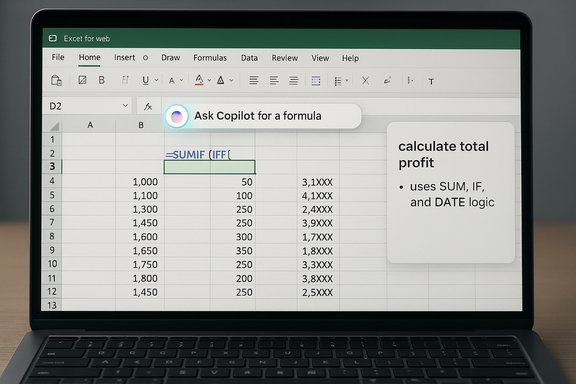
For anyone who has cursed a missing parenthesis mid-spreadsheet, Microsoft’s latest Excel update is the kind of small, focused improvement that feels like it was built exactly for that moment: an on-grid Copilot formula composer that turns plain English into working Excel formulas, previews the result right in the cell, explains the logic, and lets you apply or refine the result without hunting through the function library. This “Ask Copilot for a formula” flow is rolling out in Excel for the web for Microsoft 365 Copilot customers, and — if it works as advertised — it removes one of the most persistent user friction points in spreadsheets: translating human intent into the rigid syntax Excel expects.
Writing formulas in Excel has always been a two-faced experience: simple arithmetic is effortless, but useful real-world analytics often requires nested functions, ranges that must be locked or spilled, and a careful eye for parentheses, commas, and implicit coercions. For many spreadsheet users, the time spent hunting down syntax errors or assembling the right INDEX/MATCH or XLOOKUP expression is where productivity stalls. Microsoft’s Copilot initiative has been rolling into Office applications for more than a year, promising to make tasks more natural-language driven across Word, Outlook, PowerPoint, and Excel. Copilot in Excel already offered chat-based insights, data summaries, even Python integration for advanced analysis; the new on-grid formula composer extends that capability directly into cell workflows so users don’t have to switch context away from the sheet.
That said, the technology is still a suggestion engine — not a substitute for validation, governance, or domain expertise. Organizations should pair Copilot adoption with basic spreadsheet hygiene: naming, version control, peer review, and policy guidance. IT and security teams also need to confirm tenant controls, data residency options, and logging that meet compliance needs.
Overall, this is a smart, incremental step forward for Excel’s productivity story. It’s the kind of targeted, user-centered improvement that will be judged not by novelty but by how often it prevents a frustrated user from spending an hour on a misplaced comma. As Copilot’s capabilities expand, the balance between convenience and control will determine whether on-grid formula composition becomes a routine part of spreadsheet best practice or another tool that requires strict operational discipline to use safely and effectively.
Key takeaways
Source: Windows Report Excel’s New Copilot Formula Tool Finally Solves a Familiar Headache
 Background
Writing formulas in Excel has always been a two-faced experience: simple arithmetic is effortless, but useful real-world analytics often requires nested functions, ranges that must be locked or spilled, and a careful eye for parentheses, commas, and implicit coercions. For many spreadsheet users, the time spent hunting down syntax errors or assembling the right INDEX/MATCH or XLOOKUP expression is where productivity stalls. Microsoft’s Copilot initiative has been rolling into Office applications for more than a year, promising to make tasks more natural-language driven across Word, Outlook, PowerPoint, and Excel. Copilot in Excel already offered chat-based insights, data summaries, even Python integration for advanced analysis; the new on-grid formula composer extends that capability directly into cell workflows so users don’t have to switch context away from the sheet. What the new on-grid Copilot formula tool does
The new feature activates on Excel for the web when you begin typing a formula (enter “=”) in a cell. Instead of forcing users to start with a function name, Excel now offers an Ask Copilot for a formula option that accepts plain-English prompts — for example, “calculate total profit,” “unique list of sales reps,” or “quarterly totals from a date column.” Copilot then:- Generates a candidate formula that matches the user’s prompt.
- Explains the logic used to build the formula in plain language.
- Previews the result on the grid so users can validate output without applying anything permanently.
- Applies the formula to the target cell or column if the user accepts it, or accepts a refinement prompt to iterate.
How it handles existing formulas and transformations
Copilot’s formula assistance is not limited to generating brand-new expressions. Microsoft positions the tool as a translator between user intent and Excel syntax; you can:- Ask Copilot to refactor or tweak an existing formula (for example, change a date format or adjust rounding and financial calculations).
- Ask it to pull or reference data across sheets and ranges with correct structured references.
- Use it to create helper columns or full-column calculations where appropriate.
Practical examples and real-world workflows
Microsoft and early coverage list several concrete scenarios where the on-grid Copilot formula tool proves useful. These examples show how natural-language prompts turn into real Excel constructs:- Generate a unique list of sales reps from a column — Copilot can produce a UNIQUE-based expression or a spill-enabled solution and preview the spilled output in place.
- Calculate total units per person using SUMIFS or a pivot-like aggregate expressed as a formula. Copilot can build and explain the SUMIFS parameters that match the user’s description.
- Derive quarterly totals from a date-only table — Copilot can parse the date column, generate the right DATE/YEAR/QUARTER logic or use helper functions like EOMONTH and SUMIFS to return a quarterly rollout.
- Clean data transformations — Copilot can suggest on-grid formula-based fixes for inconsistent text, date parsing, or simple forward-fills, previewing changes before they’re applied.
Accessibility and integrations
Microsoft has baked accessibility support into Copilot experiences in Excel. Users who rely on screen readers can generate formulas, request explanations, and insert Copilot-generated formula columns using the keyboard and screen-reader friendly workflows documented in Microsoft’s support guidance. That makes the feature more inclusive for users who cannot use mouse-driven, drag-and-drop patterns. Excel’s Copilot functionality also integrates into the broader Copilot UI — the ribbon icon, the chat pane, and the contextual sparkle icon — so the on-grid composer is a natural extension of existing in-app experiences rather than a separate product.Rollout, licensing, and current limitations
The on-grid Copilot formula composer is rolling out to Excel for the web users who have a Microsoft 365 Copilot license. Microsoft’s staged rollout model means not all eligible customers see the feature immediately; if a user’s tenant has Copilot entitlements but the feature isn’t visible, it’s likely part of a phased release and will arrive on a short timetable. Microsoft has historically used the Microsoft 365 rollout cadence and targeted rings to test and refine Copilot experiences before wider deployment. Microsoft has also acknowledged current functional limitations. At launch, Copilot’s formula assistance handles one formula or one column at a time — it does not yet generate or update multiple columns or complex workbook-wide refactors in a single action. Microsoft has stated that this capability will be expanded over time; the incremental approach helps reduce risk while iterating the UX. Early reviewers noted other practical limits — for instance, Copilot may be particular about date ranges or need explicit context when ambiguous table data exists. Expect ongoing refinements and additional capabilities in subsequent updates.Why this matters: productivity, adoption, and the learning curve
Spreadsheets are often the single most common analytic tool in organizations, used by people who range from CFOs to interns. Two productivity gains make the Copilot formula composer consequential:- It drastically reduces the cognitive friction between “I want X” and “the formula for X,” turning hours of formula debugging or documentation lookups into a quick prompt-and-accept flow.
- It flattens the Excel learning curve, enabling people who are competent in their domain but not fluent in Excel functions to produce correct, auditable formulas.
Accuracy, reliability, and the revision loop
No AI assistant is infallible, and spreadsheet work is particularly unforgiving: a tiny mis-specified range or a wrong reference can silently produce incorrect results. The on-grid Copilot mitigates this risk in several ways:- Preview before apply: Seeing the candidate output in the sheet makes it easier to detect obvious mismatches early.
- Explanation of logic: Copilot shows how it constructed the formula, letting users confirm that the approach matches their intent.
- Refinement prompts: Users can ask follow-up prompts to adjust the formula if, for example, they want to change rounding rules or include additional criteria.
Security, privacy, and enterprise governance
For organizations concerned about where data goes when Copilot processes a sheet, Microsoft has published a set of commitments and technical controls. Copilot for Microsoft 365 is designed to operate within the same security boundary as existing Microsoft 365 workload data: user prompts and the content Copilot analyzes are processed within the tenant environment, encrypted in transit and at rest, and subject to the tenant’s access controls. Microsoft’s enterprise documentation stresses that Copilot does not use a customer’s tenant content to train the public foundational LLMs that power the product; rather, those interactions are treated as Customer Data and governed by the Data Protection Addendum and product terms. For regulated environments, Microsoft provides specialized options and admin controls, including disabled web grounding and in-tenant-only processing for government clouds. That said, IT leaders should still evaluate Copilot in the context of their governance requirements. Considerations include:- Data residency and whether certain model options are enabled by default (for government tenants, web grounding may be off by default).
- Auditability of Copilot interactions and whether prompts/responses are logged for compliance.
- Admin controls for enabling/disabling Copilot features and model choices across tenant groups.
Adoption pitfalls and best-practice guidance
Rapid adoption of on-grid formula assistance brings both opportunity and potential hazards. The tool can speed day-to-day work but also risks normalizing formulas that are hard to maintain or that depend on implicit spreadsheet state. To get the benefit while minimizing future pain, teams should adopt a few guardrails:- Version and document: Keep a change log for critical workbooks and document Copilot-generated formulas that feed key dashboards.
- Use named ranges or structured tables where possible to make Copilot’s output easier to read and maintain.
- Validate results: Sample edge cases and compare Copilot-generated results against manual calculations for a subset of data before broad acceptance.
- Create internal guidance: Encourage consistent prompt patterns and examples so Copilot produces formulas aligned with your organization’s conventions.
- Restrict application of Copilot-generated edits in production files until reviewed by an authorized analyst.
Developer and power-user opportunities
Power users and automation engineers should view Copilot as another tool in the toolkit. The formula composer is mostly targeted at building and explaining formulas, but it complements other Excel Copilot capabilities:- Automation: Build canonical formula patterns once, then use Copilot to regenerate or refactor them.
- Learning: Use explanation output as a training artifact for junior analysts.
- Hybrid flows: Combine Copilot’s natural-language formula generation with Excel’s newer features like dynamic arrays, LAMBDA functions, and Python in Excel for advanced workflows.
What to watch next
Microsoft has made clear this on-grid formula experience is an iterative rollout. The near-term roadmap points to broader capabilities:- Support for multi-column or workbook-wide transformations (beyond single-column or single-formula operations).
- Deeper integration with data import features so Copilot suggestions can automatically pull web or internal data when grounded prompts require it.
- Expanded previews and version-control integrations so Copilot changes can be staged and tracked more formally.
Final analysis: a pragmatic upgrade that matters
The new Excel on-grid Copilot formula composer is not a sweeping reinvention of spreadsheet workflows, but it is a practical and well-scoped feature that addresses a perennial pain point: the translation between human intent and Excel syntax. By surfacing formula suggestions in-place, previewing results, and explaining the underlying logic, Microsoft reduces friction and encourages safer experimentation. For many users, the time saved on formula assembly and debugging will feel outsized compared with the change required to adopt the feature.That said, the technology is still a suggestion engine — not a substitute for validation, governance, or domain expertise. Organizations should pair Copilot adoption with basic spreadsheet hygiene: naming, version control, peer review, and policy guidance. IT and security teams also need to confirm tenant controls, data residency options, and logging that meet compliance needs.
Overall, this is a smart, incremental step forward for Excel’s productivity story. It’s the kind of targeted, user-centered improvement that will be judged not by novelty but by how often it prevents a frustrated user from spending an hour on a misplaced comma. As Copilot’s capabilities expand, the balance between convenience and control will determine whether on-grid formula composition becomes a routine part of spreadsheet best practice or another tool that requires strict operational discipline to use safely and effectively.
Key takeaways
- The on-grid Ask Copilot for a formula flow simplifies formula creation by converting natural language into working formulas with a preview and explanation.
- The feature is rolling out in Excel for the web for Microsoft 365 Copilot customers and currently handles one formula or one column at a time.
- Copilot respects Microsoft 365 permissions and operates within tenant boundaries; enterprise admins should validate privacy and compliance settings before broad deployment.
- Best practices include versioning, validation, and consistent prompting to ensure Copilot-generated formulas are maintainable and auditable.
Source: Windows Report Excel’s New Copilot Formula Tool Finally Solves a Familiar Headache
