

Microsoft Excel still does several important jobs better than Google Sheets in 2026: it runs as a full desktop spreadsheet offline, handles larger local workbooks, includes native Power Query and Power Pivot workflows, and offers built-in what-if analysis tools for forecasting and decision modeling. That does not make Sheets a toy, and it certainly does not make Excel the right answer for every team. But it does expose the real split between the two products: Google built the spreadsheet around the browser and collaboration, while Microsoft still treats the workbook as a local analytical machine that can also sync to the cloud.
The Excel-versus-Google-Sheets argument often gets flattened into a personality test. Excel is for finance departments, accountants, analysts, and people who still remember the ribbon arriving in Office 2007. Sheets is for startups, schools, distributed teams, and anyone who has ever watched three people edit the same budget at once without emailing a file named “final_v7_REAL.xlsx.”
That caricature is useful only until real work starts. Once a spreadsheet becomes the place where data is imported, cleaned, modeled, refreshed, audited, and presented, the difference is less about taste than architecture. Excel remains a desktop-first application with decades of calculation, modeling, and automation baggage behind it. Google Sheets remains a web-first collaborative canvas that is astonishingly convenient until the workbook starts behaving less like a shared document and more like a lightweight database.
BGR’s useful roundup of four Excel-only strengths lands on the right fault line: offline operation, Power Query, Power Pivot, and what-if analysis. The interesting part is not that Excel has more buttons. It is that Microsoft has spent years turning Excel into a self-service business intelligence front end, while Google has mostly optimized Sheets for accessibility, sharing, and integration with the Google Workspace cloud.
That distinction matters for Windows users in particular. Excel is not merely another SaaS tab in Edge or Chrome. It is a native application that can sit beside Access, Power BI Desktop, SQL Server tools, local files, ODBC drivers, VBA macros, COM add-ins, and every weird corporate data export that has survived three ERP migrations. Sheets can collaborate beautifully, but Excel can still live much closer to the messy machinery of business computing.
Google Sheets does have offline support, but it is a conditional feature layered onto a web app. It requires the right browser environment, offline access enabled, and the relevant files made available ahead of time. That is good enough for many ordinary documents, but it is not the same proposition as a native application that assumes the file and the computation are local first.
For a home user tweaking a vacation budget, this distinction may feel quaint. For a field engineer, traveling consultant, school administrator, shop-floor analyst, or sysadmin working through an outage, it is not quaint at all. The uncomfortable truth about cloud-first tools is that the worst time to discover their offline limits is usually the moment you most need them.
Excel’s offline strength also changes the psychology of ownership. A workbook can be stored on a local drive, a network share, an encrypted volume, a removable drive, or a managed OneDrive folder. That flexibility is not glamorous, but it maps to how many Windows environments actually operate: part cloud, part local, part legacy, part compliance compromise.
The trade-off is real. Excel’s local-first model has historically encouraged file sprawl, version confusion, and email attachment archaeology. Microsoft has spent years trying to graft modern collaboration onto that world through OneDrive, SharePoint, and Microsoft 365. Google started from the other end, where the document is born shared and the browser is the workspace.
But offline is not just a checkbox. It is a design philosophy. Excel assumes the machine in front of you can be the primary computing environment. Sheets assumes the service is the primary environment and the local machine is a client. In 2026, both assumptions are valid — but they serve different kinds of risk.
Power Query is Microsoft’s graphical extract, transform, and load engine. In Excel, it appears through the Get & Transform Data tools and lets users connect to files, folders, databases, web sources, PDFs, and other structured data sources. The critical idea is not merely import. It is that the cleaning process becomes a sequence of recorded transformations that can be refreshed.
That refresh button is the line between clerical spreadsheet labor and a workflow. A user can take a monthly sales export, remove unnecessary columns, merge it with a lookup table, unpivot a badly structured report, normalize dates, and load the result into a table. When next month’s file arrives, the work does not begin again from zero. The query runs again.
Google Sheets can import data, use formulas, connect to external sources, and extend itself through Apps Script and add-ons. A skilled Sheets user can build impressive workflows, especially in organizations already invested in Google Workspace. But the native experience does not match the breadth and maturity of Power Query as a graphical transformation layer inside the spreadsheet application itself.
This is why Power Query is often the feature that converts casual Excel users into dangerous ones. It gives non-programmers a way to do the kind of repeatable cleaning that might otherwise require SQL, Python, R, or a dedicated ETL tool. It does not remove the need for data discipline, and it can absolutely produce opaque messes when abused. But it gives ordinary analysts a better path than copying, pasting, and hoping.
For IT departments, Power Query is both a gift and a governance problem. It reduces dependency on central data teams for small and medium workflows, but it also creates shadow pipelines inside workbooks. A finance analyst can build a refreshable process that becomes business-critical before anyone has documented its assumptions. That is not a reason to dismiss Power Query; it is a reason to treat Excel as part of the data estate rather than a harmless office accessory.
That matters because many business questions are relational by nature. Sales transactions link to products. Products link to categories. Customers link to regions. Dates link to fiscal calendars. Trying to solve every one of those problems with lookup formulas spread across worksheets is possible, but it becomes fragile, slow, and hard to audit as the workbook grows.
Power Pivot lets Excel behave more like a modest analytical database. Users can import large volumes of data, define relationships, create calculated measures, and analyze the results through PivotTables and PivotCharts. For organizations that later move work into Power BI, those concepts are not wasted; they are part of the same Microsoft analytical grammar.
Google Sheets has pivot tables and can summarize data effectively for many everyday tasks. It also benefits from Looker Studio and BigQuery integrations in the broader Google ecosystem. But inside Sheets itself, the native modeling story is not the same as Excel’s Power Pivot and Data Model combination. Sheets remains closer to a collaborative grid with formulas and extensions; Excel can become a compact semantic model sitting inside a workbook.
That power cuts both ways. A well-built Power Pivot model can make a workbook dramatically cleaner, replacing thousands of brittle formulas with a few reusable measures. A poorly built model can become a black box that only one analyst understands. DAX is approachable at first and then famously unforgiving once context, filters, and evaluation behavior enter the picture.
Still, this is where Excel’s enterprise bias shows. Microsoft knows that many users will never open SQL Server Management Studio, never write a Python notebook, and never publish a governed Power BI semantic model. Excel gives those users a halfway house: more structured than ordinary worksheets, less centralized than a formal BI platform, and familiar enough to slip into existing work.
The practical difference is performance as much as capacity. Excel running locally can lean on the user’s CPU, RAM, storage speed, and 64-bit application memory space. That does not make it invincible; anyone who has opened a bloated workbook with volatile formulas knows Excel can be brought to its knees. But the performance envelope is tied to the machine and the workbook design, not just the browser and cloud document model.
Sheets has the advantage of being available almost anywhere with a browser, but that universality comes with a ceiling. Large sheets with many formulas, imports, conditional formatting rules, array operations, and collaborators can become sluggish before they hit official limits. The browser is an extraordinary application platform, but it is still a negotiated environment: JavaScript engine, memory pressure, network state, tab suspension, extensions, and account session all become part of the user experience.
Excel’s local capacity is not a license to keep everything in Excel forever. Once a workbook starts serving as a database, reporting layer, workflow engine, and compliance artifact, it is already telling you it wants a more formal home. But Excel’s ability to tolerate intermediate mess is exactly why it persists. Real organizations do not move cleanly from raw data to governed BI. They live in the swamp between.
That swamp is where Excel thrives. It is where CSV exports arrive from one system, regional managers maintain manual adjustments in another file, a database connection provides official figures, and someone still needs a board-ready report by Thursday. Sheets can handle plenty of this. Excel is built for more of it, especially on Windows desktops that have become the unofficial integration layer for everything else.
Goal Seek is the simplest example. If you know the result you want, Excel can work backward to find the input needed to produce it. That is useful for loan payments, margin targets, break-even calculations, pricing models, savings goals, and any workbook where one variable drives a desired outcome.
Data Tables expand the idea by showing how one or two changing inputs affect a formula across a range of possibilities. Scenario Manager lets users define named sets of input values — an optimistic case, a conservative case, a downside case — and compare outcomes. None of this is magic, and all of it depends on the quality of the model underneath. But it gives the user a structured way to ask, what happens if we are wrong?
Google Sheets users can approximate parts of this with formulas, duplicated tabs, add-ons, or manual scenario structures. But Excel’s built-in decision tools reflect its long history in finance, operations, engineering, and planning. They are not collaboration features. They are modeling features.
That distinction is important because spreadsheet work is often misdescribed as “data entry.” In professional settings, the more important work is frequently assumption management. What will happen if interest rates move? What if revenue is five percent lower? What if hiring slips by one quarter? What if a supplier raises prices? Excel’s what-if features are old-school, but so are many of the decisions businesses still have to make.
For teams that mainly need shared lists, lightweight tracking, simple budgets, editorial calendars, classroom rosters, survey results, or collaborative planning documents, Sheets is often the path of least resistance. The document lives in one place. Permissions are legible. Comments, version history, and simultaneous editing feel native rather than bolted on.
Microsoft has improved Excel collaboration enormously through Microsoft 365, OneDrive, SharePoint, AutoSave, and the web version of Excel. But Excel still carries the weight of being both a desktop application and a cloud document. That dual identity is powerful, but it can create confusion: some features work differently across desktop and web, some workflows depend on file location, and some advanced capabilities assume the installed app.
Google’s simplicity is not accidental. Sheets often wins because it does not ask users to understand that distinction. A spreadsheet is a link. The link opens the thing. The people with access can work on the thing. For a huge amount of modern office work, that is the whole battle.
The problem begins when the shared room becomes a machine room. A collaborative spreadsheet used by ten people to track campaign assets is one thing. A spreadsheet that ingests monthly exports, cleans them, models relationships, forecasts scenarios, and feeds management reports is another. Sheets can be stretched in that direction, but Excel starts closer to the destination.
That moat is not glamorous, and it is not always healthy. Excel has been implicated in errors, compliance failures, broken formulas, hidden rows, stale copies, and all the little disasters that happen when a flexible tool becomes an unofficial system of record. Every IT pro has seen a workbook that should have been retired years ago but cannot be touched because the business depends on it.
But the persistence of Excel is not just inertia. It remains useful because the modern workplace still produces awkward intermediate problems that are too specific for enterprise software, too urgent for centralized development, and too messy for polished SaaS workflows. Excel occupies that gap with a uniquely powerful mix of accessibility and depth.
Google Sheets occupies a different gap: fast, shared, low-friction coordination. It is arguably the better expression of how many people now expect documents to behave. But its elegance comes from being narrower in certain advanced local and analytical scenarios.
This is why the debate never ends. The products are not merely competing spreadsheet grids. They encode different theories of work. Excel says the user’s machine can be an analytical workstation. Sheets says the document should be a collaborative cloud object. Both theories are right often enough to keep the fight alive.
Some of that future is already useful, and more of it will become routine. Formula assistance, chart suggestions, anomaly explanations, and data summaries are obvious places for AI to help. But AI does not erase architecture. If anything, it makes the underlying model more important.
An AI assistant is only as useful as the data it can access, the transformations it can trust, the permissions it respects, and the actions it can safely take. In Excel, that means Copilot sits atop a product with local files, cloud files, Power Query, Power Pivot, formulas, macros, and enterprise governance complications. In Sheets, Gemini sits atop a cloud-native collaboration environment with its own strengths and limits.
The risk is that users will mistake AI fluency for analytical correctness. A model that can explain a workbook in smooth language can still misunderstand a broken formula, a hidden assumption, or a stale import. The harder the spreadsheet problem, the more valuable the old disciplines become: clean data, documented transformations, controlled inputs, tested calculations, and reviewable outputs.
In that sense, Excel’s old-school power tools may become more important, not less. Power Query steps are inspectable. Power Pivot models can be structured. Scenario assumptions can be named. These are not substitutes for governance, but they are artifacts that can be reviewed. A spreadsheet workflow that consists only of prompts and pasted outputs may be easier to create and harder to trust.
For WindowsForum readers, the calculus will often be mixed. A school district may live in Google Workspace but still need Excel for finance exports. A small business may use Microsoft 365 but keep Sheets for vendor-facing trackers. A sysadmin may prefer CSVs, PowerShell, and proper databases, yet still receive the incident inventory as a spreadsheet because that is how the organization breathes.
Excel’s advantage becomes most obvious when a workbook is not merely a document but a process. If the same data arrives repeatedly, if cleaning steps must be reproducible, if multiple tables need relationships, if assumptions need structured scenario testing, or if offline access is operationally important, Excel remains the safer bet.
Sheets’ advantage becomes most obvious when the spreadsheet is a shared surface. If the main problem is getting people into the same live document with minimal friction, the browser-native model wins. If users need to comment, edit, collect form responses, and avoid attachment chaos, Google’s approach is often more humane.
The best organizations do not turn this into theology. They decide where the canonical data lives, where the analysis happens, where collaboration happens, and when a spreadsheet has grown up enough to become a database, dashboard, or application. The worst organizations simply let whichever tool arrived first become permanent infrastructure.
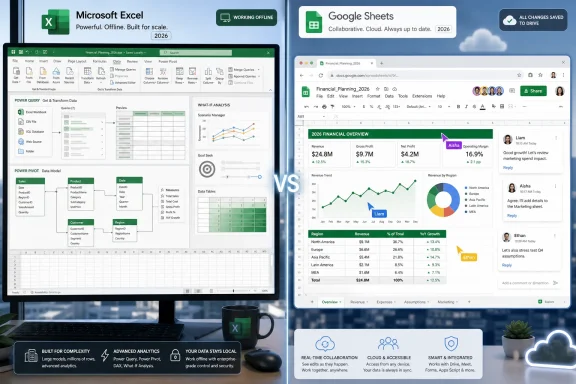 Excel’s Advantage Is Not Nostalgia, It Is Architecture
The Excel-versus-Google-Sheets argument often gets flattened into a personality test. Excel is for finance departments, accountants, analysts, and people who still remember the ribbon arriving in Office 2007. Sheets is for startups, schools, distributed teams, and anyone who has ever watched three people edit the same budget at once without emailing a file named “final_v7_REAL.xlsx.”That caricature is useful only until real work starts. Once a spreadsheet becomes the place where data is imported, cleaned, modeled, refreshed, audited, and presented, the difference is less about taste than architecture. Excel remains a desktop-first application with decades of calculation, modeling, and automation baggage behind it. Google Sheets remains a web-first collaborative canvas that is astonishingly convenient until the workbook starts behaving less like a shared document and more like a lightweight database.
BGR’s useful roundup of four Excel-only strengths lands on the right fault line: offline operation, Power Query, Power Pivot, and what-if analysis. The interesting part is not that Excel has more buttons. It is that Microsoft has spent years turning Excel into a self-service business intelligence front end, while Google has mostly optimized Sheets for accessibility, sharing, and integration with the Google Workspace cloud.
That distinction matters for Windows users in particular. Excel is not merely another SaaS tab in Edge or Chrome. It is a native application that can sit beside Access, Power BI Desktop, SQL Server tools, local files, ODBC drivers, VBA macros, COM add-ins, and every weird corporate data export that has survived three ERP migrations. Sheets can collaborate beautifully, but Excel can still live much closer to the messy machinery of business computing.
The Offline Spreadsheet Still Has a Job
The most old-fashioned Excel advantage is also the easiest to underestimate: the full desktop version does not need a live internet connection to be useful. If Excel is installed on a Windows PC, the workbook can open, calculate, format, sort, filter, chart, run many formulas, and support a large amount of analysis without waiting for a browser session or a cloud service to cooperate.Google Sheets does have offline support, but it is a conditional feature layered onto a web app. It requires the right browser environment, offline access enabled, and the relevant files made available ahead of time. That is good enough for many ordinary documents, but it is not the same proposition as a native application that assumes the file and the computation are local first.
For a home user tweaking a vacation budget, this distinction may feel quaint. For a field engineer, traveling consultant, school administrator, shop-floor analyst, or sysadmin working through an outage, it is not quaint at all. The uncomfortable truth about cloud-first tools is that the worst time to discover their offline limits is usually the moment you most need them.
Excel’s offline strength also changes the psychology of ownership. A workbook can be stored on a local drive, a network share, an encrypted volume, a removable drive, or a managed OneDrive folder. That flexibility is not glamorous, but it maps to how many Windows environments actually operate: part cloud, part local, part legacy, part compliance compromise.
The trade-off is real. Excel’s local-first model has historically encouraged file sprawl, version confusion, and email attachment archaeology. Microsoft has spent years trying to graft modern collaboration onto that world through OneDrive, SharePoint, and Microsoft 365. Google started from the other end, where the document is born shared and the browser is the workspace.
But offline is not just a checkbox. It is a design philosophy. Excel assumes the machine in front of you can be the primary computing environment. Sheets assumes the service is the primary environment and the local machine is a client. In 2026, both assumptions are valid — but they serve different kinds of risk.
Power Query Is Where Excel Stops Being a Grid
The most important Excel advantage in BGR’s list is Power Query, because it changes the spreadsheet from a place where users manually repair data into a place where they define repeatable data preparation steps. That sounds dull until you have spent an afternoon deleting blank rows, splitting columns, trimming stray spaces, correcting inconsistent date formats, and praying you did not break the original export.Power Query is Microsoft’s graphical extract, transform, and load engine. In Excel, it appears through the Get & Transform Data tools and lets users connect to files, folders, databases, web sources, PDFs, and other structured data sources. The critical idea is not merely import. It is that the cleaning process becomes a sequence of recorded transformations that can be refreshed.
That refresh button is the line between clerical spreadsheet labor and a workflow. A user can take a monthly sales export, remove unnecessary columns, merge it with a lookup table, unpivot a badly structured report, normalize dates, and load the result into a table. When next month’s file arrives, the work does not begin again from zero. The query runs again.
Google Sheets can import data, use formulas, connect to external sources, and extend itself through Apps Script and add-ons. A skilled Sheets user can build impressive workflows, especially in organizations already invested in Google Workspace. But the native experience does not match the breadth and maturity of Power Query as a graphical transformation layer inside the spreadsheet application itself.
This is why Power Query is often the feature that converts casual Excel users into dangerous ones. It gives non-programmers a way to do the kind of repeatable cleaning that might otherwise require SQL, Python, R, or a dedicated ETL tool. It does not remove the need for data discipline, and it can absolutely produce opaque messes when abused. But it gives ordinary analysts a better path than copying, pasting, and hoping.
For IT departments, Power Query is both a gift and a governance problem. It reduces dependency on central data teams for small and medium workflows, but it also creates shadow pipelines inside workbooks. A finance analyst can build a refreshable process that becomes business-critical before anyone has documented its assumptions. That is not a reason to dismiss Power Query; it is a reason to treat Excel as part of the data estate rather than a harmless office accessory.
Power Pivot Turns the Workbook Into a Small BI Model
Power Pivot is the second half of modern Excel’s serious-data story. Where Power Query helps prepare data, Power Pivot helps model it. Instead of forcing everything into one giant flat table, users can create relationships between tables, build a data model, and write measures using DAX, the same analytical language associated with Microsoft’s broader BI stack.That matters because many business questions are relational by nature. Sales transactions link to products. Products link to categories. Customers link to regions. Dates link to fiscal calendars. Trying to solve every one of those problems with lookup formulas spread across worksheets is possible, but it becomes fragile, slow, and hard to audit as the workbook grows.
Power Pivot lets Excel behave more like a modest analytical database. Users can import large volumes of data, define relationships, create calculated measures, and analyze the results through PivotTables and PivotCharts. For organizations that later move work into Power BI, those concepts are not wasted; they are part of the same Microsoft analytical grammar.
Google Sheets has pivot tables and can summarize data effectively for many everyday tasks. It also benefits from Looker Studio and BigQuery integrations in the broader Google ecosystem. But inside Sheets itself, the native modeling story is not the same as Excel’s Power Pivot and Data Model combination. Sheets remains closer to a collaborative grid with formulas and extensions; Excel can become a compact semantic model sitting inside a workbook.
That power cuts both ways. A well-built Power Pivot model can make a workbook dramatically cleaner, replacing thousands of brittle formulas with a few reusable measures. A poorly built model can become a black box that only one analyst understands. DAX is approachable at first and then famously unforgiving once context, filters, and evaluation behavior enter the picture.
Still, this is where Excel’s enterprise bias shows. Microsoft knows that many users will never open SQL Server Management Studio, never write a Python notebook, and never publish a governed Power BI semantic model. Excel gives those users a halfway house: more structured than ordinary worksheets, less centralized than a formal BI platform, and familiar enough to slip into existing work.
Large Workbooks Expose the Browser’s Ceiling
Spreadsheet limits are not as simple as row counts, but the raw numbers still tell part of the story. Modern Excel worksheets support 1,048,576 rows and 16,384 columns per sheet. Google Sheets supports up to 10 million cells per spreadsheet, which is generous for many collaborative documents but can become constraining when rows and columns multiply across tabs.The practical difference is performance as much as capacity. Excel running locally can lean on the user’s CPU, RAM, storage speed, and 64-bit application memory space. That does not make it invincible; anyone who has opened a bloated workbook with volatile formulas knows Excel can be brought to its knees. But the performance envelope is tied to the machine and the workbook design, not just the browser and cloud document model.
Sheets has the advantage of being available almost anywhere with a browser, but that universality comes with a ceiling. Large sheets with many formulas, imports, conditional formatting rules, array operations, and collaborators can become sluggish before they hit official limits. The browser is an extraordinary application platform, but it is still a negotiated environment: JavaScript engine, memory pressure, network state, tab suspension, extensions, and account session all become part of the user experience.
Excel’s local capacity is not a license to keep everything in Excel forever. Once a workbook starts serving as a database, reporting layer, workflow engine, and compliance artifact, it is already telling you it wants a more formal home. But Excel’s ability to tolerate intermediate mess is exactly why it persists. Real organizations do not move cleanly from raw data to governed BI. They live in the swamp between.
That swamp is where Excel thrives. It is where CSV exports arrive from one system, regional managers maintain manual adjustments in another file, a database connection provides official figures, and someone still needs a board-ready report by Thursday. Sheets can handle plenty of this. Excel is built for more of it, especially on Windows desktops that have become the unofficial integration layer for everything else.
What-If Analysis Is Excel’s Quiet Power Tool
The fourth BGR example, Excel’s what-if analysis tooling, sounds less dramatic than Power Query or Power Pivot but remains deeply useful. Scenario Manager, Goal Seek, and Data Tables let users explore how changing inputs affects outputs without rebuilding the workbook each time. These tools belong to the older, more model-driven idea of spreadsheets: not just recording numbers, but testing decisions.Goal Seek is the simplest example. If you know the result you want, Excel can work backward to find the input needed to produce it. That is useful for loan payments, margin targets, break-even calculations, pricing models, savings goals, and any workbook where one variable drives a desired outcome.
Data Tables expand the idea by showing how one or two changing inputs affect a formula across a range of possibilities. Scenario Manager lets users define named sets of input values — an optimistic case, a conservative case, a downside case — and compare outcomes. None of this is magic, and all of it depends on the quality of the model underneath. But it gives the user a structured way to ask, what happens if we are wrong?
Google Sheets users can approximate parts of this with formulas, duplicated tabs, add-ons, or manual scenario structures. But Excel’s built-in decision tools reflect its long history in finance, operations, engineering, and planning. They are not collaboration features. They are modeling features.
That distinction is important because spreadsheet work is often misdescribed as “data entry.” In professional settings, the more important work is frequently assumption management. What will happen if interest rates move? What if revenue is five percent lower? What if hiring slips by one quarter? What if a supplier raises prices? Excel’s what-if features are old-school, but so are many of the decisions businesses still have to make.
Google Still Owns the Shared Room
None of this means Excel simply beats Sheets. In many environments, Sheets is the better tool precisely because it avoids some of Excel’s local complexity. It opens instantly in a browser, shares cleanly, supports real-time collaboration by default, and fits naturally into Google Drive, Gmail, Meet, Forms, and the rest of Workspace.For teams that mainly need shared lists, lightweight tracking, simple budgets, editorial calendars, classroom rosters, survey results, or collaborative planning documents, Sheets is often the path of least resistance. The document lives in one place. Permissions are legible. Comments, version history, and simultaneous editing feel native rather than bolted on.
Microsoft has improved Excel collaboration enormously through Microsoft 365, OneDrive, SharePoint, AutoSave, and the web version of Excel. But Excel still carries the weight of being both a desktop application and a cloud document. That dual identity is powerful, but it can create confusion: some features work differently across desktop and web, some workflows depend on file location, and some advanced capabilities assume the installed app.
Google’s simplicity is not accidental. Sheets often wins because it does not ask users to understand that distinction. A spreadsheet is a link. The link opens the thing. The people with access can work on the thing. For a huge amount of modern office work, that is the whole battle.
The problem begins when the shared room becomes a machine room. A collaborative spreadsheet used by ten people to track campaign assets is one thing. A spreadsheet that ingests monthly exports, cleans them, models relationships, forecasts scenarios, and feeds management reports is another. Sheets can be stretched in that direction, but Excel starts closer to the destination.
Microsoft’s Real Moat Is the Boring Middle
The durable advantage of Excel is not any single feature; it is the accumulation of boring interoperability. Excel reads and writes files everyone recognizes. It connects to business data sources. It supports macros and add-ins. It sits inside Microsoft 365 licensing, Windows management, Office deployment tooling, and decades of corporate muscle memory. It is where many organizations still expect numbers to land.That moat is not glamorous, and it is not always healthy. Excel has been implicated in errors, compliance failures, broken formulas, hidden rows, stale copies, and all the little disasters that happen when a flexible tool becomes an unofficial system of record. Every IT pro has seen a workbook that should have been retired years ago but cannot be touched because the business depends on it.
But the persistence of Excel is not just inertia. It remains useful because the modern workplace still produces awkward intermediate problems that are too specific for enterprise software, too urgent for centralized development, and too messy for polished SaaS workflows. Excel occupies that gap with a uniquely powerful mix of accessibility and depth.
Google Sheets occupies a different gap: fast, shared, low-friction coordination. It is arguably the better expression of how many people now expect documents to behave. But its elegance comes from being narrower in certain advanced local and analytical scenarios.
This is why the debate never ends. The products are not merely competing spreadsheet grids. They encode different theories of work. Excel says the user’s machine can be an analytical workstation. Sheets says the document should be a collaborative cloud object. Both theories are right often enough to keep the fight alive.
The AI Layer Will Not Erase the Old Divide
Microsoft and Google would both prefer to move the conversation toward AI. Excel has Copilot integration across Microsoft 365, while Google has Gemini woven through Workspace. In the marketing version of the future, users will ask natural-language questions, generate formulas, summarize trends, build charts, and automate drudgery without caring which spreadsheet engine sits underneath.Some of that future is already useful, and more of it will become routine. Formula assistance, chart suggestions, anomaly explanations, and data summaries are obvious places for AI to help. But AI does not erase architecture. If anything, it makes the underlying model more important.
An AI assistant is only as useful as the data it can access, the transformations it can trust, the permissions it respects, and the actions it can safely take. In Excel, that means Copilot sits atop a product with local files, cloud files, Power Query, Power Pivot, formulas, macros, and enterprise governance complications. In Sheets, Gemini sits atop a cloud-native collaboration environment with its own strengths and limits.
The risk is that users will mistake AI fluency for analytical correctness. A model that can explain a workbook in smooth language can still misunderstand a broken formula, a hidden assumption, or a stale import. The harder the spreadsheet problem, the more valuable the old disciplines become: clean data, documented transformations, controlled inputs, tested calculations, and reviewable outputs.
In that sense, Excel’s old-school power tools may become more important, not less. Power Query steps are inspectable. Power Pivot models can be structured. Scenario assumptions can be named. These are not substitutes for governance, but they are artifacts that can be reviewed. A spreadsheet workflow that consists only of prompts and pasted outputs may be easier to create and harder to trust.
The Spreadsheet War Is Really a Workflow War
The practical lesson is not that every Google Sheets user should migrate to Excel, or that Excel loyalists should sneer at browser spreadsheets. The lesson is that tool choice should follow workflow shape. Collaboration-heavy work belongs in the environment where sharing is native. Data-heavy modeling belongs where transformation, capacity, and analytical structure are strongest.For WindowsForum readers, the calculus will often be mixed. A school district may live in Google Workspace but still need Excel for finance exports. A small business may use Microsoft 365 but keep Sheets for vendor-facing trackers. A sysadmin may prefer CSVs, PowerShell, and proper databases, yet still receive the incident inventory as a spreadsheet because that is how the organization breathes.
Excel’s advantage becomes most obvious when a workbook is not merely a document but a process. If the same data arrives repeatedly, if cleaning steps must be reproducible, if multiple tables need relationships, if assumptions need structured scenario testing, or if offline access is operationally important, Excel remains the safer bet.
Sheets’ advantage becomes most obvious when the spreadsheet is a shared surface. If the main problem is getting people into the same live document with minimal friction, the browser-native model wins. If users need to comment, edit, collect form responses, and avoid attachment chaos, Google’s approach is often more humane.
The best organizations do not turn this into theology. They decide where the canonical data lives, where the analysis happens, where collaboration happens, and when a spreadsheet has grown up enough to become a database, dashboard, or application. The worst organizations simply let whichever tool arrived first become permanent infrastructure.
Four Excel Advantages That Still Change the Workday
The BGR list is useful because it avoids the abstract brand war and points to practical differences users actually feel. The details vary by license, platform, browser, and organization policy, but the broad shape is stable: Excel remains deeper where spreadsheets become analytical systems.- Excel’s full desktop application remains the more dependable choice when users need to create, open, calculate, and analyze workbooks without relying on an active internet connection.
- Power Query gives Excel a native, repeatable way to import, clean, reshape, and refresh data without forcing every analyst to write scripts or rebuild manual cleanup steps.
- Power Pivot and the Excel Data Model let users build relationships between tables and create analytical measures in ways that go beyond ordinary worksheet formulas.
- Excel’s what-if analysis tools make scenario testing and target-seeking part of the native spreadsheet experience rather than an improvised collection of duplicated tabs.
- Google Sheets remains the easier default when the central requirement is real-time collaboration, lightweight sharing, and cloud-first document access.
- The real decision is not which spreadsheet is “better,” but whether the job is primarily shared coordination or repeatable analysis.
References
- Primary source: bgr.com
Published: Mon, 01 Jun 2026 09:17:00 GMT
4 Things Microsoft Excel Can Do That Google Sheets Can't
With Microsoft Excel, you can work offline, manipulate data graphically, conduct advanced data analytics and modeling, and use advanced forecasting tools.www.bgr.com - Official source: support.microsoft.com
Power Pivot: Powerful data analysis and data modeling in Excel | Microsoft Support
How to use Power Pivot in Excel to perform data analysis and create sophisticated data models using data from various sources to see hidden patterns and trends.support.microsoft.com - Official source: learn.microsoft.com
What Is Power Query? - Power Query | Microsoft Learn
Learn what Power Query is, and how it can help you get and transform datalearn.microsoft.com - Related coverage: unanswered.io
Google Sheets Limits: Rows, Cells & File Size (2026)
Explore Google Sheets' 10 million cell limit, realistic row capacities, file size caps, and why large datasets cause slowdowns or crashes.unanswered.io - Related coverage: spreadsheetwise.com
Data Limits in Google Sheets
Google Sheets does have a limitation on the number of cells per spreadsheet but does it matter? www.spreadsheetwise.com
- Related coverage: img1.wsimg.com
Limit rows and columns in an excel worksheet
Limit rows and columns in an excel worksheet. <br><br><br><br><br><br><br><br><br><center><h2>Limit spreadsheet rows. How to limit rows andimg1.wsimg.com
- Related coverage: nwclc.com
NWCLC Microsoft Excel Power Pivot Outline
Microsoft Excel Power Pivot and Data Modeling Course Outlinenwclc.com
- Related coverage: excel-smart.com
- Official source: support.google.com

Files you can store in Google Drive - Google Drive Help
&nbsp;&nbsp; &nbsp; &nbsp; &nbsp; &nbsp; &nbsp; &nbsp;&nbsp; Want advanced Google Workspa
support.google.com
- Related coverage: howtogeek.com
How to Use Google Docs Offline
Google Docs is great, but because it typically requires an internet connection to use, getting things done when you're offline can be challenging. www.howtogeek.com
- Related coverage: pcworld.com
How to use Google Docs or Google Sheets offline | PCWorld
Google’s apps are cloud-based, but you can keep working in them even when you lack internet. Here’s how to set up offline access.www.pcworld.com - Related coverage: techrepublic.com
How to create and edit Google Docs, Sheets, and Slides offline - TechRepublic
Learn how to create and edit Google Docs, Sheets, and Slides without an internet connection in Chrome or on Android and iOS devices.www.techrepublic.com
- Related coverage: filesize.org
Google Drive File Size Limits 2026 - Upload & Storage Limits | FileSize.org
Google Drive limits: 5TB per file, 15GB free storage. Learn about upload limits, storage quotas, and workarounds for Google Drive.filesize.org - Related coverage: smoothsheet.com
Google Sheets File Size Limit: What You Can and Can't Upload
Google Sheets file size limit is 100MB for uploads and 10 million cells per spreadsheet. Learn every limit and 5 ways to work around them. smoothsheet.com
- Related coverage: tomsguide.com
Google Docs just got a big upgrade to help you ditch Office | Tom's Guide
Offline editing is coming to Office files in Google Docs — here’s how to use itwww.tomsguide.com - Related coverage: workspaceupdates.googleblog.com
Google Workspace Updates: Now generally available: Edit client-side encrypted Excel files in Google Sheets
workspaceupdates.googleblog.com
- Related coverage: huntsd.org
