

Executor 2.3.7, released June 7, 2026, is a free Windows keyboard launcher from developer Martin Bresson that can replace most everyday Start menu trips with typed commands, custom keywords, web searches, folder shortcuts, and chained actions. It does not remove the Start menu, and it does not need to. Its argument is sharper than that: the Start menu has become a place to browse, while serious Windows work increasingly benefits from a place to command.
That distinction matters because Microsoft has spent years turning Start into a hybrid surface: part app launcher, part search box, part recommendation shelf, part web entry point, part account billboard. Executor goes the other way. It assumes you already know what you want, and it tries to make the distance between intent and action as short as possible.
The Start menu’s original genius was obvious: it gave Windows users a stable place to begin. But the modern Start menu is no longer just a beginning. It is a mediated environment, one that wants to help you find apps, documents, settings, cloud files, web results, and Microsoft’s idea of useful suggestions all in the same frame.
That can be convenient when you are lost. It is less convenient when you are not. If you know the folder, app, command, or site you want, every extra visual layer becomes a tax.
Executor’s bet is that the fastest interface is not the prettiest one but the one you can operate without negotiating with it. Press a hotkey, type a keyword, hit Enter. That is the whole posture of the program, and it is why it feels less like a Start menu replacement than a small command language for your PC.
The key word there is language. Executor is not merely indexing installed applications and letting you search them. It lets you build named actions that mean something in your own workflow: a project directory, a browser search, a PowerShell-adjacent maintenance command, a batch of apps you open every morning.
That makes it more personal than Start and more opinionated than Windows Search. Microsoft’s interface tries to infer what you might mean. Executor asks you to define what you mean once, then gets out of the way.
Executor can turn that reflex into something more productive. A single press can summon Executor, while a double press can still open the Start menu. Or users can keep Start on the Windows key and assign Executor to another global shortcut.
The more radical setup is the first one. It turns the Windows key from a portal into Microsoft’s preferred interface into a user-defined command prompt. The Start menu remains available, but it becomes secondary rather than sovereign.
This is not just a productivity flourish. It is a quiet reversal of control. The operating system says, “Start here.” Executor says, “Start wherever you already decided.”
For longtime Windows users, that has echoes of the old Run dialog, Launchy, SlickRun, and the countless keyboard tools that thrived because Windows has always had two audiences. One audience wants discoverability. The other wants speed, repeatability, and a minimum of ceremony.
Executor plants itself firmly in the second camp.
The obvious examples are web searches. A user can define
The more interesting examples are local. A keyword like
That last case is where Executor starts to feel less like an app launcher and more like a workflow launcher. The program supports multi-action commands using separators, allowing a single typed trigger to do what would otherwise require several clicks, several windows, and several moments of context switching.
This is the part of launcher culture that rarely comes through in screenshots. A launcher is not valuable because typing
The Start menu cannot really compete with that because it is designed around generality. It has to work for everyone, which means it cannot be tuned deeply for anyone without turning into a settings maze. Executor embraces the maze, but it makes the daily entrance beautifully narrow.
That is not an incidental flaw. It is the visible cost of a program built around capability rather than onboarding. Executor exposes a great deal because it can do a great deal, and not all of that power has been sanded into fashionable simplicity.
The installer experience is also likely to worry some users. The developer says the installer is no longer digitally signed because an earlier code-signing certificate expired and renewal economics became difficult for a free, independent project. As a result, Windows may show Unknown Publisher or SmartScreen warnings, and Defender may flag the installer or executable under some conditions.
For Windows enthusiasts, that is a familiar story. For normal users, it is a red flag, even when the software is legitimate. The modern Windows trust model increasingly makes unsigned or low-reputation binaries feel suspicious by default, and small developers pay the usability price.
That does not mean users should ignore security warnings. It means the warning needs to be interpreted in context. Executor is free, MIT-licensed, and distributed by a long-running independent developer, but anyone installing it should still download it from the official project location, verify they are getting the current build, and avoid repackaged copies from random software portals when possible.
This is where Executor’s appeal narrows. It is not the launcher you give to a relative who calls you when a printer icon moves. It is the launcher you give to someone who understands why a powerful unsigned utility can be both useful and worth scrutinizing.
Recent updates have added contextual Input Assist, improved calculation detection, additional importable Windows utility commands, and more flexible handling of files, folders, URLs, and keyword tags. Those are not cosmetic upgrades. They are attempts to make Executor smarter without turning it into a cloud-backed assistant.
Input Assist is especially important because it softens one of the traditional problems with keyboard launchers: remembering what you created. Pressing Ctrl+Space can surface relevant keywords depending on the current input, such as whether the text is a URL, a filesystem path, a file, or a folder. That makes the launcher less dependent on perfect recall.
The added extras also show how Executor is pushing beyond app launching. Importable commands can expose actions such as flushing DNS, checking disk space, showing uptime, opening Windows Terminal at a path, toggling dark mode, or opening old-school Windows management surfaces. These are exactly the operations that Windows scatters across Settings, Control Panel remnants, command-line tools, and shell dialogs.
Executor does not unify those areas with a pretty dashboard. It does something more interesting for power users: it makes them addressable.
The auto-detected calculator feature follows the same pattern. Instead of requiring a special prefix for calculations, Executor can now detect many calculations directly, while still letting users disable the behavior if it collides with their workflow. That is the right kind of convenience: optional, local, and subordinate to user control.
From Microsoft’s perspective, Start is valuable because it can connect users to many things. From a power user’s perspective, that is exactly why it feels slower. Every additional ambition competes with the original job: launch the thing I asked for.
Even when users remove web search integration or tune recommendations, Start remains a broad interface. It is designed for visual scanning as much as typed execution. That makes it friendly, but not always fast.
Executor succeeds because it has no comparable platform agenda. It does not need to promote documents, suggest apps, surface trending searches, or nudge users toward an ecosystem. Its incentives are simpler: accept input, resolve intent, execute action.
This is why keyboard launchers remain stubbornly relevant despite decades of operating system search improvements. The OS search box is optimized for what the platform can know. A launcher like Executor is optimized for what the user can define.
PowerToys Run has the advantage of Microsoft stewardship and a modern feel. Flow Launcher has a strong plugin ecosystem. Ueli offers a cleaner cross-platform aesthetic. Listary is particularly compelling for users who spend much of their day in File Explorer. Keypirinha remains beloved by users who prefer terse configuration and speed over visual comfort.
Executor’s advantage is not polish. It is the depth of its keyword model and the slightly eccentric breadth of what it can wire together. It feels less like a launcher designed by a product team and more like a tool that grew from someone repeatedly asking, “Why can’t this be a keyword too?”
That gives it character, but it also gives it risk. A modern launcher often trades depth for predictability. Executor gives you the machinery, and then trusts you not to build a workflow so elaborate that you forget how it works.
For many WindowsForum readers, that is not a drawback. It is the fun part. But it does mean Executor is best judged after a week of actual use, not after five minutes of poking through its settings.
Start with three or four keywords. Make one for your main work folder. Make one for your preferred web search. Make one for a daily app bundle. Make one for a Windows utility you open often enough to resent hunting for it.
Then stop. Use those until they become muscle memory. A launcher earns its place not when it can theoretically do hundreds of things, but when your fingers reach for it before your eyes reach for the taskbar.
After that, expand gradually. Add a YouTube search keyword. Add a Windows Terminal-at-folder keyword. Add maintenance commands you trust yourself not to trigger accidentally. Add Input Assist tags so your own command vocabulary becomes easier to navigate.
This is how Executor turns from novelty into infrastructure. It does not replace the Start menu in one dramatic migration. It replaces it by quietly stealing the most common trips.
The shift is small but meaningful. Windows becomes less like a set of places and more like a set of verbs. Open this. Search that. Go there. Run these three things together.
That is also why Executor can make the Start menu feel irrelevant without actually replacing it. The Start menu remains useful for discovery, occasional browsing, newly installed apps, and visual confirmation. But for repeated known actions, it becomes a fallback.
There is an old productivity trap in pretending every second saved is a moral victory. Executor is not valuable because it shaves a trivial amount of time from launching Notepad. It is valuable because it reduces repeated interruptions in attention.
The gap between intention and execution is where context goes to die. Executor narrows that gap.
That desire is not nostalgia. It is a reaction to modern interface inflation. As Windows surfaces get more connected, more recommended, more personalized, and more cloud-aware, a local keyboard launcher feels almost radical in its modesty.
Executor is not trying to be an AI assistant. It is not trying to summarize your files or predict your next action. It is not trying to turn the desktop into a feed. It is trying to let a user say a short word and have the machine obey.
That sounds almost primitive until you compare it with the number of clicks, panels, and suggestions that now stand between users and basic tasks. Sometimes primitive is the upgrade.
That distinction matters because Microsoft has spent years turning Start into a hybrid surface: part app launcher, part search box, part recommendation shelf, part web entry point, part account billboard. Executor goes the other way. It assumes you already know what you want, and it tries to make the distance between intent and action as short as possible.
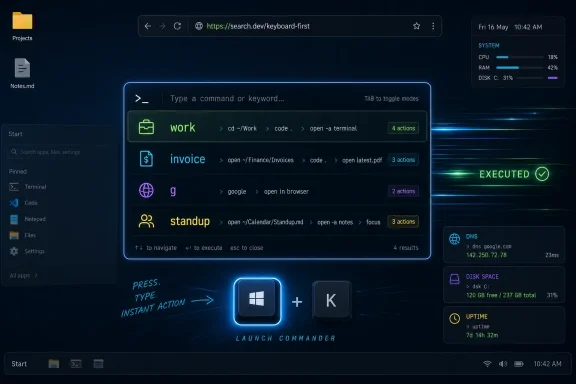 Executor Wins by Refusing to Be a Menu
The Start menu’s original genius was obvious: it gave Windows users a stable place to begin. But the modern Start menu is no longer just a beginning. It is a mediated environment, one that wants to help you find apps, documents, settings, cloud files, web results, and Microsoft’s idea of useful suggestions all in the same frame.That can be convenient when you are lost. It is less convenient when you are not. If you know the folder, app, command, or site you want, every extra visual layer becomes a tax.
Executor’s bet is that the fastest interface is not the prettiest one but the one you can operate without negotiating with it. Press a hotkey, type a keyword, hit Enter. That is the whole posture of the program, and it is why it feels less like a Start menu replacement than a small command language for your PC.
The key word there is language. Executor is not merely indexing installed applications and letting you search them. It lets you build named actions that mean something in your own workflow: a project directory, a browser search, a PowerShell-adjacent maintenance command, a batch of apps you open every morning.
That makes it more personal than Start and more opinionated than Windows Search. Microsoft’s interface tries to infer what you might mean. Executor asks you to define what you mean once, then gets out of the way.
The Windows Key Becomes a Launchpad Instead of a Lobby
One of Executor’s most consequential features is its ability to intercept the Windows key. That sounds small until you realize how much muscle memory Microsoft has trained into that key over the last three decades. For many users, tapping it is not a decision; it is reflex.Executor can turn that reflex into something more productive. A single press can summon Executor, while a double press can still open the Start menu. Or users can keep Start on the Windows key and assign Executor to another global shortcut.
The more radical setup is the first one. It turns the Windows key from a portal into Microsoft’s preferred interface into a user-defined command prompt. The Start menu remains available, but it becomes secondary rather than sovereign.
This is not just a productivity flourish. It is a quiet reversal of control. The operating system says, “Start here.” Executor says, “Start wherever you already decided.”
For longtime Windows users, that has echoes of the old Run dialog, Launchy, SlickRun, and the countless keyboard tools that thrived because Windows has always had two audiences. One audience wants discoverability. The other wants speed, repeatability, and a minimum of ceremony.
Executor plants itself firmly in the second camp.
Keywords Turn Repetition Into Infrastructure
Executor’s basic unit is the keyword. A keyword can launch an app, open a folder, run a command, send text into a search URL, or invoke another Executor action. It can be simple enough for a casual user and deep enough for someone who thinks in aliases, macros, and shell habits.The obvious examples are web searches. A user can define
g for a Google query or y for YouTube, type the keyword followed by the search phrase, and jump directly to results. The browser is still involved, but it stops being the first step.The more interesting examples are local. A keyword like
work can open a project folder. A keyword like invoice can jump into an accounting directory. A keyword like standup can open a calendar, task board, and chat client in one action.That last case is where Executor starts to feel less like an app launcher and more like a workflow launcher. The program supports multi-action commands using separators, allowing a single typed trigger to do what would otherwise require several clicks, several windows, and several moments of context switching.
This is the part of launcher culture that rarely comes through in screenshots. A launcher is not valuable because typing
chrome is faster than clicking Chrome. It is valuable because you can encode repeated intent into short, memorable handles.The Start menu cannot really compete with that because it is designed around generality. It has to work for everyone, which means it cannot be tuned deeply for anyone without turning into a settings maze. Executor embraces the maze, but it makes the daily entrance beautifully narrow.
The Rough Edges Are the Price of Real Control
Executor is not a modern, frictionless Windows 11 app. It looks, in places, like software that remembers Windows XP not as nostalgia but as a design system. The settings panels are dense, the dialogs are utilitarian, and the deeper configuration screens can feel like walking into a control room where nobody labeled the cables for tourists.That is not an incidental flaw. It is the visible cost of a program built around capability rather than onboarding. Executor exposes a great deal because it can do a great deal, and not all of that power has been sanded into fashionable simplicity.
The installer experience is also likely to worry some users. The developer says the installer is no longer digitally signed because an earlier code-signing certificate expired and renewal economics became difficult for a free, independent project. As a result, Windows may show Unknown Publisher or SmartScreen warnings, and Defender may flag the installer or executable under some conditions.
For Windows enthusiasts, that is a familiar story. For normal users, it is a red flag, even when the software is legitimate. The modern Windows trust model increasingly makes unsigned or low-reputation binaries feel suspicious by default, and small developers pay the usability price.
That does not mean users should ignore security warnings. It means the warning needs to be interpreted in context. Executor is free, MIT-licensed, and distributed by a long-running independent developer, but anyone installing it should still download it from the official project location, verify they are getting the current build, and avoid repackaged copies from random software portals when possible.
This is where Executor’s appeal narrows. It is not the launcher you give to a relative who calls you when a printer icon moves. It is the launcher you give to someone who understands why a powerful unsigned utility can be both useful and worth scrutinizing.
Version 2.3.7 Shows a Project Moving Faster Than Its Interface Suggests
Executor may look old-fashioned, but its recent development pace tells a different story. The current 2.3.7 release arrived on June 7, 2026, following a quick succession of 2.3.x builds through April, May, and early June. This is not abandonware being kept alive by inertia.Recent updates have added contextual Input Assist, improved calculation detection, additional importable Windows utility commands, and more flexible handling of files, folders, URLs, and keyword tags. Those are not cosmetic upgrades. They are attempts to make Executor smarter without turning it into a cloud-backed assistant.
Input Assist is especially important because it softens one of the traditional problems with keyboard launchers: remembering what you created. Pressing Ctrl+Space can surface relevant keywords depending on the current input, such as whether the text is a URL, a filesystem path, a file, or a folder. That makes the launcher less dependent on perfect recall.
The added extras also show how Executor is pushing beyond app launching. Importable commands can expose actions such as flushing DNS, checking disk space, showing uptime, opening Windows Terminal at a path, toggling dark mode, or opening old-school Windows management surfaces. These are exactly the operations that Windows scatters across Settings, Control Panel remnants, command-line tools, and shell dialogs.
Executor does not unify those areas with a pretty dashboard. It does something more interesting for power users: it makes them addressable.
The auto-detected calculator feature follows the same pattern. Instead of requiring a special prefix for calculations, Executor can now detect many calculations directly, while still letting users disable the behavior if it collides with their workflow. That is the right kind of convenience: optional, local, and subordinate to user control.
Microsoft’s Start Menu Has a Different Job Now
It is tempting to frame Executor as a rebuke to the Windows Start menu, but that only gets halfway there. The Start menu has changed because Microsoft’s goals have changed. Windows is no longer just a local desktop environment; it is an operating system tied to Microsoft accounts, cloud documents, Edge, Bing, Microsoft 365, Copilot, and a services business that benefits when surfaces become entry points.From Microsoft’s perspective, Start is valuable because it can connect users to many things. From a power user’s perspective, that is exactly why it feels slower. Every additional ambition competes with the original job: launch the thing I asked for.
Even when users remove web search integration or tune recommendations, Start remains a broad interface. It is designed for visual scanning as much as typed execution. That makes it friendly, but not always fast.
Executor succeeds because it has no comparable platform agenda. It does not need to promote documents, suggest apps, surface trending searches, or nudge users toward an ecosystem. Its incentives are simpler: accept input, resolve intent, execute action.
This is why keyboard launchers remain stubbornly relevant despite decades of operating system search improvements. The OS search box is optimized for what the platform can know. A launcher like Executor is optimized for what the user can define.
The Competition Is Cleaner, but Not Always Sharper
Executor is not alone. Flow Launcher, PowerToys Run, Ueli, Listary, Wox, Keypirinha, and newer Raycast-inspired tools all orbit the same frustration: Windows still lacks a truly great built-in command launcher for people who live on the keyboard.PowerToys Run has the advantage of Microsoft stewardship and a modern feel. Flow Launcher has a strong plugin ecosystem. Ueli offers a cleaner cross-platform aesthetic. Listary is particularly compelling for users who spend much of their day in File Explorer. Keypirinha remains beloved by users who prefer terse configuration and speed over visual comfort.
Executor’s advantage is not polish. It is the depth of its keyword model and the slightly eccentric breadth of what it can wire together. It feels less like a launcher designed by a product team and more like a tool that grew from someone repeatedly asking, “Why can’t this be a keyword too?”
That gives it character, but it also gives it risk. A modern launcher often trades depth for predictability. Executor gives you the machinery, and then trusts you not to build a workflow so elaborate that you forget how it works.
For many WindowsForum readers, that is not a drawback. It is the fun part. But it does mean Executor is best judged after a week of actual use, not after five minutes of poking through its settings.
The Best Executor Setup Starts Small
The mistake new users are likely to make is trying to configure everything at once. Executor invites that because its settings are broad and its command system is flexible. But the real payoff comes from replacing a few high-frequency actions first.Start with three or four keywords. Make one for your main work folder. Make one for your preferred web search. Make one for a daily app bundle. Make one for a Windows utility you open often enough to resent hunting for it.
Then stop. Use those until they become muscle memory. A launcher earns its place not when it can theoretically do hundreds of things, but when your fingers reach for it before your eyes reach for the taskbar.
After that, expand gradually. Add a YouTube search keyword. Add a Windows Terminal-at-folder keyword. Add maintenance commands you trust yourself not to trigger accidentally. Add Input Assist tags so your own command vocabulary becomes easier to navigate.
This is how Executor turns from novelty into infrastructure. It does not replace the Start menu in one dramatic migration. It replaces it by quietly stealing the most common trips.
The Real Test Is Whether You Still Think in Clicks
There is a point in using a launcher when the interface disappears. You stop thinking, “I need to open the Start menu.” You think, “work,” “notes,” “deploy,” “dns,” or “calendar,” and your hands do the rest. That is the moment Executor starts to justify its rough edges.The shift is small but meaningful. Windows becomes less like a set of places and more like a set of verbs. Open this. Search that. Go there. Run these three things together.
That is also why Executor can make the Start menu feel irrelevant without actually replacing it. The Start menu remains useful for discovery, occasional browsing, newly installed apps, and visual confirmation. But for repeated known actions, it becomes a fallback.
There is an old productivity trap in pretending every second saved is a moral victory. Executor is not valuable because it shaves a trivial amount of time from launching Notepad. It is valuable because it reduces repeated interruptions in attention.
The gap between intention and execution is where context goes to die. Executor narrows that gap.
The Old Launcher Lesson Windows Still Has Not Learned
The enduring appeal of tools like Executor says something uncomfortable about Windows. Microsoft has improved search, redesigned Start repeatedly, and bundled PowerToys Run for users willing to install the company’s utility suite. Yet there remains a persistent class of users who want something more direct than Start and more programmable than search.That desire is not nostalgia. It is a reaction to modern interface inflation. As Windows surfaces get more connected, more recommended, more personalized, and more cloud-aware, a local keyboard launcher feels almost radical in its modesty.
Executor is not trying to be an AI assistant. It is not trying to summarize your files or predict your next action. It is not trying to turn the desktop into a feed. It is trying to let a user say a short word and have the machine obey.
That sounds almost primitive until you compare it with the number of clicks, panels, and suggestions that now stand between users and basic tasks. Sometimes primitive is the upgrade.
The Start Menu Loses One Habit at a Time
Executor’s value is clearest when reduced to the concrete changes it makes in daily Windows use. It is not a universal recommendation, and it is not the most polished launcher in the category. But for users who prefer keyboard control and are willing to spend time building their own command vocabulary, it attacks a real weakness in the modern Windows desktop.- Executor 2.3.7 is current as of June 7, 2026, and supports both installer and portable use on Windows 7 or later.
- Its strongest feature is the custom keyword system, which can launch apps, open folders, run commands, perform searches, and chain multiple actions.
- The Windows key override changes the feel of the desktop by letting Executor become the default reflex while keeping the Start menu available.
- Recent updates make the tool more practical through contextual Input Assist, automatic calculation detection, clipboard-related transformations, and importable Windows utility commands.
- The biggest drawbacks are the unsigned installer warnings, possible Defender suspicion, and a configuration interface that still feels rooted in an older Windows era.
- Executor is best for users who repeat the same tasks often enough to benefit from turning them into commands.
References
- Primary source: MakeUseOf
Published: 2026-06-13T22:10:08.329614
This free Windows launcher makes the Start menu completely irrelevant
I installed it for ease and accidentally rewired years of Windows habits. www.makeuseof.com
- Related coverage: executor.en.uptodown.com
Download Executor 2.3.7 for Windows | Uptodown.com
Download the latest version of Executor for Windows. More than just an application launcher. Executor is an application launcher for Windows to improve the...executor.en.uptodown.com - Official source: learn.microsoft.com
Code signing options for Windows app developers - Windows apps | Microsoft Learn
Compare code signing options for distributing Windows apps outside the Microsoft Store — including Azure Artifact Signing, OV/EV certificates, and when no signing is needed.learn.microsoft.com - Related coverage: expellusai.com
ExpellusAI
ExpellusAI uses AI to see your screen, understand context, and automate any desktop task. No coding required. Just tell your computer what to do.expellusai.com
- Related coverage: staging-docs.patchkit.net

PatchKit Documentation
staging-docs.patchkit.net
