

Windows 11 gives you a fast, modern experience — but without a few careful adjustments it can also generate avoidable write traffic that wears on an SSD over time. The good news is that a handful of well-understood, reversible tweaks — from confirming TRIM is working to sensible power and space management — will reduce unnecessary writes, improve responsiveness, and meaningfully extend SSD lifetime for most users. This feature explains the how, the why, and the real trade‑offs so you can make informed choices and preserve your investment.
Solid‑state drives (SSDs) use flash memory with finite program/erase cycles. Modern controllers and firmware do a lot of heavy lifting — wear leveling, garbage collection, and over‑provisioning — but the operating system’s behavior still drives how often those mechanisms are invoked. Windows 11 ships with defaults aimed at compatibility and stability, not maximum endurance, so a small number of targeted changes can reduce write amplification and background churn without hurting day‑to‑day functionality.
What follows is a practical, prioritized set of adjustments you can apply safely on a home or office Windows 11 PC. Each tweak includes why it matters, step‑by‑step actions (where appropriate), and the potential downsides you should understand before changing anything.
Preserving an SSD on Windows 11 is about sensible housekeeping, conservative power choices, and using vendor utilities to let the drive do its job. Follow the checklist above, measure impact, and you’ll maximize both performance and lifespan with minimal downside.
Source: filmogaz.com Preserve Your SSD: Essential Windows 11 Tweaks You Need
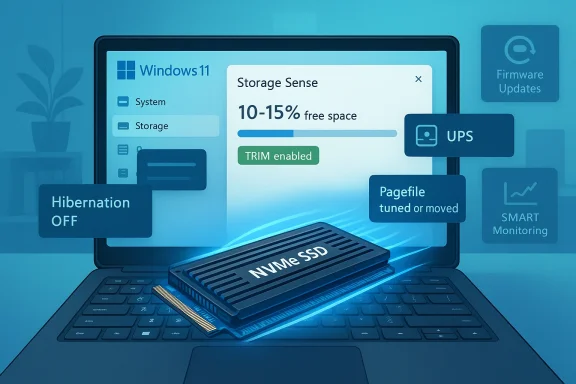 Background
Solid‑state drives (SSDs) use flash memory with finite program/erase cycles. Modern controllers and firmware do a lot of heavy lifting — wear leveling, garbage collection, and over‑provisioning — but the operating system’s behavior still drives how often those mechanisms are invoked. Windows 11 ships with defaults aimed at compatibility and stability, not maximum endurance, so a small number of targeted changes can reduce write amplification and background churn without hurting day‑to‑day functionality.What follows is a practical, prioritized set of adjustments you can apply safely on a home or office Windows 11 PC. Each tweak includes why it matters, step‑by‑step actions (where appropriate), and the potential downsides you should understand before changing anything.
Verify and enforce TRIM
Why TRIM matters
TRIM tells the SSD which logical blocks the OS no longer needs so the controller can reclaim them during idle time. Without TRIM, deleted data lingers and internal garbage collection becomes more expensive, increasing write amplification and reducing sustained write performance — and, indirectly, endurance. Modern Windows versions send TRIM automatically for internal SSDs, but it's worth verifying.How to check and enable TRIM
- Open an elevated Command Prompt.
- Run: fsutil behavior query DisableDeleteNotify
- Output DisableDeleteNotify = 0 means TRIM is enabled.
- If TRIM is off, enable it with: fsutil behavior set DisableDeleteNotify 0
Hibernation: turn it off if you don’t use it
What hibernation does to an SSD
Hibernation writes the entire system memory image to disk in a file named hiberfil.sys. On systems with lots of RAM this can be a large (and frequently updated) file, contributing significant write volume over time. If you don’t rely on hibernate, disabling it removes that large file and eliminates those writes.How to disable hibernation
- Open an elevated Command Prompt and run: powercfg /hibernate off
This removes hiberfil.sys and disables hibernation and Windows Fast Startup behavior tied to it.
Trade‑offs and cautions
Disabling hibernation also disables Fast Startup (unless you use alternate power‑management options) and prevents real hibernate use. If you rely on sleep/hibernate for long idle times or want to preserve crash dump behavior that depends on certain hiberfil/pagefile sizes, plan accordingly. Always back up critical data before changing power management settings.The paging file (virtual memory): don’t rush to remove it
Why people consider disabling it
The Windows pagefile (pagefile.sys) is a persistent target for writes. Some guides suggest turning it off to reduce SSD writes entirely, but that’s a blunt instrument with real stability costs.Smart alternatives
- Move the pagefile to a secondary drive (if available), or set a fixed size rather than removing it entirely.
- If you have very large physical RAM (e.g., 32GB+ for typical desktop use) and you understand crash‑dump implications, you can reduce the pagefile size but keep a modest file to support kernel/automatic dumps.
- Use Task Manager → Performance → Memory to observe commit charge before making changes.
Why you should be cautious
Disabling or undersizing the pagefile can cause application errors, prevent full crash dumps, and create instability under unexpected memory pressure. Microsoft documentation and practical experience consistently warn that removing the pagefile is risky for most users; measure memory usage first and prefer adding RAM over eliminating virtual memory.Enable write caching — but understand the power loss risk
What write caching does
Write caching on the host side can reduce the frequency of small synchronous writes to the SSD by buffering them in system memory, which lowers immediate write amplification and can improve throughput. Enabling the policy in Device Manager is usually beneficial for performance.How to enable it
- Open Device Manager → Disk drives → right‑click your SSD → Properties → Policies → check Enable write caching on the device.
Critical warning about flushes
Do not disable Windows’ write‑cache buffer flushing unless you have a reliable UPS and explicitly accept the risk of data loss on power failure. Buffer flushing guarantees that data in the drive’s volatile caches is committed to nonvolatile media; turning it off can substantially increase throughput but also the chance of corrupted files on sudden power loss. Use this only in controlled environments.Maintain free space and consider over‑provisioning
Why free space matters
SSD controllers need spare blocks to perform wear leveling and garbage collection efficiently. When a drive is nearly full, the controller has fewer clean blocks to work with, and write amplification rises; sustained write speeds can drop dramatically in this condition. Typical guidance is to keep a buffer — commonly 10–20% of capacity — depending on your workload and the drive’s architecture. Treat these as rules of thumb, not hard limits.How to give the controller breathing room
- Use an SSD vendor tool (Samsung Magician, Crucial Storage Executive, WD Dashboard, Intel Toolbox) to set explicit over‑provisioning, or simply leave unallocated space when partitioning.
- Aim for at least 10–15% free on consumer desktop drives; heavy write workloads (video editing, many VMs, frequent large backups) benefit from ~20% or more. Adjust by model and workload.
Practical tips
- Move large game libraries, VMs, and archived media to a secondary internal or external drive.
- Enable Storage Sense (Settings → System → Storage) with conservative rules to avoid accidental deletion of needed files.
Keep firmware and vendor tools up to date — but update carefully
Why firmware matters
Drive firmware controls garbage collection, SLC cache behavior, thermal management, and reliability features. Manufacturers periodically release updates to fix bugs and improve longevity or performance. Updating firmware can resolve issues and reduce unnecessary internal operations.How to proceed safely
- Use the drive maker’s official utility (Magician, Storage Executive, WD Dashboard, Intel tools) to check firmware and health.
- Back up all data before applying firmware updates.
- Follow vendor instructions carefully; some updates require bootable ISOs or a direct internal connection (not via USB enclosures).
Risk and mitigation
Firmware updates can fail or introduce regressions. Read the release notes and recent user reports (forum threads, vendor advisories) before updating, and prefer general release builds over betas unless you have a specific fix you need. Always maintain a tested backup before firmware operations.Thermal management and power settings: keep NVMe cool and responsive
Thermal throttling
NVMe controllers and NAND die temperature influence performance. Many drives begin thermal throttling around the 60–80°C range depending on model; when throttling triggers, sustained throughput can collapse. Adequate airflow or an NVMe heatsink reduces the frequency of throttle‑down events and keeps the drive operating efficiently.Power management trade‑offs
Windows power modes and PCIe Link State Power Management affect how aggressively the NVMe device enters low‑power states. For desktops where battery life isn’t a concern, disabling deep PCIe power-down can reduce latency and stuttering during intermittent I/O. On laptops, balance responsiveness against battery runtime. Advanced NVMe APST tweaks exist but are platform‑specific and require care.Monitoring, measurement, and when to replace
Monitor SMART and host writes
Track SMART attributes and Total Host Writes (TBW) using vendor tools or third‑party utilities (e.g., CrystalDiskInfo). Monthly checks help you spot rising reallocated sectors, increasing uncorrectable errors, or rapid consumption of available spare — indicators it's time to replace the drive.Measure the effect of changes
Measure before and after you tweak settings. Simple metrics:- Record boot time and app launch time.
- Use Task Manager / Resource Monitor to watch disk write rates and commit charge.
- Track cumulative host writes over weeks to see if your changes reduced the workload.
When optimization isn’t enough
If SMART data shows a high count of reallocated or uncorrectable sectors, or the drive is close to vendor‑rated TBW, optimization is a stopgap: replace the drive. Firmware or drivers won’t resurrect exhausted NAND.A safe, step‑by‑step checklist (recommended order)
- Back up your data (full image or reliable file backup).
- Verify TRIM: fsutil behavior query DisableDeleteNotify; enable if needed.
- Check free space and reclaim at least 10–15% for typical desktop use. Use Storage Sense or manual cleanup.
- Examine pagefile usage in Task Manager; do not remove the pagefile unless you understand the risks. Consider moving or resizing instead.
- Disable hibernation if you don’t use it: powercfg /hibernate off. Validate required behavior (wake/fast startup) beforehand.
- Enable write caching in Device Manager, but keep flushes enabled unless you have UPS protection.
- Install vendor SSD utility and check for firmware updates; back up before applying updates.
- Improve cooling and consider heatsinks for NVMe modules in compact systems.
- Monitor SMART and host write totals monthly to confirm long‑term gains.
Critical analysis — benefits, limitations, and risks
Clear benefits
- The changes above address the dominant causes of extra SSD writes: large hibernation files, unnecessary pagefile churn, small frequent writes, and lack of spare blocks for the controller. Together they reduce write amplification and can extend drive life noticeably for many users. Most steps are reversible and use built‑in Windows tools.
- Enabling write caching and ensuring firmware is current can improve throughput and stability. Leaving space for the controller (or setting over‑provisioning) reduces the likelihood of sustained write slowdowns.
Limitations and diminishing returns
- On well‑specified systems with conservative background write patterns, the marginal benefit of aggressive tweaks is small. If your workload is genuinely write‑heavy (constant VMs, databases, large video exports), the most effective long‑term investment is a higher‑end drive with larger over‑provisioning and endurance ratings, or an additional drive for heavy writes. Rules of thumb (10–20% free) vary by model; treat them as starting points, not guarantees.
- Some optimizations trade durability or features (fast startup, crash dumps) for lower writes. These choices should reflect your priorities: uptime, diagnostics, or longevity.
Real risks you must not ignore
- Disabling the pagefile or hibernation without understanding crash‑dump needs and memory usage can cause instability and complicate troubleshooting. Do not remove the pagefile on production or unknown‑workload machines.
- Turning off write‑cache flushing dramatically raises the chance of data corruption on power loss. Only consider this behind a quality UPS and with robust backups.
- Firmware updates can fail or introduce regressions; always back up and read vendor advisories before updating.
Unverifiable or highly variable claims (flagged)
- Exact lifetime extension figures (for example, “double your SSD life”) are system‑ and workload‑dependent. Any claim about a specific multiplier is anecdotal unless supported by measured TBW reduction for the same workload and drive model. Treat such promises cautiously and measure host writes to evaluate real impact on your hardware.
Advanced tips for power users and IT administrators
Over‑provisioning via vendor tools
Use official SSD utilities to configure over‑provisioning, which reserves internal space for controller use without reducing reported partition sizes manually. This provides a more controlled and vendor‑backed approach than leaving unallocated space.Power profile tuning for NVMe
On desktops, set PCI Express → Link State Power Management to Off in Advanced Power Options to reduce NVMe latency. On laptops, test APST/power‑state tweaks only if you understand battery trade‑offs and OEM quirks.Automated fleet management
For multiple machines, enforce consistent settings through Group Policy or MDM: power profile, Storage Sense policy, startup items and vendor tool deployment. Test in a pilot group first.Final verdict and recommended priorities
If you want the best ROI with minimal risk, apply these in order:- Back up your data.
- Free 10–15% drive space and enable Storage Sense.
- Confirm TRIM is enabled.
- Disable hibernation if you don’t use it.
- Keep the pagefile but tune it sensibly or move it if you have another drive; avoid disabling it entirely unless you understand the consequences.
- Enable write caching (but keep flushes on) and update firmware carefully.
- Monitor SMART and host writes monthly and replace the drive when SMART indicators or TBW approach vendor limits.
Preserving an SSD on Windows 11 is about sensible housekeeping, conservative power choices, and using vendor utilities to let the drive do its job. Follow the checklist above, measure impact, and you’ll maximize both performance and lifespan with minimal downside.
Source: filmogaz.com Preserve Your SSD: Essential Windows 11 Tweaks You Need
