Quiet PC Fans in Windows: Safe Tweaks, BIOS Curves, and Fan Control

  • Thread Author
Controlling noisy or overly aggressive PC fans is rarely magic — it’s a sequence of small, measurable changes that reduce heat generation, improve airflow, or give you direct control over fan curves so your system runs quieter without compromising safety. This guide consolidates the practical methods Windows users can use right now — from safe, no‑risk Windows and BIOS/UEFI tweaks to third‑party fan curve tools and hardware fixes — and explains the trade‑offs, known risks, and testing steps to keep your PC cool and quiet.

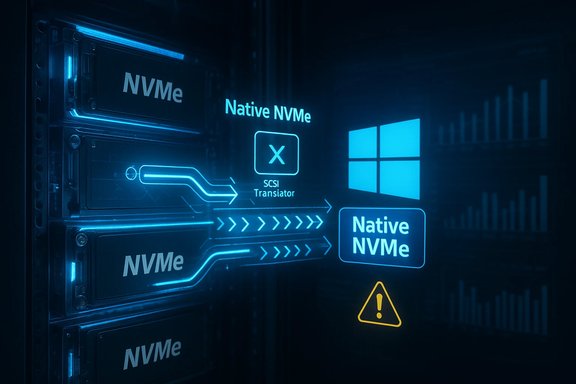
PC tower with blue-lit cooling fans and airflow arrows; monitor shows a fan profile.Background / Overview​

A PC fan’s job is simple: move heat away from hot components (CPU, GPU, VRMs, and storage) so the system stays within safe temperatures. Fans ramp up when temperatures rise; therefore, changing either the heat produced or how efficiently the case dumps heat will directly change fan behavior. Windows, motherboard firmware, vendor utilities, and third‑party apps all provide levers to influence fan speed; physical changes like cleaning, improving airflow, or upgrading cooling are often the highest‑impact measures. Practical advice starts with the Windows power settings and progresses through firmware, software, and hardware layers.

Why you should be cautious: safety, thresholds, and “never set fan to 0”​

Before changing anything, remember two critical safety points: never set a required cooling fan to 0 RPM, and always monitor temperatures when you change fan behavior. Modern CPUs and GPUs have thermal safety features — but those are emergency cutoffs, not a substitute for sensible cooling. Many community and technical guides recommend keeping sustained CPU/GPU temperatures well below manufacturer maximums (practical targets are often around 80–85°C under sustained load), because prolonged operation near TjMax accelerates wear and risks throttling. These temperature guidelines and the warning about disabling fans are widely echoed in hardware guidance.

Quick checklist — safe first steps​

  • Change Windows Power Mode to a quieter profile (Balanced or Best Power Efficiency).
  • Close unnecessary programs and background tasks that spike CPU or GPU load.
  • Inspect and clean air intakes, filters, and fan blades with short bursts of compressed air (can upright; avoid long sprays).
  • Lift a laptop or move a tower out of enclosed cabinets for better airflow.
  • Install a monitoring tool (HWiNFO, HWMonitor, Core Temp) and record temperatures and fan RPM before making changes.

BIOS / UEFI: the foundational control layer​

Why use BIOS/UEFI​

Motherboard firmware (BIOS / UEFI) often exposes basic and advanced fan controls that run independently of Windows. These settings run at boot and apply even before an OS loads, making BIOS/UEFI the most reliable place to create conservative default fan behavior. Many boards include presets like Silent, Standard, and Performance/Turbo, plus the ability to build custom fan curves based on temperature sensors.

Step‑by‑step: entering BIOS/UEFI and changing fan profiles​

  • Restart the PC and press the indicated BIOS key shown on boot (Delete, F2 or another key depending on the vendor). Alternatively, open Advanced Startup (Settings → Recovery → Advanced startup → Restart now), then choose Troubleshoot → Advanced options → UEFI Firmware Settings and Restart.
  • In the UEFI, look for fan or system monitoring menus. Common sections are labeled “Smart Fan”, “Monitor”, “PC Health Status”, “Hardware Monitor”, or “Advanced.”
  • Pick a preset (Silent/Standard/Turbo) or create a custom curve that keeps RPMs low at idle and ramps smoothly with temperature. Avoid extreme low cutoffs; do not set a fan to 0 RPM if it’s required for CPU cooling.
  • Save & Exit. Reboot and monitor temps for at least 10–15 minutes under normal use. If temperatures rise unexpectedly, revert changes.

Pros and limits of BIOS control​

  • Pros: Firmware control is reliable, applies at boot, and doesn't depend on Windows software.
  • Cons: UEFI interfaces vary widely; consumer boards often expose only presets or limited controls, and some sensor mappings can be confusing. If the firmware lacks granularity, software tools may be needed.

Windows settings: Power Mode and quick software steps​

Use the Power & battery control​

Windows 11 exposes a Power Mode (Settings → System → Power & battery → Power Mode) that influences CPU and GPU power limits. Selecting Best Power Efficiency or Balanced reduces background activity and average power draw, which lowers heat and therefore fan speed. This is the safest, reversible first step for both laptops and desktops.

Close or disable background apps​

Unneeded background programs and startup items can keep CPU cores active and force fans to run. Use Task Manager and Settings → Apps → Startup to identify and disable nonessential items. For stubborn processes, check for browser tabs, hardware‑accelerated apps, or scheduled tasks.

Third‑party tools: FanControl, SpeedFan, and vendor apps​

FanControl (recommended for modern systems)​

FanControl (community project) is a flexible, user‑configurable fan manager that maps arbitrary temperature sensors (CPU, GPU, motherboard sensors) to fan curves, supports profiles, and receives regular updates. It’s widely used when UEFI or vendor utilities are limited. Installation is straightforward: download the installer, install .NET if prompted, and follow the first‑time setup to detect sensors and fans.
Step‑by‑step:
  • Download the latest FanControl installer (.exe) and run it.
  • Accept prompts to install prerequisites (the app will request .NET if needed).
  • On first run, let the UI detect sensors and fans, then create or choose a profile that maps a temperature source to a fan curve.
  • Test with a moderate workload while monitoring temps with HWiNFO. If anything looks wrong, revert to defaults.

SpeedFan (legacy, use with caution)​

SpeedFan historically offered low‑level fan control, but it hasn’t been actively maintained for many boards and Windows versions. It can still be useful for older motherboards, but compatibility is hit‑or‑miss. If using SpeedFan, proceed carefully and confirm RPM and temperature mappings before changing curves.

Motherboard vendor utilities (ASUS, MSI, Gigabyte, etc.​

Most major motherboard manufacturers ship Windows utilities that allow precise control over fan curves and power profiles. These often integrate with other vendor tools (AI Suite, Dragon Center, Command Center) and sometimes provide easier sensor mapping than FanControl. To use these tools:
  • Find your motherboard model (System Information → BaseBoard Manufacturer / BaseBoard Product).
  • Download the official control utility from the vendor’s support site and follow their instructions to create fan curves or presets.

Hardware improvements: cleaning, airflow, and cooling upgrades​

Clean first — the largest single win for many systems​

Dust on filters, heatsinks, and fans acts like insulation and forces fans to run harder. Regular cleaning often reduces idle and load fan noise more than software tweaks. Use short bursts of canned air held upright; avoid tilting cans or prolonged sprays that can discharge propellant liquid. For general environments, a deep clean every 3–12 months is recommended depending on pets and carpets.
Safety tips:
  • Power off and unplug the machine before opening.
  • Use compressed air upright in short bursts; give condensation time to evaporate before powering back on.
  • Don’t vacuum internal electronics (risk of static).

Improve case airflow and placement​

A cramped case or a tower tucked in a closed cabinet can raise ambient intake air temperature and force fans to spin faster. Give the case 5–10 inches (12–25 cm) of clearance for intake and exhaust, manage cable clutter to avoid obstructing airflow, and consider adding or rearranging intake/exhaust fans to create a deliberate front‑to‑back flow. Small changes like lifting a laptop off a desk or moving a tower can yield immediate reductions in fan activity.

Upgrade cooling: air coolers vs AIO liquid​

If persistent load noise requires hardware changes, there are two mainstream upgrades:
  • High‑end air coolers (tower heatsinks like the Noctua NH‑D15) deliver excellent cooling and low noise when paired with quiet fans.
  • All‑In‑One (AIO) liquid coolers can allow slower fan RPMs by spreading heat over a radiator; larger radiators (240/360 mm) generally run quieter under load. Note that AIOs introduce a pump noise and carry a small risk of pump failure or leaks — quality matters. Reviews and testing repeatedly show that a properly sized cooler (air or AIO) plus a tuned fan curve is the best way to reduce peak noise.

Advanced tuning: undervolting, throttling, and measuring impact​

Undervolting as a powerful tradeoff​

Undervolting reduces CPU voltage to lower power draw and heat with minimal impact on single‑threaded performance. Tools like ThrottleStop (Intel) and Ryzen Master (AMD) let experienced users apply small voltage offsets and validate stability with stress tests. Undervolting can significantly lower temperatures and therefore fan RPMs — but it must be tested incrementally because overly aggressive undervolt settings can destabilize a system.

Measuring before and after​

Make a baseline measurement of idle and load temps and fan RPMs using HWiNFO, HWMonitor, or similar. Then change one setting at a time (for example, change Power Mode, then BIOS curve, then fan software). This approach isolates the effect of each change and prevents misattributing improvements. Community guides emphasize documenting baseline values and applying changes sequentially.

Troubleshooting noisy fans: common problems and solutions​

  • Fan bearings or rubbing blade: If a fan makes grinding or clicking noises, power off and inspect; mechanical wear or contact with cables means replacement. Forum experiences show mechanical failures are often the cause of loud single‑fan noise.
  • Fans stuck at high RPM after OS changes: Confirm if a hardware controller or BIOS is forcing them; re‑enable default BIOS fan control or reset firmware to defaults to diagnose.
  • Missing fan control in Windows: Some hub‑style fan controllers present as simple power hubs; they may not be addressable by software and must be controlled via the hardware dial or the fan controller’s own interface. Identify how fans are connected (fan headers vs. fan hubs vs. PSU connections) before assuming software can control them.

Practical workflows for typical users​

Quiet laptop for office work (recommended safe steps)​

  • Set Power Mode to Balanced or Best Power Efficiency.
  • Close unnecessary apps and background tabs.
  • Lift the laptop with a stand and clean vents if dusty.
  • If noise persists under light use, install HWiNFO to confirm whether CPU or GPU is causing the ramp, and consider a cooling pad if vents will benefit.

Desktop gamer who wants quieter evenings​

  • Clean filters, add anti‑vibration mounts, and configure a front‑to‑back airflow path.
  • Create a conservative BIOS fan curve with a smooth ramp and a gentle hysteresis.
  • Use FanControl to target GPU temperature for case fans (so case fans ramp primarily with GPU temperature during gaming).
  • If needed, upgrade to a larger air cooler or 240/360 mm AIO and install quiet, low‑RPM fans. Measure temps and SPL before/after.

Risks, myths, and what to be skeptical about​

  • Myth: “One click will make a noisy gaming rig silent.” Reality: Noise reduction is typically a layered project — cleaning, curve tuning, and sometimes hardware upgrades. Claiming near‑silence while maintaining full high‑end performance is unrealistic without significant cooling investments.
  • Risk: Aggressive undervolting or misconfigured fan curves can cause instability or sustained high temperatures. Always test changes incrementally and have a recovery plan (BIOS reset or safe boot).
  • Caveat: Vendor utilities sometimes provide the best sensor mapping, but they vary by motherboard. If a feature is missing in BIOS or vendor tools, FanControl is an excellent cross‑platform fallback.

Recommended toolset and short checklist​

  • Monitoring: HWiNFO, HWMonitor, or Core Temp to track core/package temps and RPMs.
  • Fan control: FanControl for modern flexible curves; vendor utility for manufacturer‑specific integrations; SpeedFan only for legacy boards.
  • Maintenance: Compressed air, soft brush, and replacement thermal paste every 2–3 years if thermal performance is degraded.
Short daily checklist:
  • Set Windows Power Mode to Balanced/Power Efficiency when not gaming.
  • Keep vents unobstructed.
  • Run a quick monitoring app to check for unexpected background load.
  • Clean case filters and dust monthly if you have pets; deep clean every 3–12 months.

Conclusion​

Quieting a Windows PC is a practical engineering problem, not a single trick. Start with the safe, reversible options — Windows power modes and cleaning — then layer on BIOS fan curves, vendor tools or FanControl for precise curves, and finally hardware upgrades if required. Each change should be measured with real temperature and RPM monitoring and applied one at a time so you can verify its effect. When used properly, the combination of cleaner airflow, smarter power profiles, and carefully tuned fan curves will reduce noise substantially while keeping components safely cooled. Remember: never disable a critical fan, monitor temperatures after any change, and treat undervolting or firmware edits as incremental experiments rather than one‑click solutions.

Source: Guiding Tech How to Control Fan Speed in Windows PC
 

A driver buried in recent Windows Server updates has given enthusiasts a way to squeeze materially more performance from NVMe SSDs on Windows 11 — but it’s not a free lunch. Microsoft introduced a native NVMe I/O path in Windows Server 2025 that removes decades of SCSI translation overhead, and community testers discovered that parts of that stack already exist inside Windows 11 servicing builds and can be forced on by toggling undocumented Feature Management overrides in the registry. Early lab figures promise dramatic gains in engineered server workloads, and multiple consumer tests show real but variable improvements for desktop NVMe drives — alongside a string of compatibility and recovery hazards that make this one of the riskiest “tweaks” to try without full backups and careful testing.

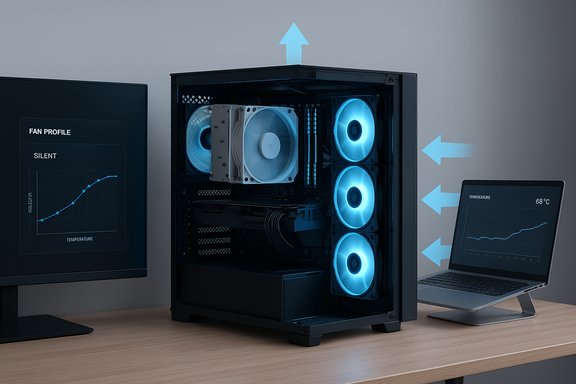
Blue-lit server rack with NVMe drives and a Native NVMe path to Windows, plus a warning icon.Background / Overview​

Microsoft’s storage engineering team has reframed how Windows talks to NVMe drives. Historically, Windows exposed NVMe devices through a legacy SCSI-style abstraction that simplified compatibility across many storage classes. That translation layer added CPU and queuing overhead that increasingly limited throughput and elevated latencies as NVMe controllers and PCIe links scaled. The Windows Server 2025 update replaces that translation with a native NVMe path implemented by Microsoft’s in‑box driver stack, giving the OS a direct, multi‑queue-aware route to NVMe hardware. Microsoft’s server lab microbenchmarks report as much as ~80% higher 4K random IOPS and roughly ~45% fewer CPU cycles per I/O on their enterprise testbed when the native path is enabled. Those numbers were produced with DiskSpd under controlled, high‑concurrency conditions and are presented as lab upper bounds, not consumer guarantees. That server-side capability is opt‑in for administrators and shipped with a documented, supported enablement route for Windows Server 2025. Because Windows client and server share large parts of the kernel and driver tree, community researchers found the native components present in some Windows 11 servicing builds and discovered a registry-based FeatureManagement override sequence that causes many Windows 11 systems to load Microsoft’s native NVMe stack instead of the legacy presentation. This client‑side route is unsupported, community-driven, and therefore unpredictable across hardware, vendor drivers, and backup/management tools.

What Microsoft officially shipped​

The engineering change and server guidance​

  • Microsoft published a formal announcement and deployment guidance for Native NVMe as part of Windows Server 2025 updates. The official guidance describes the change as a redesign of the I/O stack to eliminate SCSI translation for NVMe devices, enabling the OS to use NVMe’s multi‑queue model and reduce per‑I/O CPU costs. Microsoft documented an authoritative, single-DWORD FeatureManagement override for supported server deployments and provided the DiskSpd command-line parameters used in their lab runs. The vendor explicitly frames this as an opt‑in server feature that should be staged and validated before production rollout.
  • The server numbers are reproducible under similar, high‑parallelism conditions (multi-socket servers, enterprise NVMe media, DiskSpd harness). Microsoft’s published DiskSpd command (the microbenchmark recipe) shows the workload they used to produce the headline figures. Microsoft’s messaging stresses the server orientation of the feature and the need for testing, firmware validation, and careful deployment.

Key verified technical points from Microsoft​

  • Native NVMe removes a translation step that converted NVMe commands into SCSI-style equivalents.
  • The native path exposes multi‑queue semantics to the kernel, enabling per‑core steering and lower lock contention.
  • Gains are largest for small-block, high‑concurrency workloads (random 4K I/O) — exactly where server workloads and some OS responsiveness tasks are most sensitive.

How enthusiasts enabled the native path on Windows 11 (what the community did)​

Because the native NVMe components are present in current Windows 11 servicing packages, hobbyists and testers experimented with the same FeatureManagement override mechanism Microsoft used for Server. Multiple independent community reports converged on a commonly circulated approach: adding FeatureManagement Override DWORD entries under the registry branch:
HKEY_LOCAL_MACHINE\SYSTEM\CurrentControlSet\Policies\Microsoft\FeatureManagement\Overrides
Community-shared client values that have been widely posted and tested are the three 32‑bit DWORD names 735209102, 1853569164 and 156965516 set to 1, applied together, then followed by a reboot. After reboot, some testers report Device Manager presentation changes (drives moving into storage‑style categories) and driver details showing Microsoft’s native NVMe driver files such as nvmedisk.sys or related StorNVMe components. These steps and reported behavior are community discoveries and are not officially documented by Microsoft for client SKUs. Important clarifications:
  • Microsoft’s documented server toggle uses a different numeric override (published in the official Tech Community guidance) and is the supported method for server environments. The client-side three-DWORD pattern is community-sourced and therefore not sanctioned.
  • If your system uses a vendor-supplied NVMe driver (for example Samsung, WD, Intel/Solidigm), that driver may continue to control the device and the registry tweak may have no effect or could cause incompatible behavior.

Benchmarks: lab vs. editorial labs vs. community anecdotes​

Microsoft’s lab ceiling​

Microsoft’s server figures — up to ~80% higher 4K random IOPS and ~45% CPU savings — came from engineered DiskSpd tests on high-end server hardware and enterprise NVMe devices. These show the potential ceiling when the OS path, not the device, was the bottleneck. Those numbers are valid for the documented lab setup but should not be assumed as blanket uplift for consumer SSDs or laptop drives.

Independent editorial tests​

Multiple outlets reproduced and investigated the change on desktop hardware. Editorial labs (Tom’s Hardware, TechRadar, TechPowerUp and others) reported:
  • Typical consumer gains tend to be single-digit to low‑double‑digit percent improvements in many sequential or mixed desktop workloads.
  • Gains are consistently larger for small-block random I/O and latency-sensitive patterns (the same regimes Microsoft targeted). Some editorial tests saw ~10–15% improvements in certain metrics on specific drives.

Community anecdotes (not representative)​

  • A widely-circulated user test on an SK hynix Platinum P41 (2 TB) showed an AS SSD overall improvement of roughly ~13%, with stronger lifts in 4K random metrics. Another community test on a Crucial T705 (4 TB) in an MSI Claw 8 AI+ reported a dramatic ~85% increase in random write throughput for that specific configuration and benchmark. These are real measurements but should be treated as anecdotal and highly configuration-dependent: results vary by controller, firmware, platform, benchmarking tool, and the presence of vendor drivers.
Verdict on numbers:
  • Microsoft’s server figures are accurate for the documented server environment and workload.
  • Editorial reproductions agree the approach is sound and show consistent yet smaller consumer improvements.
  • Exceptional community gains (e.g., 85%) are possible in particular combinations but are not typical across the board and are therefore unverifiable as general claims. Always treat very large anecdotal numbers as case-specific until independently reproduced widely.

Why the native NVMe path helps (technical primer)​

NVMe was built for flash and massive parallelism: thousands of queue pairs and efficient per‑command semantics. The legacy SCSI-centric route forced NVMe I/O through translation and SCSI‑style serialization points that introduce:
  • Extra per‑I/O CPU cycles for translation and handling.
  • Global or coarse-grained locking that reduces per‑core scaling.
  • Less efficient interrupt and queue steering across many CPU cores.
By removing the translation and aligning the OS plumbing with NVMe’s native semantics, Windows can:
  • Lower per‑I/O CPU cost, freeing CPU cycles for applications.
  • Improve small-block random IOPS and tail latency by allowing the hardware and OS to use multi‑queue parallelism.
  • Raise effective throughput where the software stack, not the SSD or PCIe link, was the bottleneck.
This is why server workloads — databases, virtualization, metadata-heavy file operations — show the biggest percentage uplifts: they generate many concurrent small I/Os and stress the kernel’s queuing and locking behavior. Consumer tasks such as large sequential file copies already approach the drive’s PCIe bandwidth, so they typically show smaller percentage improvements.

Risks, incompatibilities and documented problems​

Any registry-level flip that changes fundamental driver selection can break assumptions in tooling and imaging systems. Reported and logical hazards include:
  • Third‑party tooling may misidentify or fail to see volumes. Backup, imaging, and vendor SSD utilities (Samsung Magician, Intel tools, etc. often expect the legacy presentation and can behave unpredictably if the OS driver stack changes. Some users reported vendor tools failing or refusing to interact with drives after the change.
  • Disk access and boot hazards. There are community reports of temporary loss of access to file systems that were restored only after reversing the registry edits and rebooting. That indicates the change can interact poorly with certain firmware, driver combinations, or encryption layers, and can render a system non‑bootable in the worst case. These incidents underscore the need for full, tested backups and a recovery plan.
  • Encryption and BitLocker interactions. Systems with full‑disk encryption or hardware crypto paths may behave differently; Microsoft’s broader storage and crypto changes (including upcoming hardware‑accelerated BitLocker features) complicate the validation surface. Expect more variables when encryption is in play.
  • Vendor driver or platform-specific behavior. OEM and vendor drivers or controller frameworks (Intel VMD, OEM storage management) may continue to present the drive through their own stack and either block or conflict with the Microsoft native path. Where vendor drivers are in use, the registry trick may do nothing or cause instability.
  • Unsupported configuration. The client-side registry override is not documented for Windows 11 and remains unsupported by Microsoft; future updates may change the behavior, remove the toggle, or introduce incompatibilities. Relying on this as a long-term tweak in production systems is risky.

Safe test plan and rollback checklist (for power users)​

If you understand the risks and still want to experiment, follow this conservative, sequential process. Treat it like a lab experiment — do not apply to mission‑critical machines.
  • Create a full, verified image backup of the system disk (not just file backup). Store it offline or on an external device.
  • Verify that system restore points are enabled and create a fresh System Restore point. Export the registry branch you plan to change so you have a direct reimport file.
  • Update system firmware (UEFI/BIOS) and the NVMe drive’s firmware to the latest vendor-recommended versions. Update chipset drivers and the latest Windows cumulative updates. These updates reduce the chance of odd hardware/firmware interactions.
  • Confirm current driver ownership: open Device Manager → Disk drives → Properties → Driver Details to record current driver file names (for example vendor driver vs. StorNVMe.sys / nvmedisk.sys). Take screenshots or notes.
  • Use a lab account or create a test VM image where feasible; prefer to validate the change on a non-critical system with the same hardware first.
  • Apply the registry edits only after the backup: run elevated reg add commands or use regedit to create the DWORDs under FeatureManagement\Overrides. (Remember: the community client DWORDs are unofficial; Microsoft’s server‑published DWORD is different and supported for Server.
  • Reboot and immediately verify Device Manager presentation and driver details. Do not proceed with heavy workloads until you’re confident the OS sees the drive and the driver appears as expected.
  • Run controlled benchmarks (CrystalDiskMark, AS SSD, DiskSpd) and verify subjective behavior (boot time, app launch latency). Compare to your pre-change baseline.
  • If you lose disk access or encounter vendor-tool failures, revert the registry edits, reboot, and restore from your image if necessary. Do not attempt to “fix” an inaccessible system without a backup.
A further safety note: avoid applying this on laptops used daily, corporate-managed devices, or any environment where encrypted drives or vendor management tools are required for compliance. The risk of a complicated recovery scenario in those contexts is high.

Recommendations by user type​

  • Casual users and corporate endpoints: Do not try this. Wait for vendor-validated updates or for Microsoft to formalize client-side enablement paths. The downsides outweigh the likely modest gains for typical desktop tasks.
  • Enthusiast benchers and power users with spare systems: This is an interesting experiment. Validate thoroughly, document everything, and expect edge-case behavior. Use image backups and be prepared to revert.
  • IT and server administrators: Use Microsoft’s documented server enablement path for Windows Server 2025 if your workload benefits from NVMe scaling. Follow Microsoft’s guidance: stage updates, validate in lab, and coordinate vendor firmware/driver support.

The big picture: meaningful engineering, cautious rollout​

This native NVMe work is one of the most consequential storage plumbing changes Microsoft has shipped in years. Technically it’s the correct engineering direction: align the OS stack with NVMe’s design instead of retrofitting NVMe into a SCSI-era abstraction. Microsoft’s server lab numbers demonstrate the architectural ceiling when kernel translation was the bottleneck, and independent testing confirms that consumer gains — especially for small random I/O — are real and repeatable on many platforms. At the same time, the community’s client-side registry workaround is an unsupported, fragile shortcut. The upside is tangible in multiple test cases, but the pathway carries genuine compatibility and recovery hazards. Strong, repeated user guidance is warranted: keep full disk images, test on non-critical hardware, and prefer vendor-validated or Microsoft-supported client rollouts when they arrive. Multiple outlets and tests corroborate both the upside and the risk profile, so the conclusion is straightforward: this is a valuable but experimental lever, not a safe, universal fix for every Windows 11 machine.

Conclusion​

Microsoft’s native NVMe initiative is a meaningful modernization of Windows’ storage stack with verified high-end benefits in server environments and reproducible, though smaller, gains on many consumer NVMe drives. Community experiments that force the native path on Windows 11 have produced impressive anecdotes — including large random-write uplifts in individual tests — but those methods are unofficial and can break vendor tools, interfere with encryption, or temporarily disable disk access for some users. The sensible path forward is conservative: administrators should use Microsoft’s supported server route; enthusiasts may test on spare or non‑critical systems with full backups and an explicit rollback plan; and everyday users should await official client support or validated vendor drivers. The underlying architecture change is solid and important — but the current client hack remains a power‑user experiment, not a mainstream tuning tip.
Source: Inbox.lv A Hidden Way to Speed Up PC Performance Found in Windows 11
 

Back
Top