

FastCopy is a small, focused utility that quietly solves one of Windows’ most maddening problems: unreliable, slow bulk file transfers that drag down productivity and risk silent failures on large backups and migrations.
When Windows Explorer is adequate, it’s delightfully simple: drag, drop, done. But at scale — moving hundreds of gigabytes, large media projects, or thousands of small files — Explorer’s copy engine shows its limits: long “Calculating time remaining” stalls, a single locked file can pause the entire job, and there’s no built‑in integrity verification. These behaviors have pushed power users and IT pros toward specialized tools and scripted workflows.
FastCopy is one of those focused utilities. Developed and maintained by Shirouzu Hiroaki since the early 2000s, it’s intentionally small (single‑digit megabytes), runs as a portable executable or via an installer that adds shell integration, and concentrates on maximizing raw I/O throughput while offering practical features—filters, verification, ACL and alternate data stream preservation, and robust error handling.
Independent documentation and developer notes explain why these gains exist: FastCopy’s overlapped and direct I/O choices can reduce user‑mode to kernel‑mode copy overhead and pipeline reads/writes better than the Explorer path. The FastCopy site claims multi‑threaded read/write/verify and lists performance optimizations for SSDs in recent releases. Cross‑checking with community repositories and portable packaging pages shows active packaging and distribution (PortableApps, Chocolatey, MajorGeeks), which corroborates that the tool is maintained and widely used; these pages also list small binary sizes confirming the low footprint. Caution: if precise throughput numbers matter for procurement or SLAs, run controlled benchmarks on the exact source/destination hardware, with real antivirus/sync agents active — synthetic lab tests often overstate real‑world gains.
Conclusion
For Windows users who move large datasets regularly, FastCopy is a lean, high‑leverage improvement over Explorer: tiny installer/portable footprint, explicit I/O tuning, verification and error‑tolerant behavior, and shell integration when desired. It’s not a GUI makeover — it’s a practical tool for getting the job done reliably and quickly. Test it on your workload, tune buffer and overlap options, and add verification to your backups — you’ll recover hours of waiting time and far fewer “why did that copy stop?” surprises.
Source: MakeUseOf This free tool moves files much faster than Windows Explorer
 Background / Overview
When Windows Explorer is adequate, it’s delightfully simple: drag, drop, done. But at scale — moving hundreds of gigabytes, large media projects, or thousands of small files — Explorer’s copy engine shows its limits: long “Calculating time remaining” stalls, a single locked file can pause the entire job, and there’s no built‑in integrity verification. These behaviors have pushed power users and IT pros toward specialized tools and scripted workflows.FastCopy is one of those focused utilities. Developed and maintained by Shirouzu Hiroaki since the early 2000s, it’s intentionally small (single‑digit megabytes), runs as a portable executable or via an installer that adds shell integration, and concentrates on maximizing raw I/O throughput while offering practical features—filters, verification, ACL and alternate data stream preservation, and robust error handling.
Why Explorer slows down (and why that matters)
- Explorer spends time enumerating directories and files to build progress estimates, which can cause long pauses before and during transfers on large trees. This behavior makes progress indicators jump and creates the impression a copy has stalled when it’s doing metadata work.
- Explorer’s copy is single‑threaded and passes operations through multiple OS layers and the shell, adding overhead that grows with the number of files and metadata operations. This shows up especially with many small files.
- There’s no automatic checksum or post‑write verification, so Explorer considers a successful write as success without validating file integrity; for backups and masters that’s a risk.
What FastCopy does differently — the technical rundown
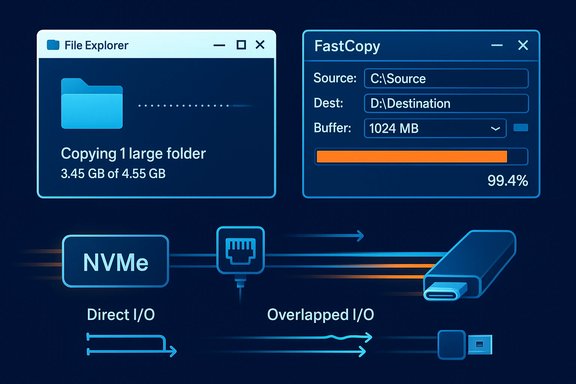
FastCopy’s design choices are deliberate and narrow: extract maximum throughput and reliability from the I/O stack without a heavy GUI or unnecessary layers.- Direct I/O and Overlapped I/O: FastCopy can use Direct I/O (bypassing the OS cache) and Overlapped I/O (asynchronous ReadFile/WriteFile), which reduces buffer copying and paging overhead and lets the app pipeline reads and writes efficiently. The official FastCopy help documents OverLap I/O as a performance booster (and provides an option to disable it for problematic SD card adapters).
- Optimized buffering: FastCopy exposes a Buffer(MB) setting so users can tune the in‑process buffer size; larger buffers reduce syscalls and context switches for large sequential transfers. The UI exposes this to the user and the option is commonly used to tune throughput on high‑speed NVMe drives and network links.
- Multithreaded read/write/verify pipeline: FastCopy internally performs multi‑threaded read/write and verification operations rather than relying on Explorer’s serialized flow; this brings much better utilization for modern multi‑core systems and SSDs.
- Lightweight footprint and portability: The app avoids MFC and heavy frameworks; its installer is small and a portable ZIP exists for troubleshooting on machines where you don’t want to install software. Multiple download repositories report installer/portable sizes around a few megabytes.
Installing and first steps (Windows 11)
- Download either the installer or the portable ZIP from the official FastCopy site or a trusted distributor. The installer adds shell context menu integration; the portable ZIP can be run from USB.
- Open FastCopy: the UI is intentionally minimal — Source and DestDir fields, a Mode dropdown (Diff, Copy, Move variants), a Buffer(MB) field, and an Execute button. The default setup is enough to start copying.
- Enable shell integration through Options → Main Settings → Shell Extension if you prefer right‑click copy commands in Explorer. That mirrors the behavior of other copy replacements while keeping FastCopy optional.
Key FastCopy features that matter in real workflows
- Modes and filters
- Diff (No Overwrite) — copy only what doesn’t exist on the destination.
- Diff (Size/Date) — skip unchanged files based on size and timestamp.
- Copy (Overwrite All) — standard overwrite behavior.
These modes make incremental backups fast since unchanged files are skipped. - Verification and error handling
- Verify compares files after writing; Nonstop keeps the job running when individual files fail and logs errors instead of aborting the whole batch. Both options are critical for long unattended jobs.
- Preserve metadata
- ACL (NTFS permissions) and AltStream (NTFS alternate data streams) options keep file metadata intact during migrations — essential for system files, user profiles, or files used by applications that store metadata in alternate streams.
- Include / Exclude filters
- Wildcards and exclude patterns reduce job size and avoid copying temporary or unnecessary files. This is very useful when migrating only specific assets from a large project directory.
- Post‑process actions
- Shutdown, Standby, or custom commands after the job finishes let you schedule overnight transfers and power down the machine automatically.
- Command‑line support
- FastCopy supports scripted runs and can be combined with Task Scheduler for recurring backups or one‑off migration jobs in enterprise troubleshooting toolkits. The portable mode plus command line enables flexible usage on multiple machines.
Benchmarks and the reality of “faster” — what the numbers mean
MakeUseOf and other hands‑on writeups commonly report material speed gains with FastCopy versus Explorer on representative jobs — especially where Explorer’s overhead compounds (lots of small files, mixed metadata, or non‑local destinations). One reported example moved a 15.7GB folder to an external NVMe: Explorer ~27.2s vs FastCopy ~20.7s with a 1024MB buffer (~24% faster). That kind of improvement is believable but highly dependent on hardware, drivers, and system load. The published numbers should be treated as indicative, not universal: network latency, antivirus scanning, controller firmware and USB/Thunderbolt ports all shape outcomes.Independent documentation and developer notes explain why these gains exist: FastCopy’s overlapped and direct I/O choices can reduce user‑mode to kernel‑mode copy overhead and pipeline reads/writes better than the Explorer path. The FastCopy site claims multi‑threaded read/write/verify and lists performance optimizations for SSDs in recent releases. Cross‑checking with community repositories and portable packaging pages shows active packaging and distribution (PortableApps, Chocolatey, MajorGeeks), which corroborates that the tool is maintained and widely used; these pages also list small binary sizes confirming the low footprint. Caution: if precise throughput numbers matter for procurement or SLAs, run controlled benchmarks on the exact source/destination hardware, with real antivirus/sync agents active — synthetic lab tests often overstate real‑world gains.
How FastCopy compares to other common alternatives
- Robocopy (built into Windows)
Robocopy is scriptable, supports multithreading (/MT), restartable mode (/Z), and robust logging — ideal for scripted, repeatable network transfers. For unattended, audited migrations Robocopy is often the enterprise choice. Microsoft documentation and migration guides recommend /MT tuning (default 8 threads) and combining with checksums for verification when needed. FastCopy’s advantage is a GUI with explicit buffer tuning and direct I/O optimizations; Robocopy wins for server automation and integration into existing Windows Server workflows. - TeraCopy
TeraCopy is another Explorer‑integrated GUI replacement that focuses on ease of use, pause/resume, and error handling. It’s user‑friendly and a great desktop choice; FastCopy tends to deliver better raw throughput on metadata‑heavy tasks and gives more low‑level tuning (Direct I/O, Overlap). - FreeFileSync / GoodSync
These are synchronization tools with versioning, scheduling, and two‑way sync semantics. They’re excellent for ongoing sync jobs but carry heavier UIs and more features than FastCopy’s single‑purpose design. Use them when sync semantics (conflict resolution, versioning) matter.
Practical tuning and a recommended workflow
- Before copying:
- Pause cloud sync clients (OneDrive, Dropbox) and any non‑essential background services; they add I/O and cause conflicts.
- Ensure destination filesystem supports your files (NTFS/exFAT for >4GB files).
- FastCopy tuning:
- Start with Buffer = 512MB (common default for many users) and increase (to 1024MB or more) for NVMe-to-NVMe or high bandwidth network transfers, but monitor RAM usage. The FastCopy UI exposes Buffer(MB) directly.
- Enable OverLap I/O for most devices; disable it for old SD card adapters or devices that exhibit odd behavior. FastCopy explicitly documents an SD card compatibility checkbox.
- Use Diff (Size/Date) for incremental backups to skip unchanged files and save time.
- Use Verify for critical backups; use Nonstop to keep the batch running while logging errors so unattended jobs don’t require human intervention.
- For unattended scheduled runs:
- Script FastCopy command lines and test with small datasets.
- Use Task Scheduler and configure post‑process actions (shutdown/notify).
- Preserve logs and perform periodic hash verification of archived datasets with Get‑FileHash or similar tools.
Risks, caveats and when FastCopy is not the right tool
- AV and endpoint scanners: Real‑time antivirus can negate throughput gains; if policy allows, whitelist FastCopy or add temporary exclusions. This must be done cautiously and in line with security policy.
- Multithreading vs device behavior: Aggressive buffering helps SSDs and networks but can overwhelm older HDDs, causing more seeks and slower net performance. Test thread/buffer settings before committing to large jobs.
- /MIR and destructive syncs in other tools: When combining tools (e.g., Robocopy /MIR) be careful — mirror operations can delete destination files if pointed at the wrong path. FastCopy’s default modes are safer for manual use, but always dry‑run or test.
- Vendor support & licensing for enterprise: FastCopy is free for personal use, but the developer page notes a Pro license is required for continuous commercial use; check licensing before rolling it out company‑wide.
- Unverifiable universal claims: Any single benchmark (percentage faster, “20×–100×” in marketing copy) should be treated with caution — results vary by file size distribution, network latency, controller firmware, antivirus behavior, and concurrent system load. Always validate on your environment.
Hands‑on checklist: testing FastCopy safely
- Pick a representative folder with a mix of file sizes (small + large) and a destination matching your production target (same SATA/NVMe/HDD or network share).
- Pause OneDrive/Dropbox and close heavy apps.
- Run Explorer copy with a stopwatch (or record logs) to gather baseline.
- Run FastCopy with Buffer = 512MB, then 1024MB; compare wall‑clock time and CPU/disk utilization.
- Enable Verify and run again to measure verification overhead.
- If networked, test with varying OverLap I/O settings and check for stability; enable Low I/O priority if you need other apps responsive.
Final assessment
FastCopy is exactly what its name promises: a fast, focused copy utility that removes much of the drag Explorer imposes on large or complex transfers. Its low memory footprint, portable mode, direct I/O / overlapped I/O options, and explicit verification make it an excellent tool for power users, creatives moving media libraries, and IT professionals troubleshooting migrations. Community evidence and packaging across PortableApps, Chocolatey and download portals confirm its ongoing maintenance and widespread practical use. At the same time, adopters must be pragmatic: performance claims are workload‑dependent and environmental factors like antivirus, USB port generation, and storage controllers have outsized influence on results. For scripted enterprise migrations, Robocopy remains a first‑class tool; for daily interactive speed and portable troubleshooting, FastCopy is often the better fit. Use FastCopy as part of a verified workflow: pause sync agents, test buffer/overlap settings on representative datasets, enable Verify for critical jobs, and keep logs and checksums for archival data. When you do, FastCopy delivers reliably faster, more predictable transfers than Explorer — with far less drama when things go wrong.Conclusion
For Windows users who move large datasets regularly, FastCopy is a lean, high‑leverage improvement over Explorer: tiny installer/portable footprint, explicit I/O tuning, verification and error‑tolerant behavior, and shell integration when desired. It’s not a GUI makeover — it’s a practical tool for getting the job done reliably and quickly. Test it on your workload, tune buffer and overlap options, and add verification to your backups — you’ll recover hours of waiting time and far fewer “why did that copy stop?” surprises.
Source: MakeUseOf This free tool moves files much faster than Windows Explorer
