

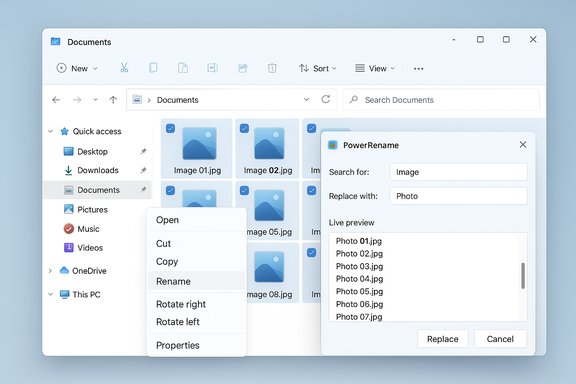
Files, the popular third‑party file manager for Windows 11, has added direct integration with Microsoft PowerToys’ powerful bulk‑renaming utility — a pragmatic pairing that brings a frequently requested productivity workflow into the Files UI and gives users of both projects a smoother, faster way to handle mass renames without leaving their alternate file manager.
Files (often shown simply as “Files” or “Files App”) has emerged as one of the most polished third‑party File Explorer replacements for Windows 10 and Windows 11. Its modern Fluent‑style UI, tabbed and dual‑pane options, metadata‑rich Cards view, and Quick Look–style preview features make it popular with power users and creative professionals who want more than the stock Windows File Explorer provides. Recent updates have focused on thumbnail and DPI improvements, new layout options, and richer metadata presentation. Microsoft PowerToys is a Microsoft‑maintained, open‑source collection of small utilities designed to extend Windows for power users. Among its modules, PowerRename is a shell extension that provides advanced batch rename capabilities (search/replace, regular expressions, enumerators, metadata tokens) via a context‑menu entry and a preview pane. PowerRename is actively maintained and documented in the PowerToys project. The new integration centres on bringing PowerRename’s functionality into the Files workflow so users can select items inside Files and invoke PowerRename from the Files right‑click or menu system, rather than having to switch back to Windows File Explorer or use a separate sequence of actions. That is the headline change reported in coverage of the update.
That said, IT teams and cautious users should evaluate deployments with the usual caveats: shell extensions can affect stability, and Windows 11’s context menu model sometimes hides or delays legacy entries. For everyday productivity users, though, this integration is a sensible, low‑effort win: enable PowerRename in PowerToys, update Files, and enjoy a smoother rename workflow without sacrificing safety or undoability.
Source: Neowin https://www.neowin.net/news/popular...gration-with-one-of-powertoys-best-utilities/
 Background
Files (often shown simply as “Files” or “Files App”) has emerged as one of the most polished third‑party File Explorer replacements for Windows 10 and Windows 11. Its modern Fluent‑style UI, tabbed and dual‑pane options, metadata‑rich Cards view, and Quick Look–style preview features make it popular with power users and creative professionals who want more than the stock Windows File Explorer provides. Recent updates have focused on thumbnail and DPI improvements, new layout options, and richer metadata presentation. Microsoft PowerToys is a Microsoft‑maintained, open‑source collection of small utilities designed to extend Windows for power users. Among its modules, PowerRename is a shell extension that provides advanced batch rename capabilities (search/replace, regular expressions, enumerators, metadata tokens) via a context‑menu entry and a preview pane. PowerRename is actively maintained and documented in the PowerToys project. The new integration centres on bringing PowerRename’s functionality into the Files workflow so users can select items inside Files and invoke PowerRename from the Files right‑click or menu system, rather than having to switch back to Windows File Explorer or use a separate sequence of actions. That is the headline change reported in coverage of the update.What changed: a practical summary
- Files now recognizes and exposes PowerToys’ renaming functionality in its context menus and command palette when PowerToys is installed and PowerRename is enabled. This makes bulk renames faster and preserves the Files UX.
- The integration is additive and optional: PowerRename must be enabled inside PowerToys settings for the menu item to appear. PowerToys continues to supply the renaming engine and undo behavior; Files acts as the host for invoking it.
- The behavior follows the same model that PowerToys uses with File Explorer — a shell extension invoked on the selected file set that opens PowerRename’s dialog with a live preview before applying changes. This preserves PowerRename’s undo semantics because the underlying rename operation is still performed via standard Windows file operations.
Why this matters (benefits to users)
Faster, fewer context switches
Invoking PowerRename directly inside Files means one less app switch for users who prefer Files’ UI. That improves speed for common workflows such as cleaning downloads, normalizing photo collections, or renaming exports from creative apps.Combines best‑of‑both projects
Files provides a modern UI and browsing workflows; PowerRename has a mature, flexible renaming engine (regex, enumerators, metadata tokens). Bringing the two together yields a workflow where each tool focuses on its strengths: Files on file navigation and preview; PowerRename on precise filename transformations.Preserves safety features
Because the actual rename operation still goes through PowerRename (and therefore the Windows file operations engine), the familiar preview and undo semantics remain available — a vital safety net when renaming hundreds or thousands of files.Better adoption for PowerToys utilities
PowerToys gains more visibility and consistent use when its tools appear in popular third‑party apps. PowerRename is one of PowerToys’ most used add‑ons, and surfacing it in Files drives broader adoption of an already trusted utility.Technical verification: how the integration works (and what was validated)
This section explains the integration model and verifies key technical claims against official documentation and independent coverage.Integration model
- Files exposes the host context menu and passes the selected file list to an external shell command or invokes the registered shell extension for PowerRename. This matches the standard pattern for Explorer add‑ons.
- PowerRename remains the executable module that shows the batch rename dialog and performs rename operations through Windows’ file APIs — including the ability to undo via Explorer undo. The PowerToys documentation confirms PowerRename’s behavior and undo mechanism.
Verified claims
- PowerRename is a PowerToys module and integrates as a File Explorer shell extension; turning it on/off is done inside the PowerToys settings. This is explicitly documented.
- Files includes a command palette, context menu improvements, and third‑party add‑on compatibility that make it a suitable host for calling external utilities. Recent Files updates added new layouts and context menu behavior that make these integrations smoother.
Cross‑checks used
- PowerToys project documentation and release notes were consulted to confirm PowerRename’s capabilities and how it integrates with File Explorer.
- Independent coverage of Files’ feature set and recent releases (community summaries and mainstream tech outlets) confirm Files’ ability to host context‑menu actions and the presence of UI changes that enable such integrations.
How to use the integration today — short, practical steps
- Install PowerToys (official GitHub release or Microsoft Store) and open PowerToys settings.
- Enable the PowerRename module inside PowerToys (Settings → PowerRename).
- Install or update Files to the latest version (use Microsoft Store preview channel or the Files project release). Confirm Files is running.
- In Files, select multiple files, right‑click, and look for the PowerRename entry (or choose from the Files command palette if the project exposes it there). The PowerRename dialog should open with a live preview.
- Compose your search/replace, regular expression, or enumerator pattern, preview the results, then apply. Use the undo feature if you need to revert.
- On some Windows 11 builds, context‑menu behavior may vary; if the PowerRename entry doesn’t appear immediately, try restarting Files, restarting Explorer, or verifying PowerRename is enabled in PowerToys. Community reports and PowerToys documentation note occasional context‑menu visibility issues on some builds.
Strengths and opportunities
- Seamless UX for power users: The integration reduces friction for workflows that combine Files’ superior browsing and preview capabilities with PowerRename’s mature renaming engine. This is a clear productivity win for people who manage large quantities of files regularly.
- Maintains safety and undo semantics: Because PowerRename still performs the actual rename operations through Windows APIs, the existing safeguards (preview and undo) remain in place — critical when performing mass operations.
- Encourages an ecosystem of composable tools: Integration points like this validate an ecosystem approach on Windows: specialized projects each do one thing well and can be combined to produce a best‑of‑breed experience. PowerToys benefits from increased usage; Files benefits by adding high‑value features without creating and maintaining a renaming engine.
Risks and caveats — what to watch for
Shell‑extension stability and Explorer integration
PowerRename and similar context‑menu extensions run inside Windows Explorer processes or rely on registered COM/Shell handlers. Badly implemented or unsigned shell extensions can cause Explorer instability or slow context‑menu rendering. While PowerRename is mature and maintained by Microsoft, third‑party integrations and custom shells sometimes surface edge cases. In managed or corporate environments, validate before wide deployment.Context‑menu visibility inconsistencies
On Windows 11, the modern context menu introduces a two‑tiered flow (“Show more options” for legacy entries). Some users report that shell extensions don’t appear where they expect until Explorer or the host app is restarted. If Files (or PowerToys) fails to register the menu item, restarting Explorer or verifying the module is enabled will usually resolve it. Expect occasional quirks, especially on Insider or early builds.Security and enterprise policy
Third‑party file managers and shell extensions run with the privileges of the user. Organizations that manage images tightly should vet both Files and PowerToys before deploying them to corporate fleets, and ensure code signing, update policies, and allowed software lists are in place. PowerToys is Microsoft‑maintained and open‑source, but organizational policies vary.Feature coverage differences
PowerRename provides many advanced patterns (regex, metadata tokens). Files’ integration likely focuses on invocation and user flow rather than re‑implementing PowerRename features. Users should still rely on PowerRename settings and documentation for complex rename patterns and ensure the PowerRename module is up to date.Alternatives and complementary workflows
- Use PowerRename directly from Windows File Explorer if you prefer native Explorer workflows; Files’ integration is convenience, not a technical requirement.
- For users who want full programmatic control, scripting renames via PowerShell or third‑party batch renamers remains an option for reproducible automation. PowerRename is optimized for interactive use with immediate preview and undo.
- Other file managers (Total Commander, Directory Opus, XYplorer, Double Commander) offer their own bulk rename tools; those remain valid alternatives for users in locked or audited environments that disallow PowerToys or third‑party shell extensions.
Developer and power‑user notes (for admins and tinkerers)
- Validate PowerToys installation and configuration using the official GitHub releases and documentation. The PowerToys repo lists release assets and changelogs which are the authoritative source for version compatibility and module changes.
- To troubleshoot missing context‑menu entries: verify PowerRename is enabled in PowerToys settings; if still missing, restart Files and Explorer; on stubborn systems, sign out or reboot. Keep in mind that Windows 11 context menu changes sometimes require a full restart for shell extensions to surface reliably.
- For scripted deployments in corporate environments, validate the security posture of both apps and prefer signed installers and controlled update channels. PowerToys is available via GitHub releases and WinGet and is maintained publicly; Files’ distribution channel (Microsoft Store preview vs. GitHub builds) may influence how updates are managed in enterprises.
Final analysis: a pragmatic, low‑risk productivity win
The integration of PowerToys’ PowerRename into Files is exactly the sort of pragmatic interoperability that benefits power users: minimal novelty risk, maximum practical value. The two projects are complementary — Files provides a polished, modern browsing surface; PowerRename provides a mature, capable renaming engine. Bringing them together reduces friction in routine but time‑consuming workflows like photo organization, code asset renaming, and batch document cleanups.That said, IT teams and cautious users should evaluate deployments with the usual caveats: shell extensions can affect stability, and Windows 11’s context menu model sometimes hides or delays legacy entries. For everyday productivity users, though, this integration is a sensible, low‑effort win: enable PowerRename in PowerToys, update Files, and enjoy a smoother rename workflow without sacrificing safety or undoability.
Quick checklist
- Enable PowerRename in PowerToys settings.
- Update Files to the latest release (Store preview or GitHub build).
- Confirm the PowerRename entry appears in Files’ context menu; restart Explorer if needed.
- Use PowerRename preview to validate changes before applying and use undo if required.
Source: Neowin https://www.neowin.net/news/popular...gration-with-one-of-powertoys-best-utilities/
